
 40G/100G Optical Transceivers
 25G Optical Transceivers
 10G Optical Transceivers
 155M/2.5G Optical Transceivers
 1G Optical Transceivers
 1G BIDI Optical Transceivers
 Dual-Rate Optical Transceivers
 FC 16G/32G Optical Transceivers
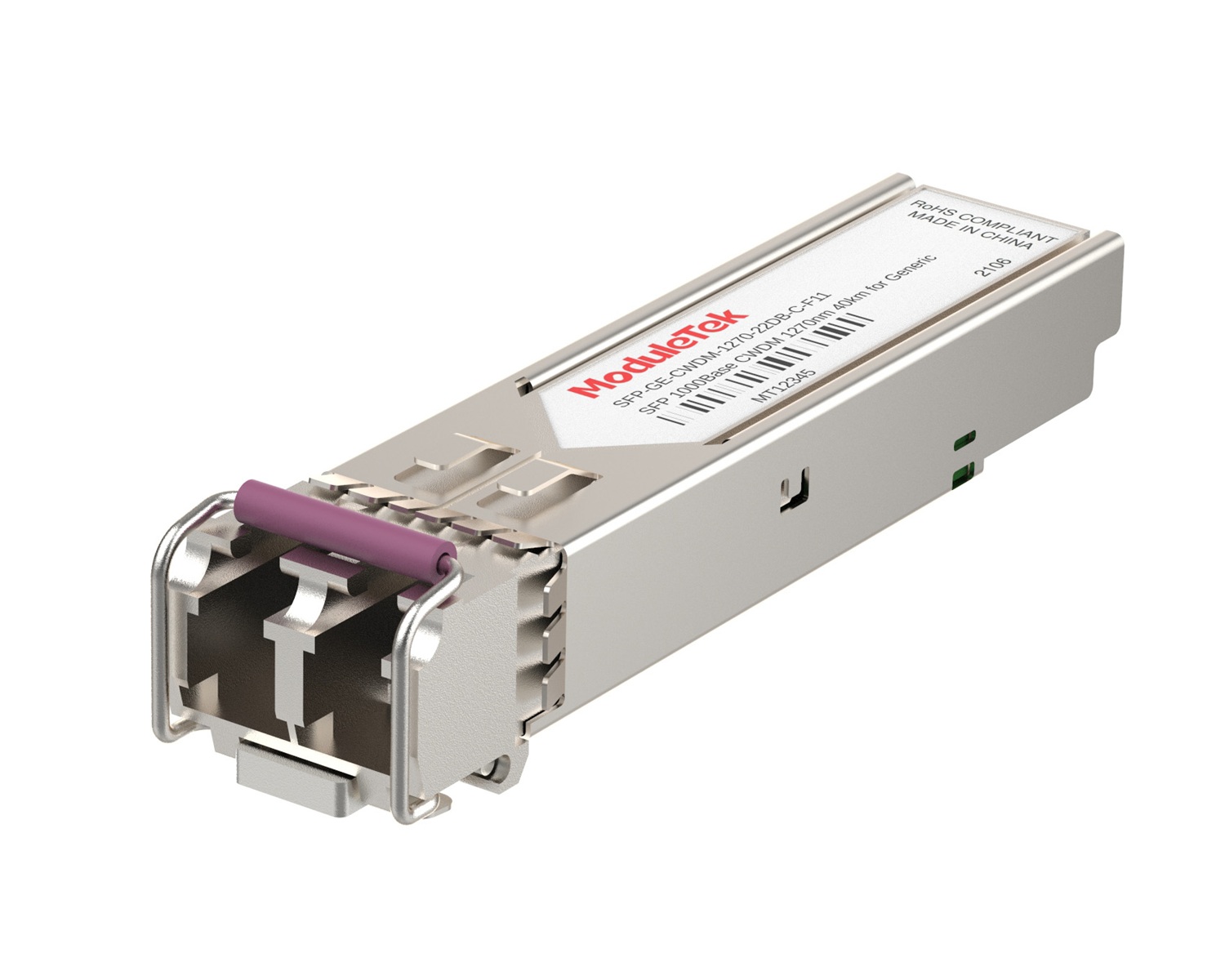 CWDM Optical Transceivers
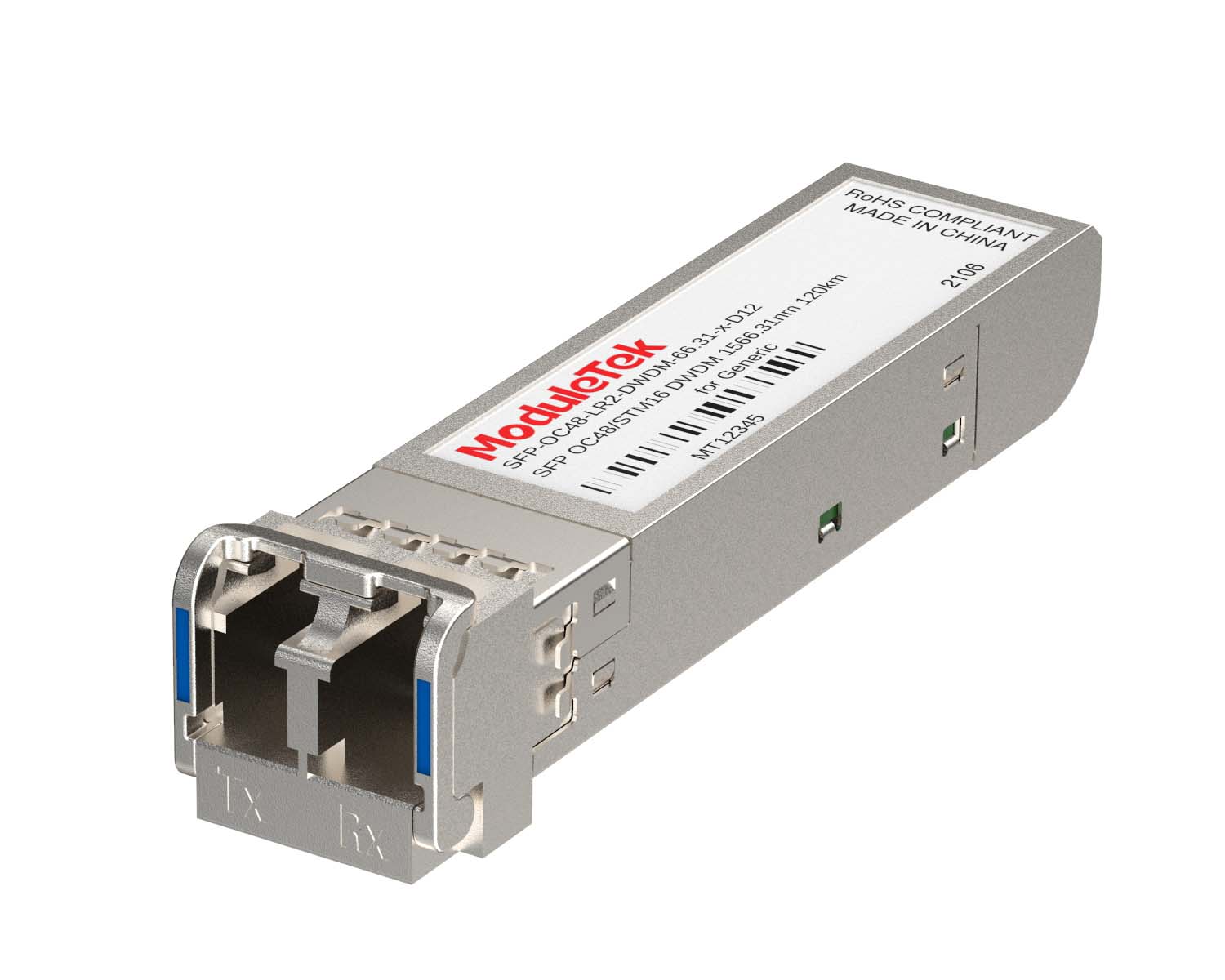 DWDM Optical Transceivers
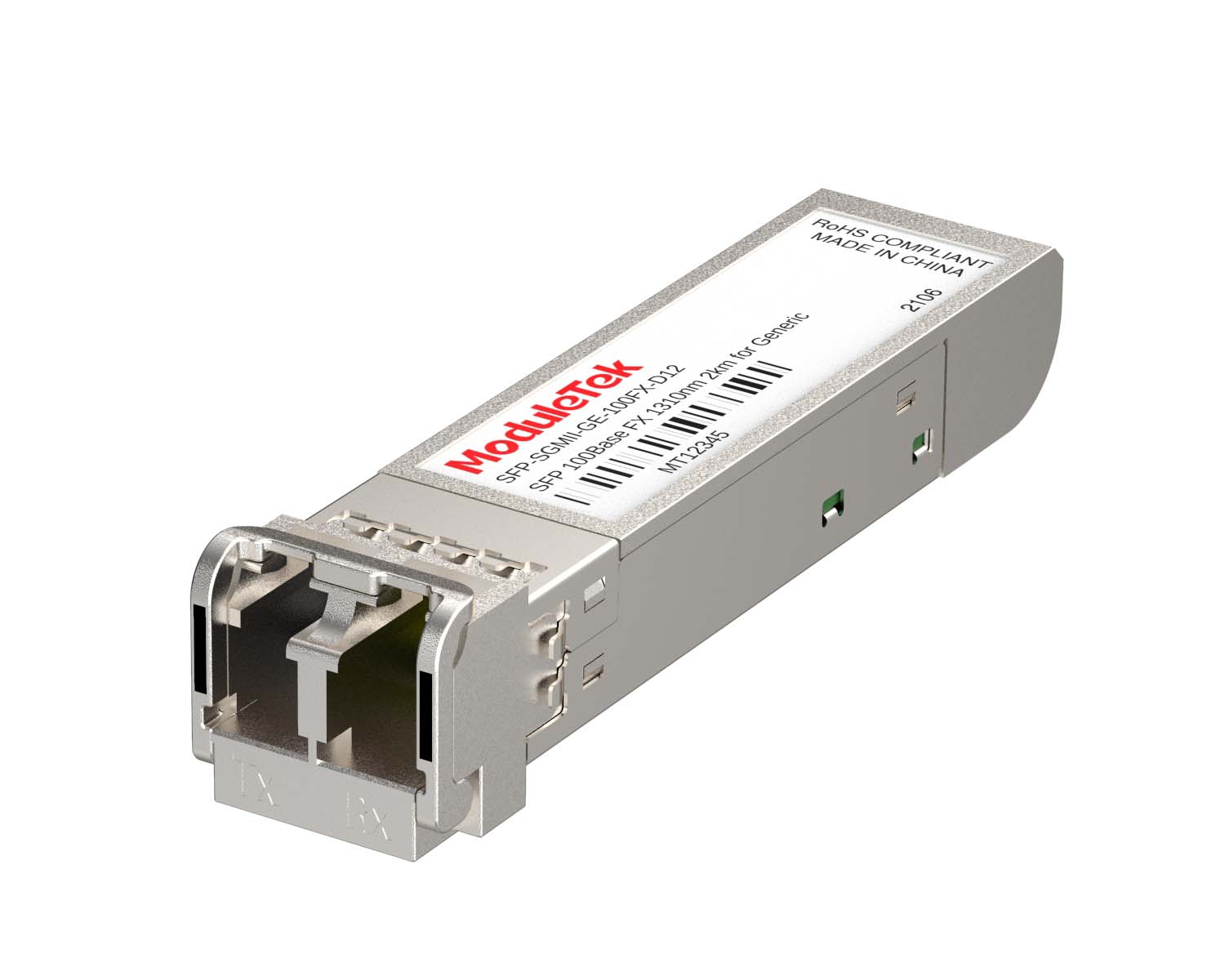 SGMII Port Optical Transceivers
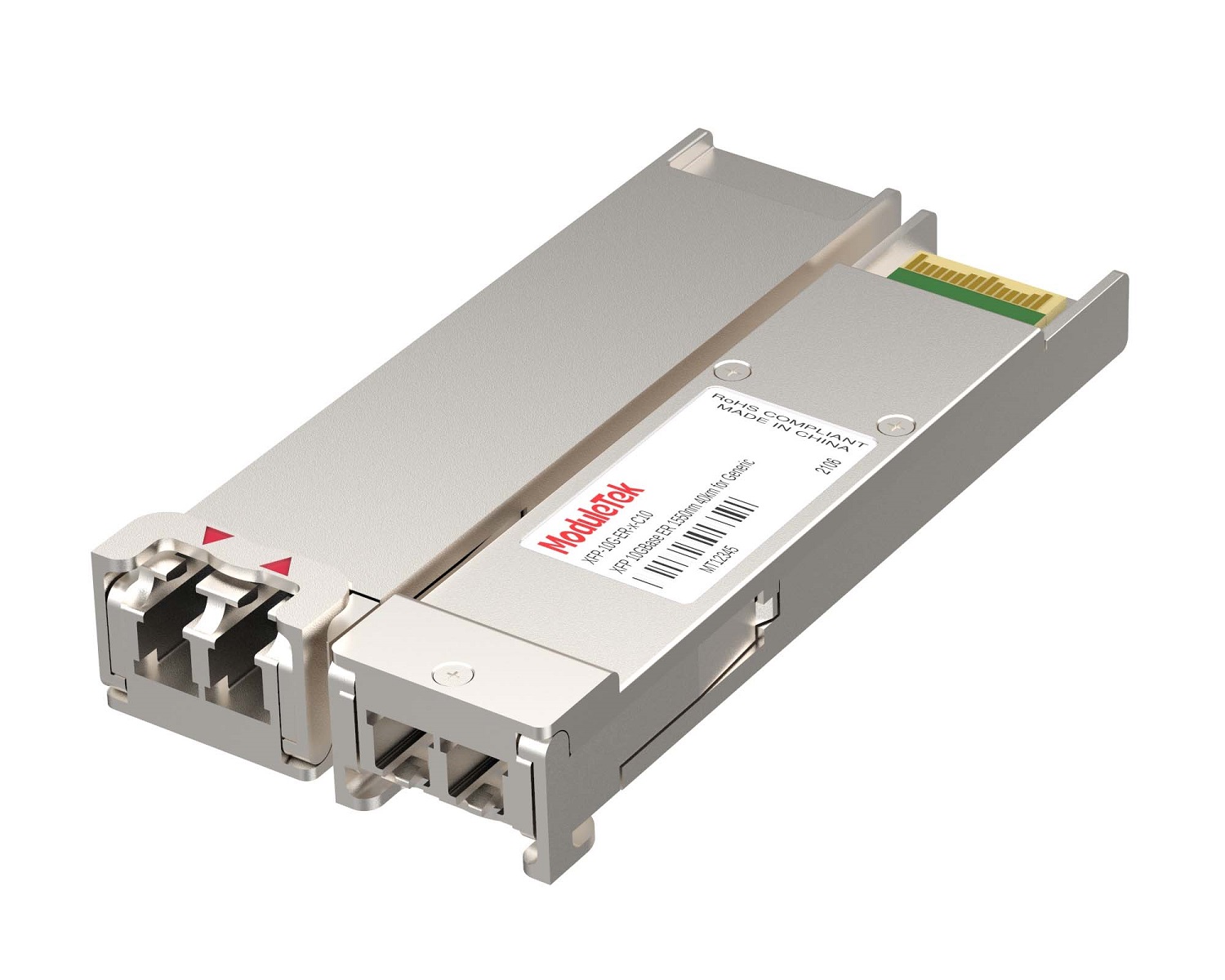 XFP Optical Transceivers
 100M/1G/10G Coppers
 Full-Rate AOC & Breakout Series
 10G/40G Active DAC Series
 Full-Rate Passive DAC Series
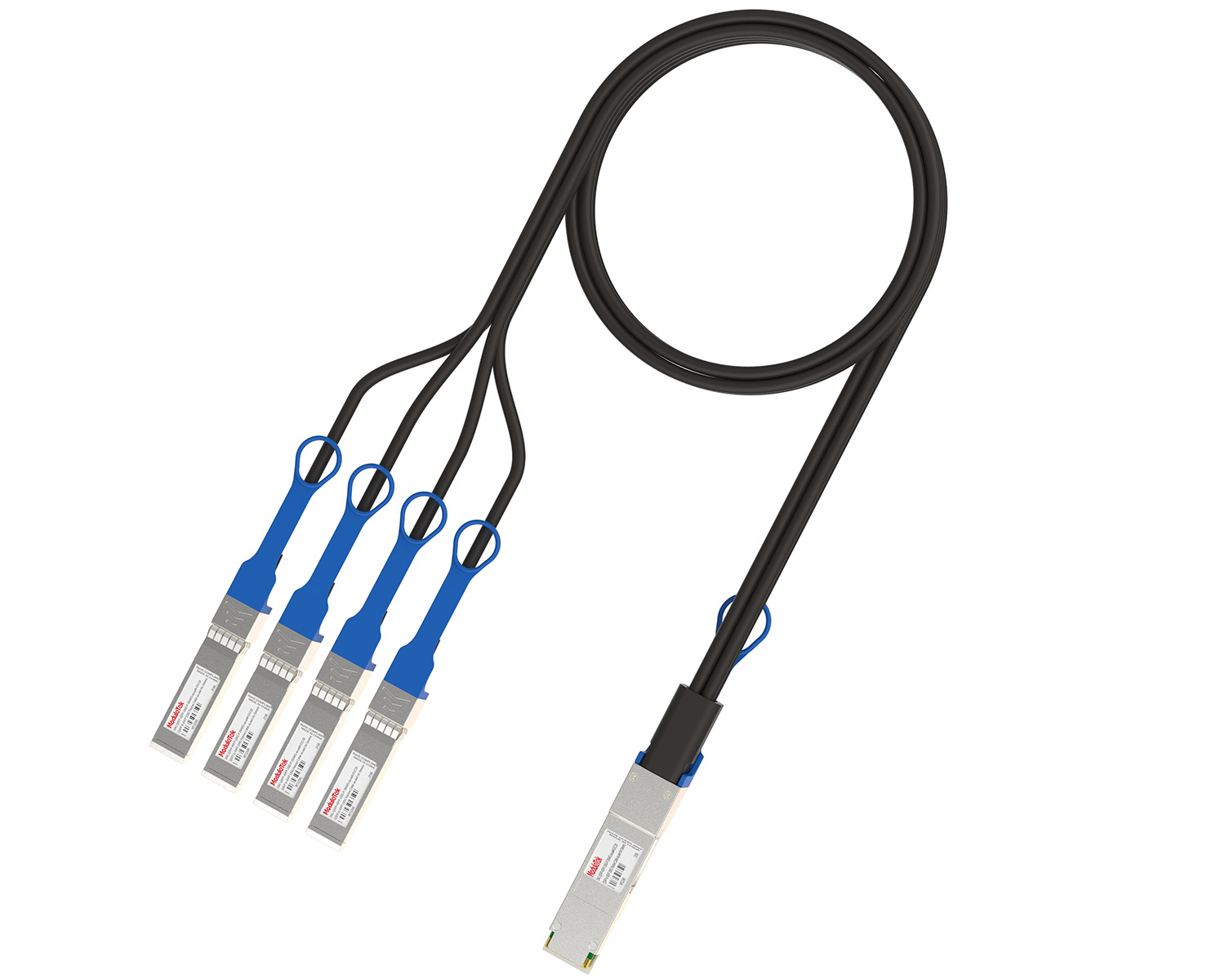 40G/100G Passive Breakout DAC Series
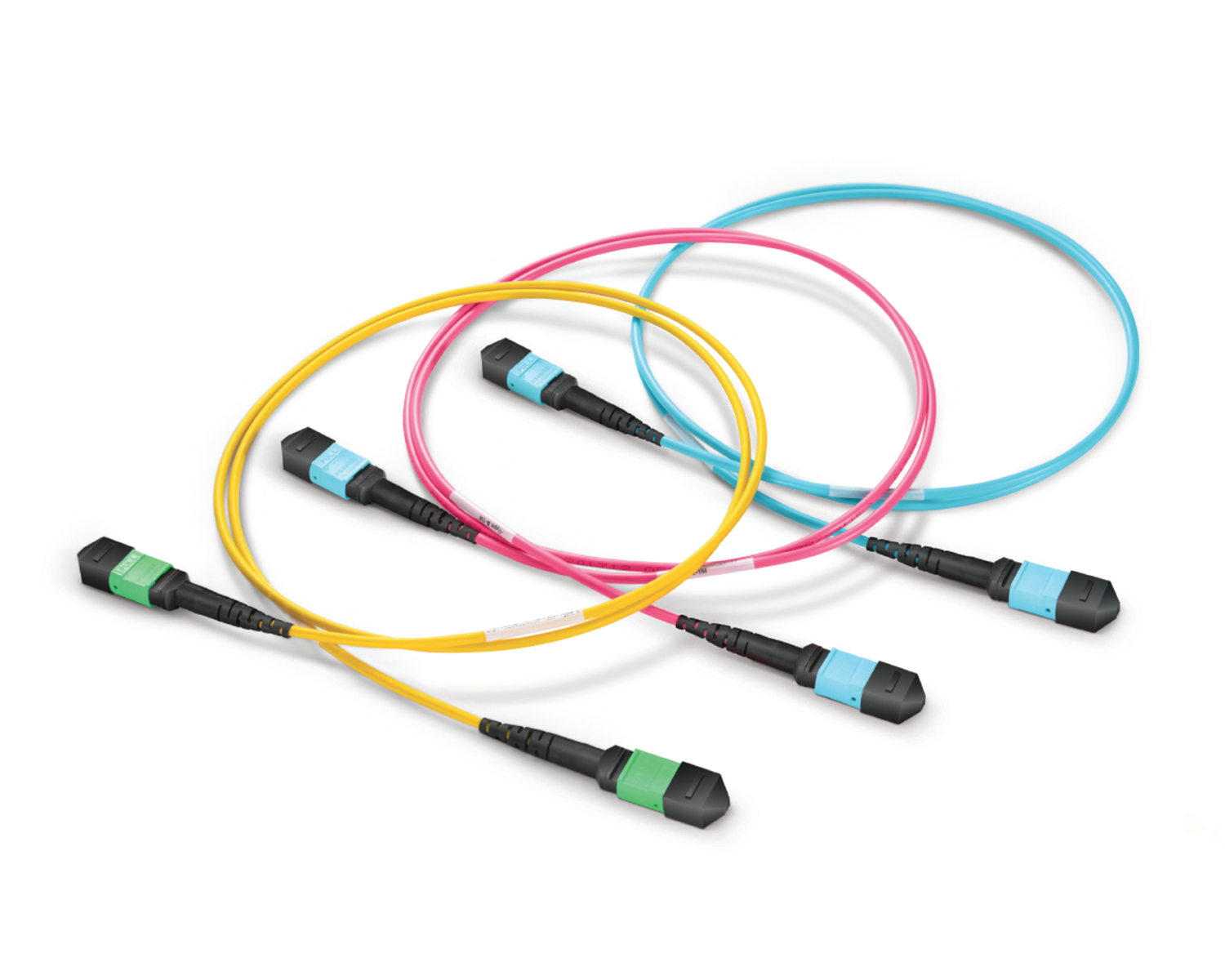 Regular/MTP-MPO Fiber Patch Cords
 MT2011
 MT2010
 CodingBox
 QSFP to SFP Adapter
How To View Optical Transceiver Information On Ciena Switches
Time: 2023-12-20
When optical transceivers are used on switches, dedicated commands are required to check their operating status, parameters and internal data. We use Ciena XCVR-A10Y31 (SFP-GE-LX) transceiver on Ciena 3930 switch to demonstrate query operations.
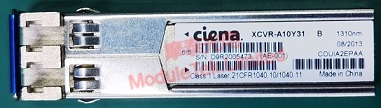
Figure 1 Ciena XCVR-A10Y31 Optical Transceiver

Figure 2 Ciena 3930 Switch Installed with XCVR-A10Y31 Transceiver
1. Transceiver Operating Status
Run command
port show
It displays port speed type, transceiver link status, link duration and working speed.
2. Transceiver Identification Details
Run command
port xcvr show
It shows manufacturer, transceiver model, module type and connector type.
3. Transceiver DOM Diagnostic Data
First run command
port xcvr
to enter (port/xcvr) mode. Then run command
show port Port Name diagnostics
to view DOM data, including real-time temperature, voltage, bias current, TX/RX power, threshold values and threshold overflow alarm status.
Note: Port Name refers to the switch port number, which can be queried by port show.
Moduletek supplies optical transceivers compatible with Ciena switches. Welcome to inquire and purchase.
For further inquiries about the above content, please contact us at: sales@moduletek.com