
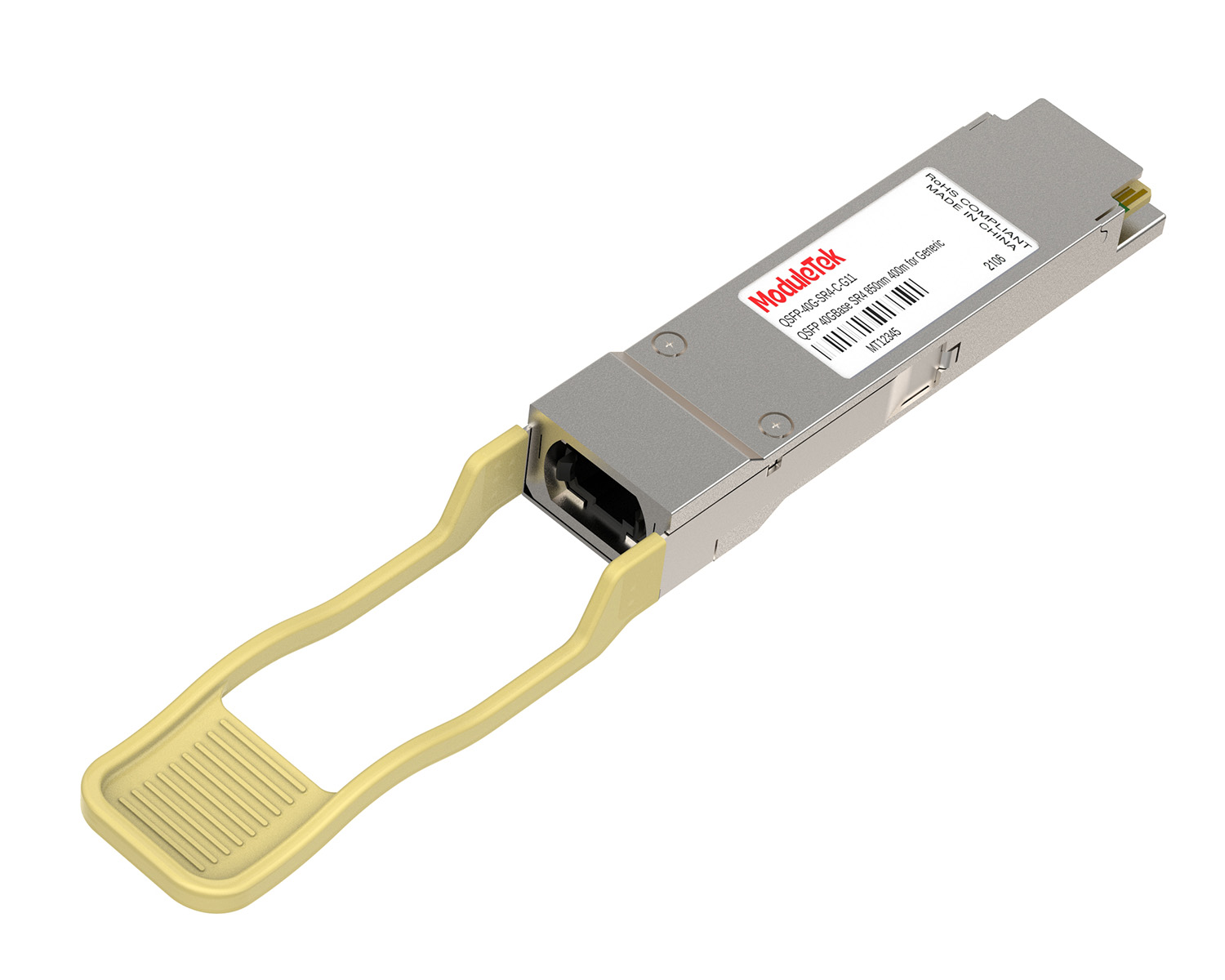
 40G/100G Optical Transceivers
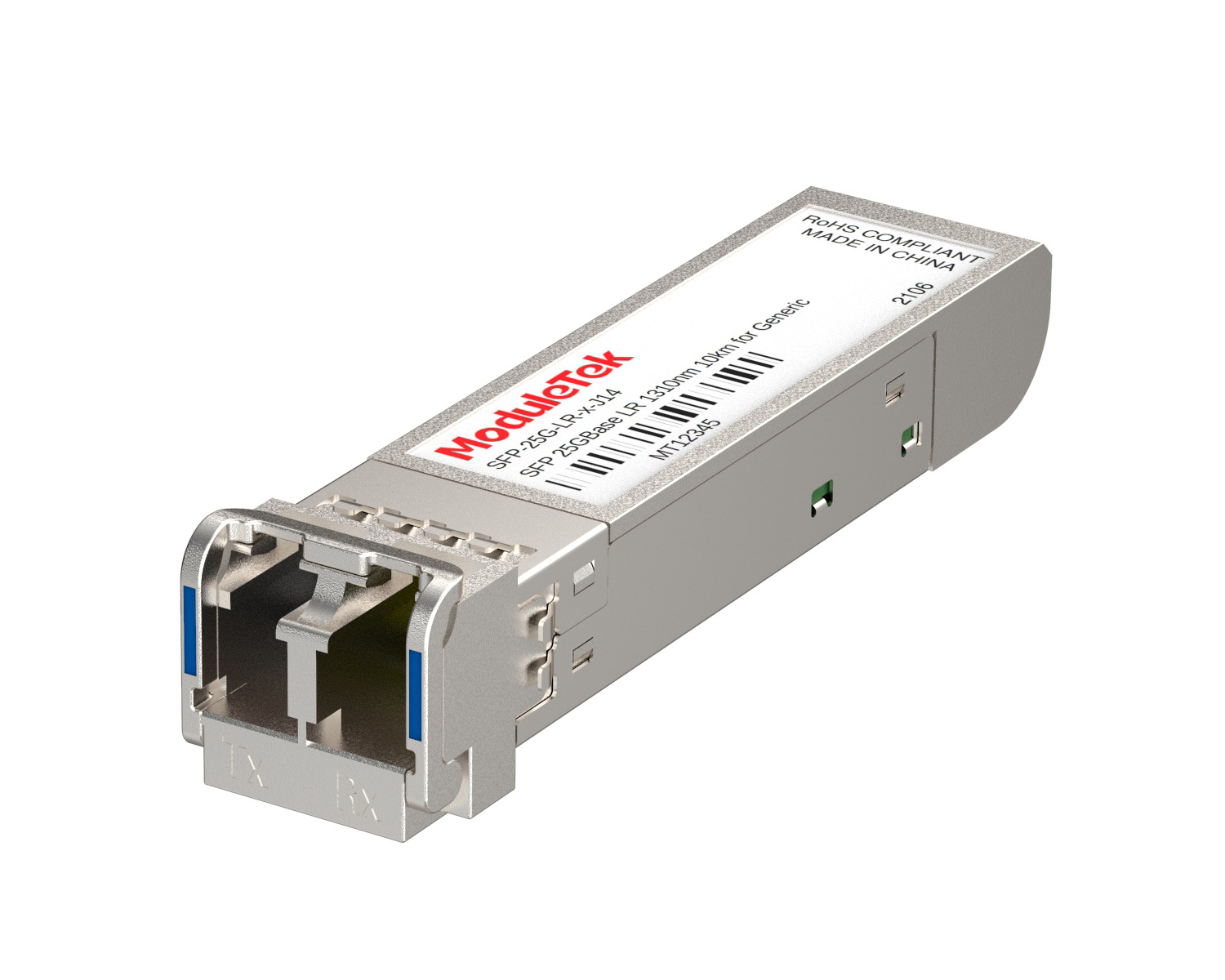 25G Optical Transceivers
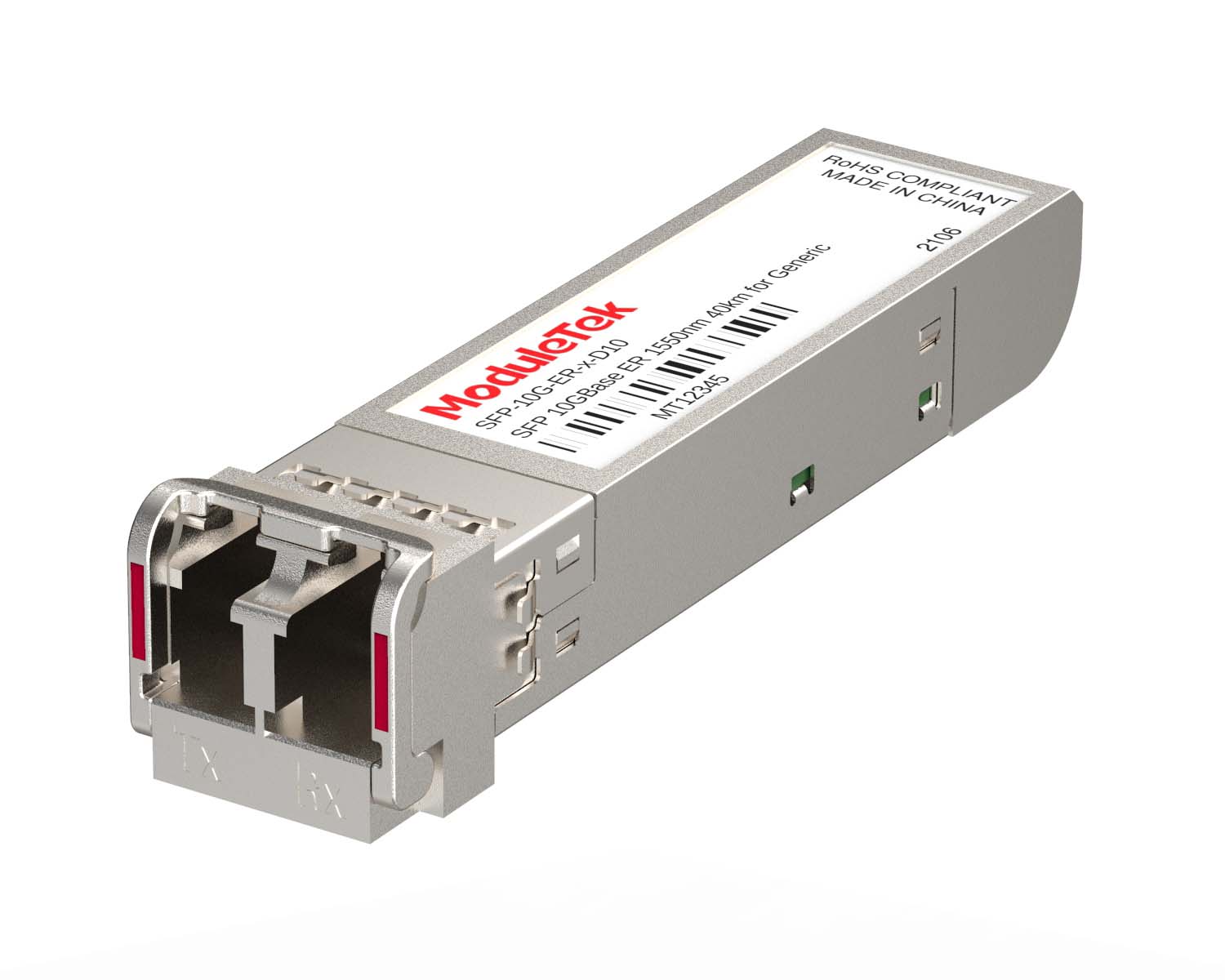 10G Optical Transceivers
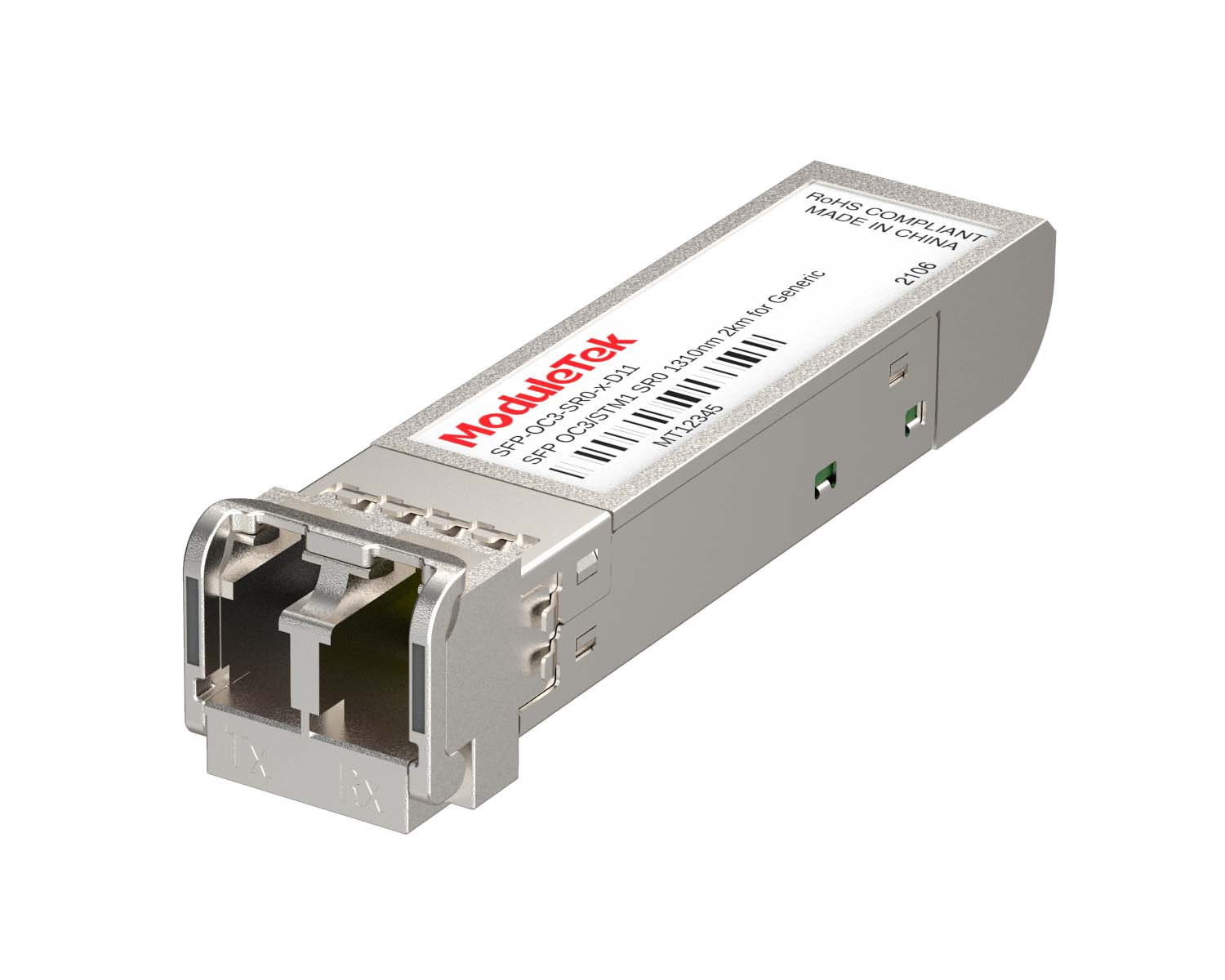 155M/2.5G Optical Transceivers
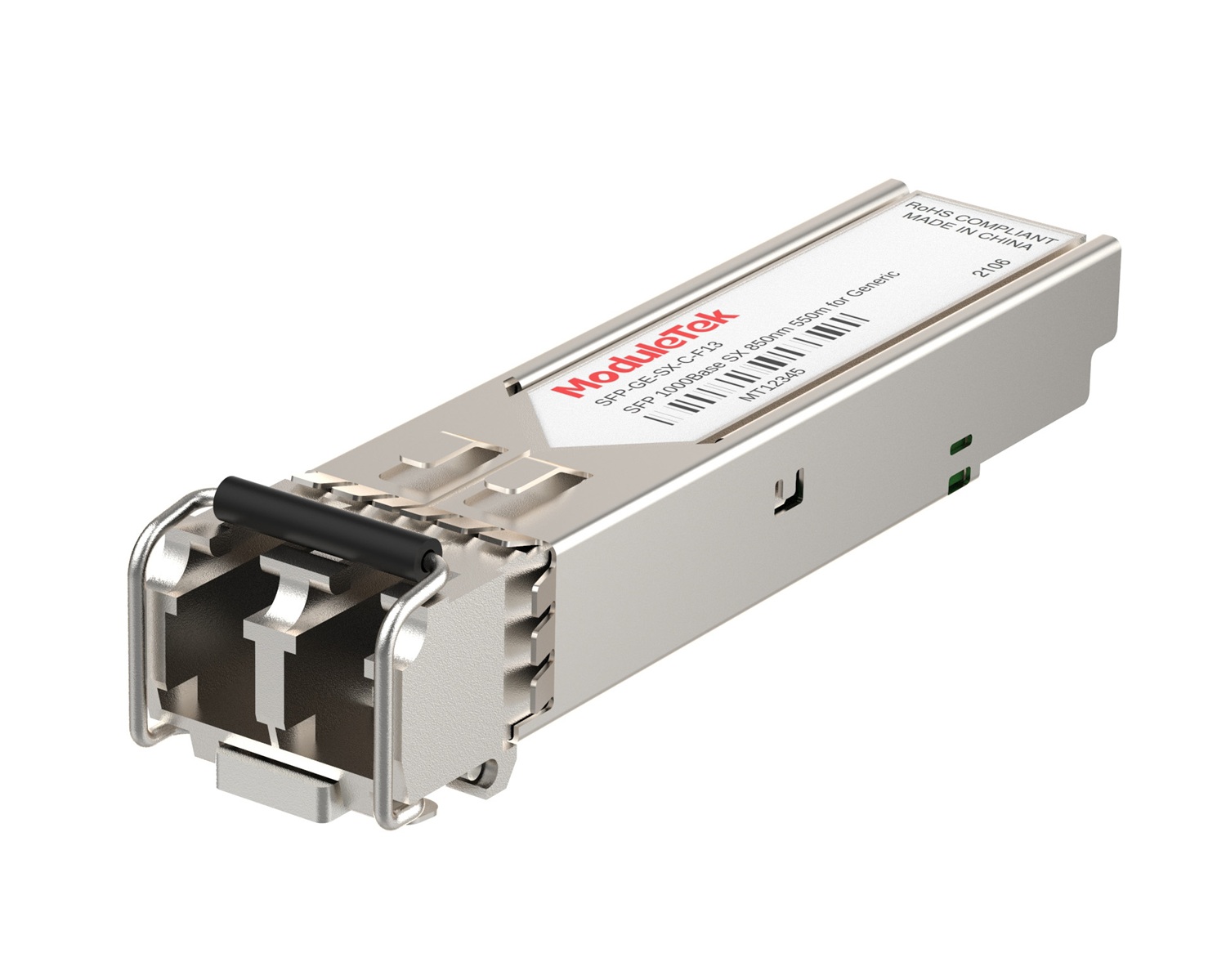 1G Optical Transceivers
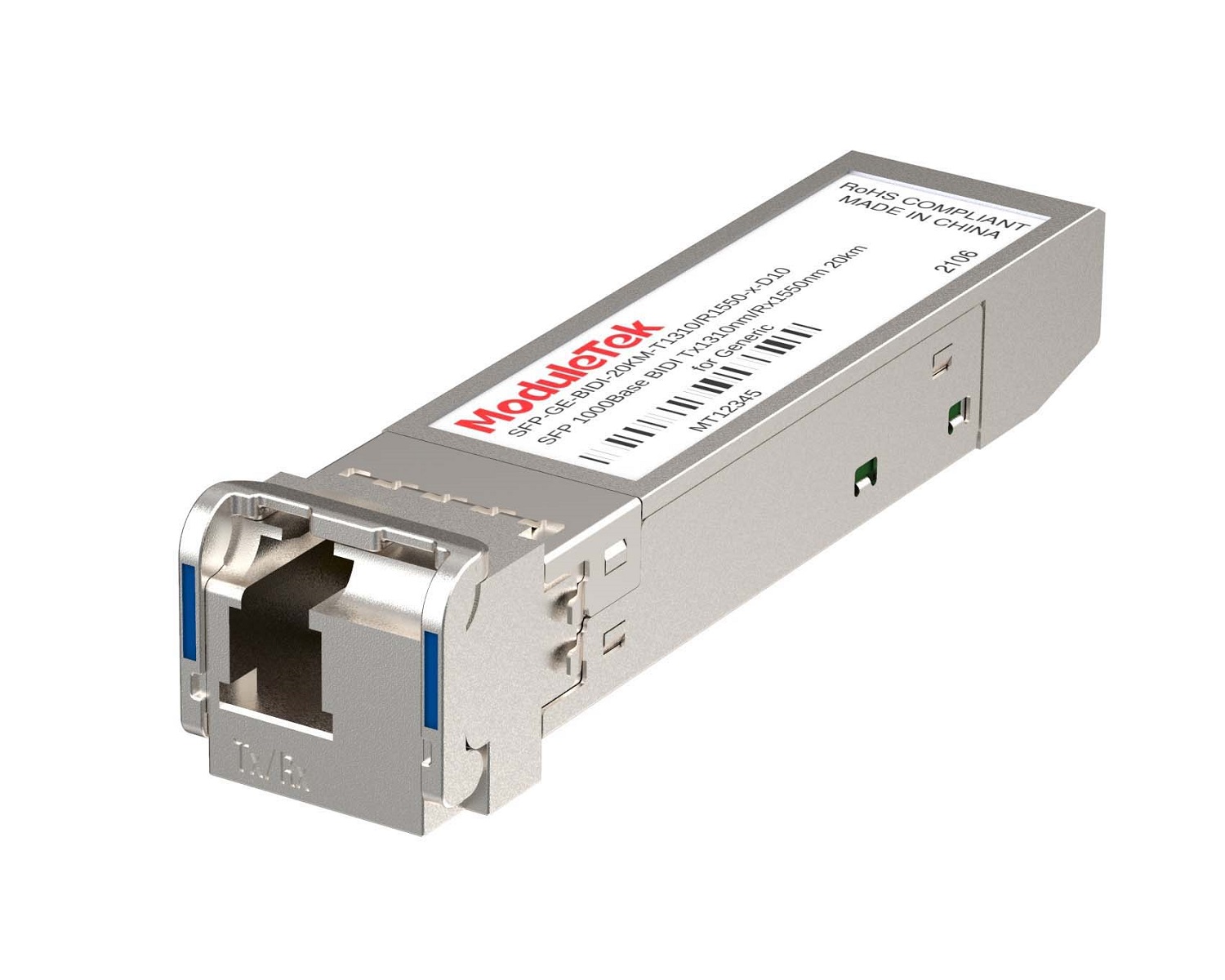 1G BIDI Optical Transceivers
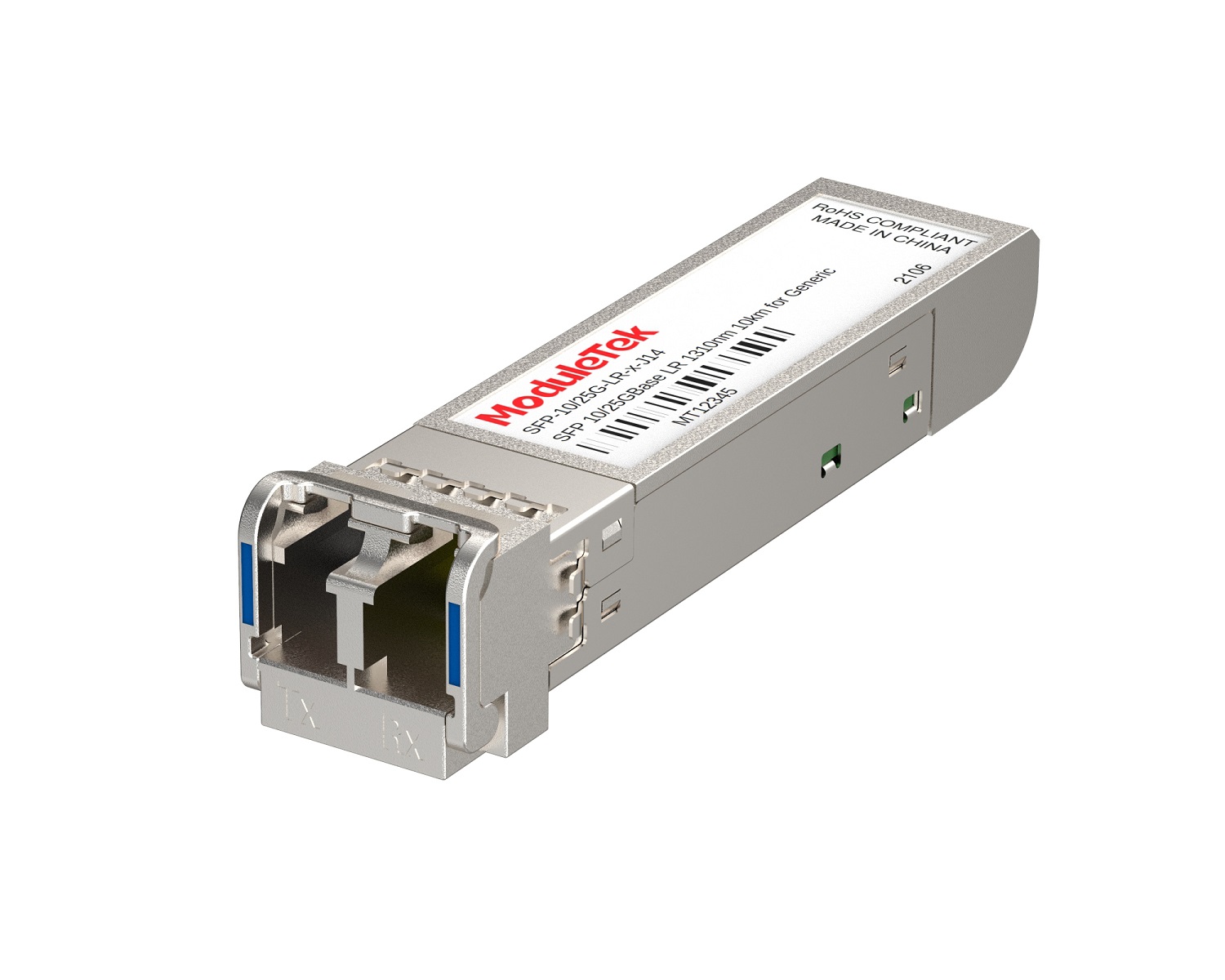 Dual-Rate Optical Transceivers
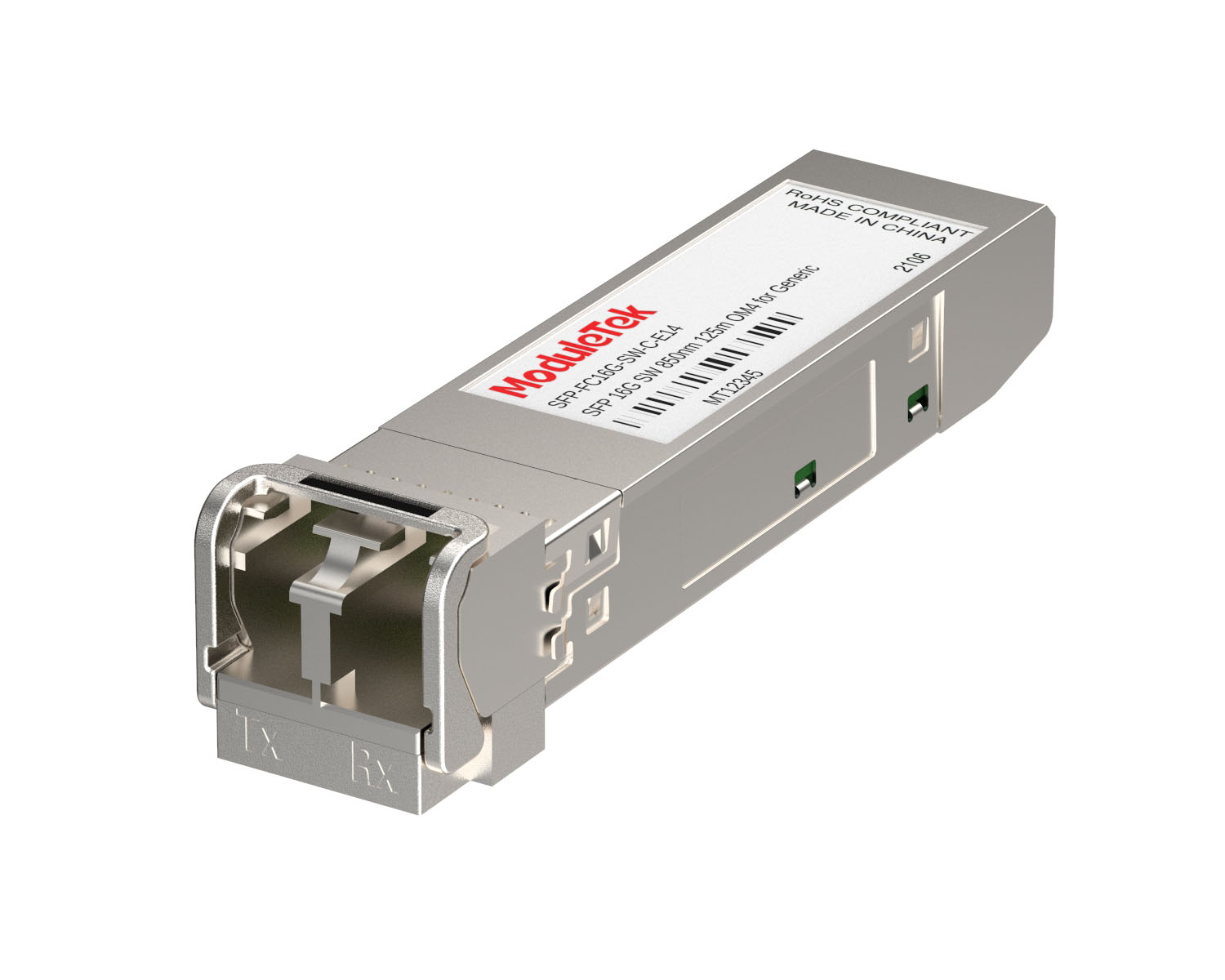 FC 16G/32G Optical Transceivers
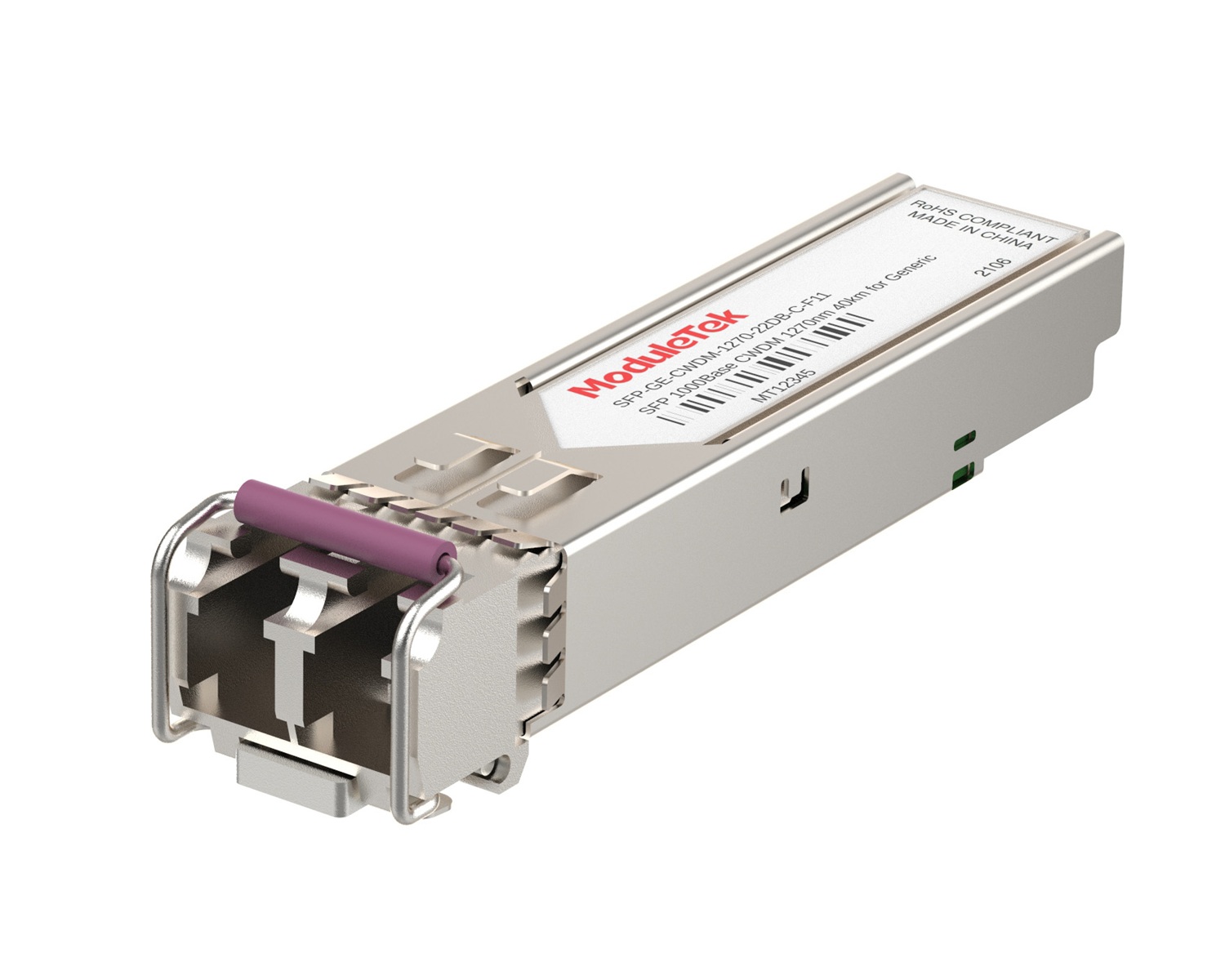 CWDM Optical Transceivers
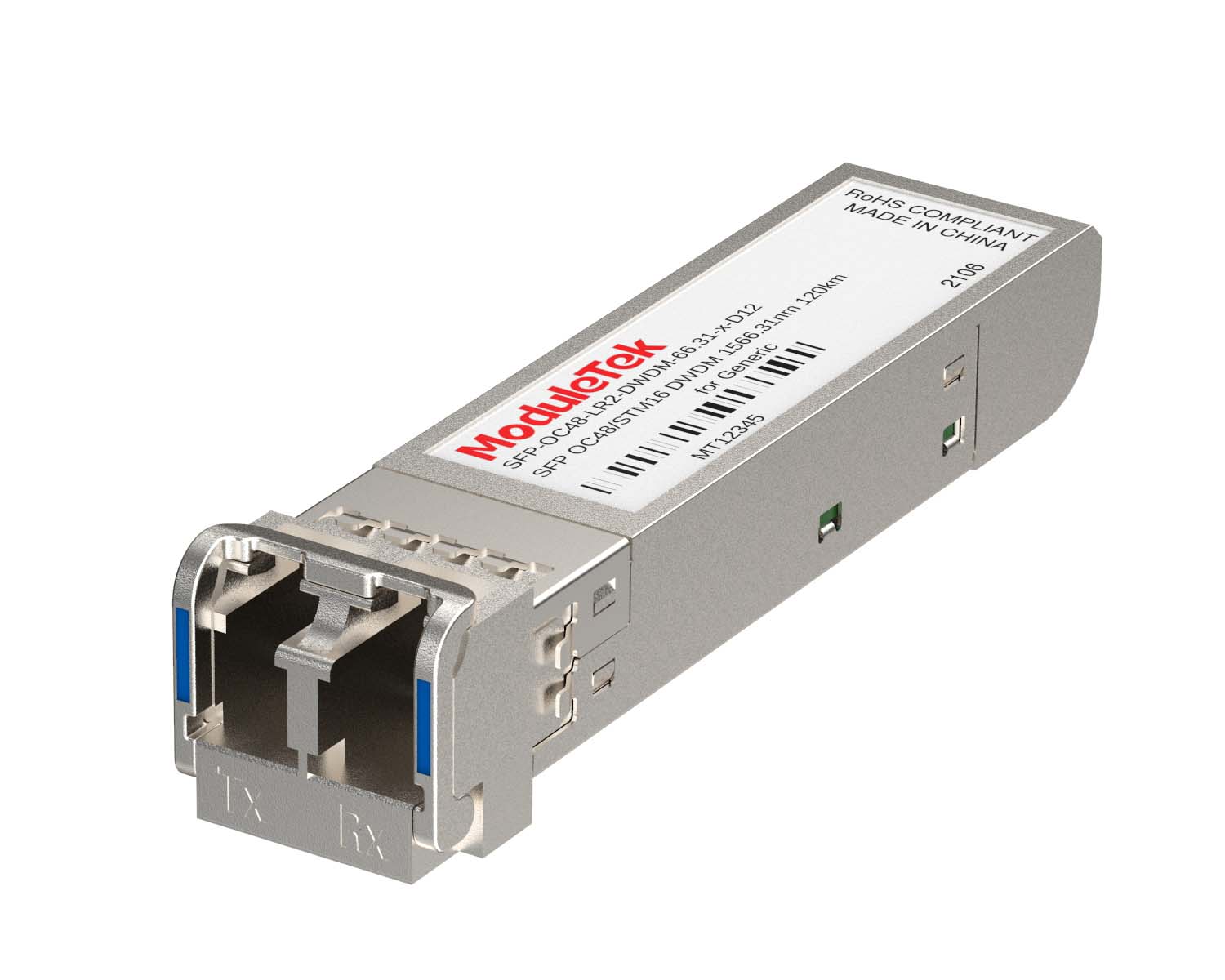 DWDM Optical Transceivers
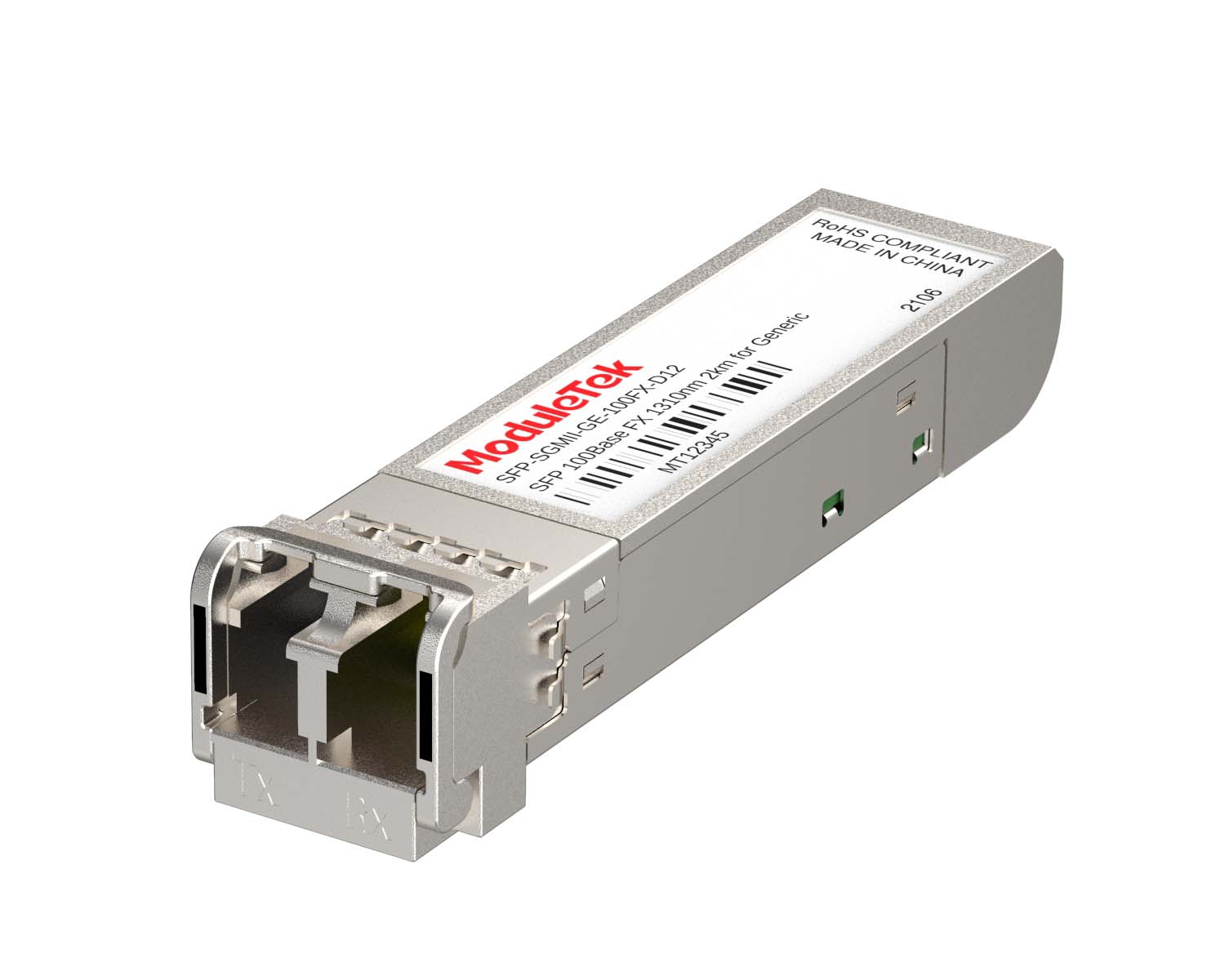 SGMII Port Optical Transceivers
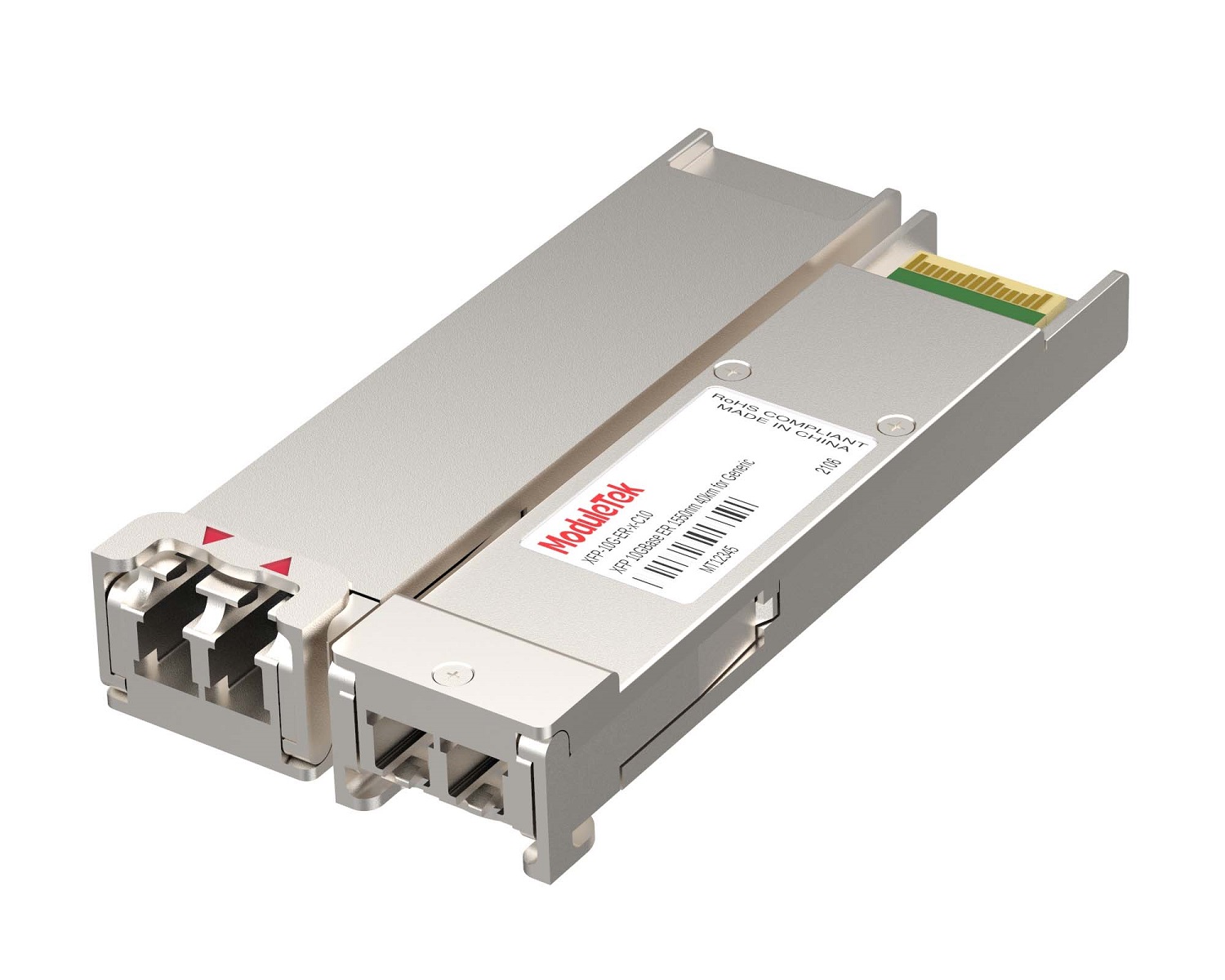 XFP Optical Transceivers
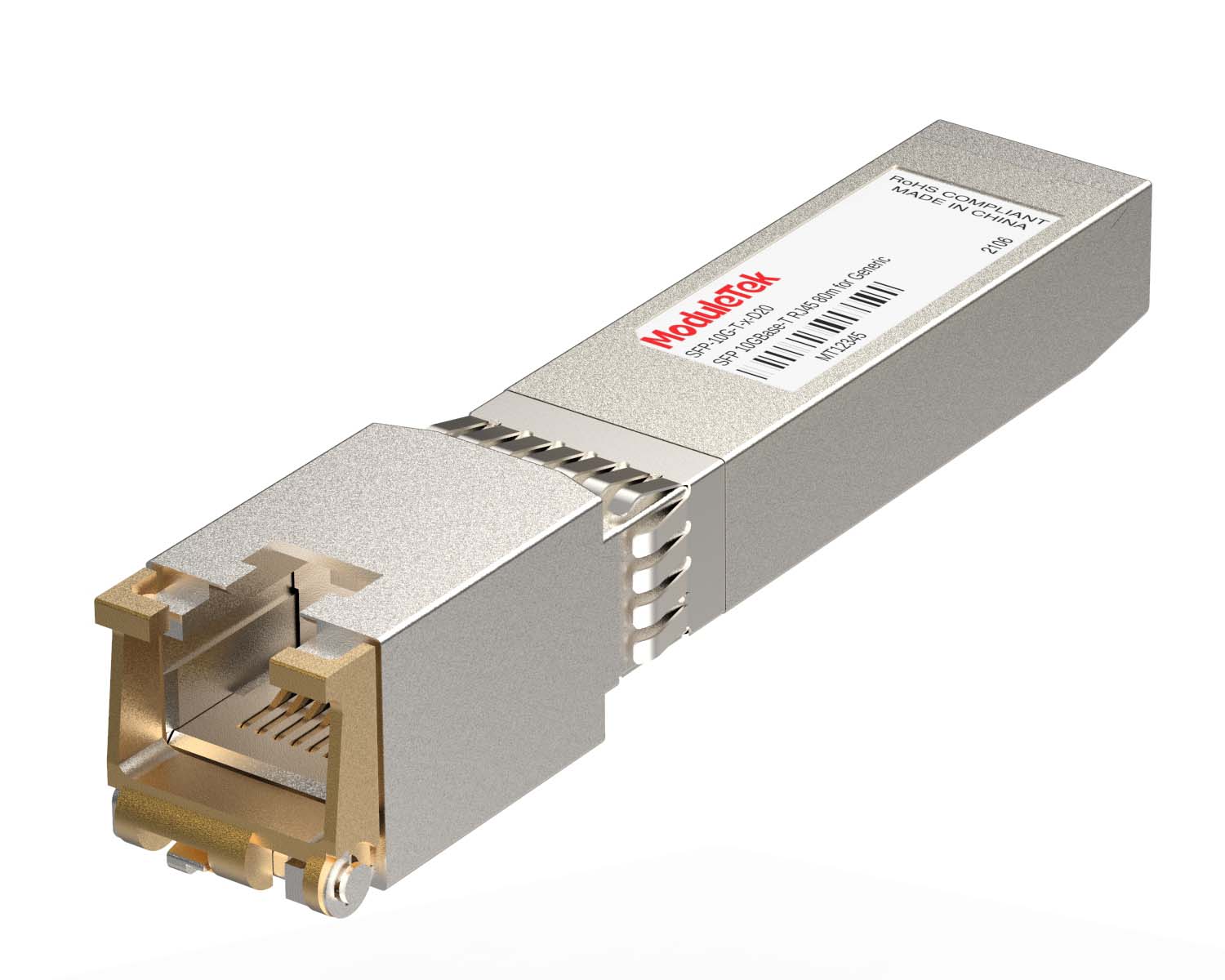 100M/1G/10G Coppers
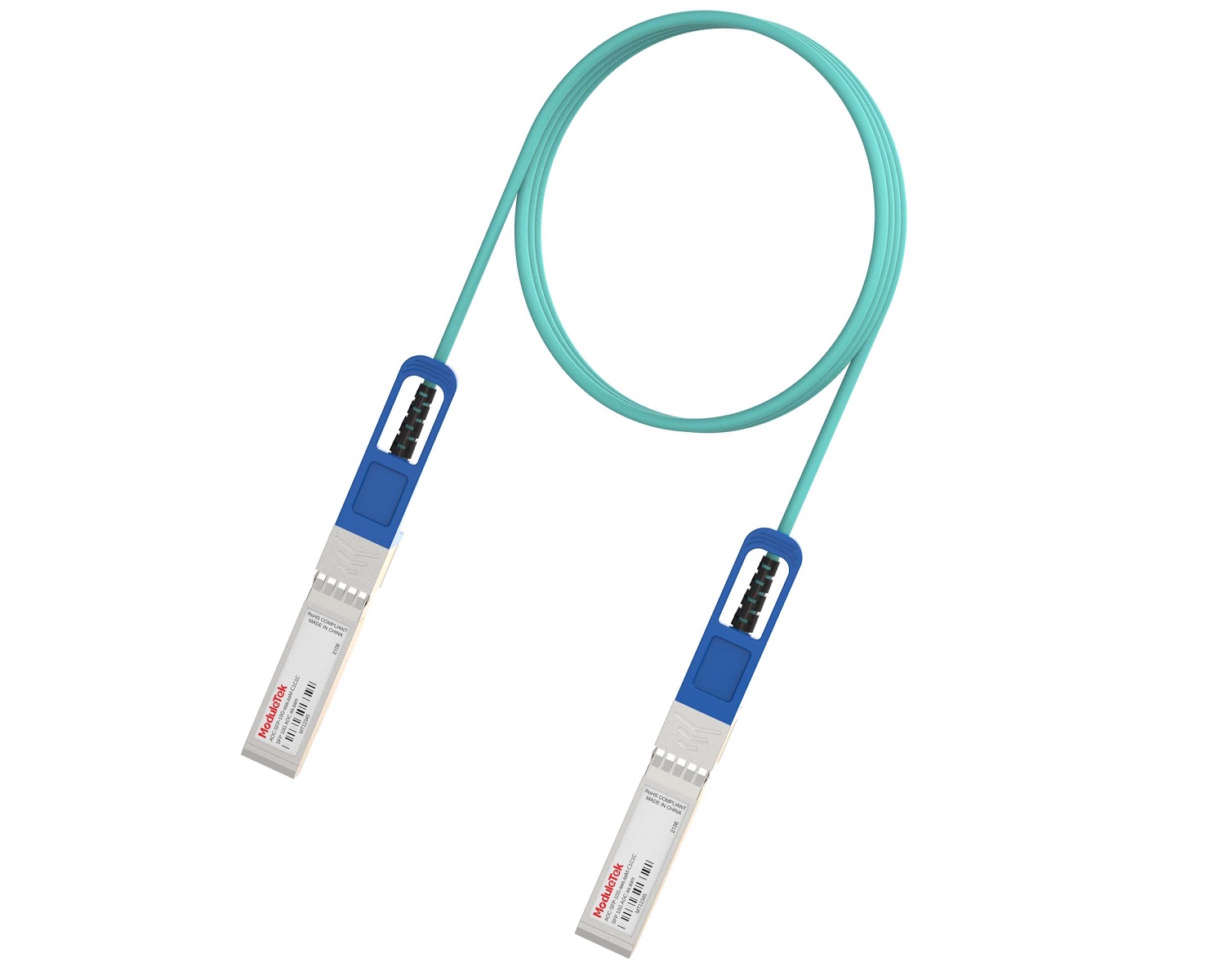 Full-Rate AOC & Breakout Series
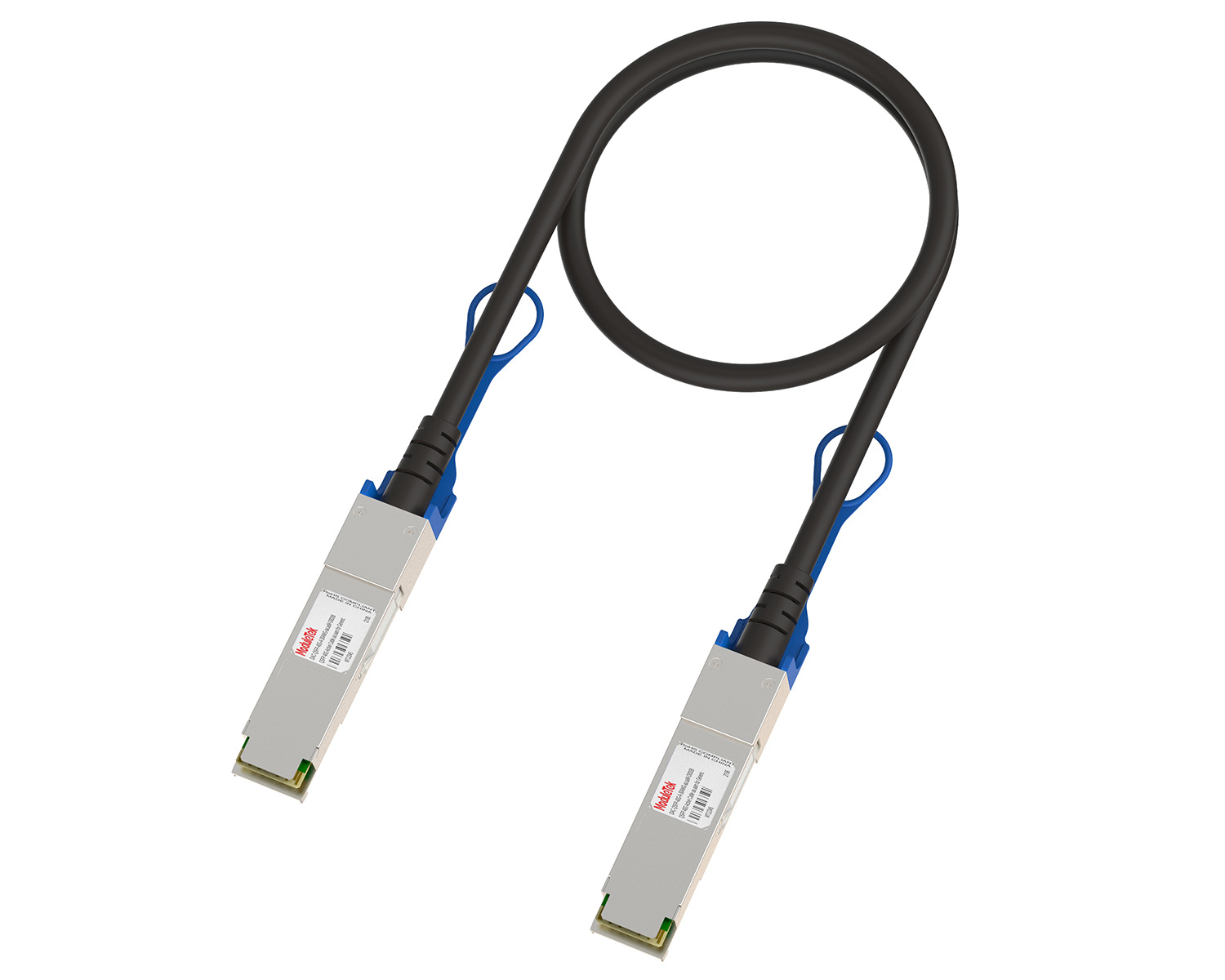 10G/40G Active DAC Series
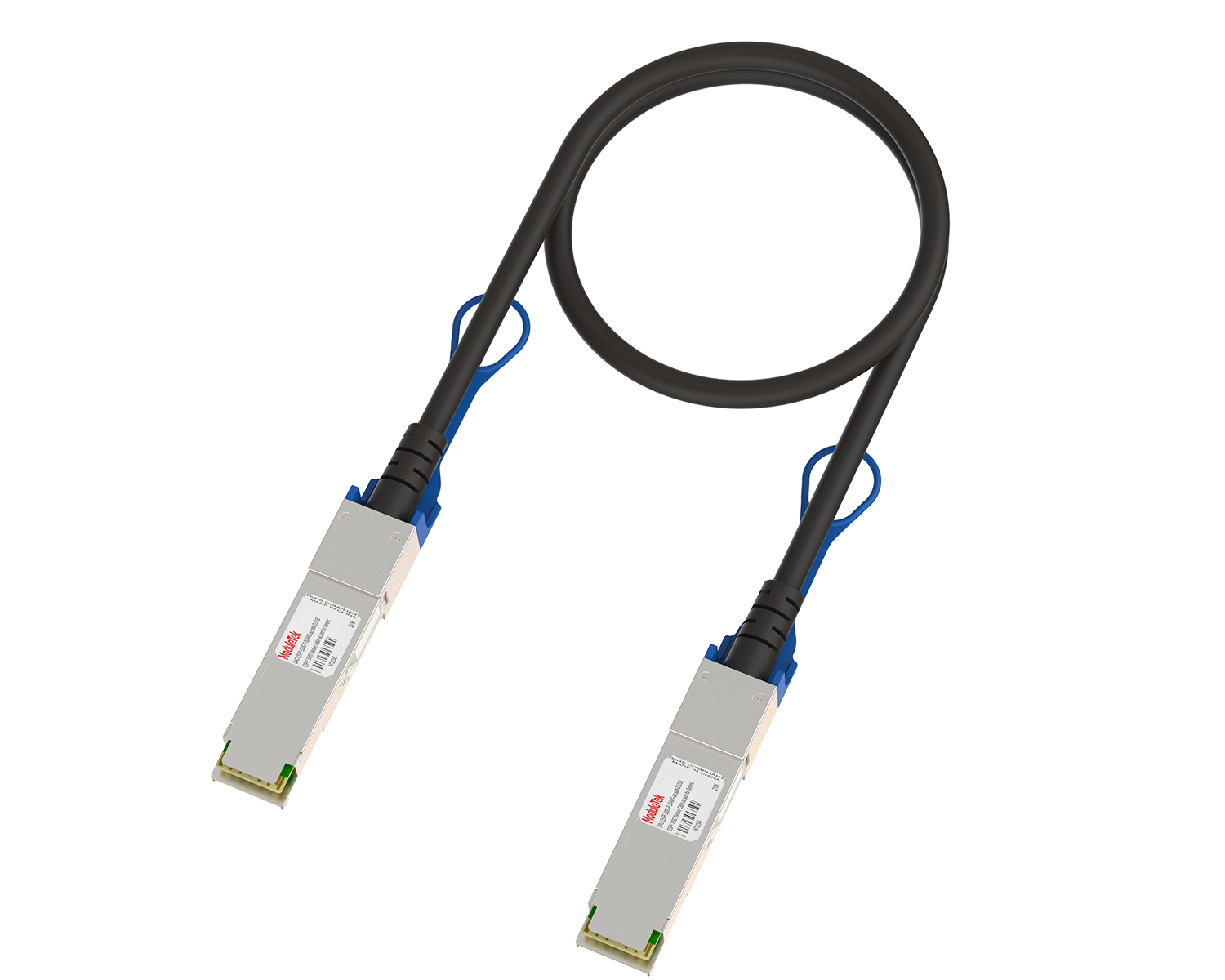 Full-Rate Passive DAC Series
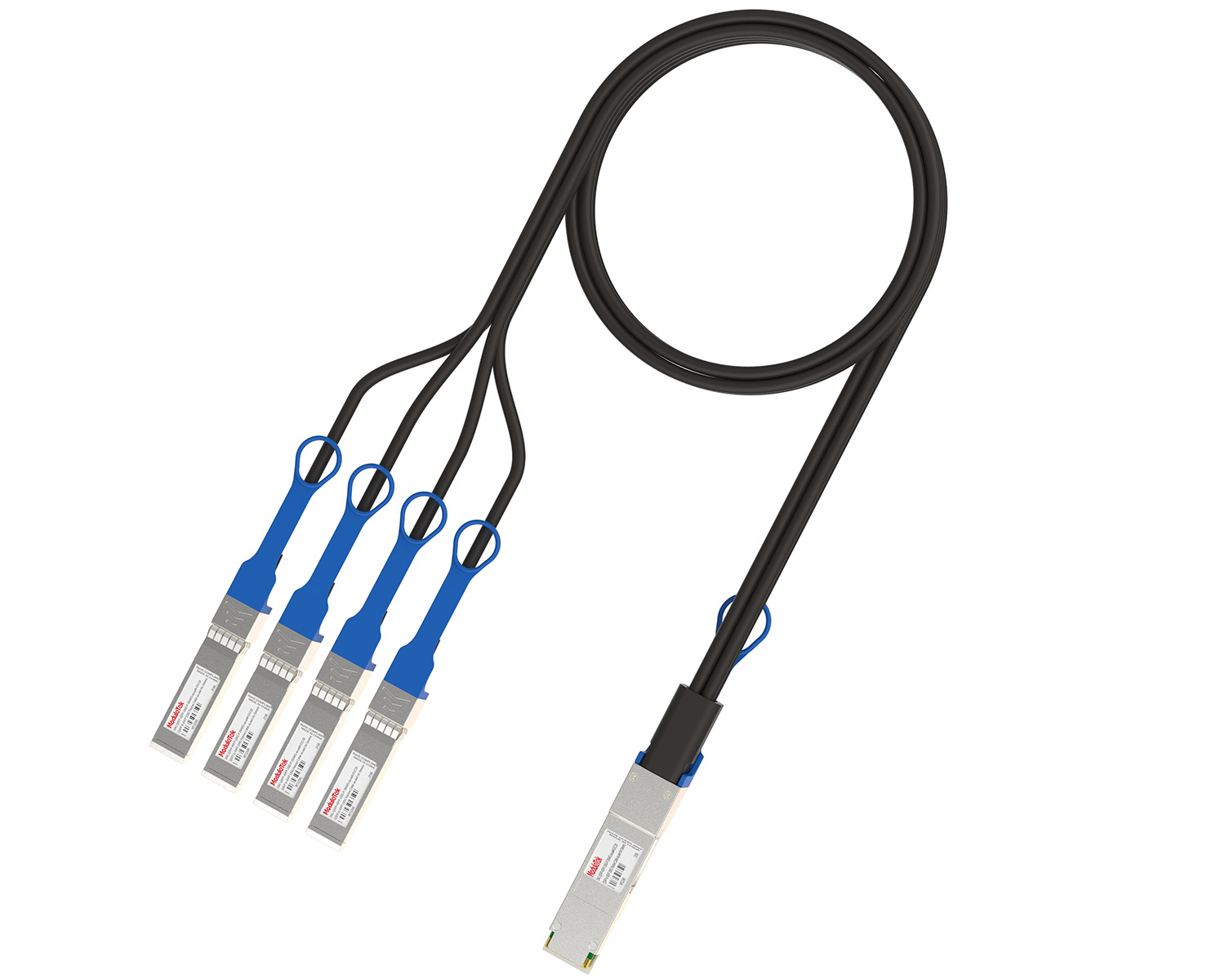 40G/100G Passive Breakout DAC Series
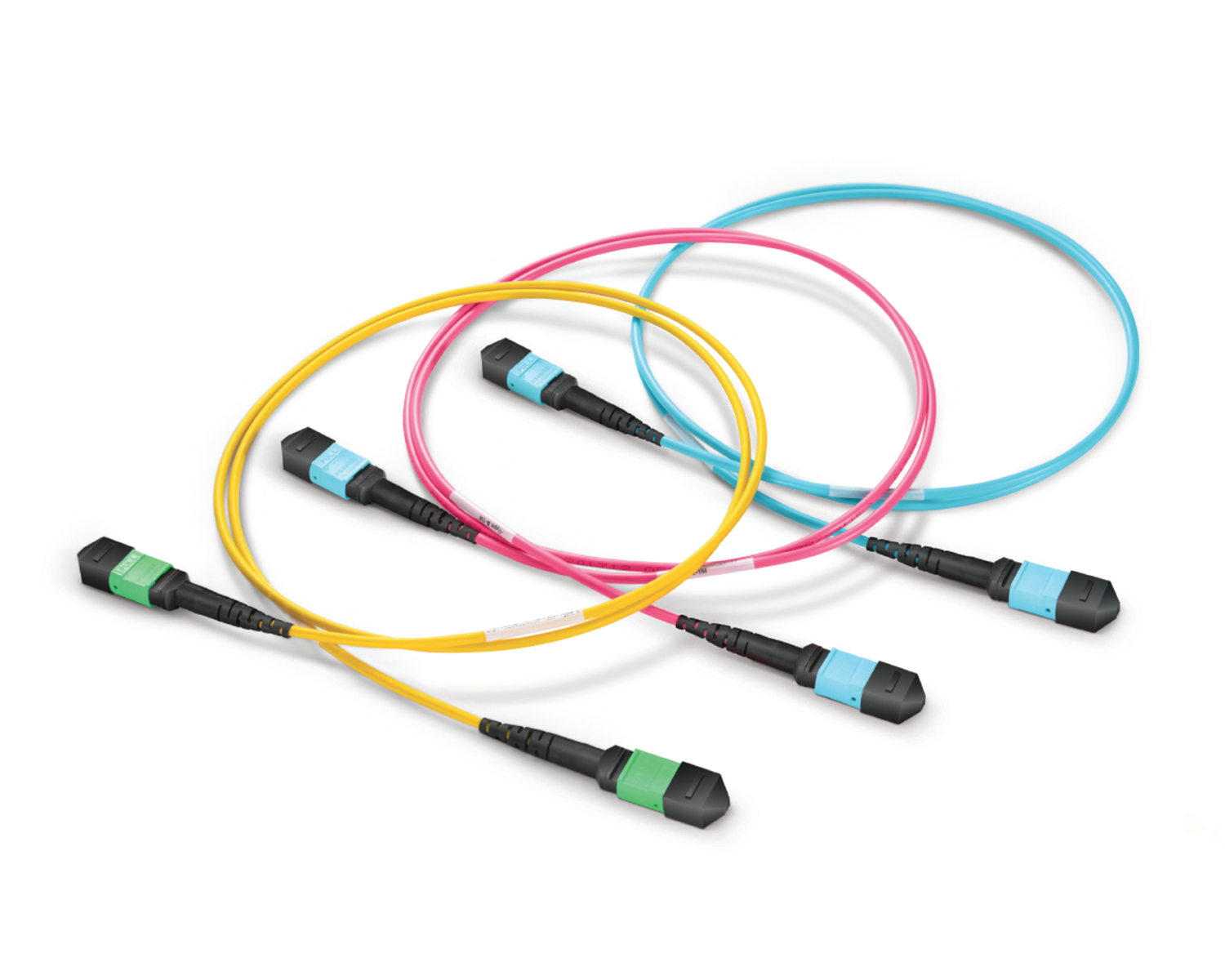 Regular/MTP-MPO Fiber Patch Cords
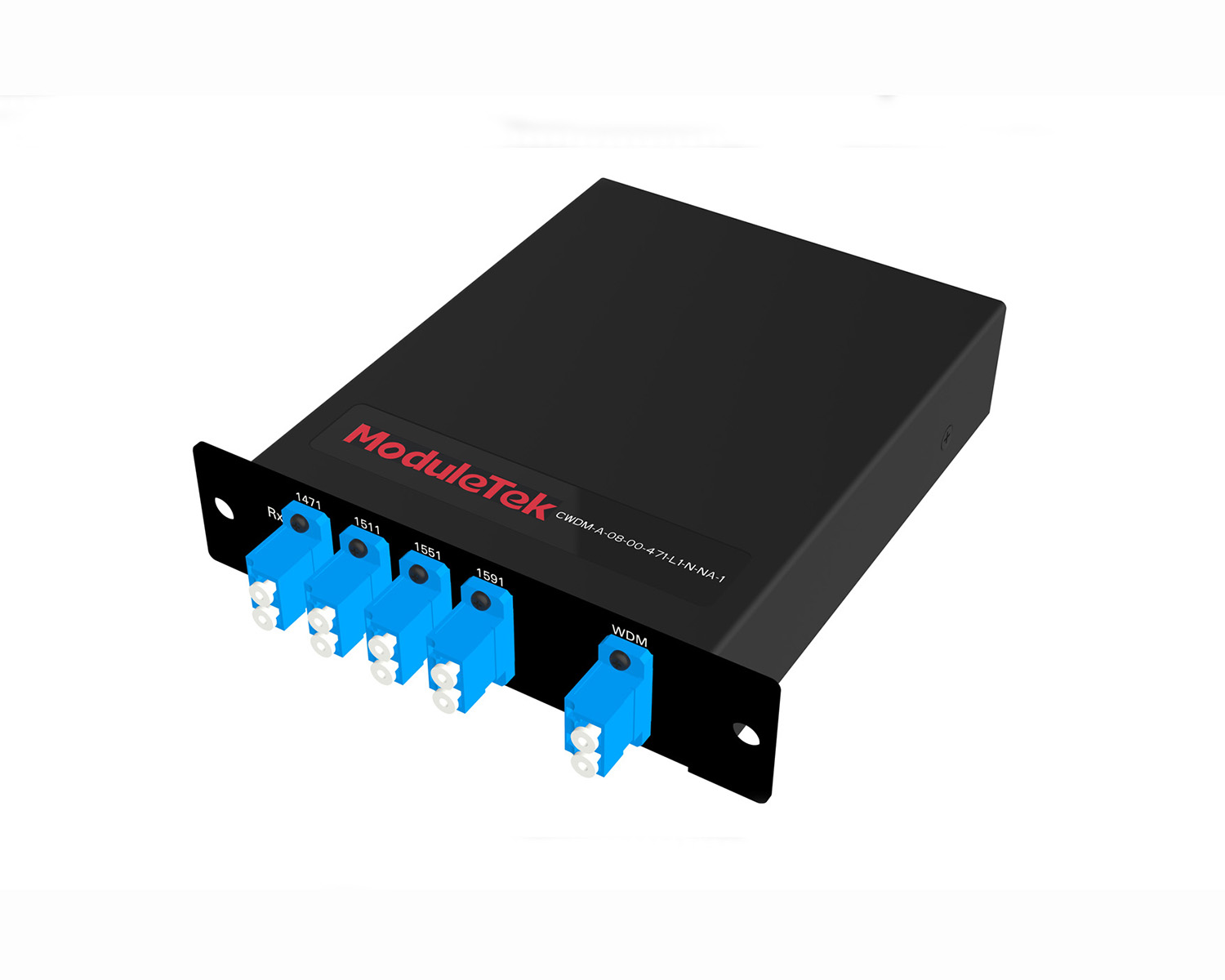 MT2011
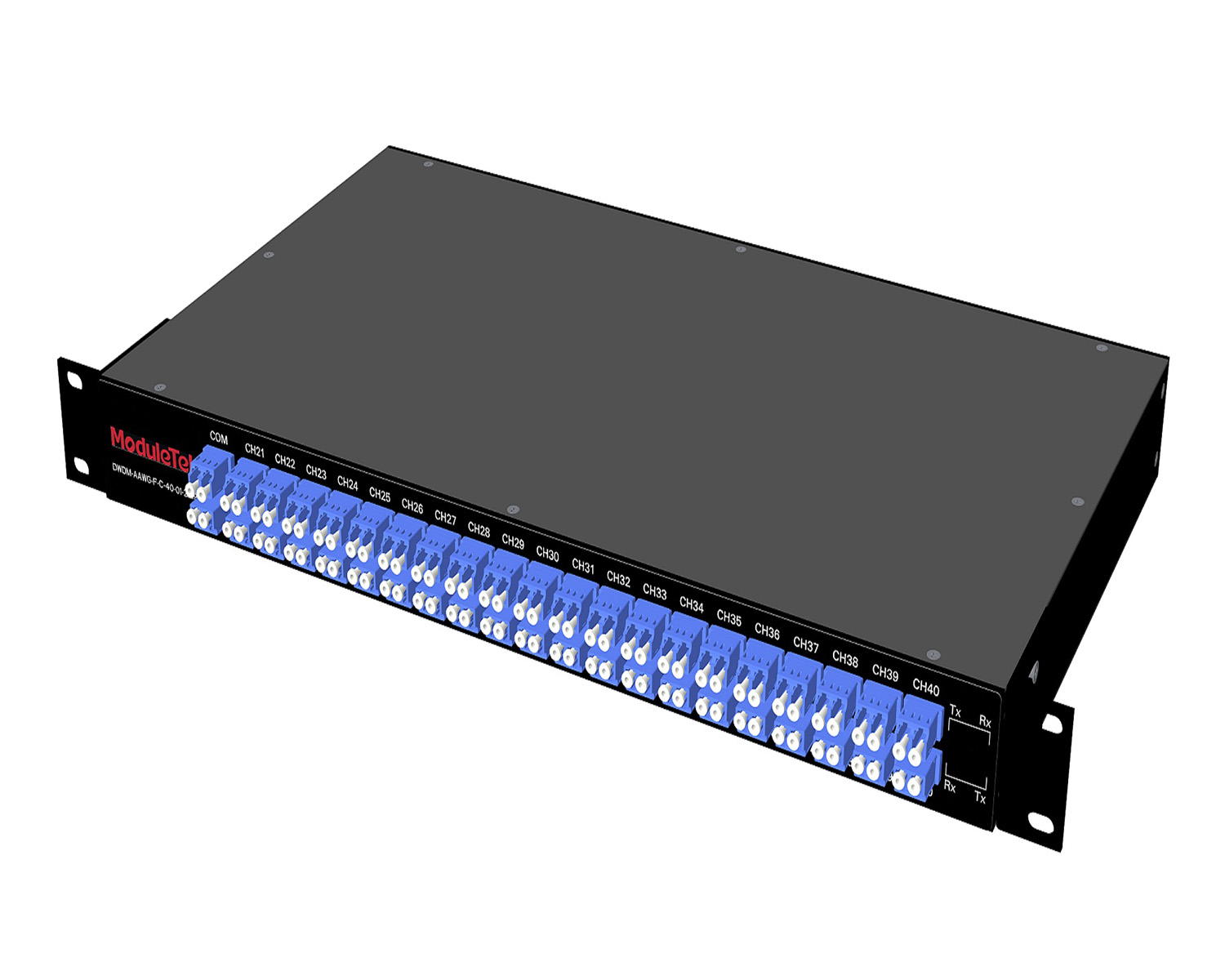 MT2010
 CodingBox
 QSFP to SFP Adapter
Cisco ONS 15454 M2 Device Software Version Switching Procedure
Time: 2023-12-08
The Cisco ONS 15454 M2 is a multi-service transport platform developed by Cisco.
In certain testing scenarios, it may be necessary to switch the software version running on the device.
This article describes the complete procedure for switching the software version of the ONS 15454 M2.
1. Connect a PC to the Cisco ONS 15454 M2 using an Ethernet cable.
Configure the PC’s IP address to be on the same subnet as the device.
The default IP of the Cisco ONS 15454 M2 is 192.168.140.20, so set the PC’s IP to 192.168.140.100.
Once configured, ping the device from the PC to verify connectivity, as shown below:
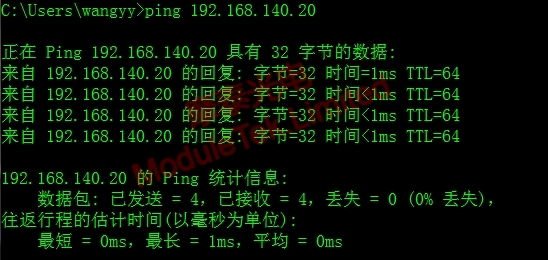
Figure 1 IP Configuration
2. In the address bar of an Internet Explorer (IE) browser, enter the URL: http://192.168.140.20/.
as shown in the following figure:
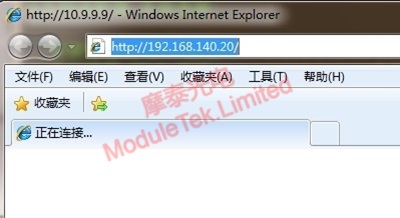
Figure 2 Entering the URL
3. On the login preparation interface, click Launch CTC, as shown below:
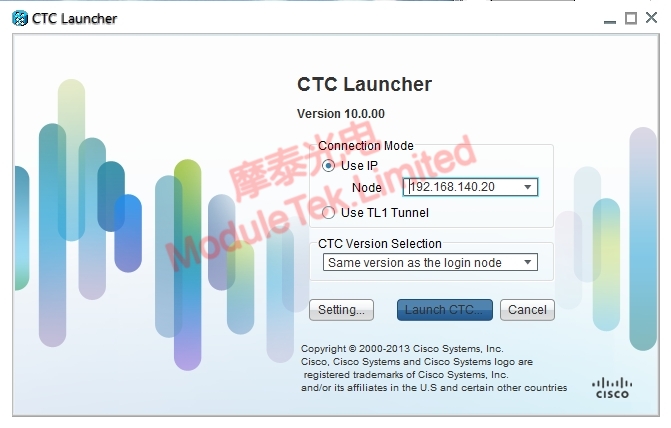
Figure 3 CTC Launch Interface
4. Enter the authorized User Name and Password, then click Login to access the M2 Chassis - Cisco Transport Controller interface, as shown:
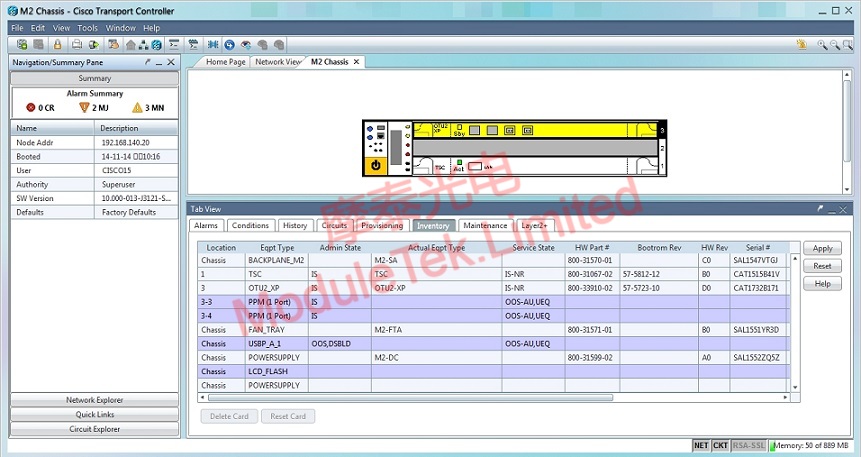
Figure 4 M2 Chassis - Cisco Transport Controller
5. Click the Maintenance tab, then select Software from the left-side menu, as shown:
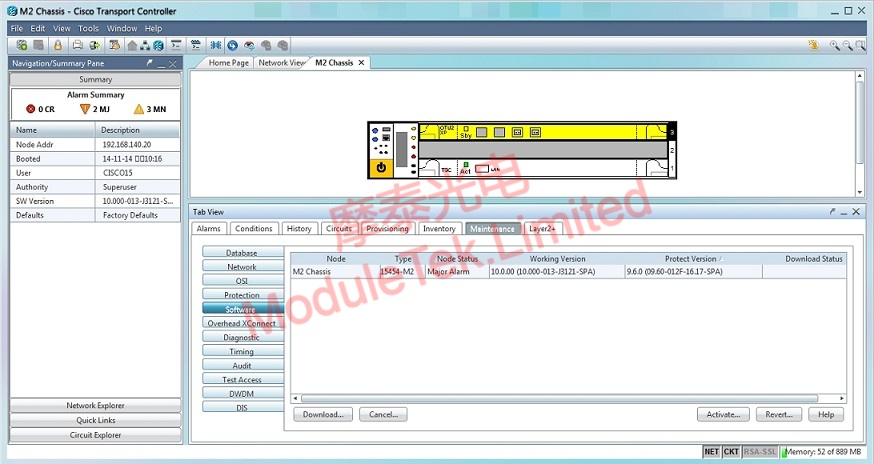
Figure 5 Operations in the M2 Chassis - Cisco Transport Controller Interface
6. Save the target software package to the PC desktop or a specified folder. Click Download Selection, locate and select the target package (e.g., 9.6.0 (09.60-012F-16.17-SPA)), then click OK, as shown:
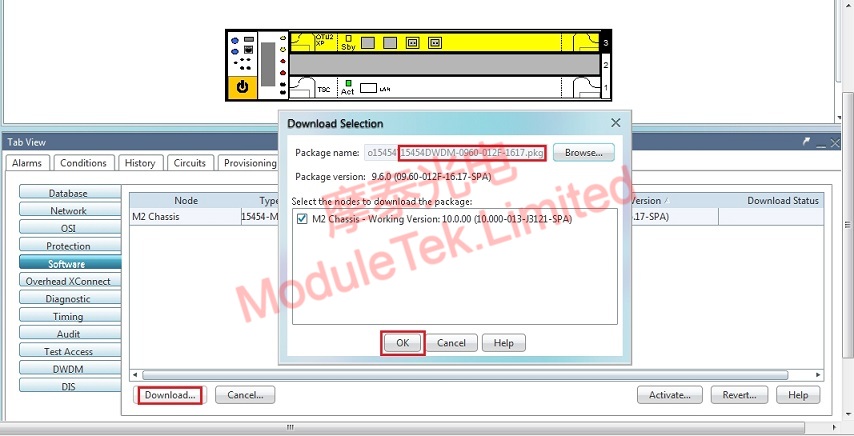
Figure 6 Target Software Package Selection
Note:
Software packages for the ONS 15454 M2 can be found and downloaded from Cisco’s official website:
Software is not available for direct public download.
You must log in with a Cisco account associated with a valid Cisco service contract to obtain firmware files.
Service contracts may be obtained via Cisco account teams, certified partners or resellers.
7. Check the Download Status to monitor the real-time progress of the software transfer, as shown:
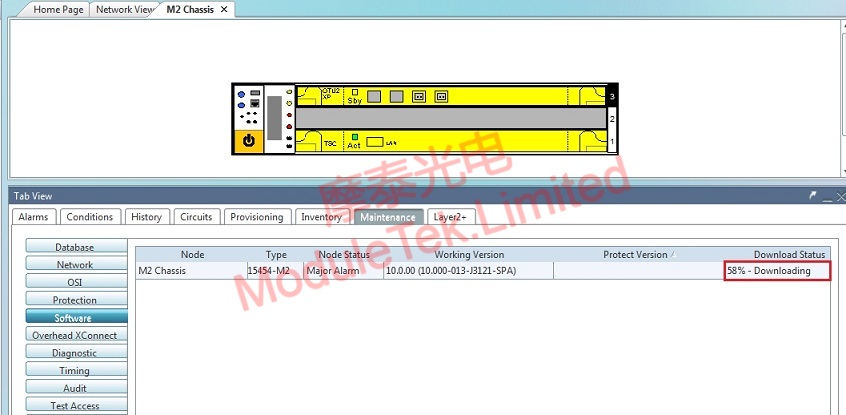
Figure 7 Software Download Progress Monitoring
8. When Download Status shows Complete, the software has been successfully downloaded.
The new version will appear in the Protect Version list, as shown:
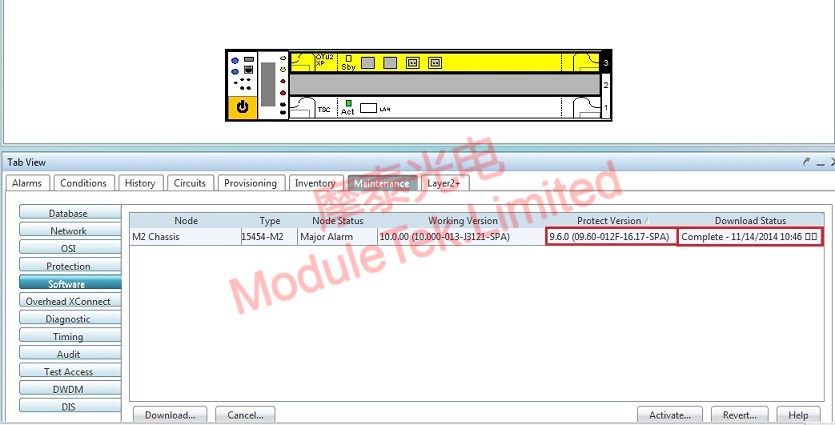
Figure 8 Viewing the Downloaded Software Version
9. Click Reverting to switch the Cisco ONS 15454 M2 to the target software version (9.6.0 (09.60-012F-16.17-SPA)), as shown:
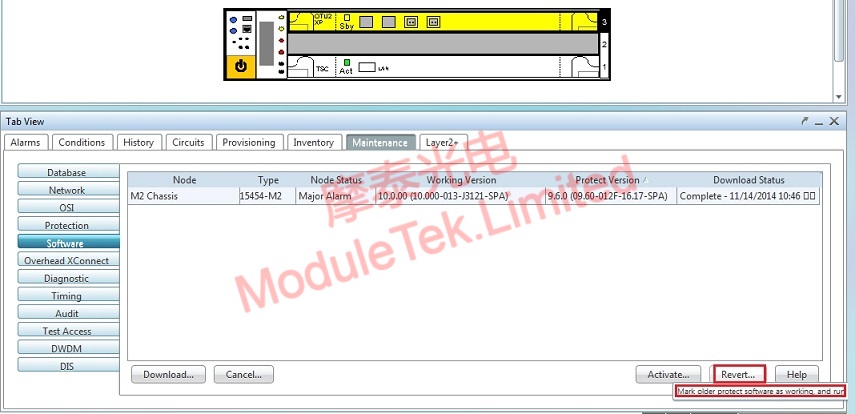
Figure 9 Software Version Switching
10. After the revert operation, the Cisco ONS 15454 M2 will automatically reboot and run version 9.6.0 (09.60-012F-16.17-SPA) as the active firmware, as shown:
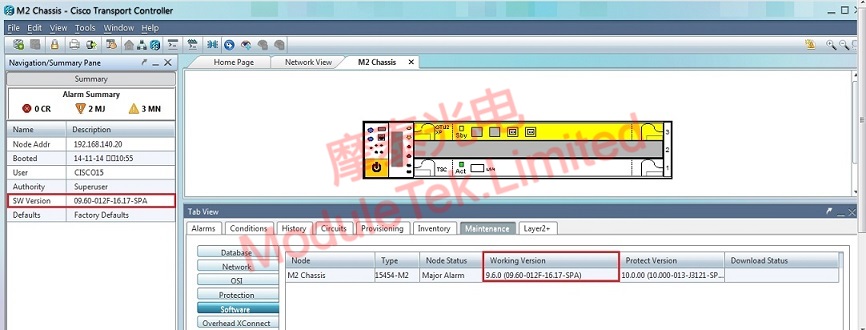
Figure 10 Switch Completed and Device Reboot
11. The software version switching process is now finished.
Moduletek provides optical modules fully compatible with the Cisco ONS 15454 M2 platform.
For further inquiries about the above content, please contact us at: sales@moduletek.com