 40G/100G Optical Transceivers
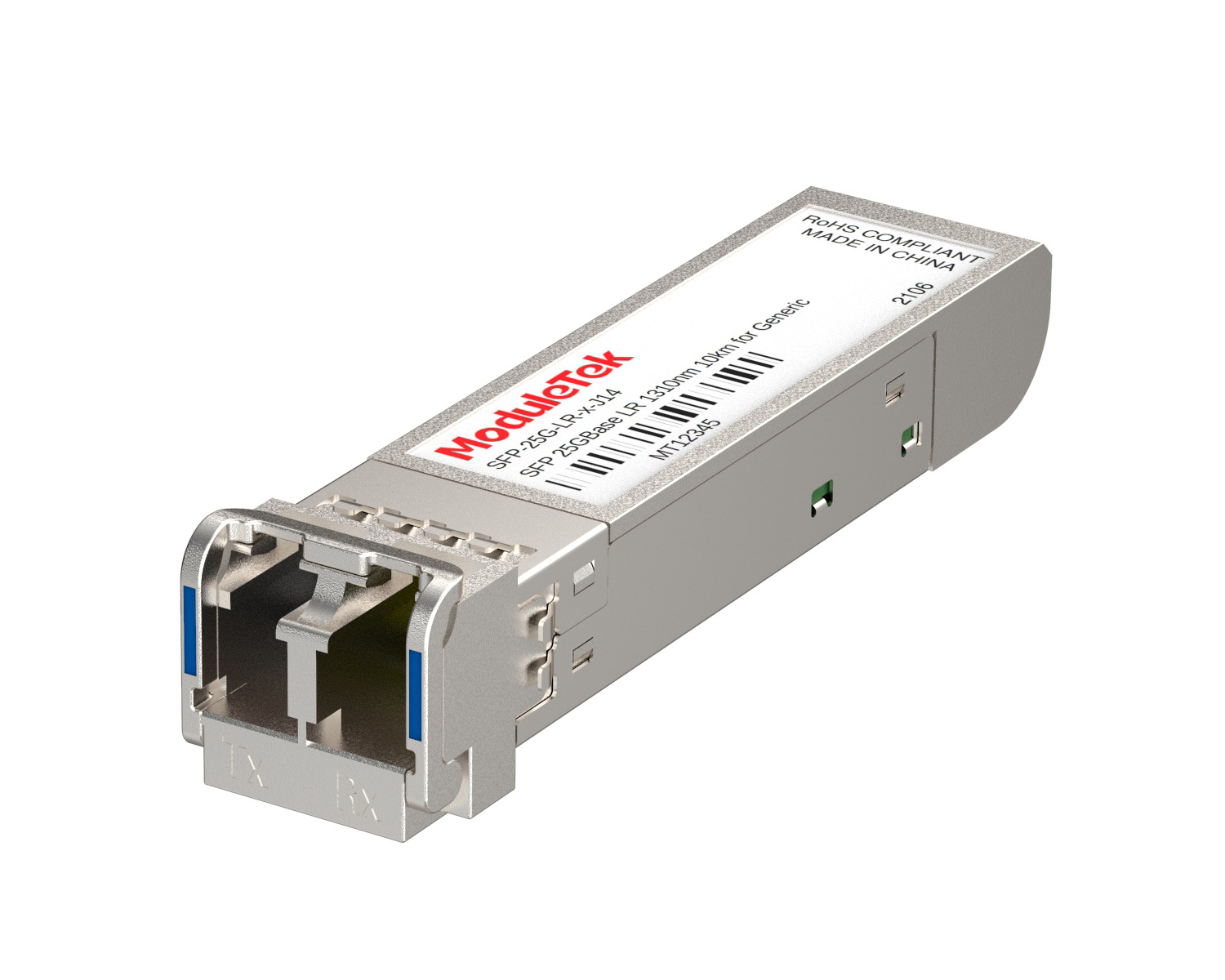 25G Optical Transceivers
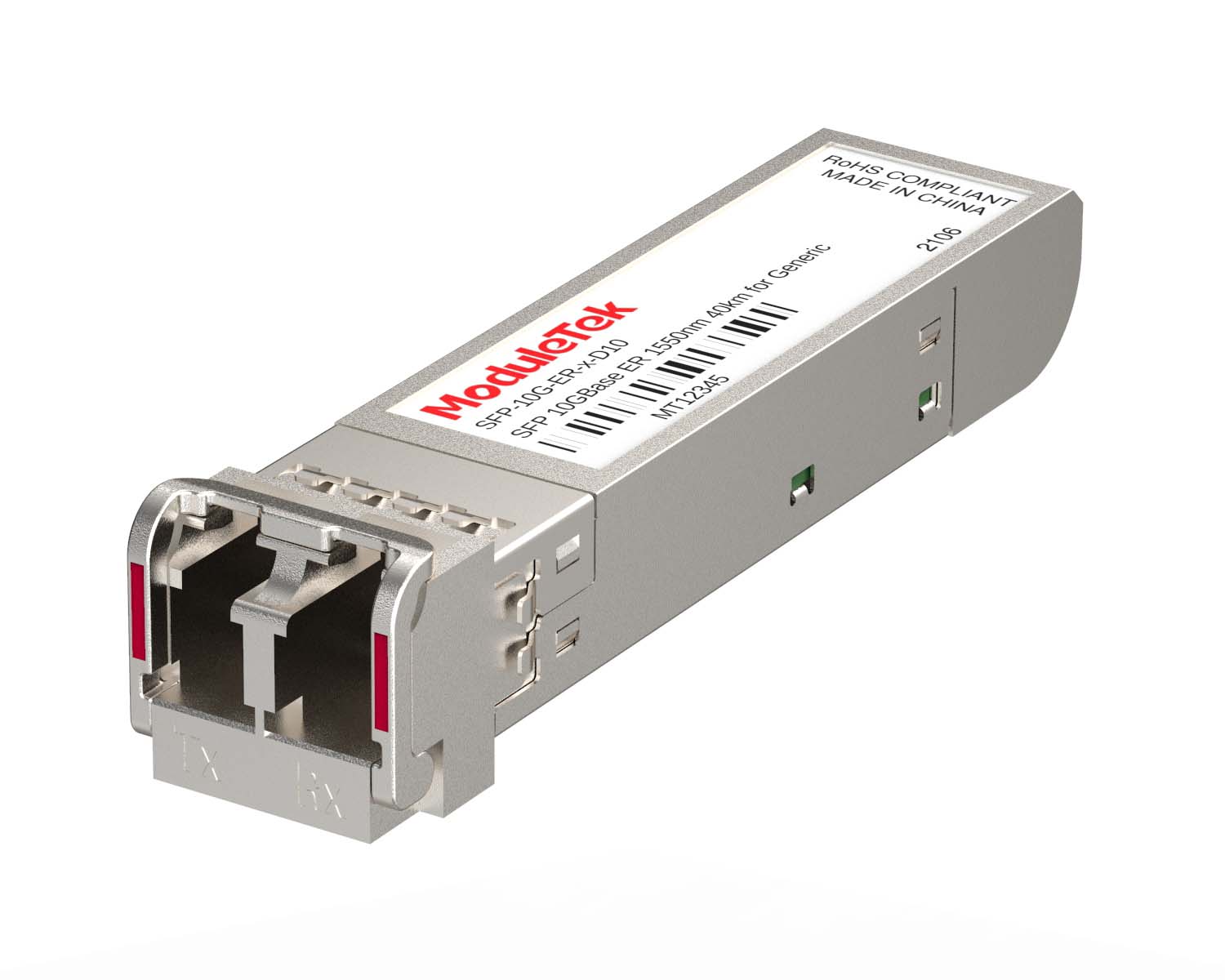 10G Optical Transceivers
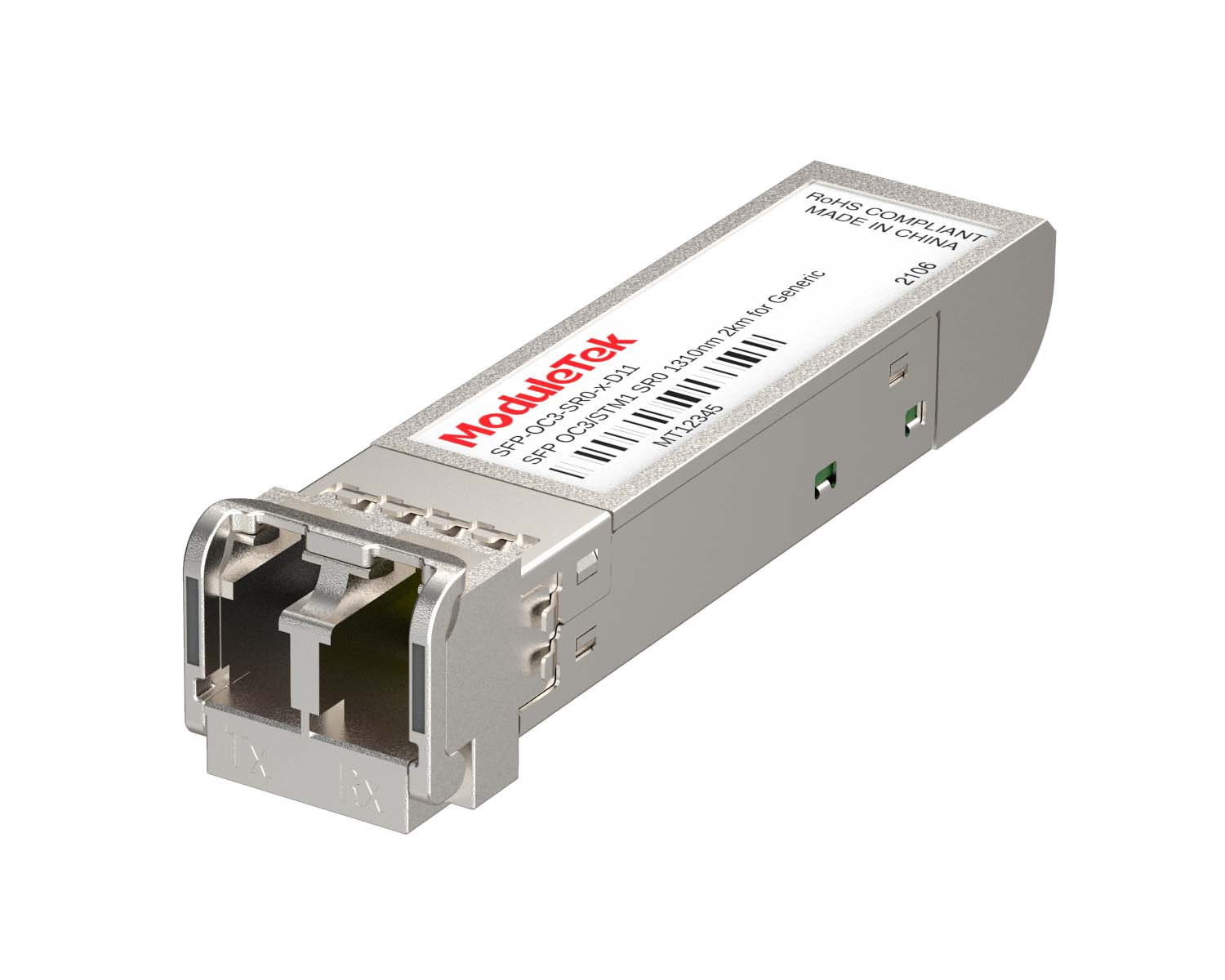 155M/2.5G Optical Transceivers
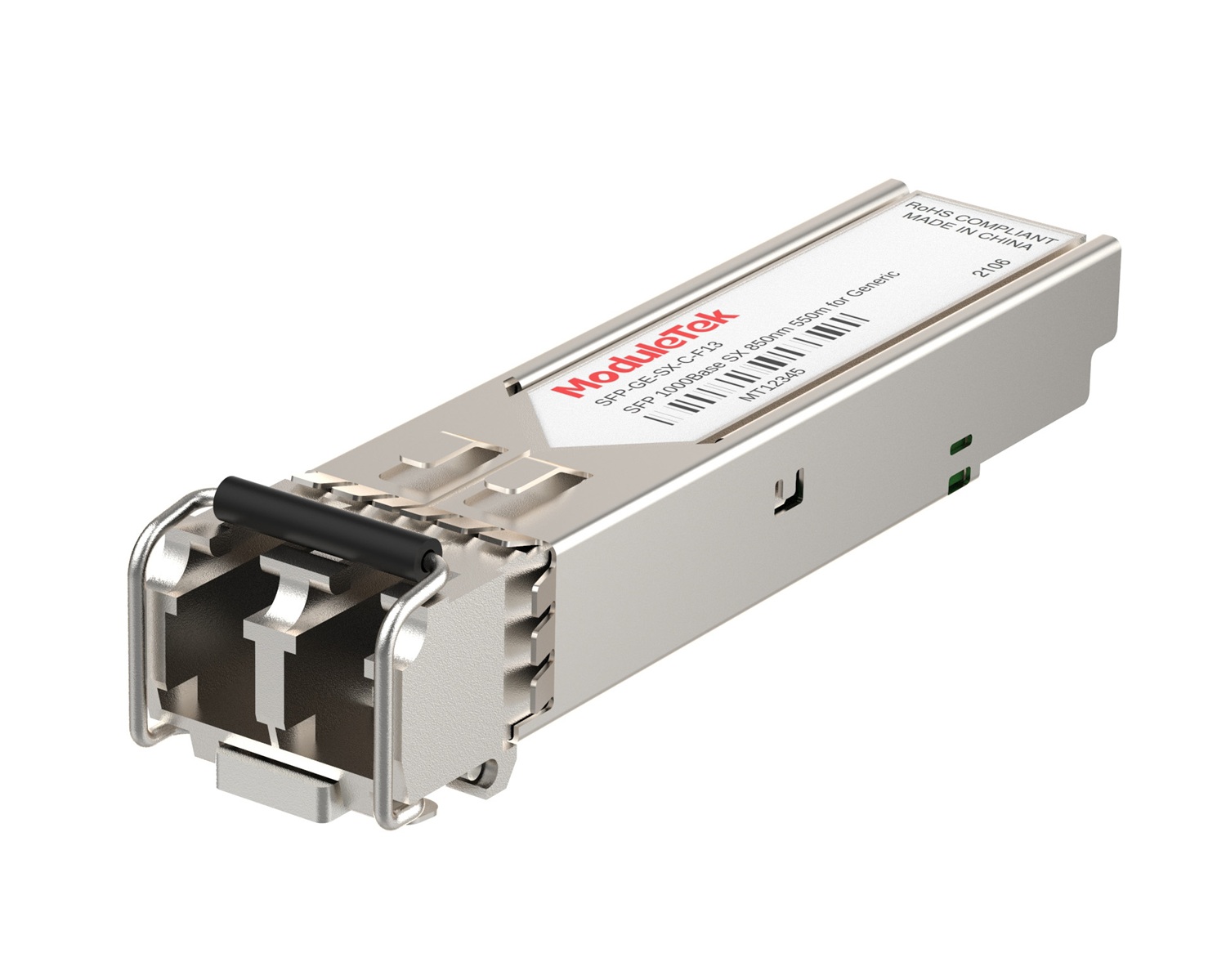 1G Optical Transceivers
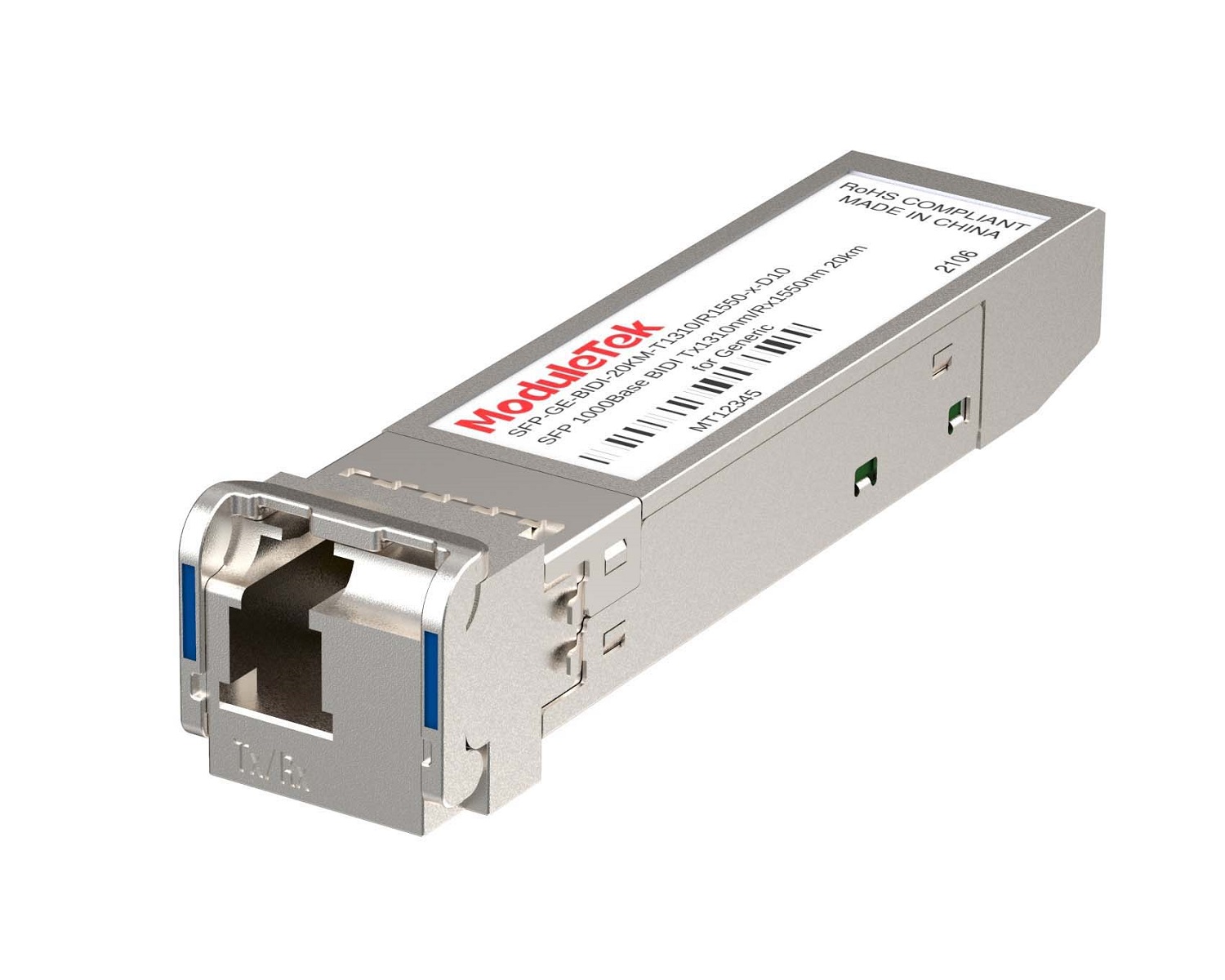 1G BIDI Optical Transceivers
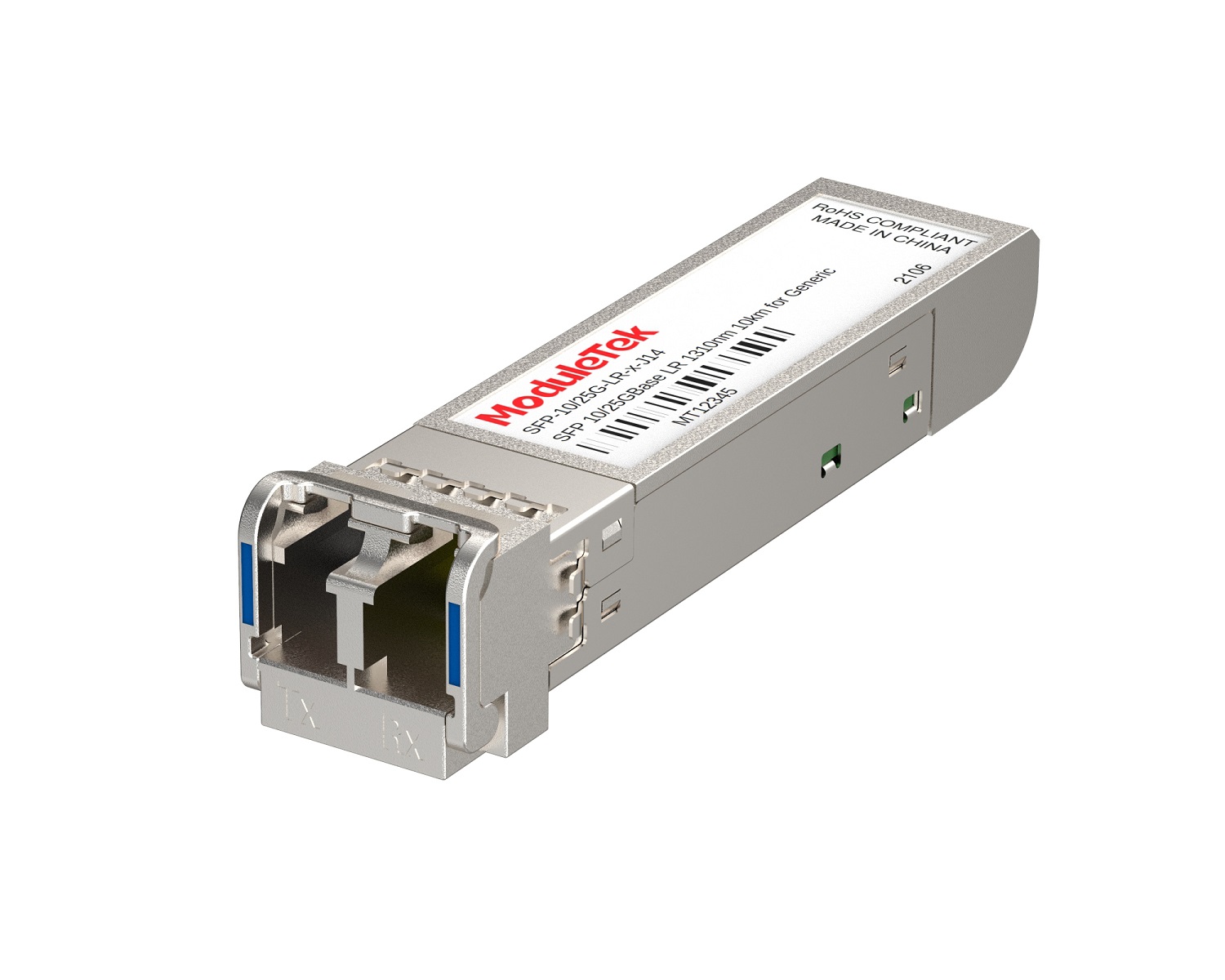 Dual-Rate Optical Transceivers
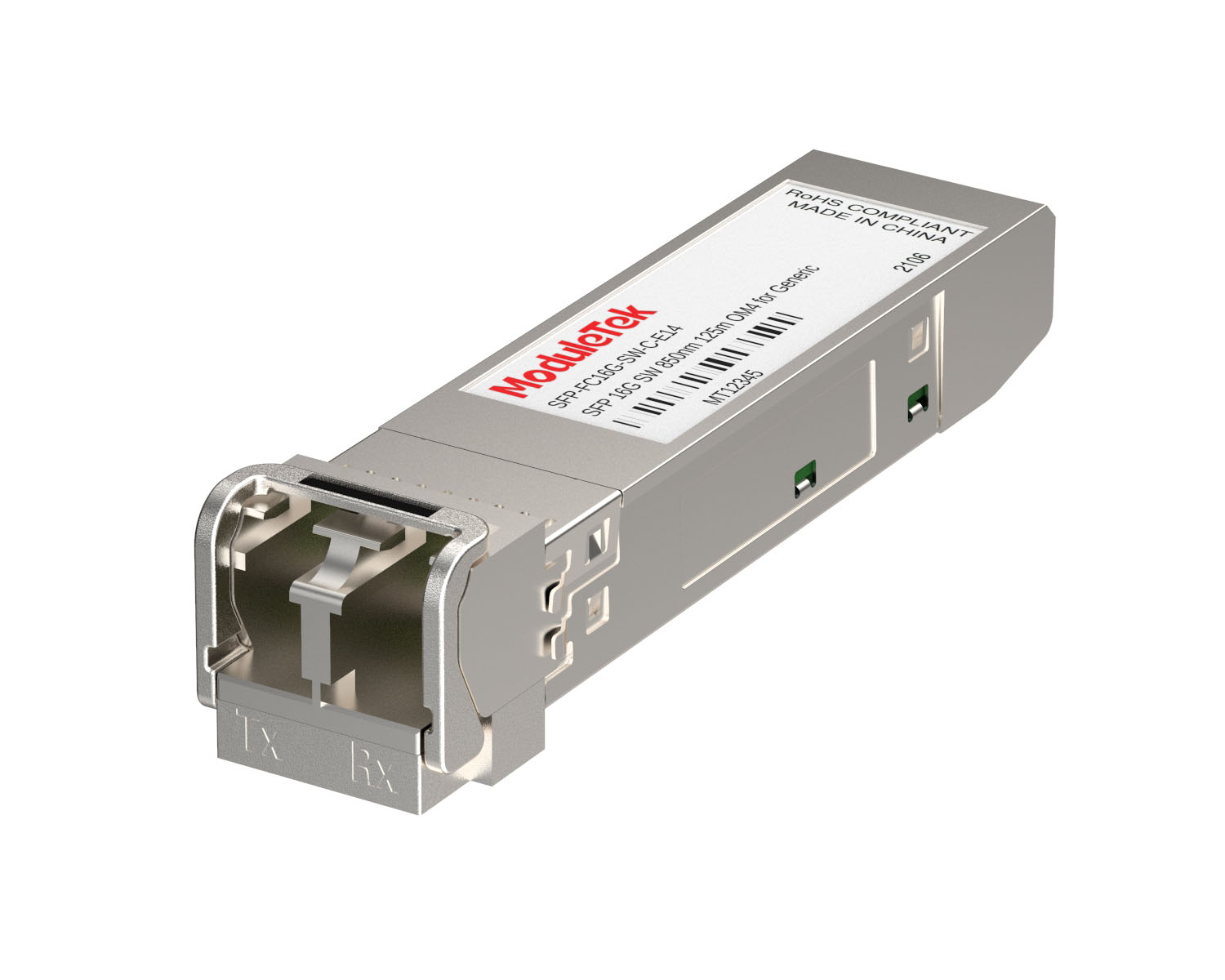 FC 16G/32G Optical Transceivers
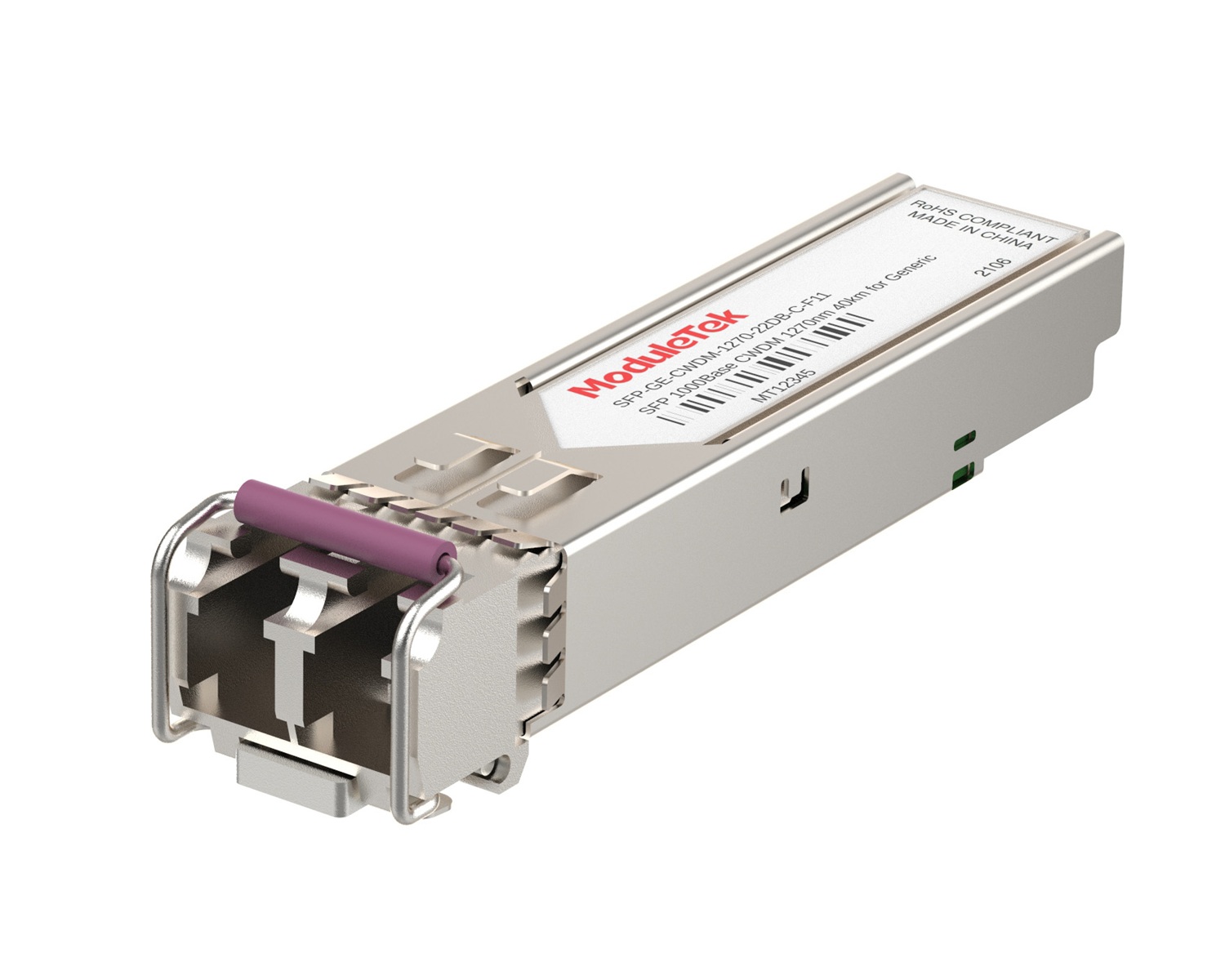 CWDM Optical Transceivers
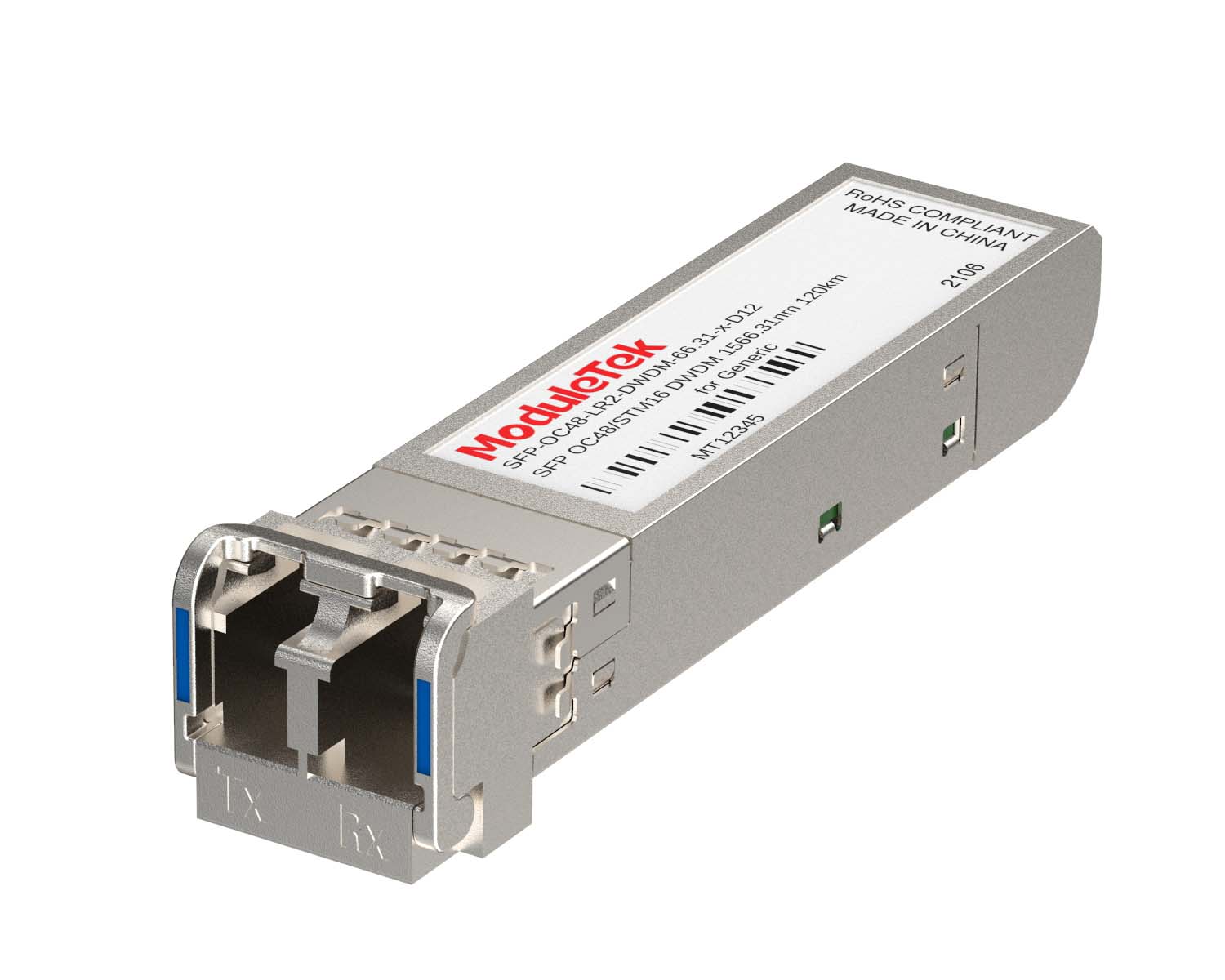 DWDM Optical Transceivers
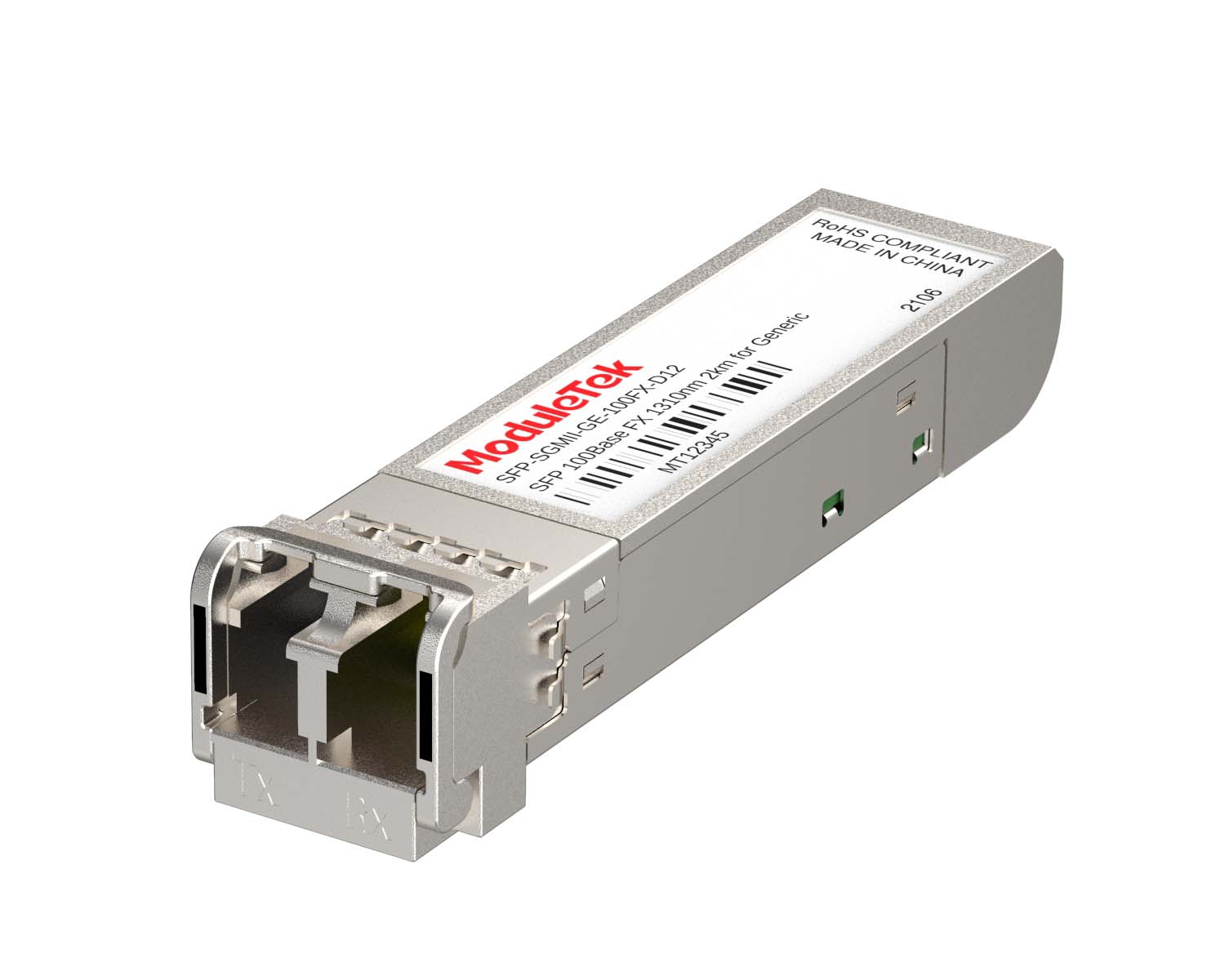 SGMII Port Optical Transceivers
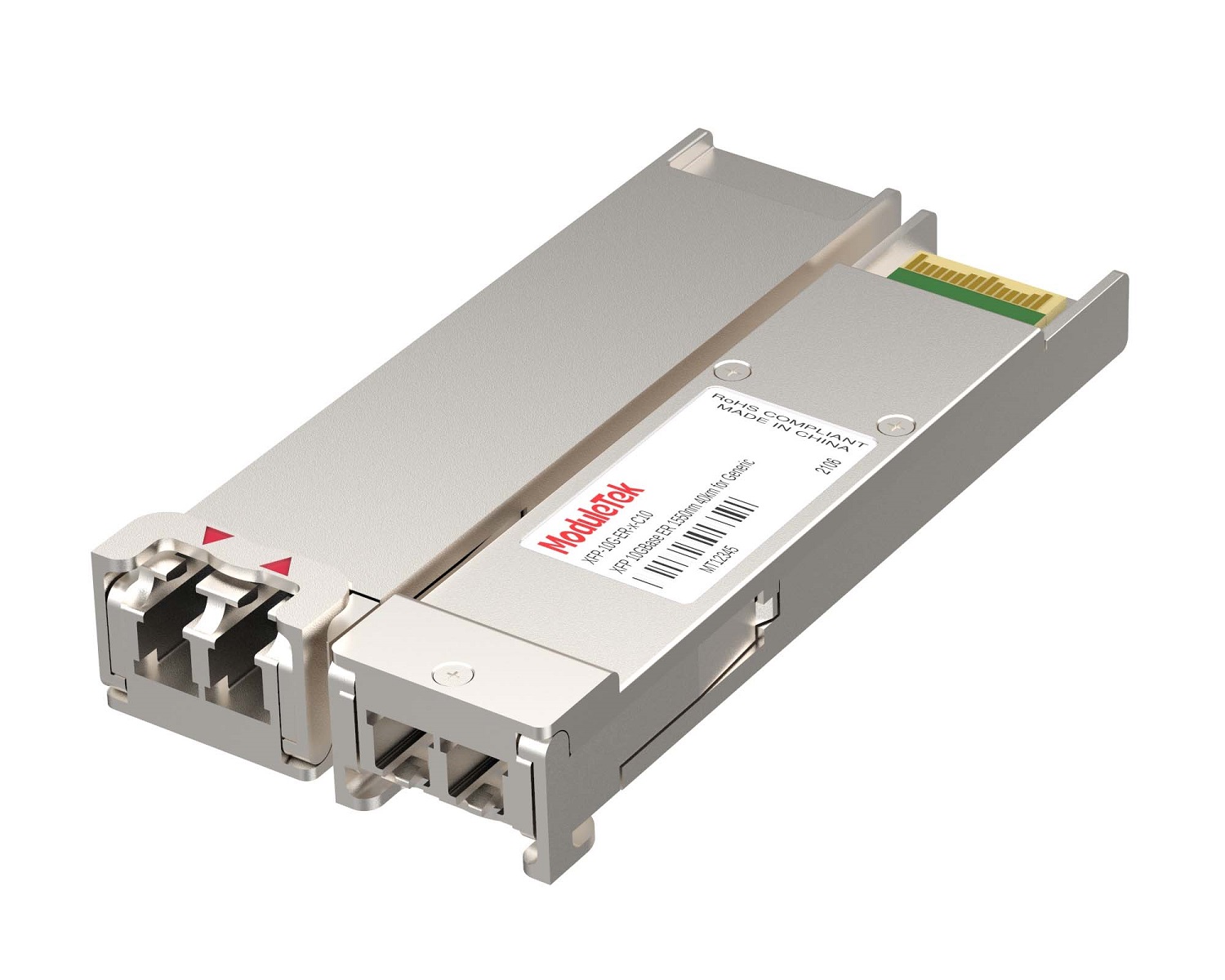 XFP Optical Transceivers
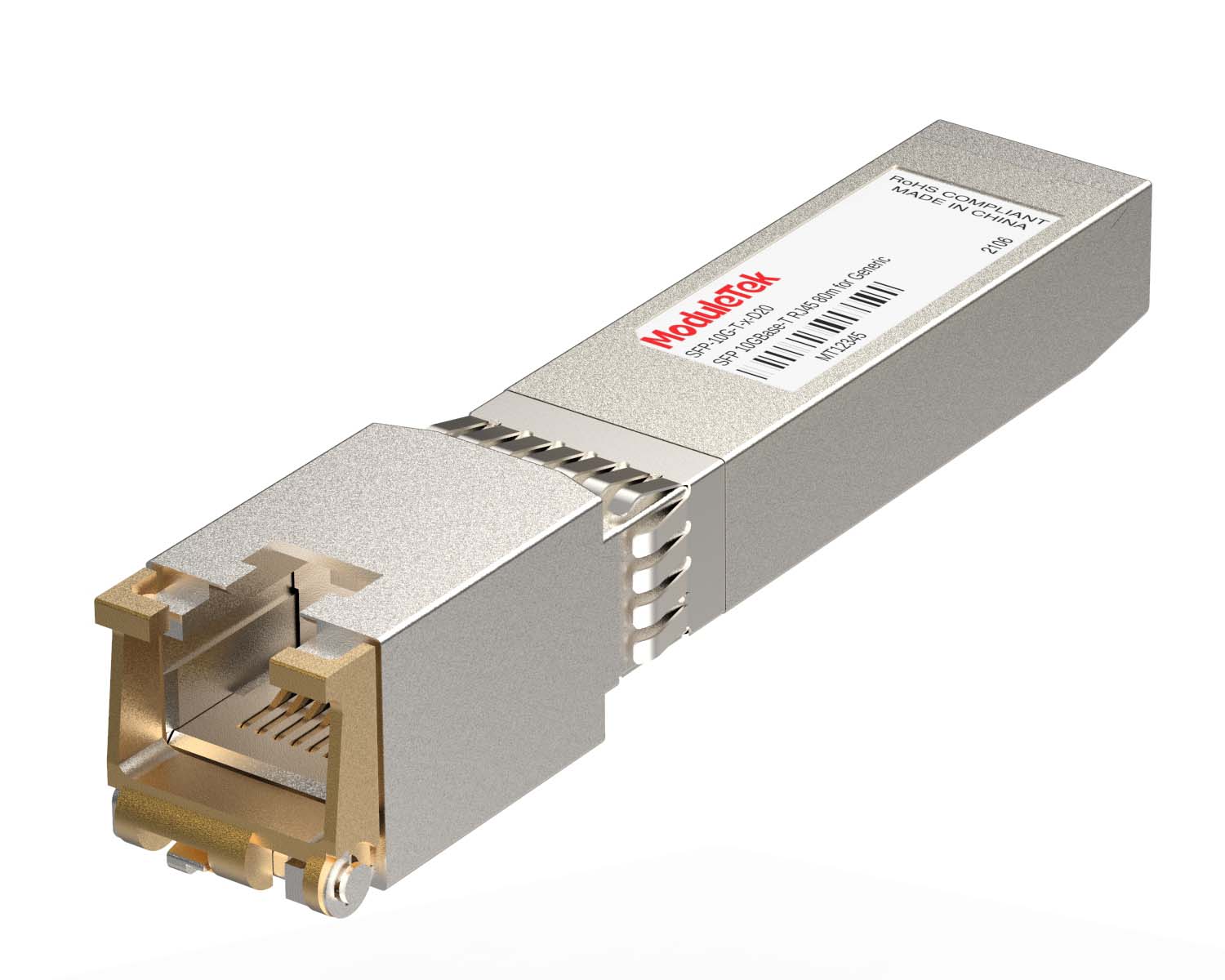 100M/1G/10G Coppers
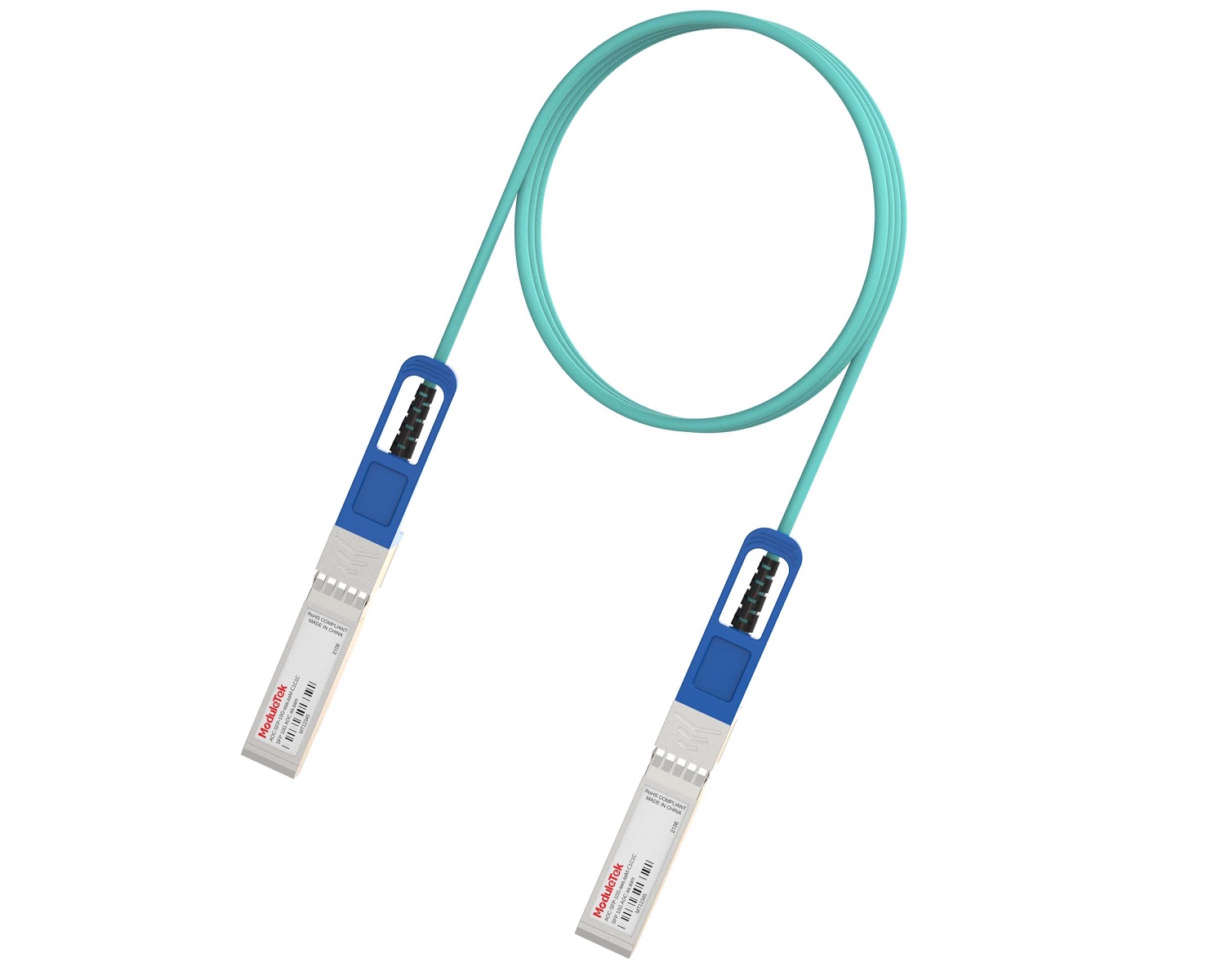 Full-Rate AOC & Breakout Series
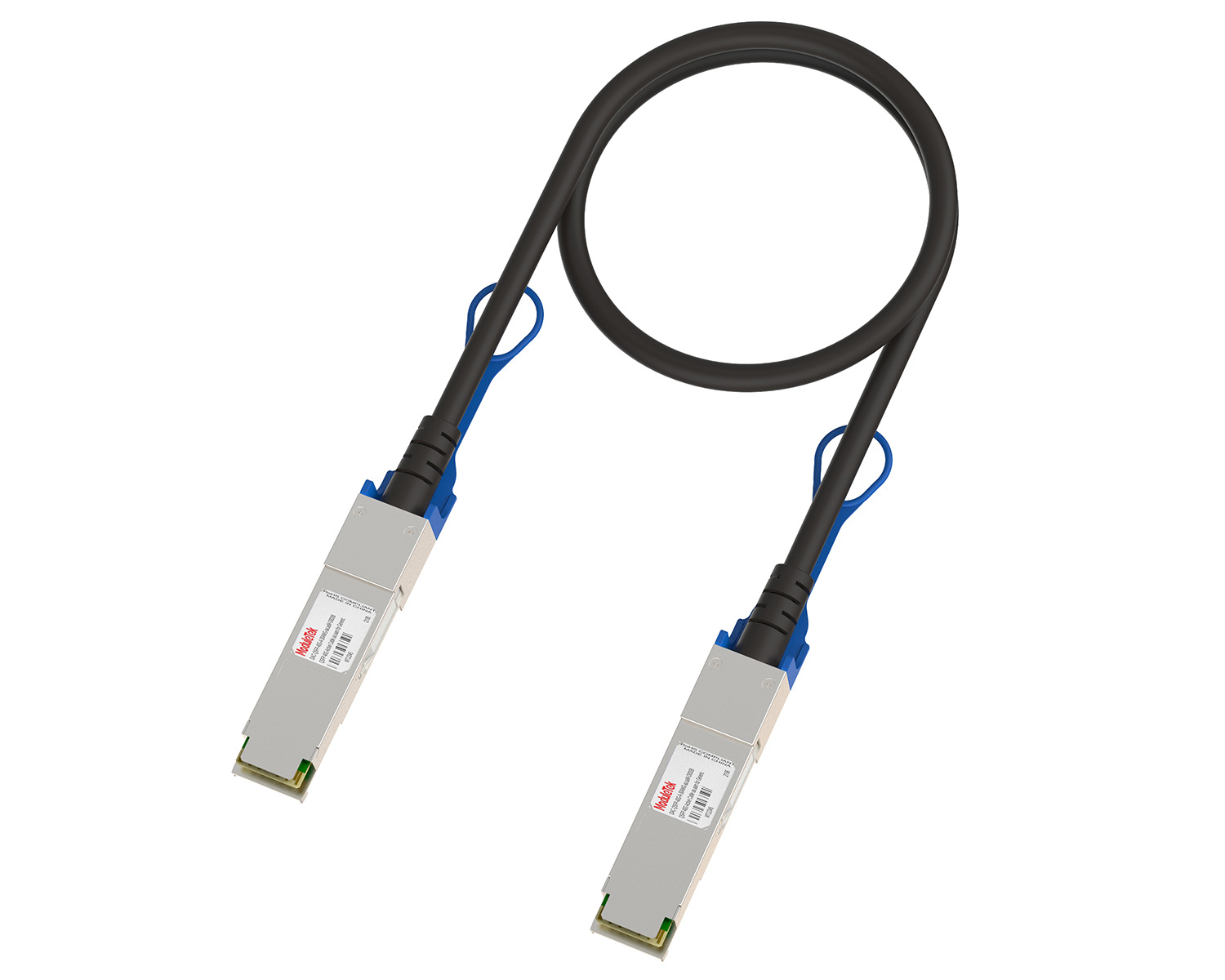 10G/40G Active DAC Series
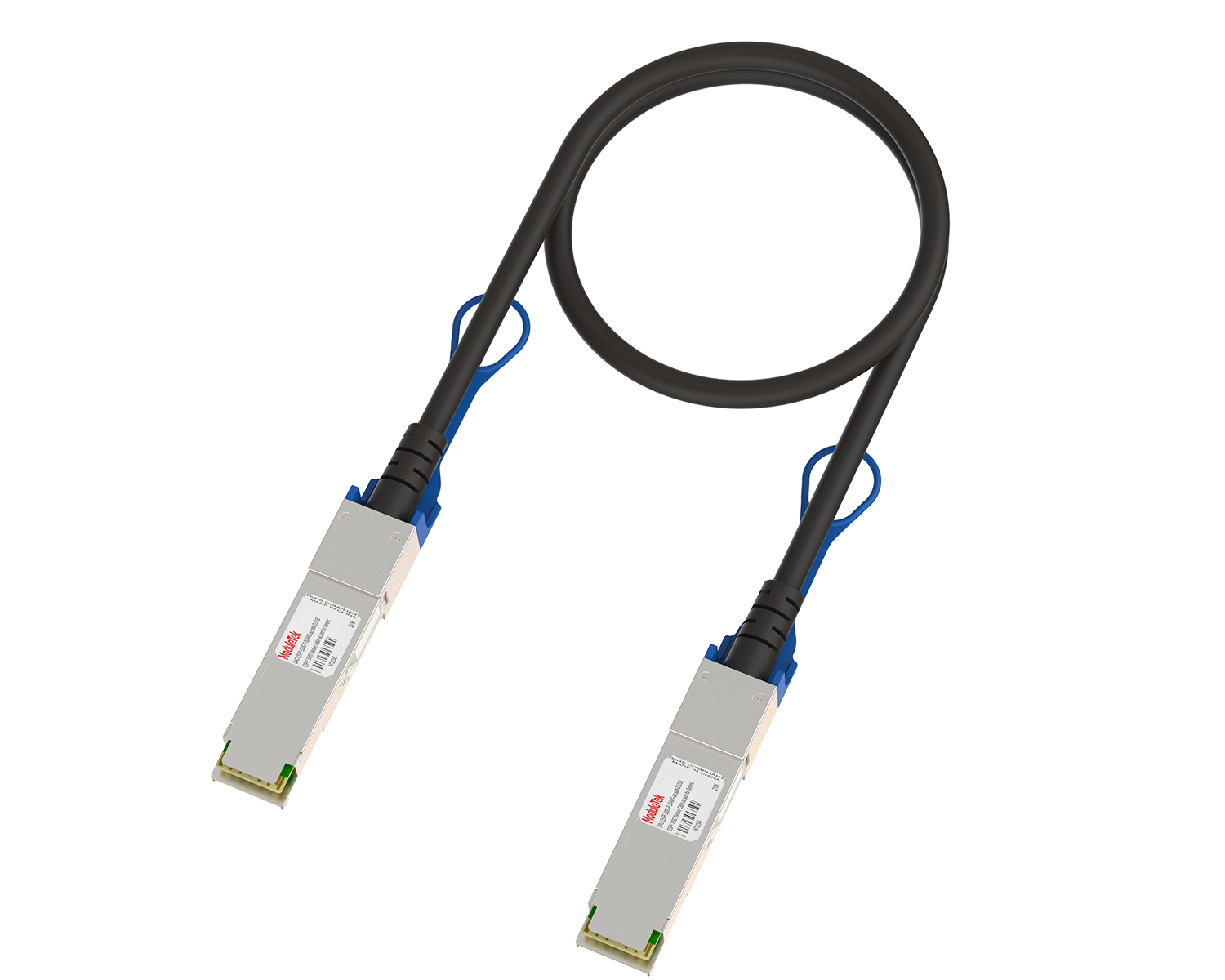 Full-Rate Passive DAC Series
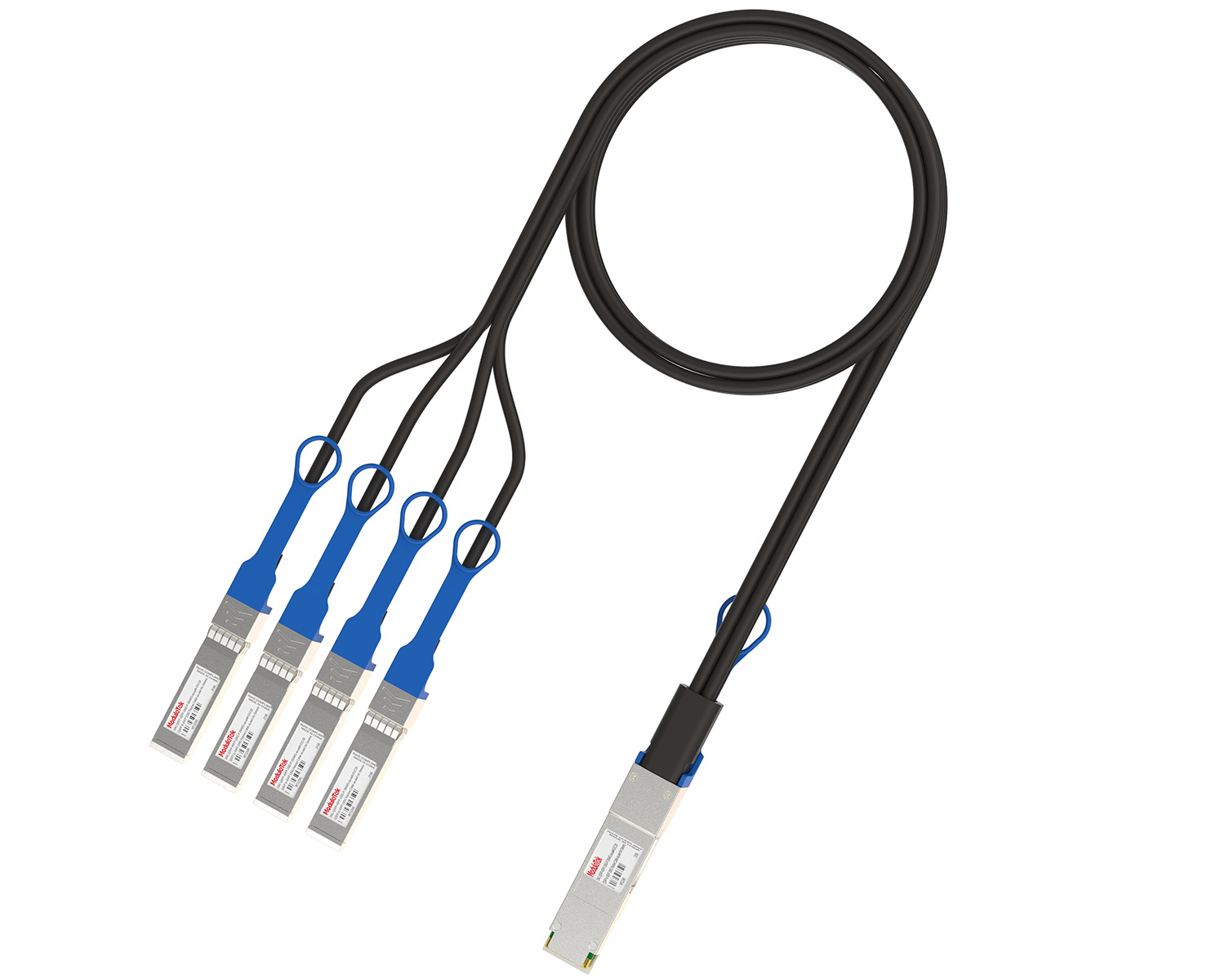 40G/100G Passive Breakout DAC Series
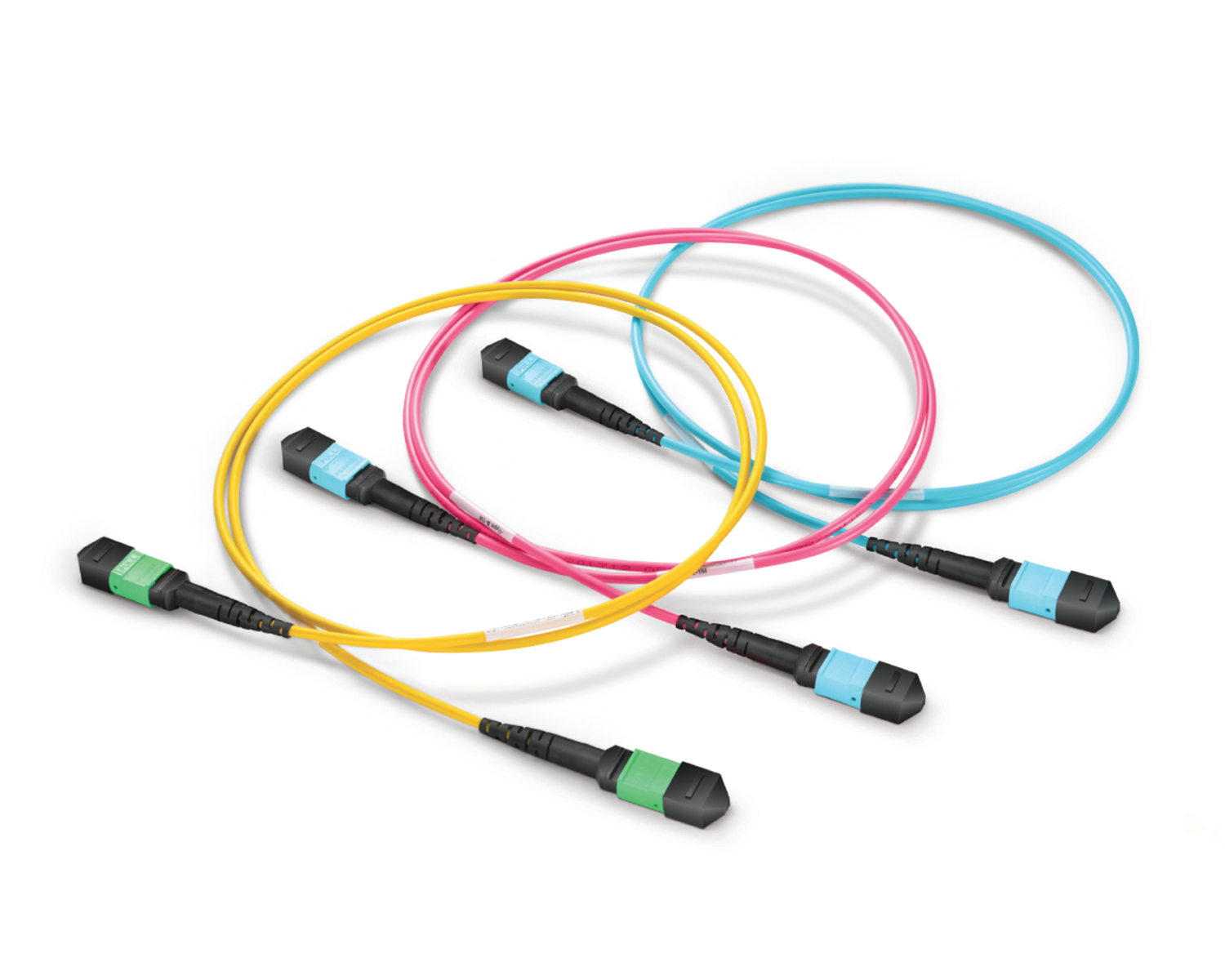 Regular/MTP-MPO Fiber Patch Cords
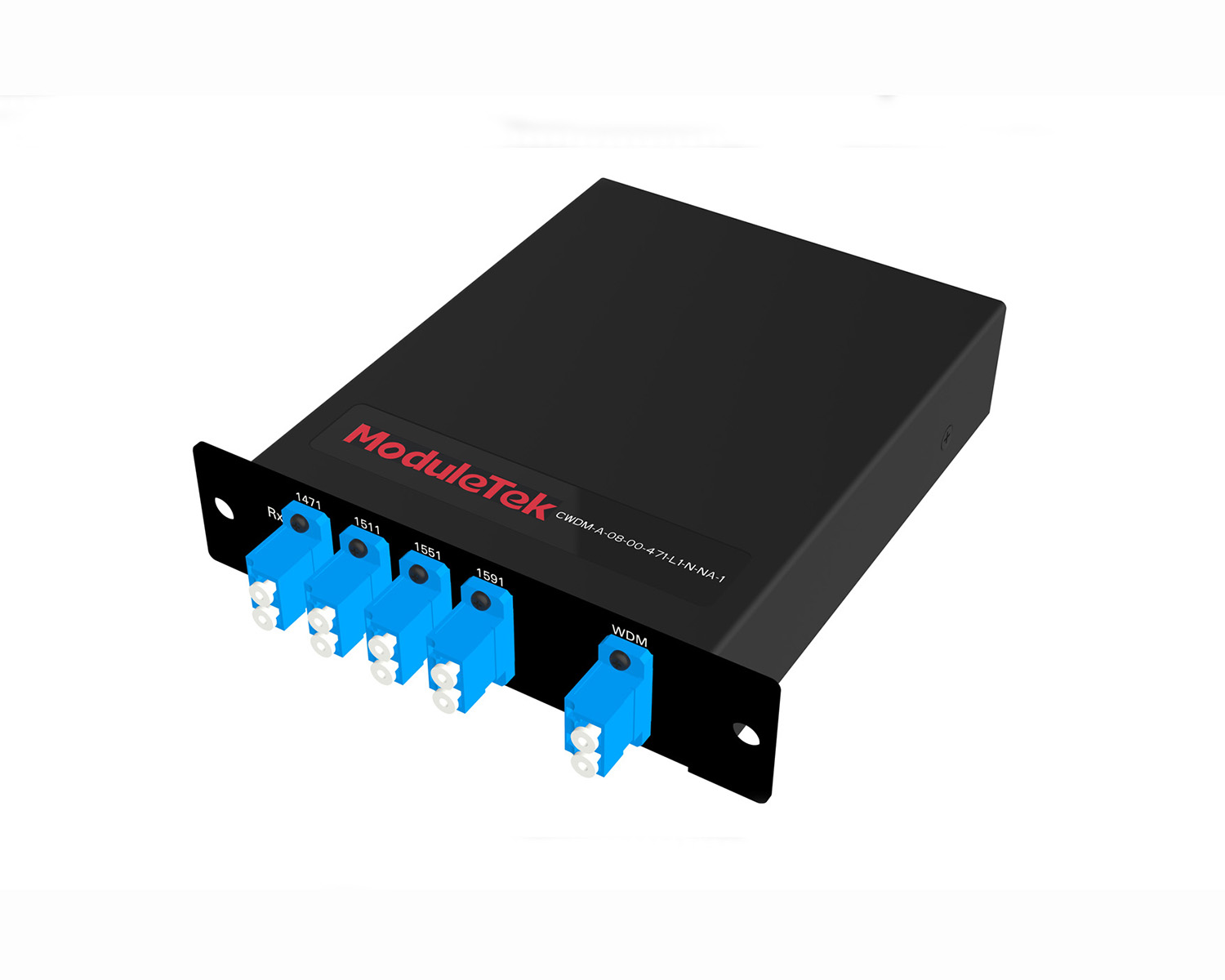 MT2011
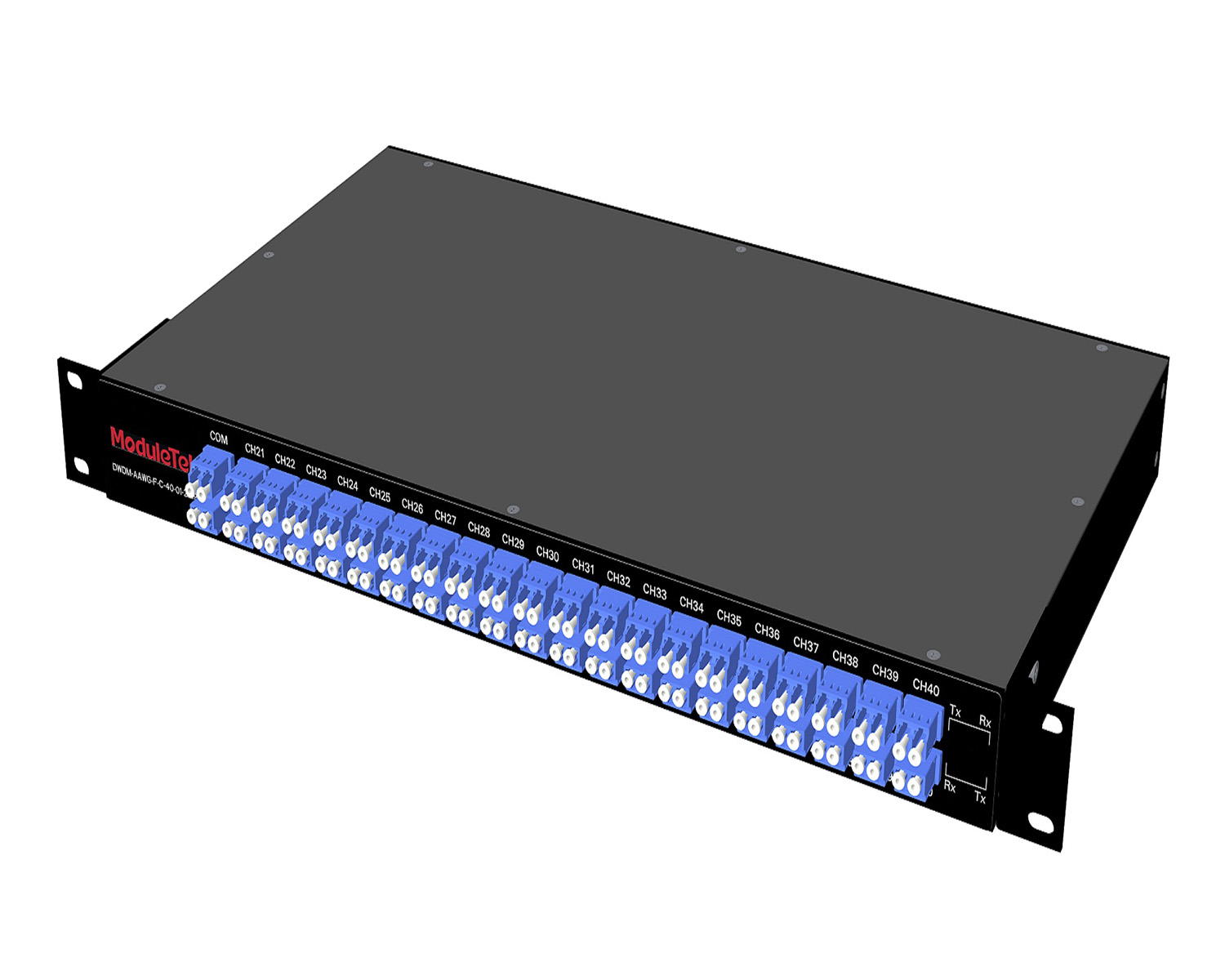 MT2010
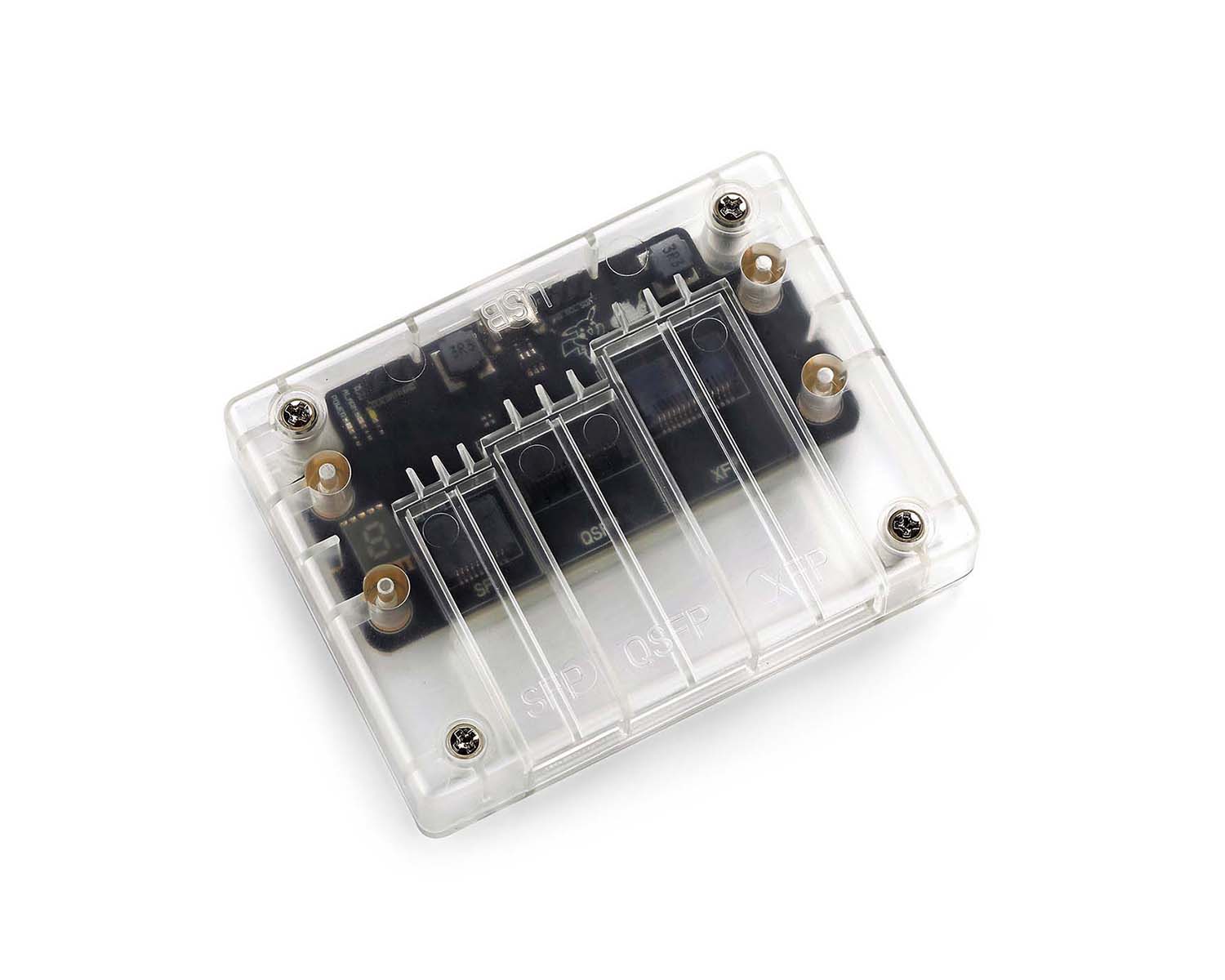 CodingBox
 QSFP to SFP Adapter
How To Turn Off Prompt Messages On Huawei Switches
Time: 2023-12-21
By default, the console port of Huawei switches automatically displays log messages.
Per ITU‑T definitions, all managed object events and abnormal activities can be recorded in log format.
Logs support tracking user behavior, securing system operations, and providing evidence for system diagnosis and maintenance, making them an essential tool for operation, maintenance, and fault location.
Huawei switch logs fall into four categories: user logs, operation & maintenance logs, diagnostic logs, and security logs.
Their definitions are shown below:
Table 1 Huawei Switch Log Types
|
Log Types
|
Definitions
|
|
User logs
|
Generated by the logging module in the host software to record runtime status of the device. These logs are stored in the Logbuffer, sent to the Syslog server, reported to the NMS, and displayed on the console screen.
|
|
Diagnostic Log
|
Recorded in the process‑side black box after device startup but before the logserver component initializes. These logs are not stored in the Logbuffer, sent to the Syslog server, reported to the NMS, or displayed on the screen.
|
|
Operation and Maintenance Log
|
Generated by the logging module to record service runtime data. These logs are not stored in the Logbuffer, sent to the Syslog server, reported to the NMS, or displayed on the screen.
|
|
Security Log
|
Recorded when the system detects intrusion events to support response policy making and execution. These logs are stored in the Logbuffer, sent to the Syslog server over SSL, reported to the NMS, and displayed on the console screen. |
As shown above, logs output from the console port mainly include user logs and security logs.
They provide real-time device status feedback to help users detect problems early.
However, scrolling log messages may interrupt command input during configuration or query tasks.
Users can enable or disable automatic log prompts via configuration:
• Enter the system view, then run the following command to disable the information center and turn off log prompts:
undo info‑center enable
• Enter the system view, then run the following command to enable the information center and turn on log prompts:
info‑center enable
Tip: It is recommended to keep the information center enabled at all times, as it reliably records system logs and helps track and locate anomalies.
To verify whether the information center is enabled (i.e., whether console log prompts are active), run the following command in the user view:
display info‑center
Moduletek Limited is at your service.
For further inquiries about the above content, please contact us at: sales@moduletek.com