 40G/100G Optical Transceivers
 25G Optical Transceivers
 10G Optical Transceivers
 155M/2.5G Optical Transceivers
 1G Optical Transceivers
 1G BIDI Optical Transceivers
 Dual-Rate Optical Transceivers
 FC 16G/32G Optical Transceivers
 CWDM Optical Transceivers
 DWDM Optical Transceivers
 SGMII Port Optical Transceivers
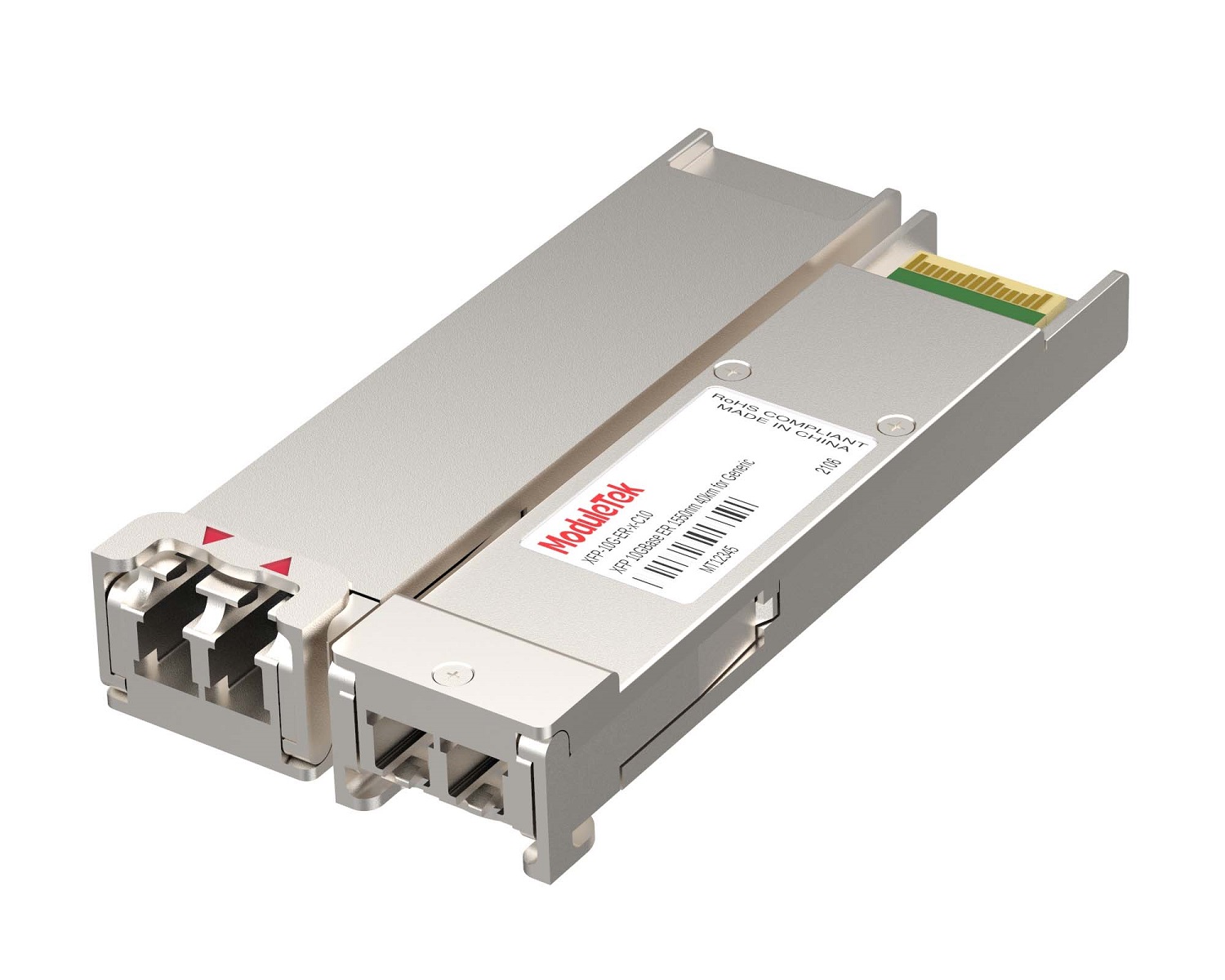 XFP Optical Transceivers
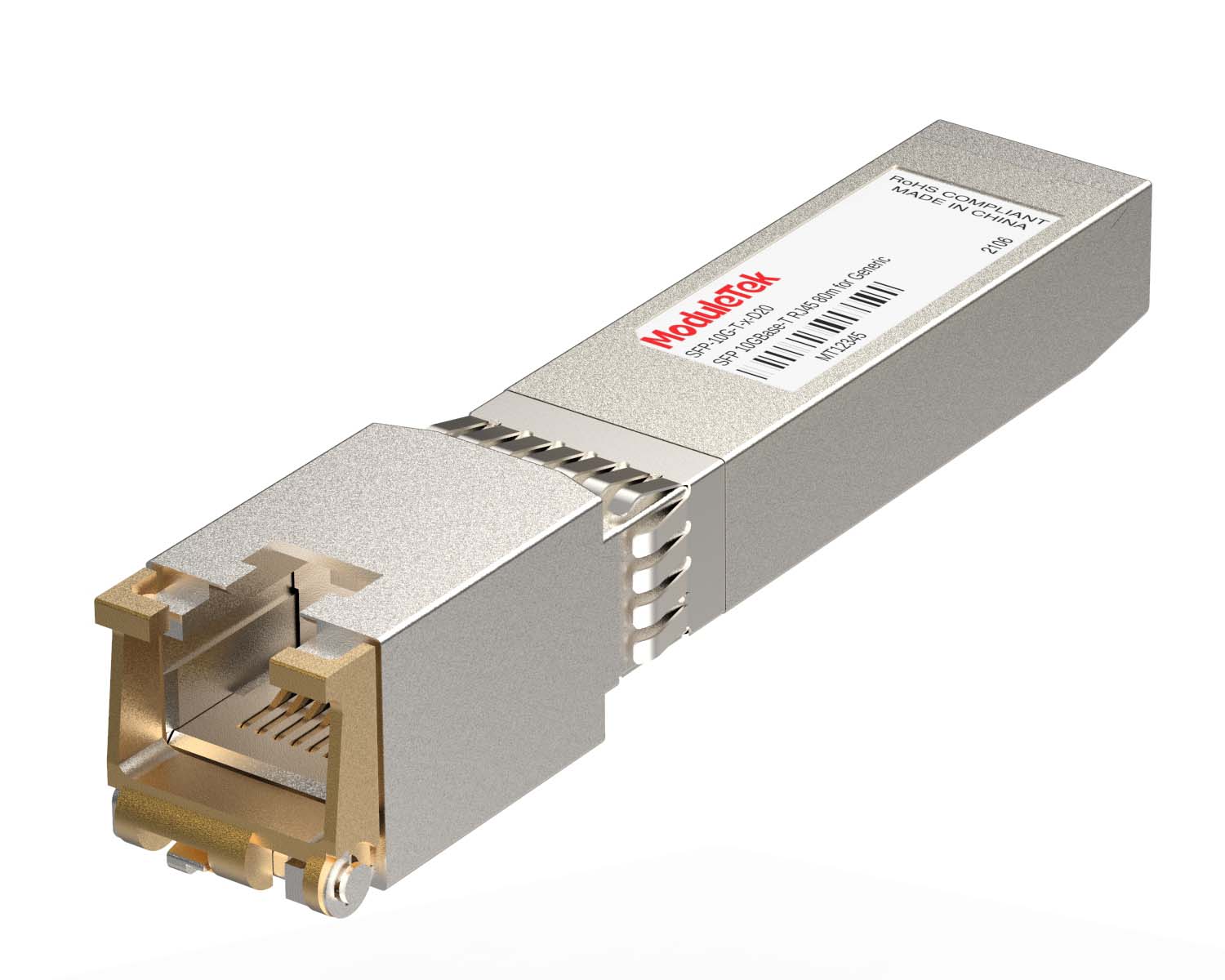 100M/1G/10G Coppers
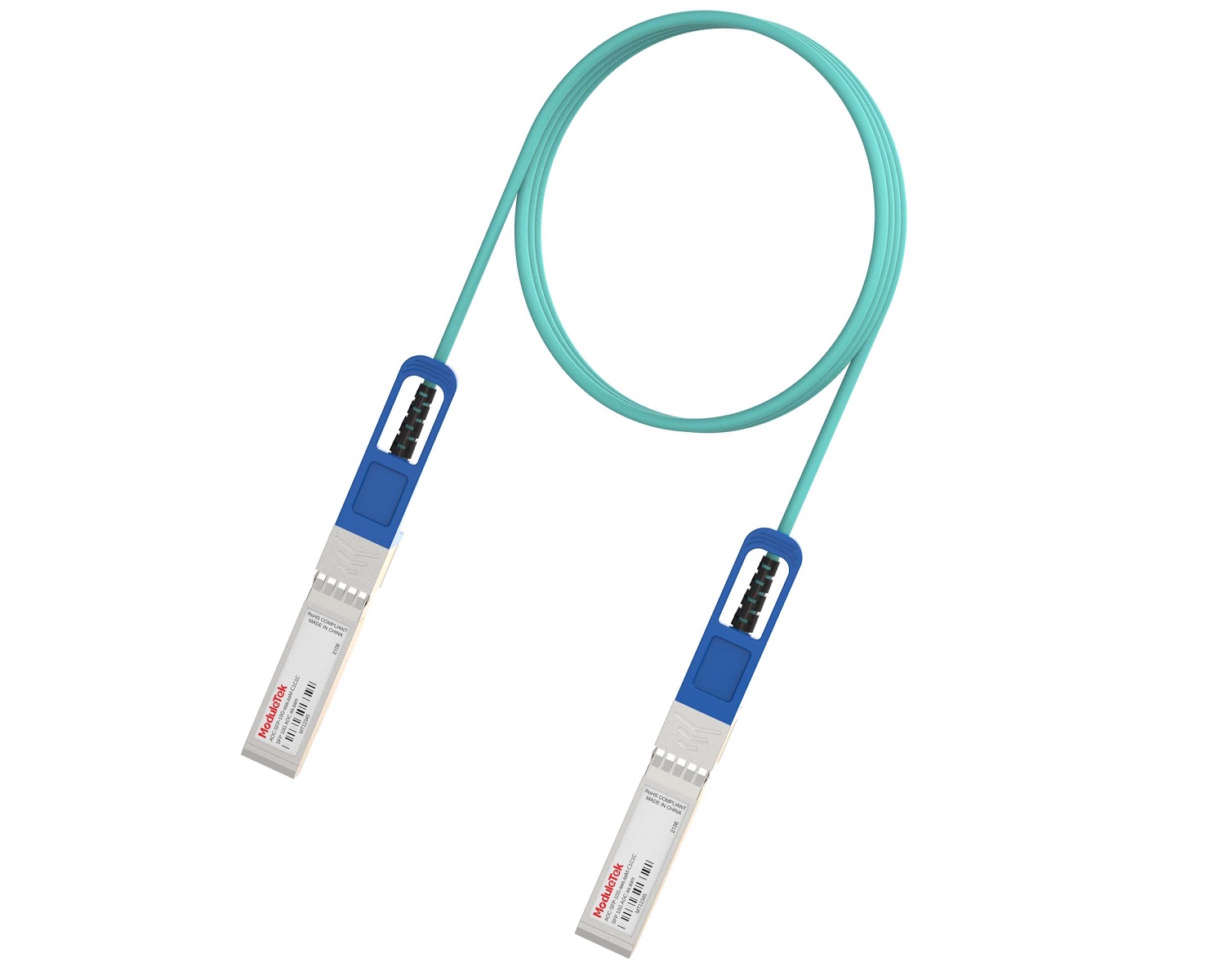 Full-Rate AOC & Breakout Series
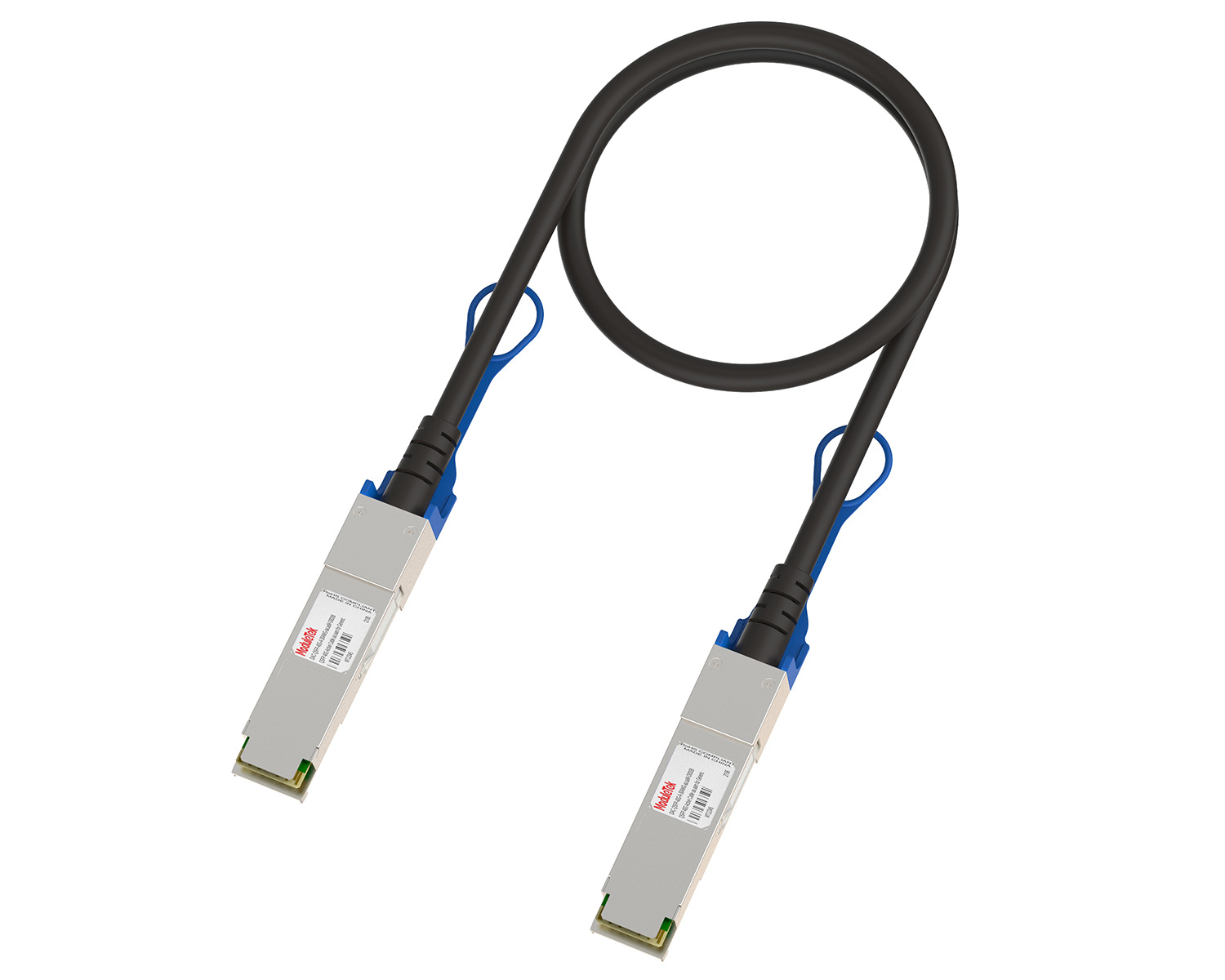 10G/40G Active DAC Series
 Full-Rate Passive DAC Series
 40G/100G Passive Breakout DAC Series
 Regular/MTP-MPO Fiber Patch Cords
 MT2011
 MT2010
 CodingBox
 QSFP to SFP Adapter
 首页 > Home > Application Notes > How To View Port Status And Optical Module Information On Extreme Switches
How To View Port Status And Optical Module Information On Extreme Switches
Time: 2024-01-03
When optical modules are installed on switches, it is necessary to read internal module parameters to monitor operating status, including link connectivity, real-time transmit/receive optical power, and temperature. Verifying module identification also helps check coding compatibility between the module and the switch.
This document uses the Moduletek SFP-10G-LR-BIDI optical module installed on an Extreme X690-48x-2q-4c switch as an example to demonstrate how to view port status and optical module information on Extreme switches.

Figure 1 Schematic diagram of optical module accessing the switch
1. View Port & Optical Module Status
Run the following command to view interface configuration and status:
show port <port_number> configuration
Add no-refresh to disable automatic screen refresh:
show port <port_number> configuration no-refresh
The output includes:
• Interface speed and duplex mode
• Optical module type
• Link status (Active is required for normal operation)
Note:
• <port_number> is the physical port number labeled on the switch panel.
• Omit the port number to display information for all ports.
2. Query Module Identification & DDM Information
To view detailed module identity and digital diagnostic monitoring (DDM) data, run:
show ports <port_number> transceiver information detail
The command returns two key sections:
• Module identification: module type, part number, vendor name, serial number, operating wavelength, etc.
Note: Media Type may show Unsupported for non-Extreme-certified modules.
• DDM diagnostics: real-time values of temperature, voltage, Tx/Rx optical power, along with alarm thresholds.
A status of Normal indicates all diagnostic parameters are within the valid range.
Moduletek provides a full range of optical modules compatible with Extreme switches. Welcome to inquire and purchase.
For further inquiries about the above content, please contact us at: sales@moduletek.com