
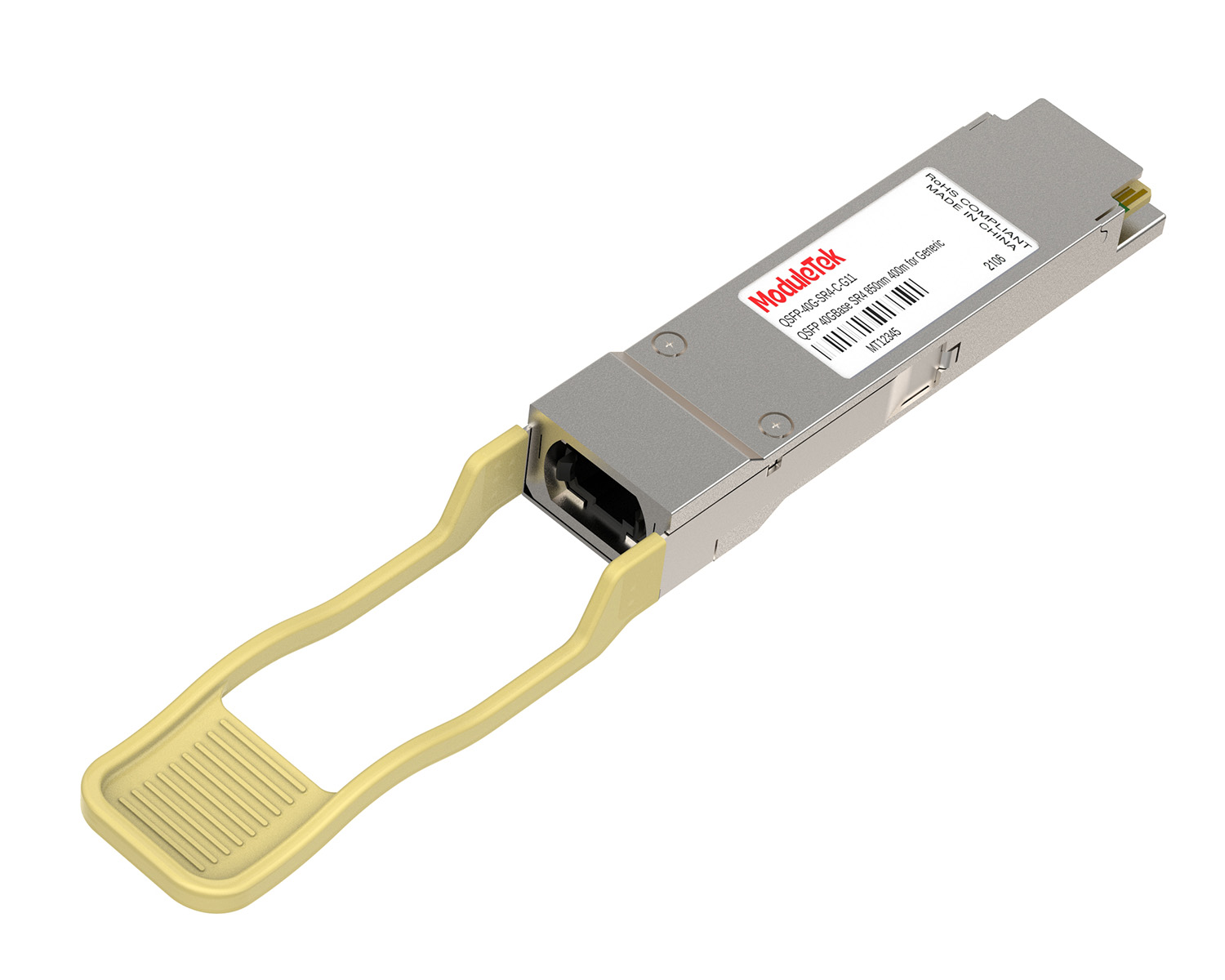
 40G/100G Optical Transceivers
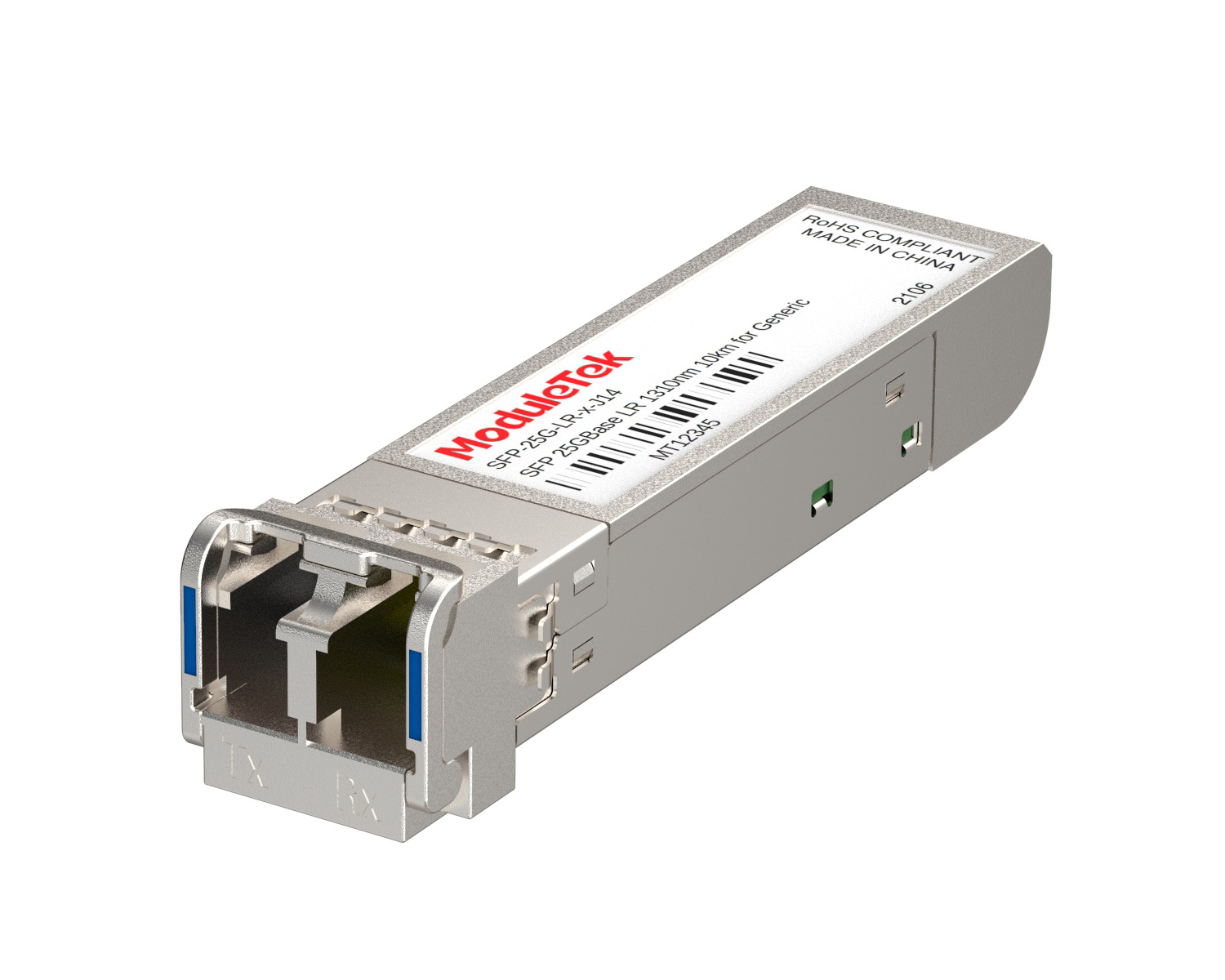 25G Optical Transceivers
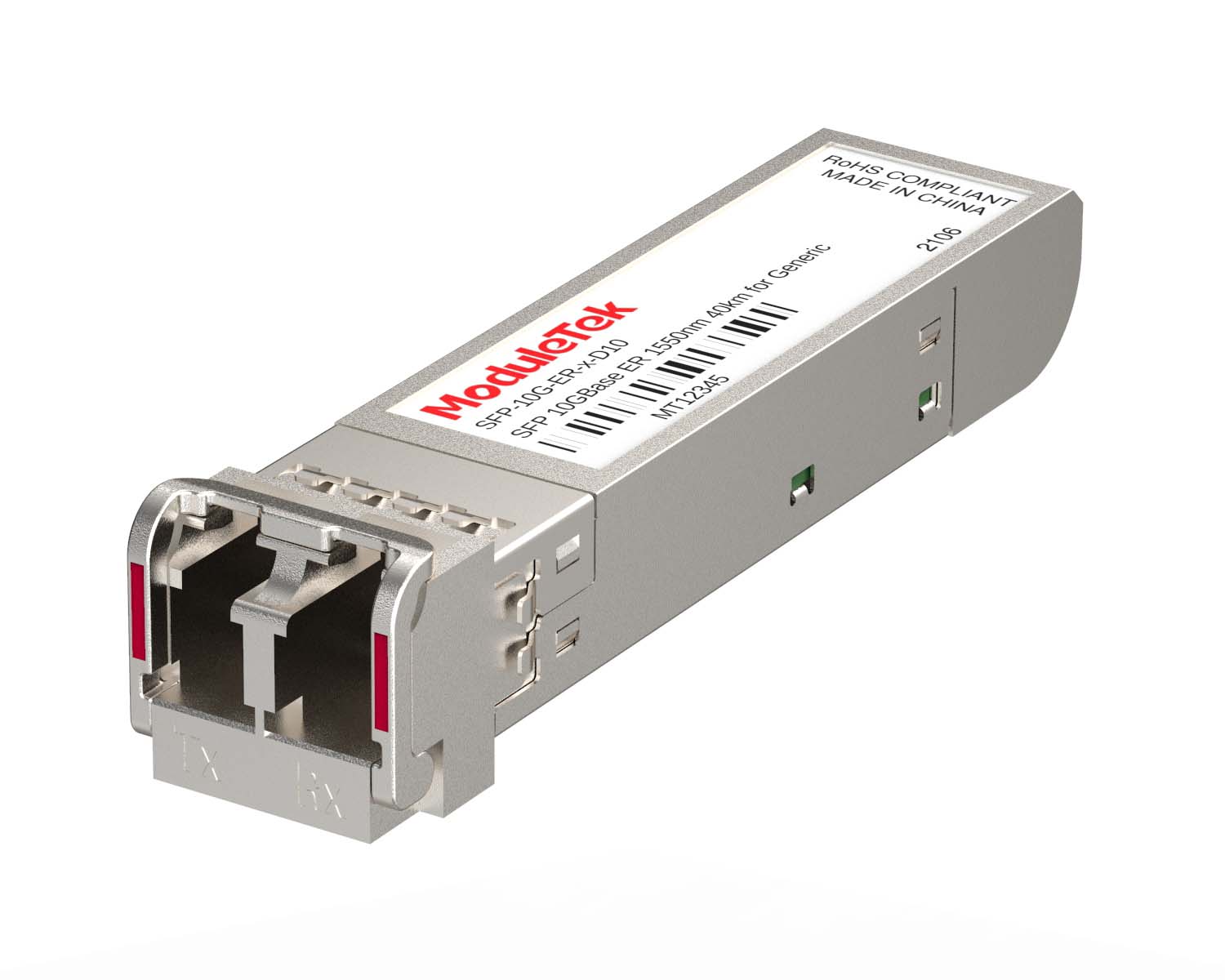 10G Optical Transceivers
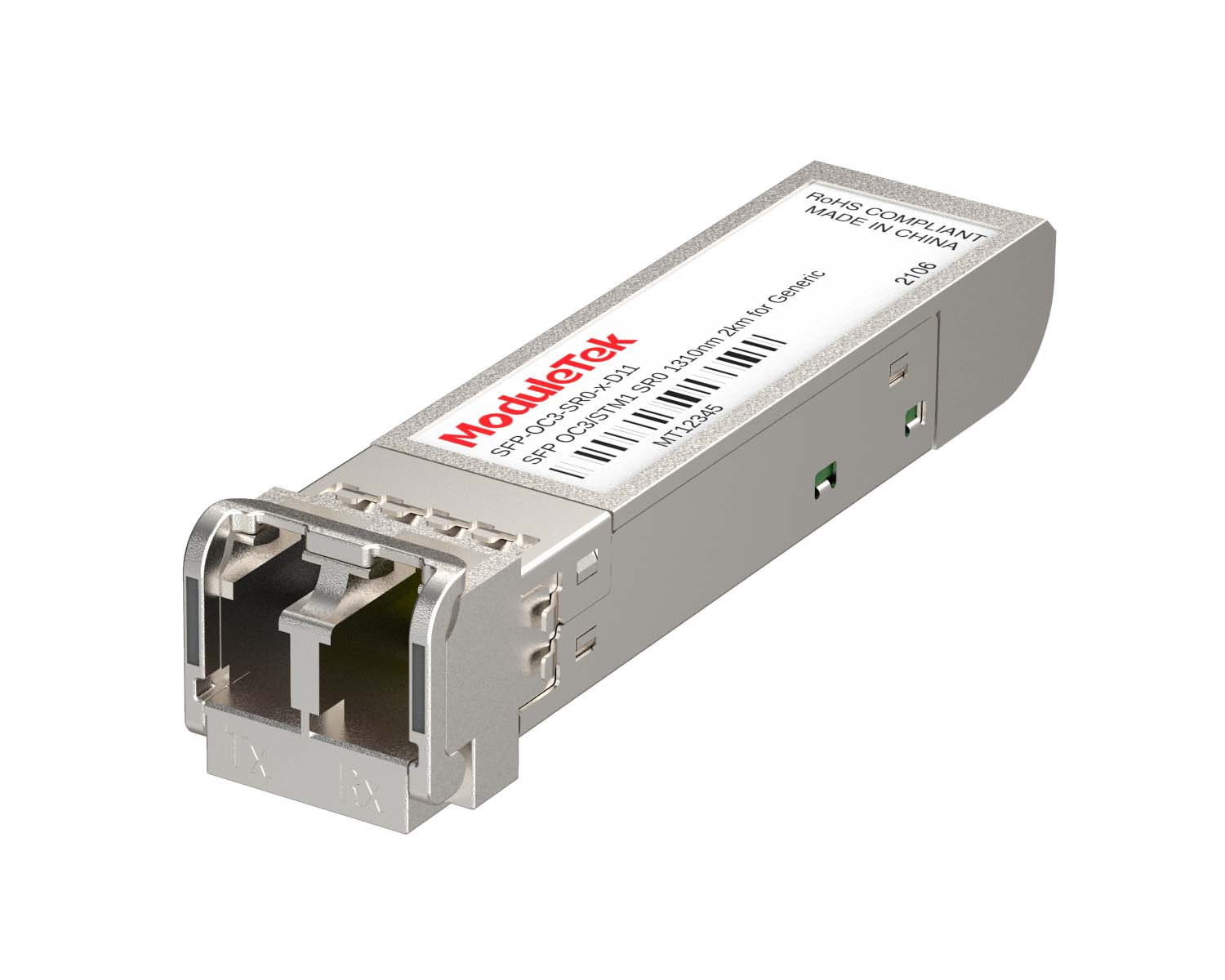 155M/2.5G Optical Transceivers
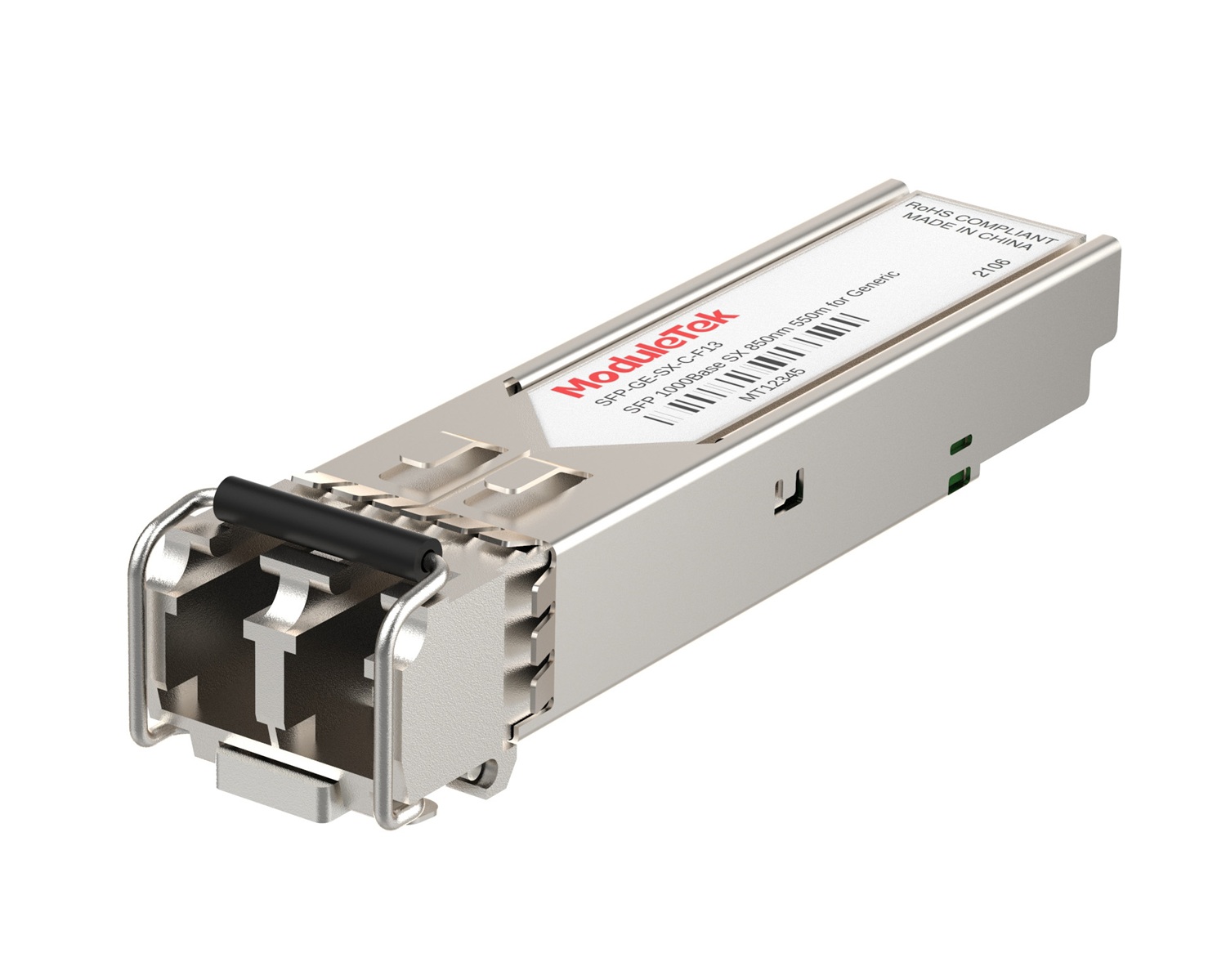 1G Optical Transceivers
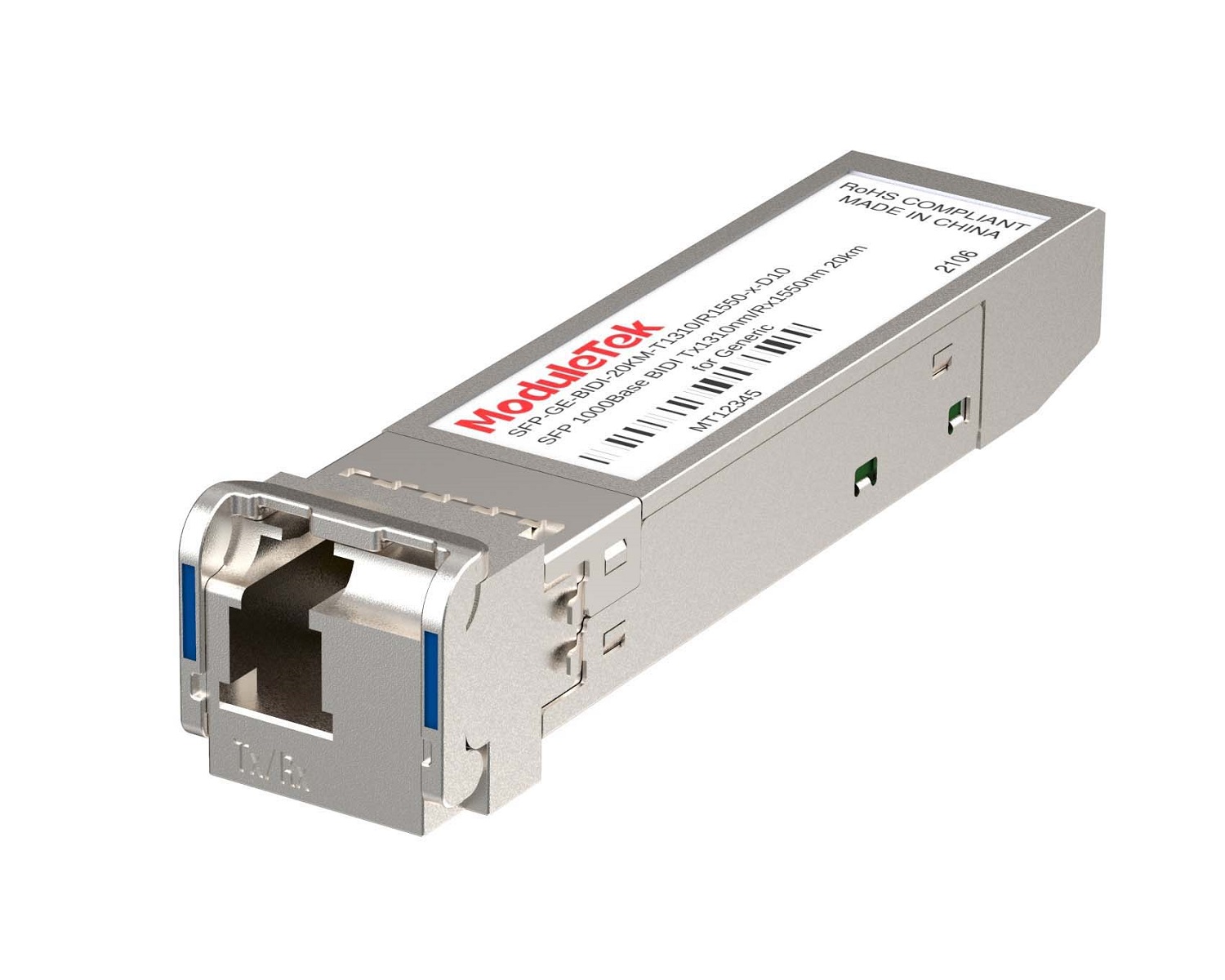 1G BIDI Optical Transceivers
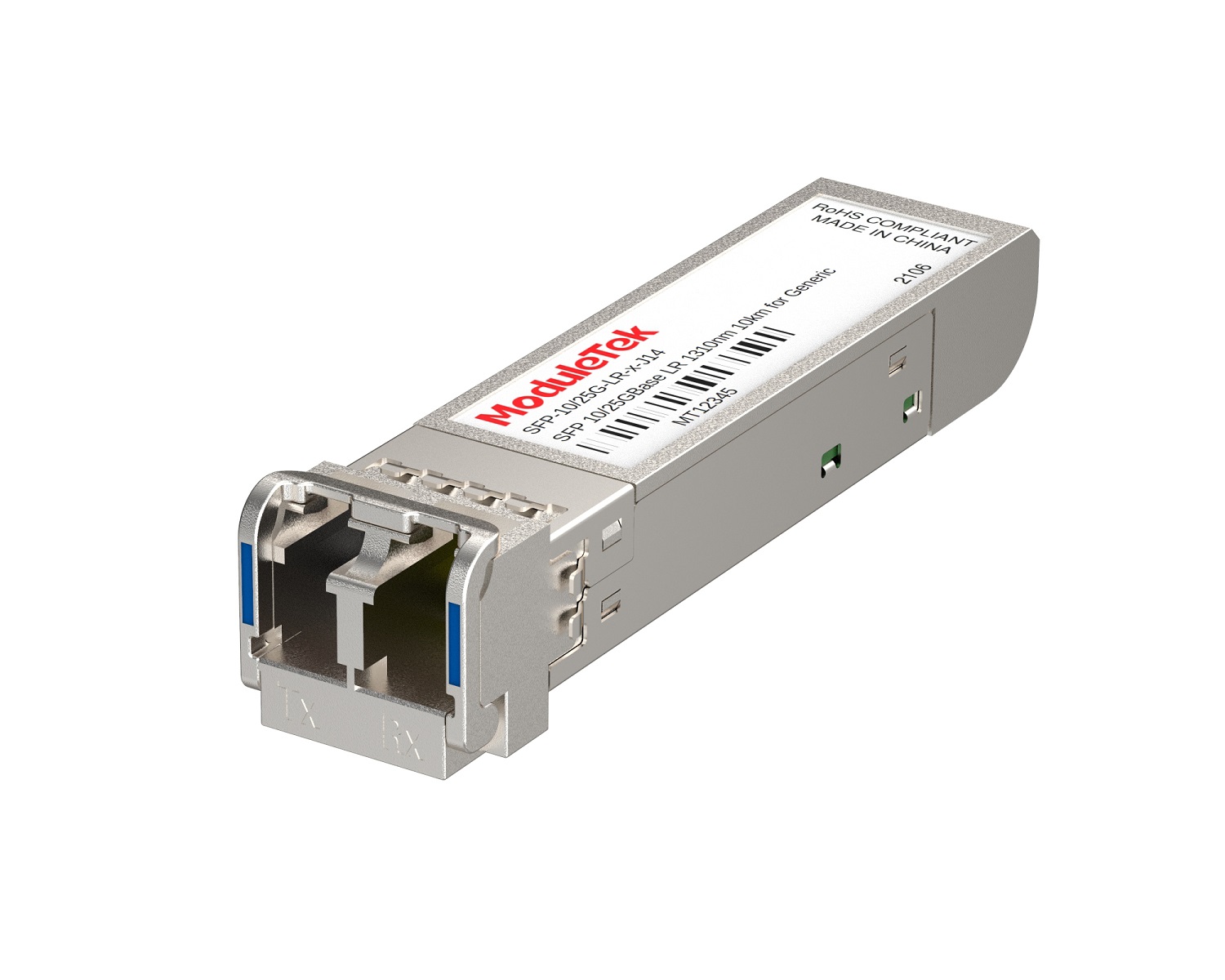 Dual-Rate Optical Transceivers
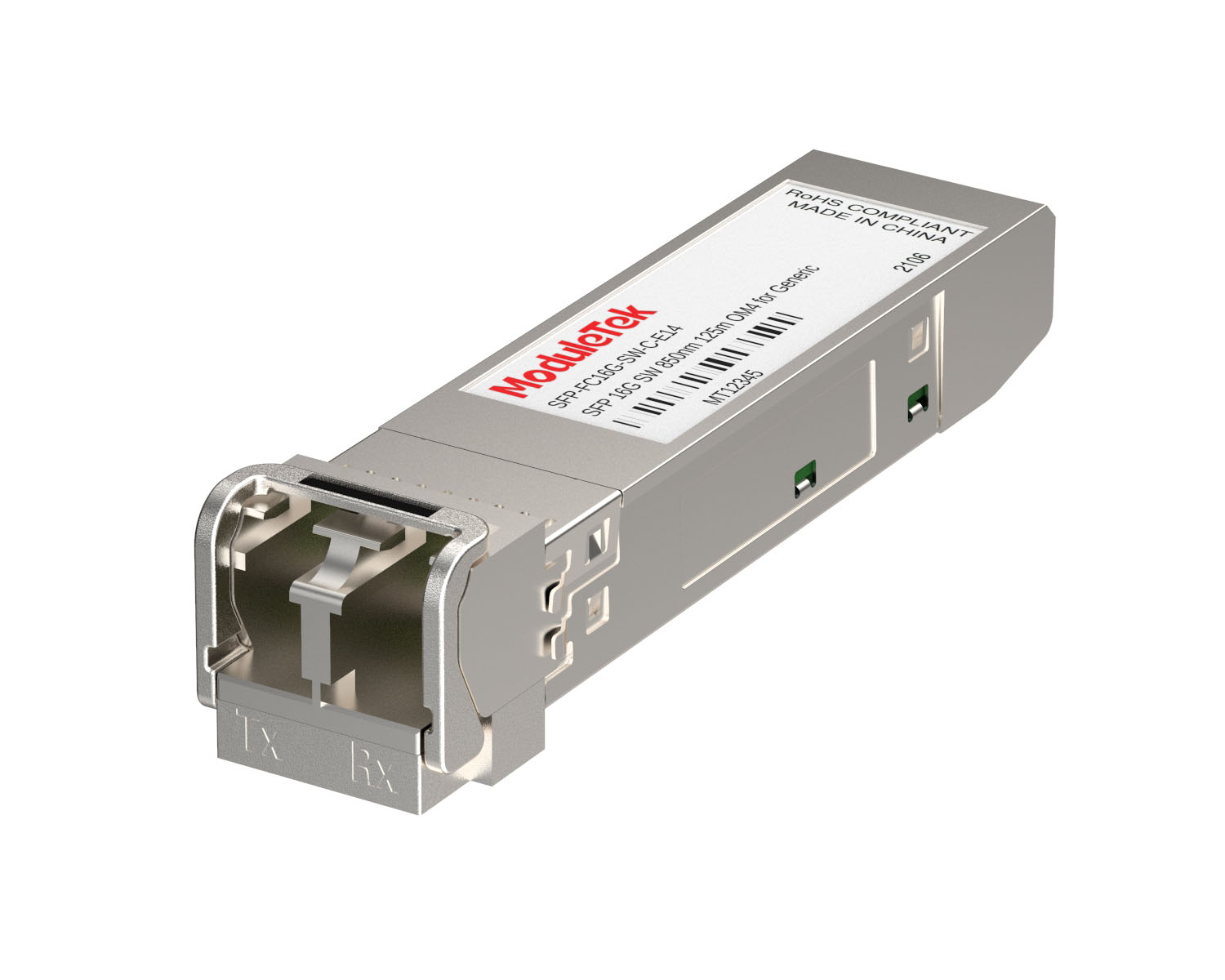 FC 16G/32G Optical Transceivers
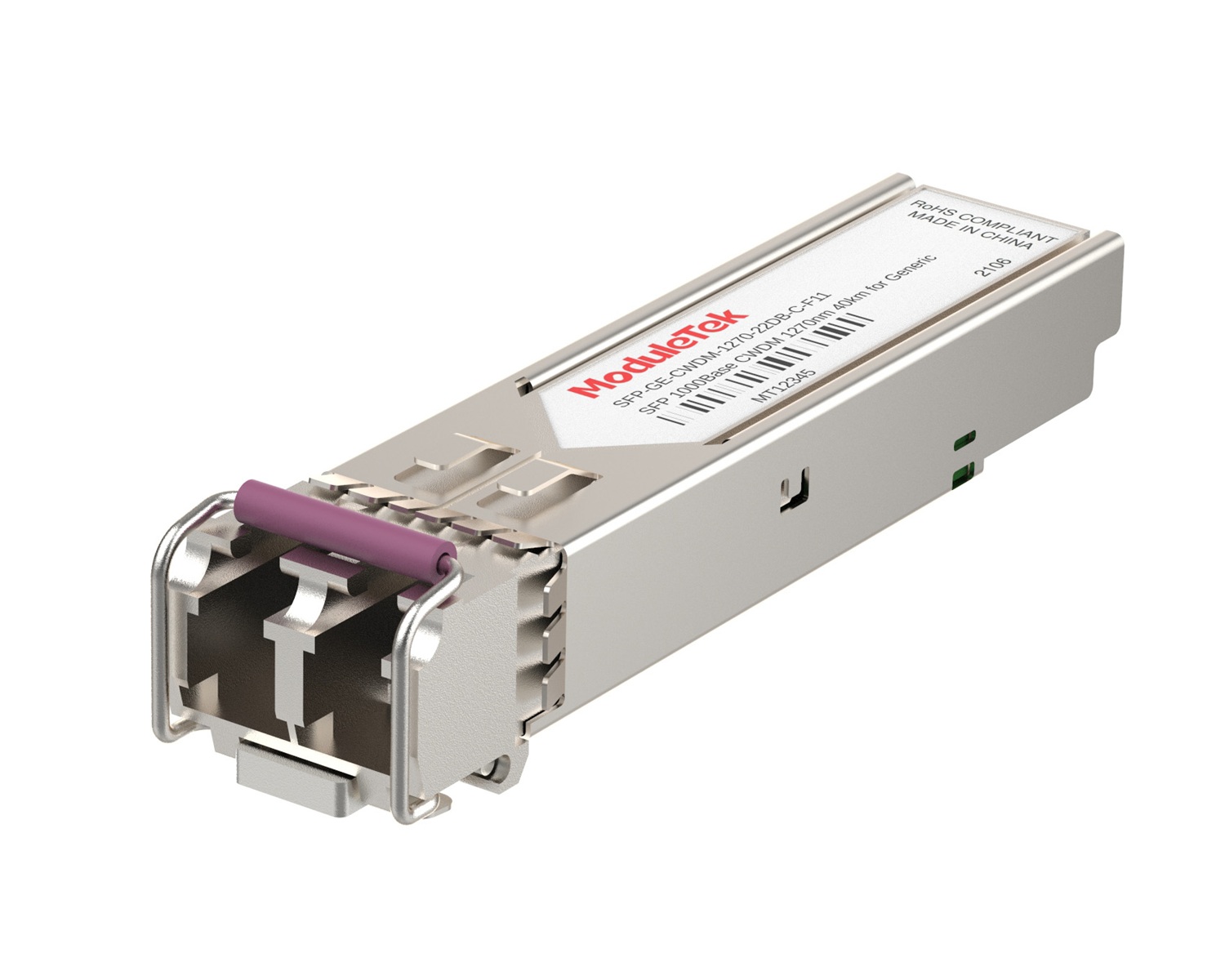 CWDM Optical Transceivers
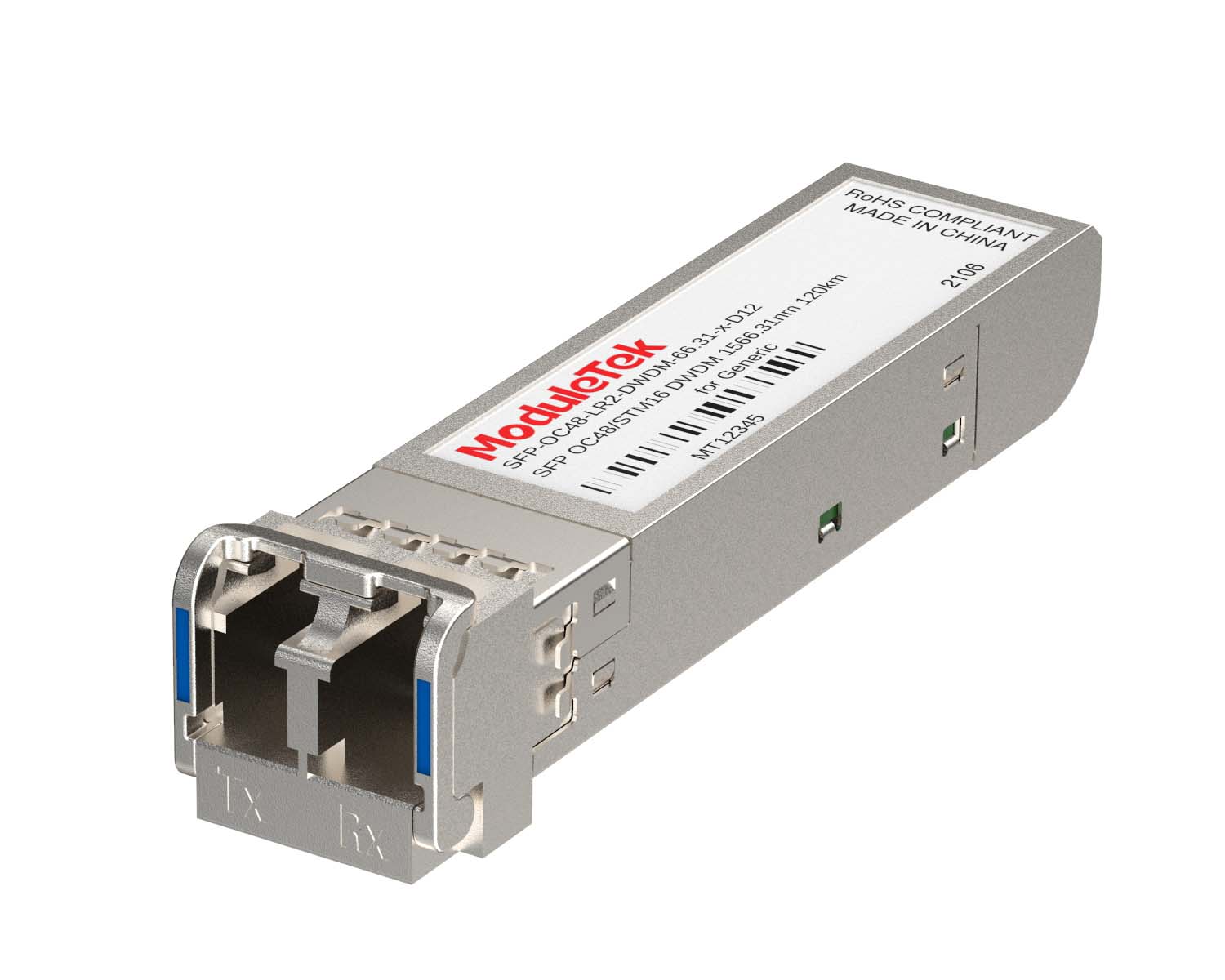 DWDM Optical Transceivers
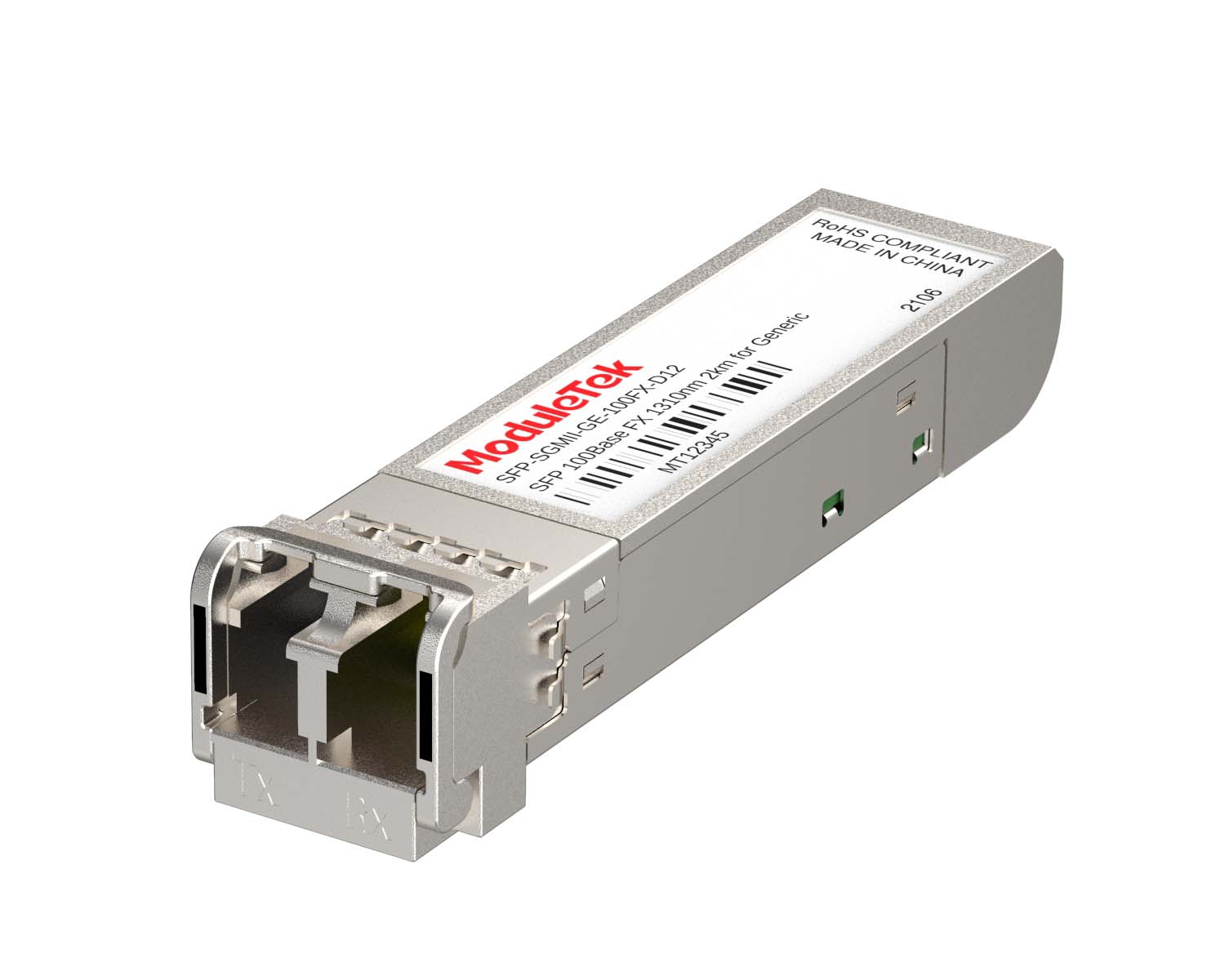 SGMII Port Optical Transceivers
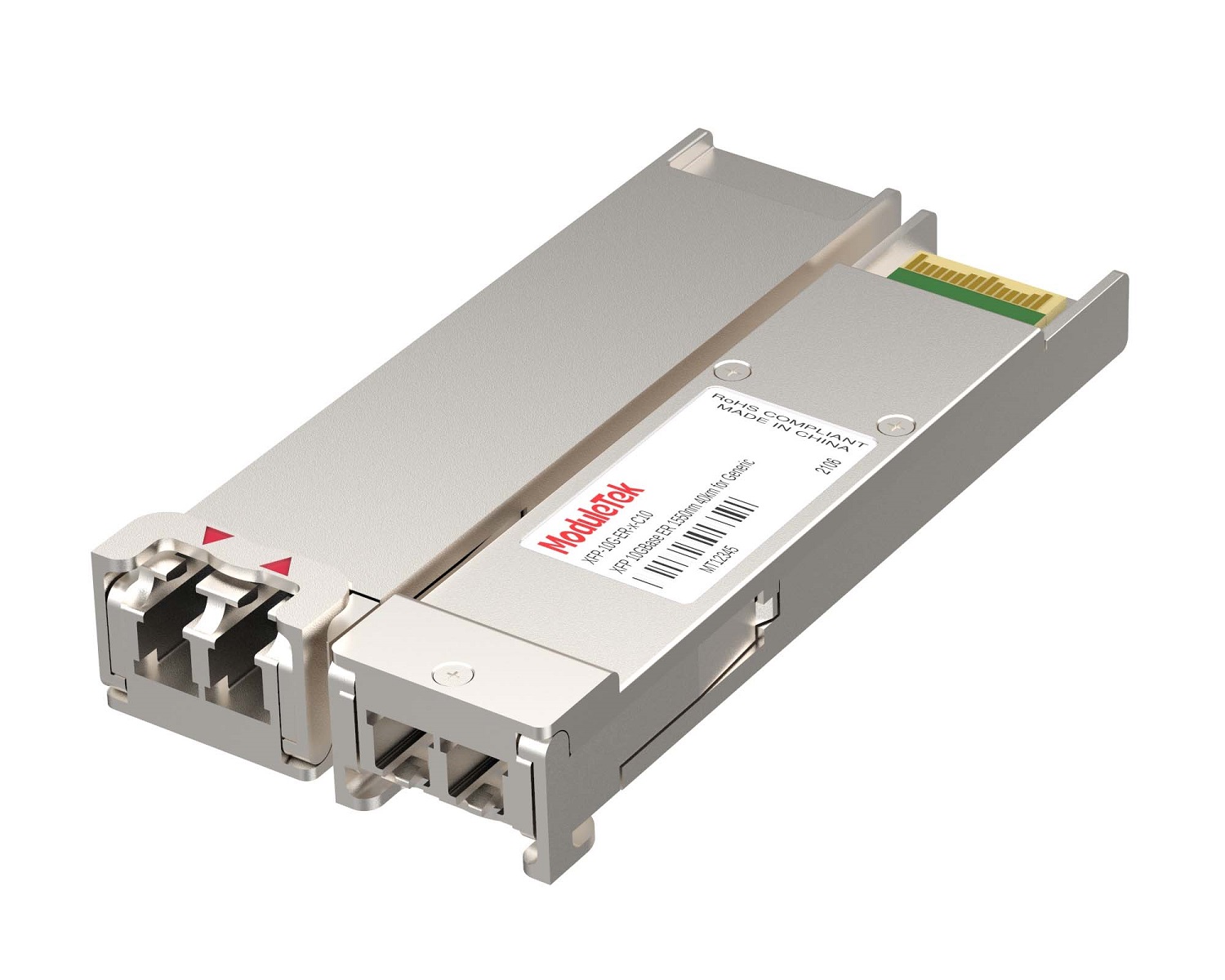 XFP Optical Transceivers
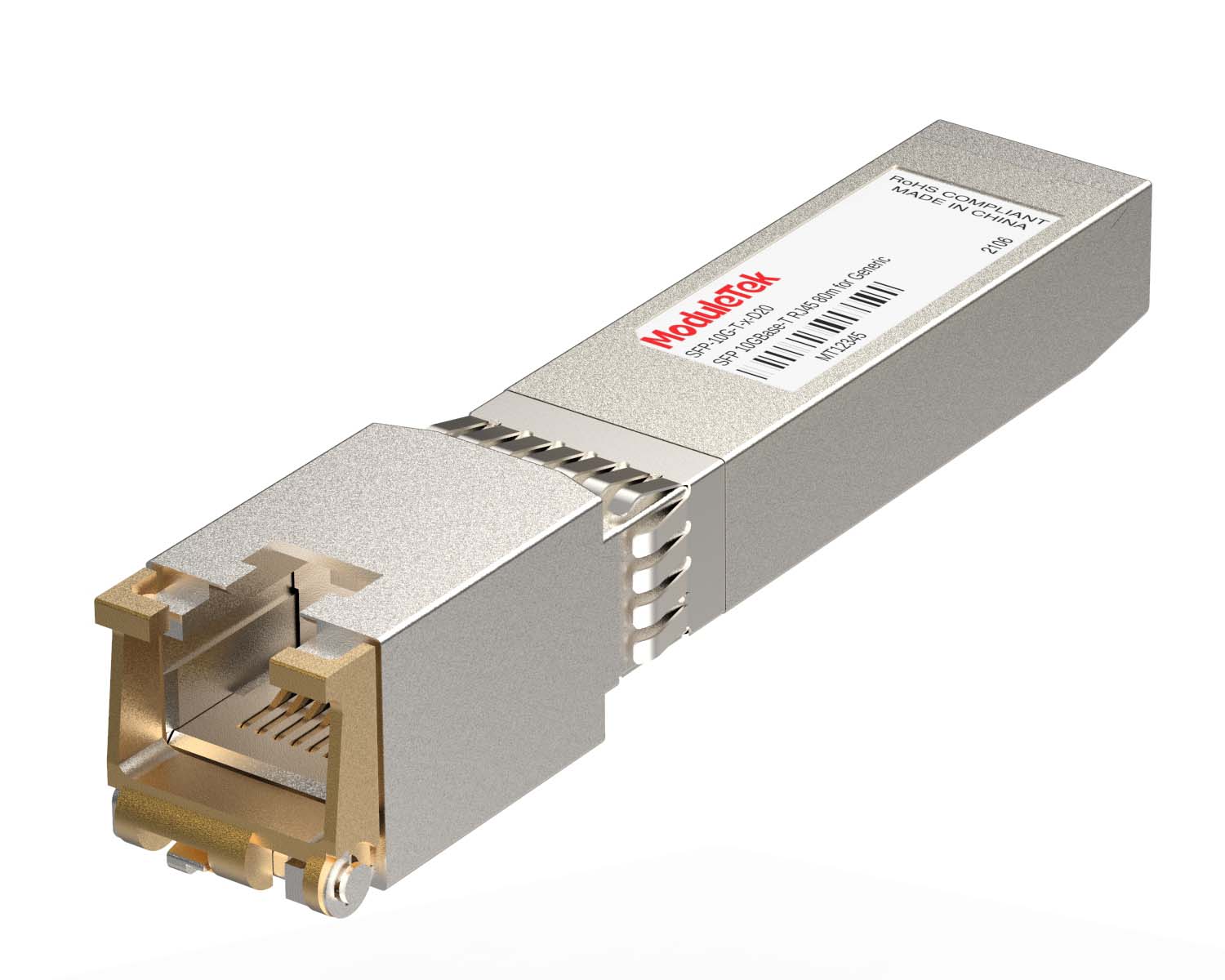 100M/1G/10G Coppers
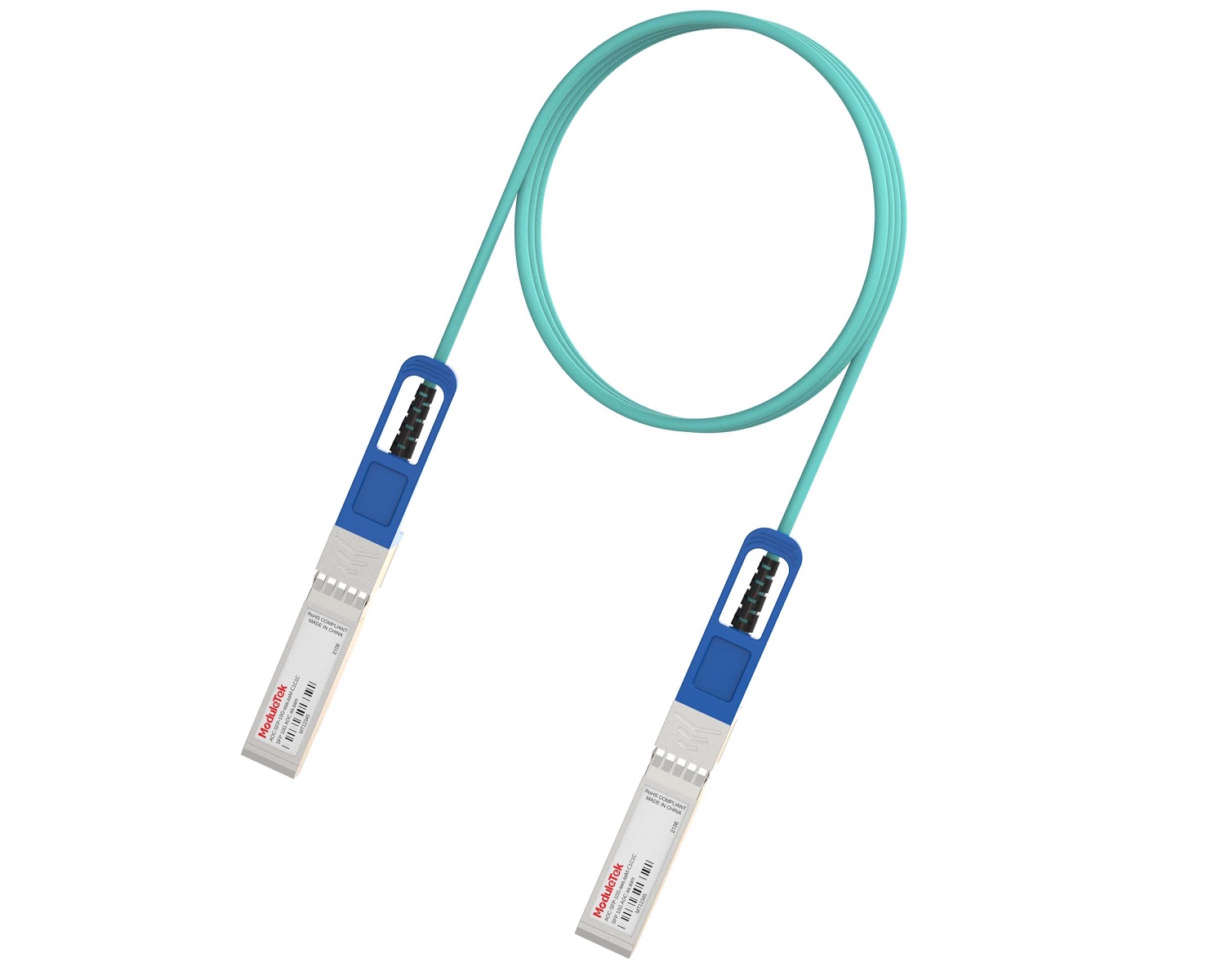 Full-Rate AOC & Breakout Series
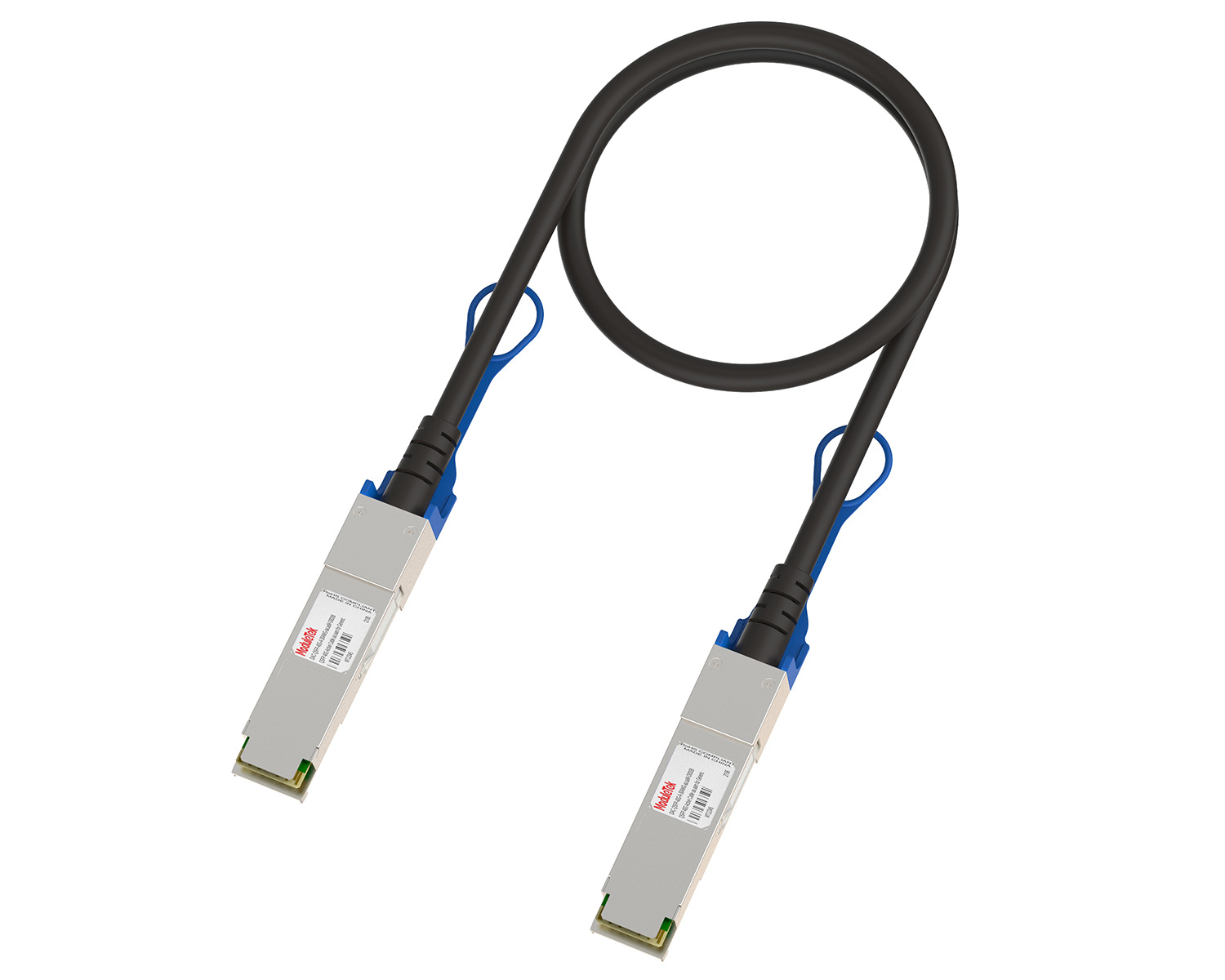 10G/40G Active DAC Series
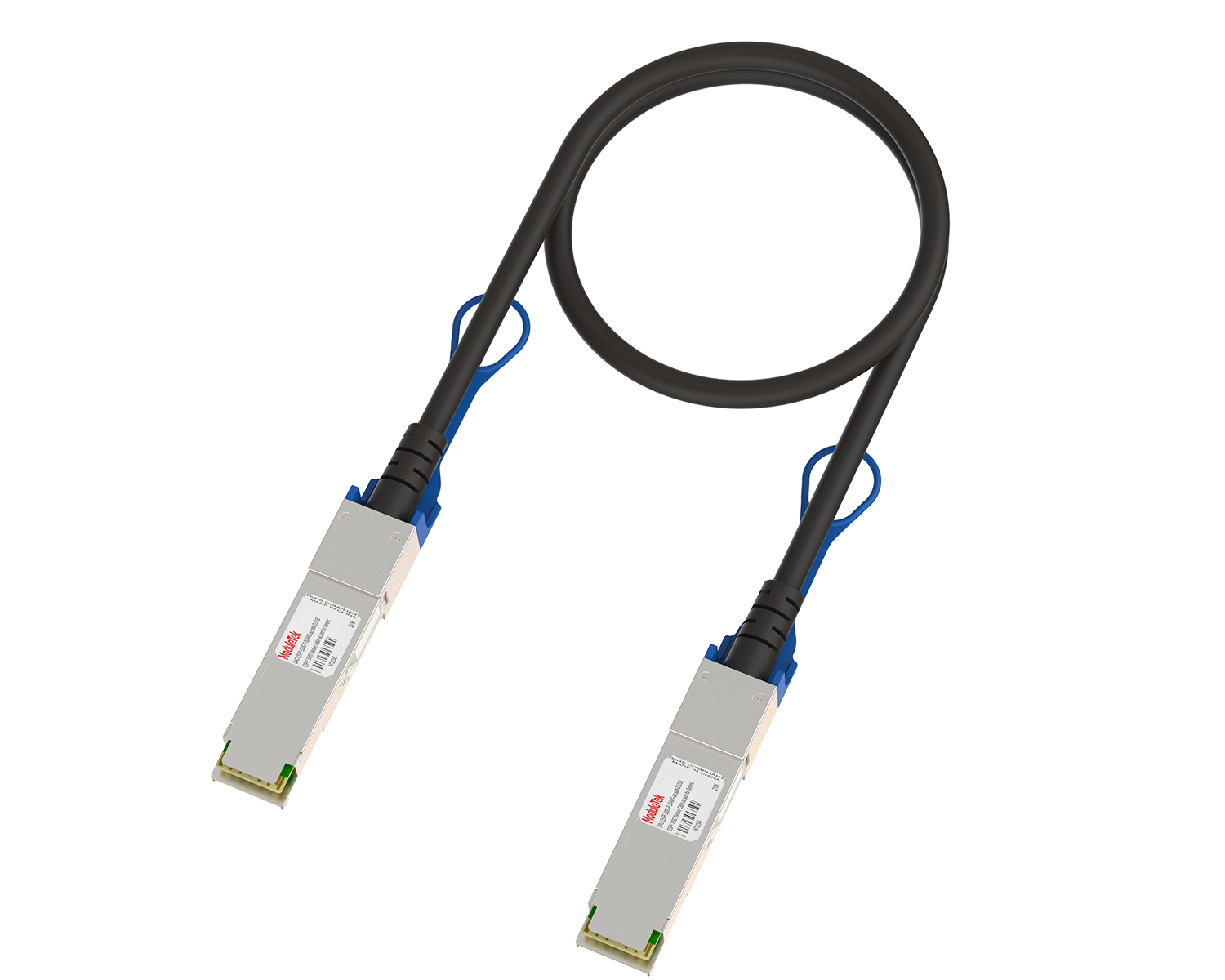 Full-Rate Passive DAC Series
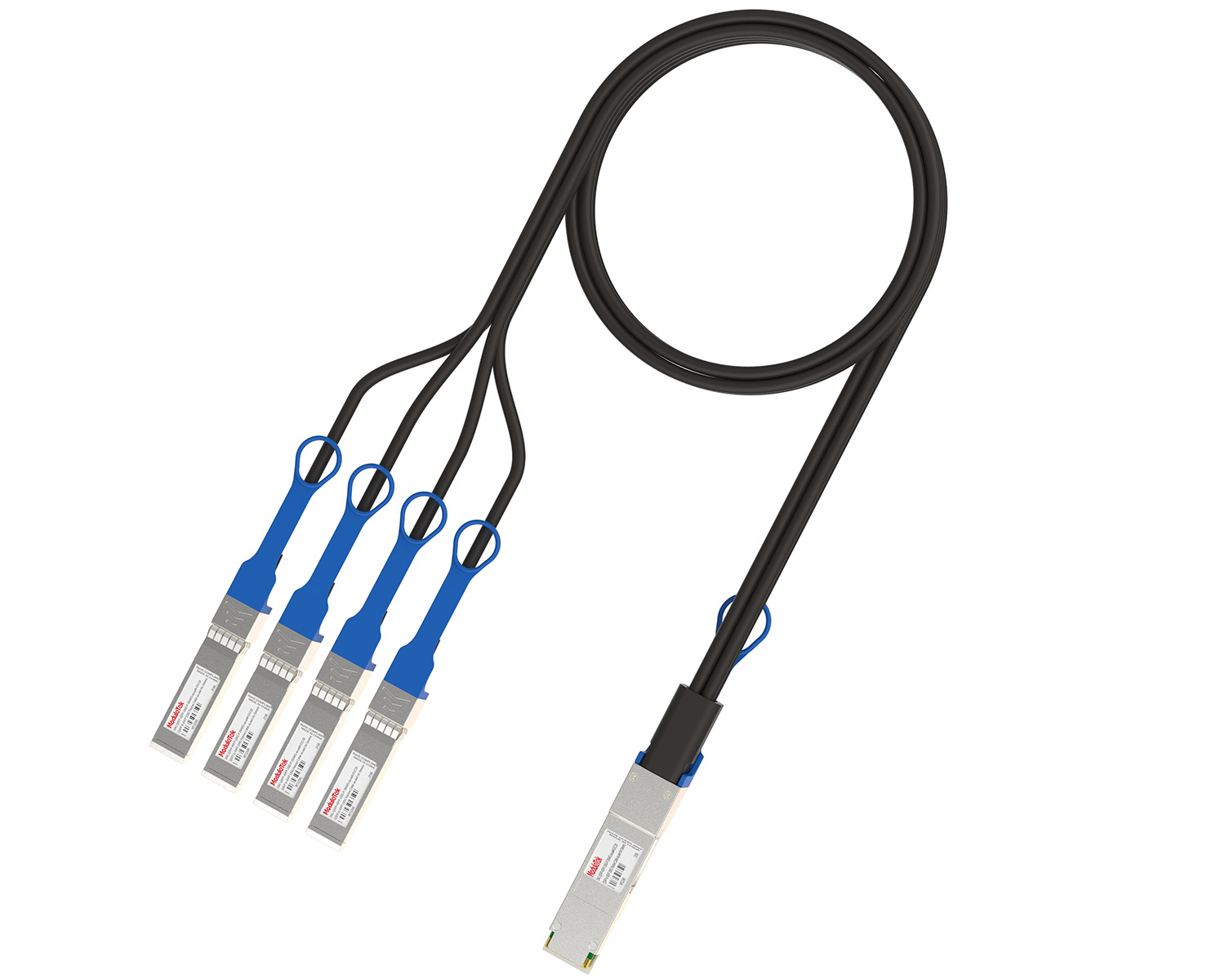 40G/100G Passive Breakout DAC Series
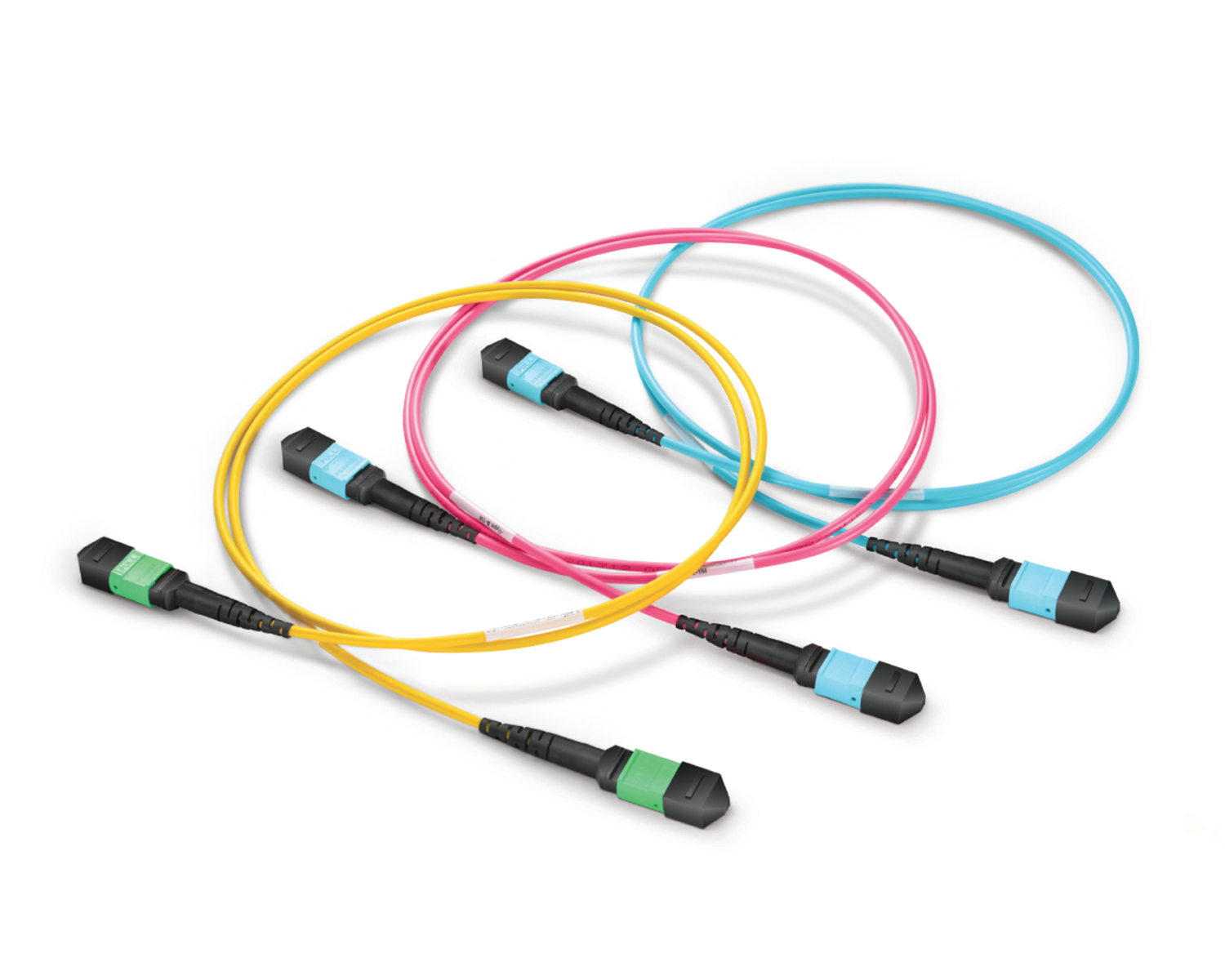 Regular/MTP-MPO Fiber Patch Cords
 MT2011
 MT2010
 CodingBox
 QSFP to SFP Adapter
FTP Upgrade Guide for Huawei Router System Firmware
Time: 2024-08-22
When optical transceivers are applied to Huawei routers and switches, their compatibility is restricted by the device’s system firmware version. Different firmware versions have distinct requirements for optical module identification and compatibility criteria. Upgrading or replacing the router system version can troubleshoot and resolve most optical module identification and compatibility issues, improving the adaptation between the module and the host device.
Combined with practical operation cases, this document details the complete operation process of offline FTP upgrade for Huawei router system software.
Table 1 Parameter Description
| Item | Details |
| Device Model | HUAWEI eKitEngine AR5710S-S8T2X |
| System Upgrade File Name | AR5700S_V600R023C10SPC100.cc |
| Router Management Port IP Address | 10.10.1.5 |
| FTP Server IP Address | 10.10.1.2 |
| FTP Username | admin123 |
| FTP Password | Admin@123 |
Note: Official download portal for Huawei system software:
• Operation Steps
1. Set up a local FTP server
First, enable the FTP server function, create a local FTP user, and correctly configure the account and password, service type, and user privilege level.
Note: The highest user privilege level for the AR5710 model is Level 3; for other Huawei models, configure according to the device’s official maximum privilege level..
2. Log in to the FTP client
Launch the FTP client (Tripper FTP is used for this operation), enter the server IP, username, and password, and log in to the FTP service successfully.
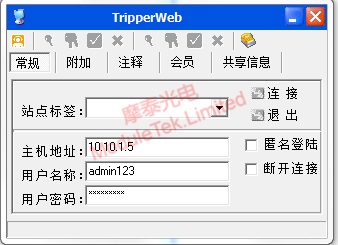
Figure 1 FTP Server Login Interface
3. Check router storage space and upload system firmware to router Flash
Log in to the router CLI (Command Line Interface) and run the command:
dir
Check the remaining capacity of the Flash to ensure there is sufficient space to store the upgrade firmware (to avoid file upload failures). Then, select the new system file in the FTP client, right-click to upload it, and transfer the firmware to the router's built-in storage.
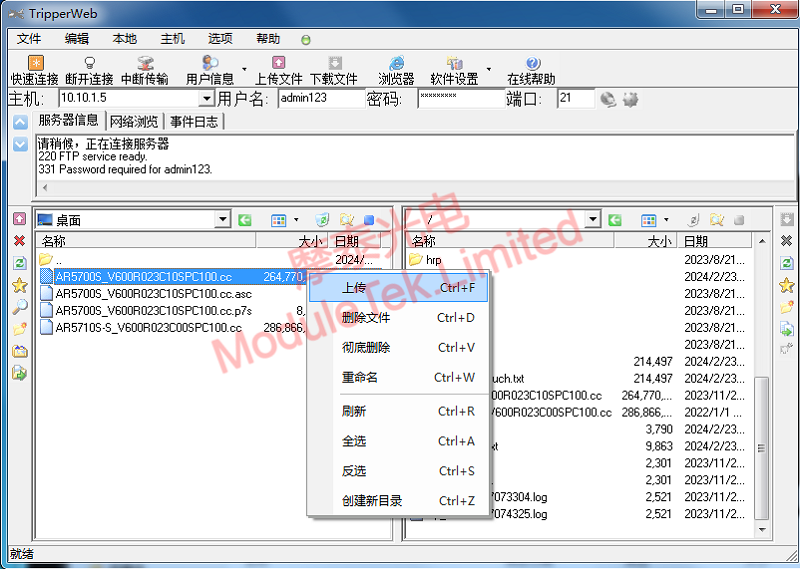
Figure 2 File Transmission via FTP
4. Verify successful file upload
Run the following command on the router CLI:
dir
Check the firmware file name and size to confirm that the file has been successfully written to the device’s Flash.
5. Configure the firmware for next startup
Enter the following startup configuration command:
startup system-software AR5700S_V600R023C10SPC100.cc
6. Verify the next startup configuration
Run the command to view the startup settings:
display startup
Confirm that the device will successfully load the new system software upon the next restart.
7. Restart the router to activate the new version
Enter the fast restart command:
reboot fast
8. Verify the upgraded firmware version
After the device restarts successfully, enter the following command:
display version
Check the router’s current running system version to confirm the upgrade was successful.
All series of Moduletek optical transceivers are highly compatible with various Huawei network devices, featuring stable and reliable adaptation. Welcome to inquire and purchase.
For further inquiries about the above content, please contact us at: sales@moduletek.com