
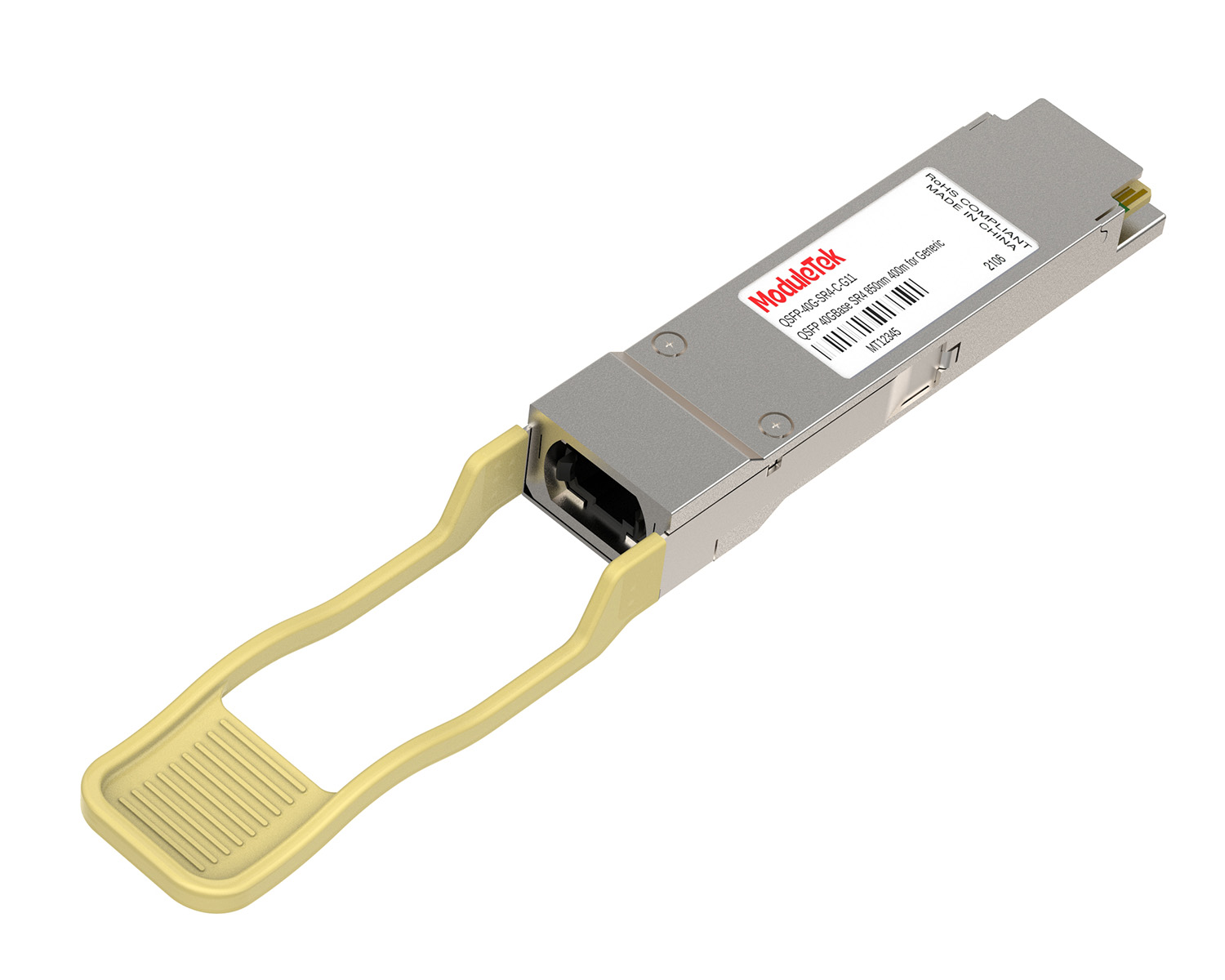
 40G/100G Optical Transceivers
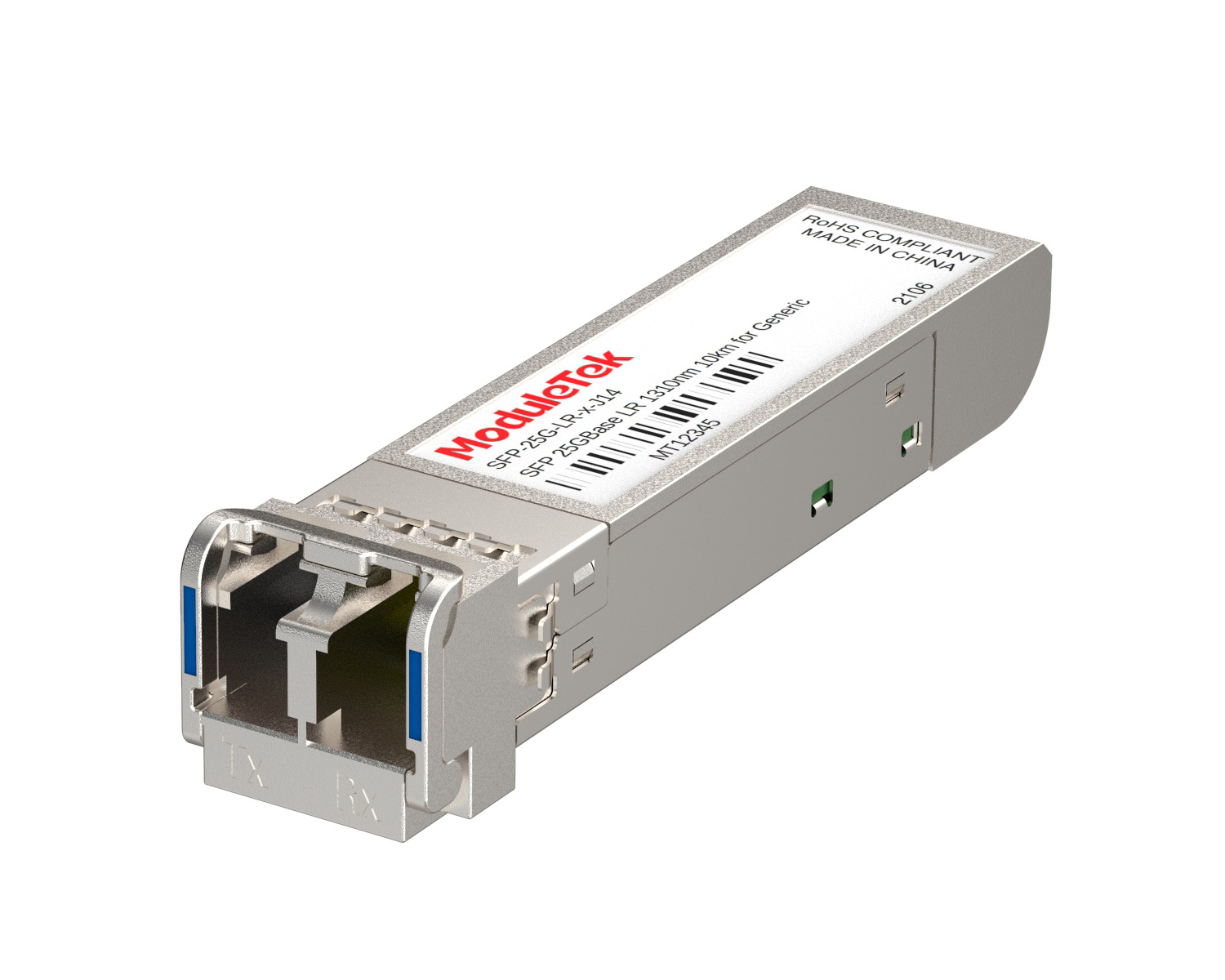 25G Optical Transceivers
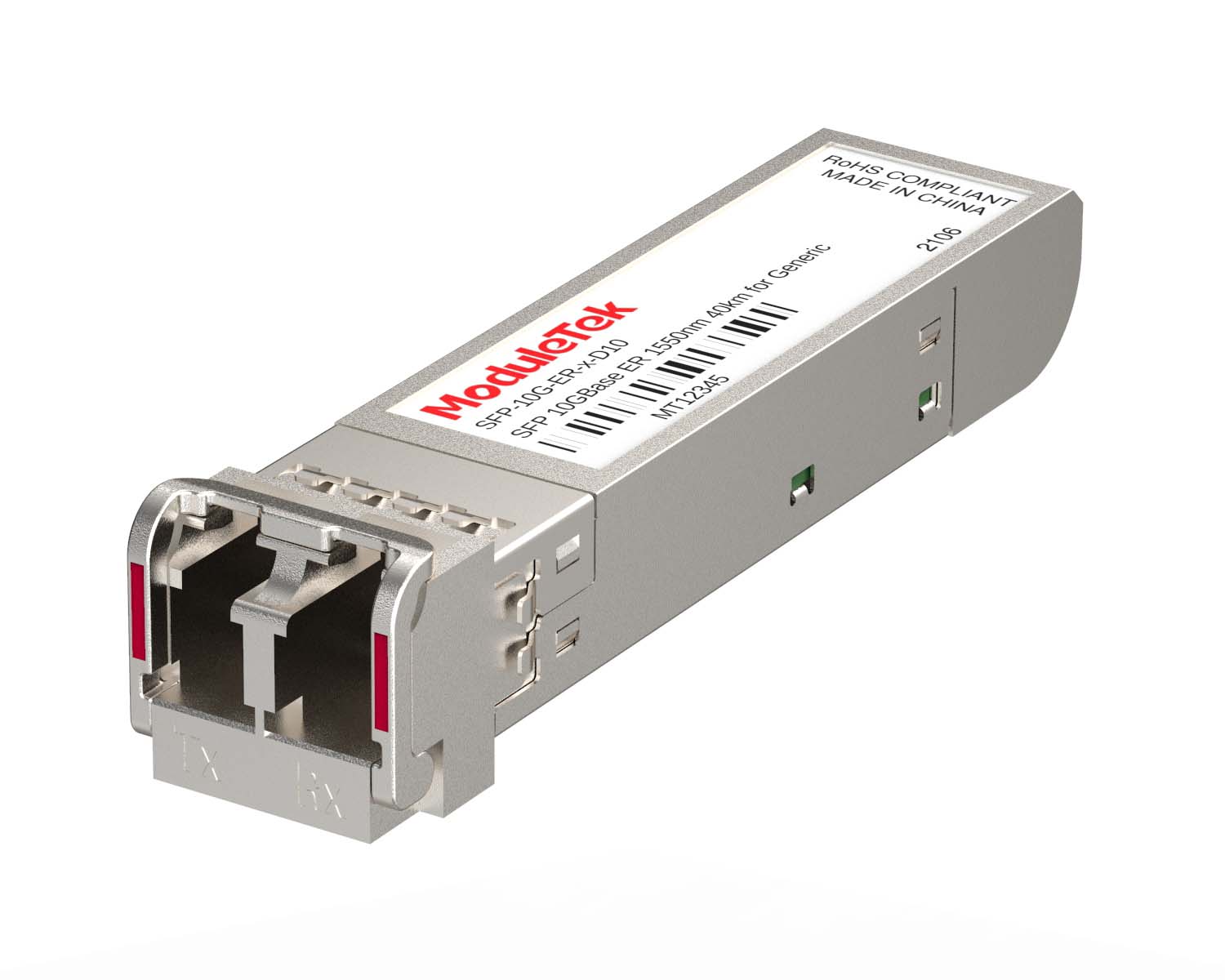 10G Optical Transceivers
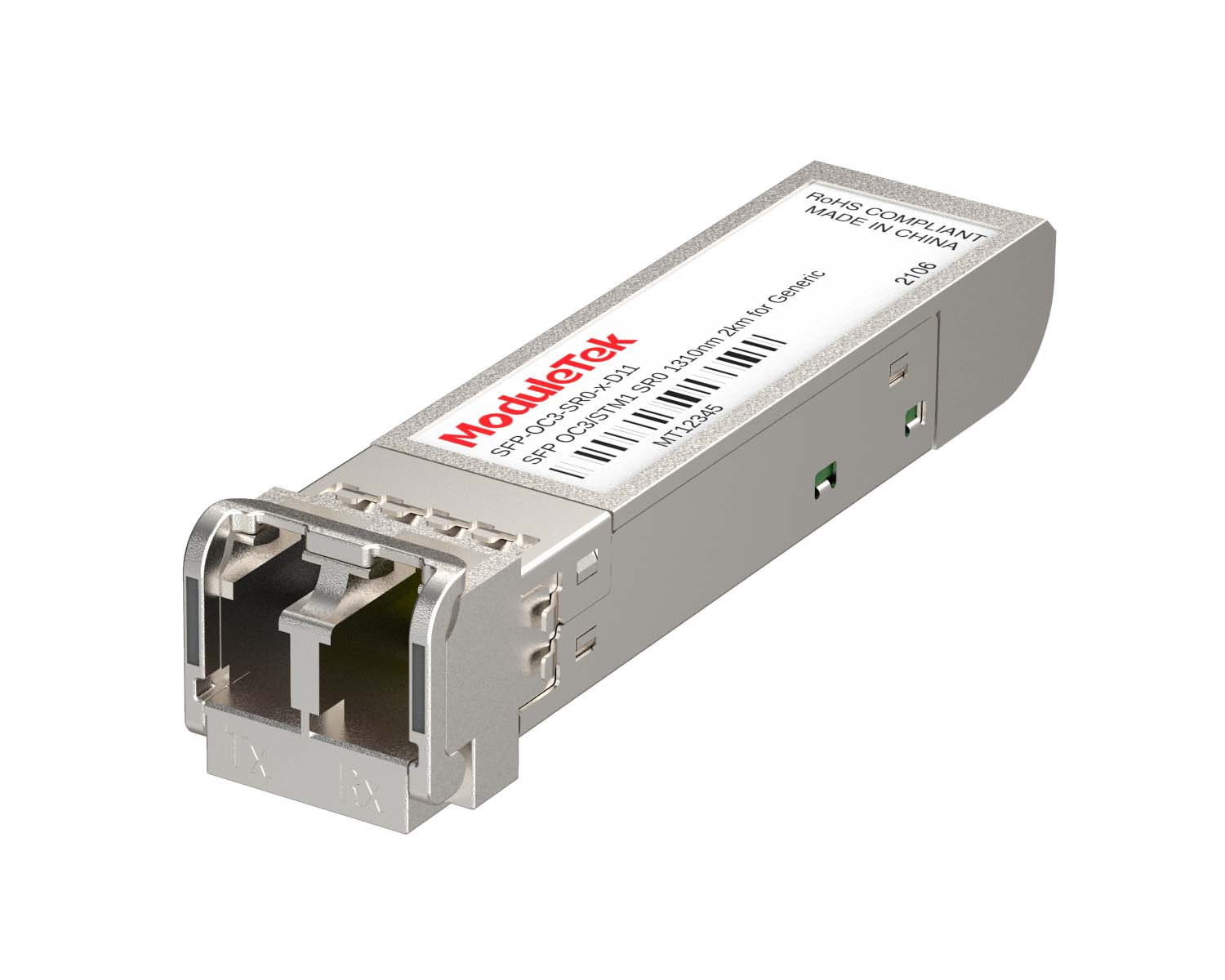 155M/2.5G Optical Transceivers
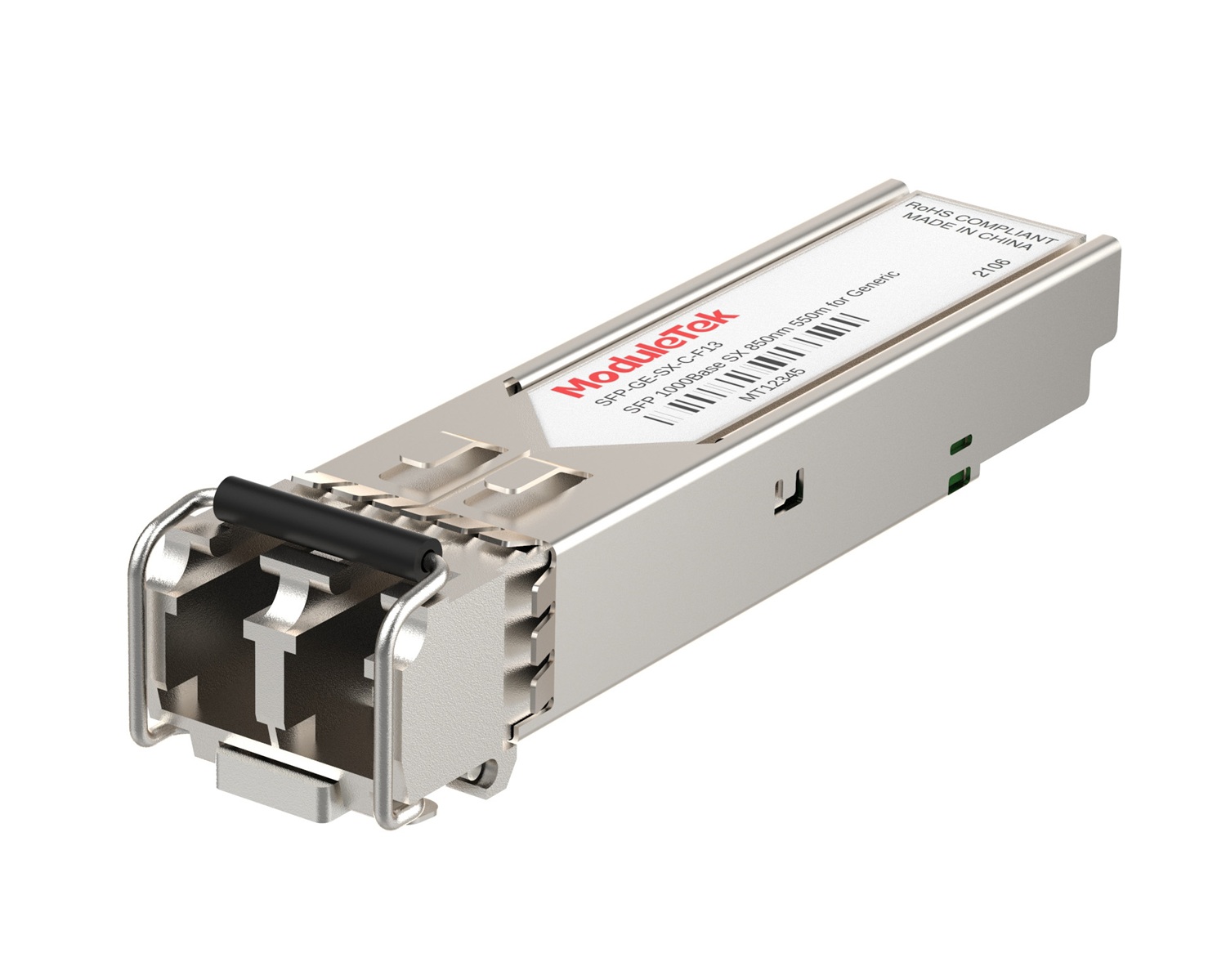 1G Optical Transceivers
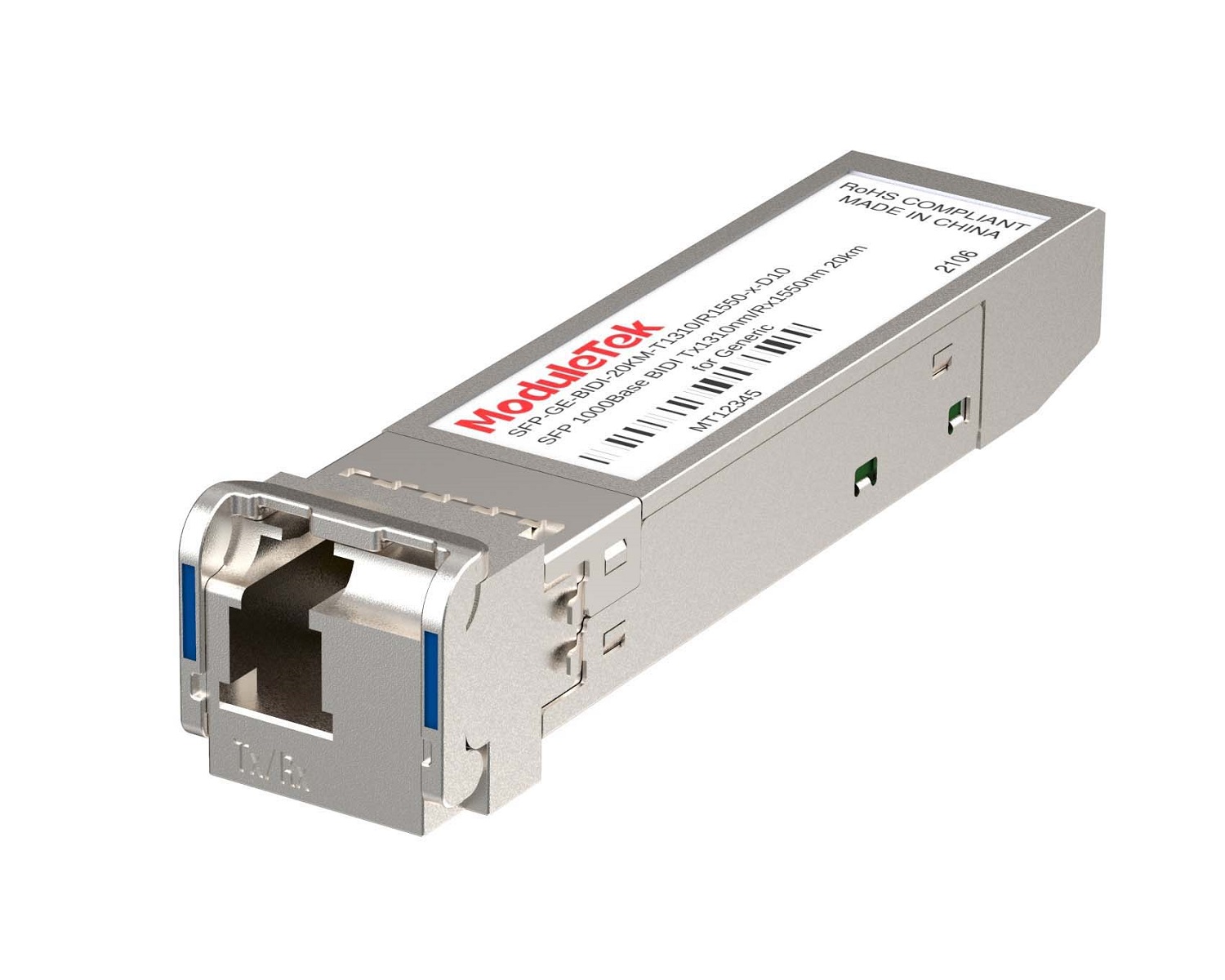 1G BIDI Optical Transceivers
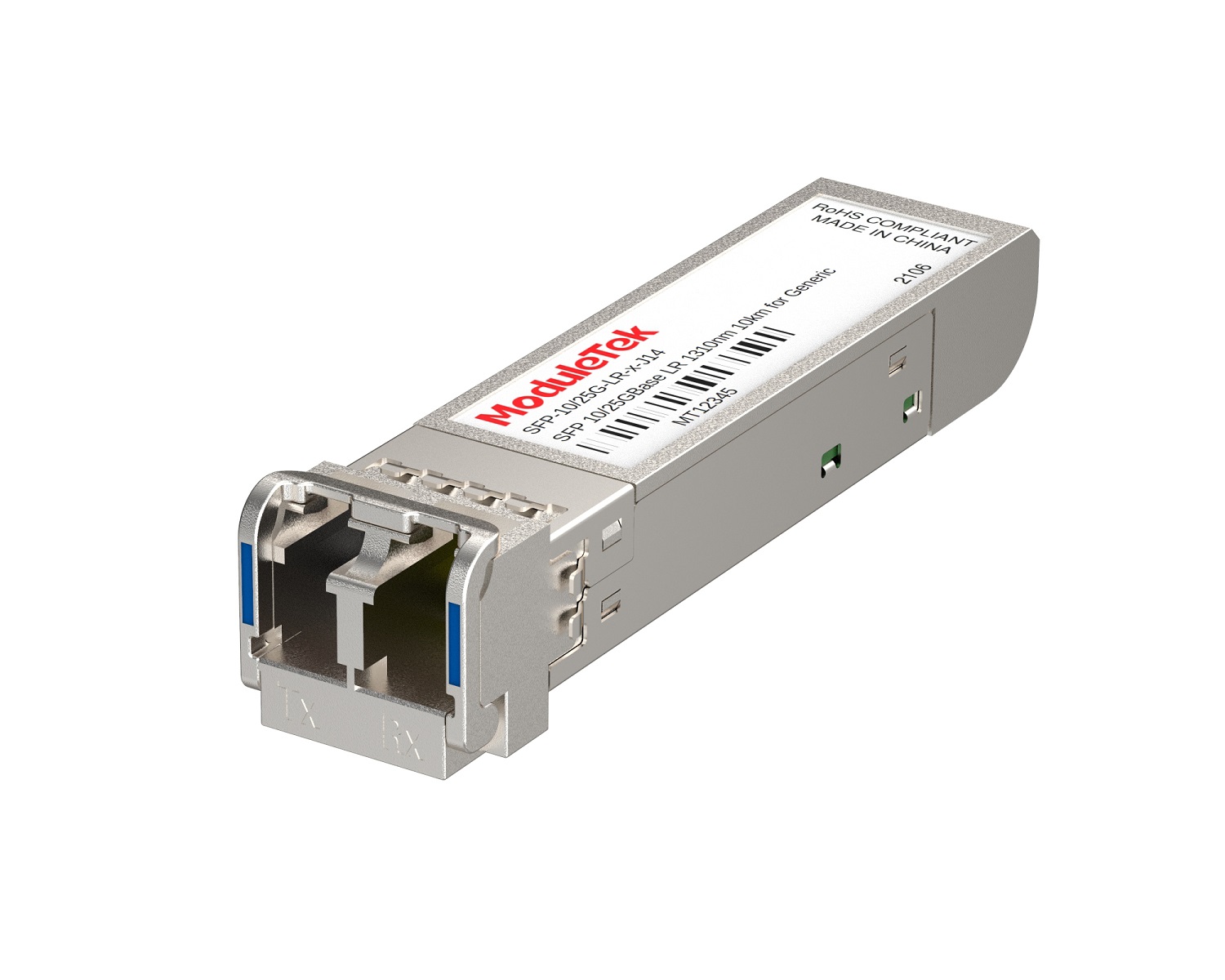 Dual-Rate Optical Transceivers
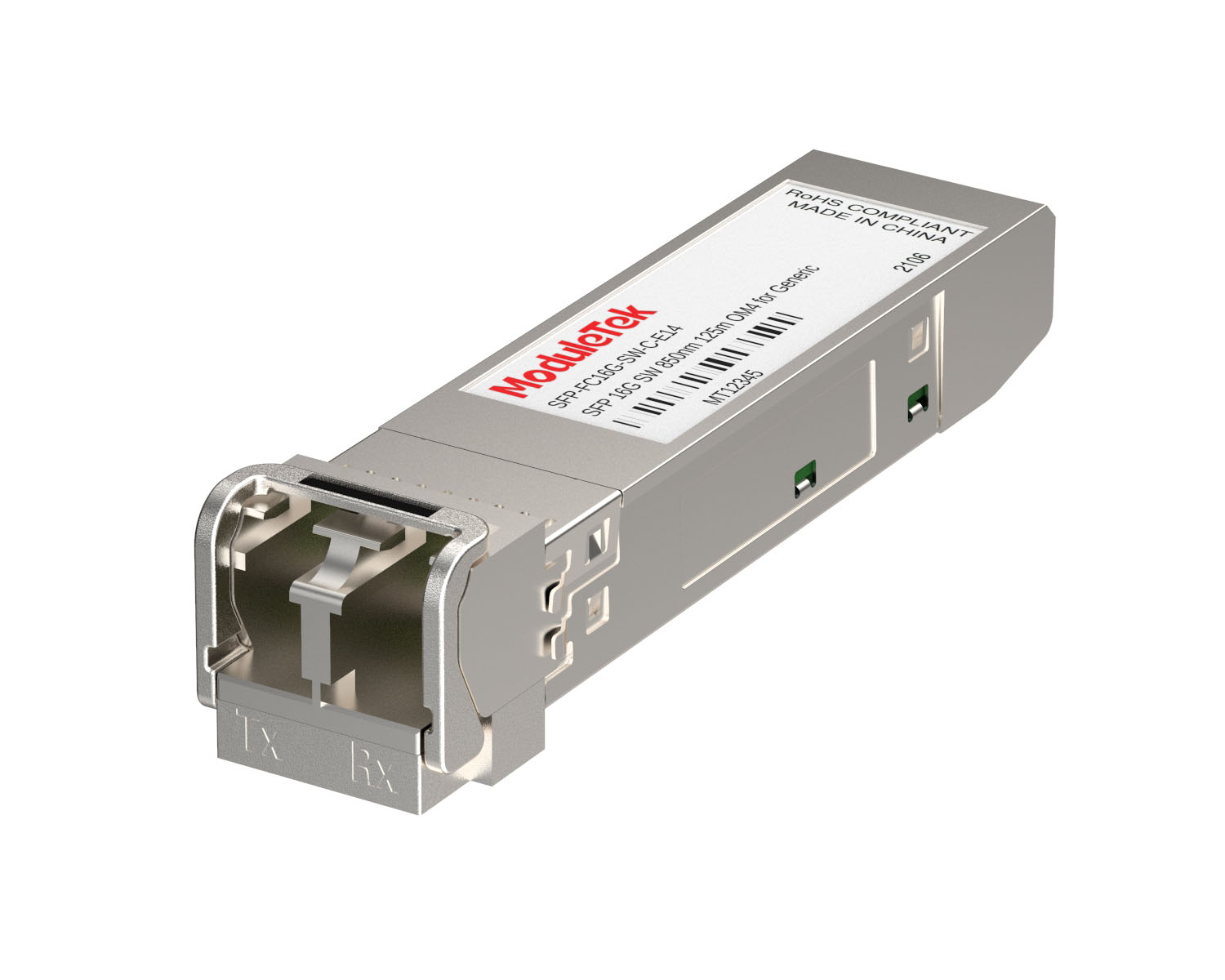 FC 16G/32G Optical Transceivers
 CWDM Optical Transceivers
 DWDM Optical Transceivers
 SGMII Port Optical Transceivers
 XFP Optical Transceivers
 100M/1G/10G Coppers
 Full-Rate AOC & Breakout Series
 10G/40G Active DAC Series
 Full-Rate Passive DAC Series
 40G/100G Passive Breakout DAC Series
 Regular/MTP-MPO Fiber Patch Cords
 MT2011
 MT2010
 CodingBox
 QSFP to SFP Adapter
 首页 > Home > Application Notes > Guidelines For Firmware Upgrade Via The Palo Alto Firewall WEB Interface
Guidelines For Firmware Upgrade Via The Palo Alto Firewall WEB Interface
Time: 2024-12-05
Taking the PA-850 firewall as an example, Moduletek Laboratory will demonstrate the method of upgrading the Palo Alto firewall firmware version via the web interface and its precautions (Note: The firmware version for this upgrade is from 10.0.7 to 10.1.0).
I. Firmware Upgrade Process
1. Connect to the external MGT port of the firewall and access the local browser web interface. Note that the PC’s IP address must be in the same network segment as the IP address of the connected firewall port.

Figure 1 Palo Alto PA-850 Firewall Device Panel
2. In the web interface, select "Software" under the DEVICE tab, then click "Upload" in the lower-left corner. Select the locally downloaded system file in the file browser and click the Confirm button to upload.
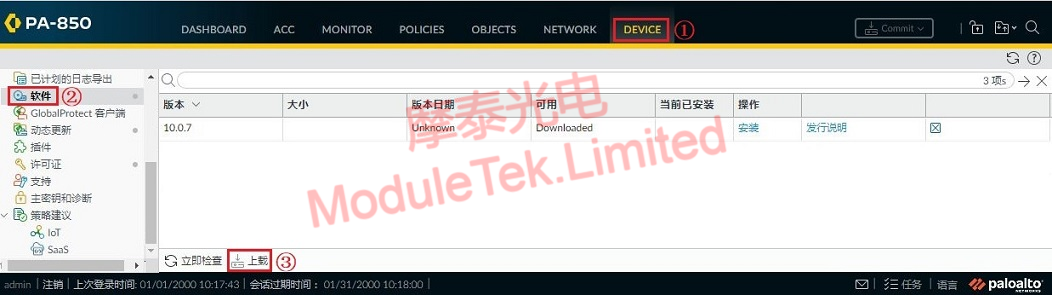
Figure 2 Selecting System File for Upload
3. Once the system file is uploaded, you will be prompted that the file has been saved. Even after the progress bar finishes loading, wait a few minutes until a pop-up prompt indicates the upload is complete.
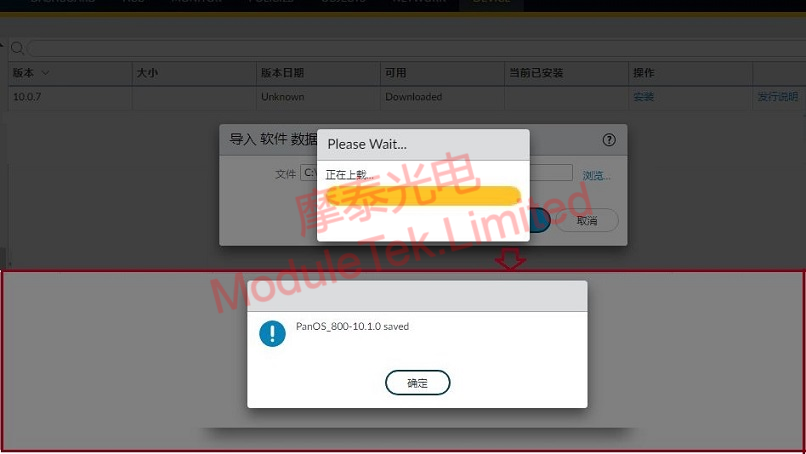
Figure 3 System File Upload
4. The newly uploaded file will appear in the software list. Select the system file to be upgraded and click "Install" on the right side. When the progress bar completes, the result will update to "Success" and you will be prompted to reboot the device. Confirm the reboot.

Figure 4 System Installation Button

Figure 5 System Installation Status
5. After the firewall reboots completely, log in to the web interface again. You can check the device’s current software version in the general information section on the web homepage. The firmware upgrade is now complete.
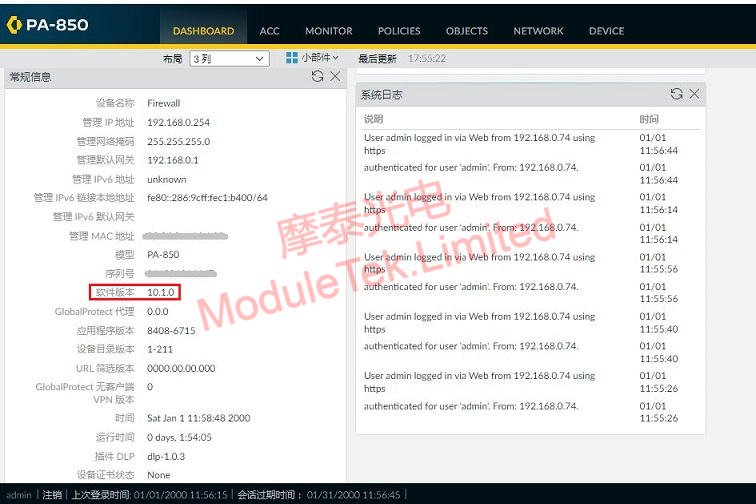
Figure 6 Viewing the Firewall’s Current Software Version
II. Possible Issues and Precautions
1. System File Acquisition: If the required system file for the upgrade cannot be found on the Palo Alto official website, or you do not have permission to view/obtain it, it is recommended to contact an authorized professional or obtain it through officially authorized channels.
2. Step-by-Step Version Upgrade: The firmware version must be upgraded step by step; you cannot skip the first two levels of the version directory. For specific requirements, refer to the official version description document.
3. Memory Check Before Upgrade: Ensure the device has sufficient memory before upgrading. Even if the system file can be uploaded, insufficient memory for decompression will cause an installation error. It is recommended to back up the device configuration and remove old system files beforehand.
4. Content Version Mismatch: If the installation prompts a "content version mismatch", you need to upgrade the application version first. In the DEVICE interface, select "Dynamic Update -> Upload -> Install from File".
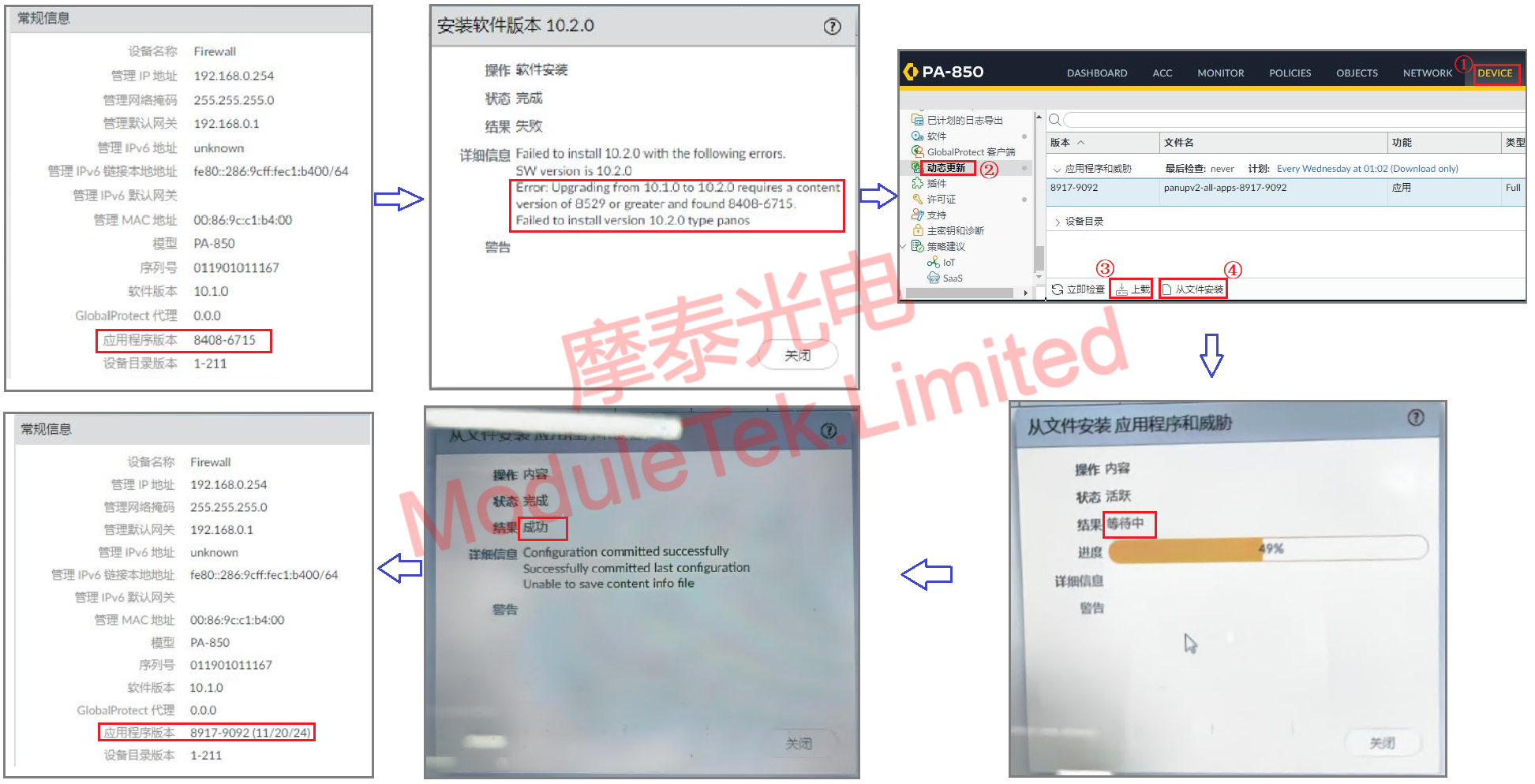
Figure 7 Application Upgrade Icon
For further inquiries about the above content, please contact us at: sales@moduletek.com