
 40G/100G Optical Transceivers
 25G Optical Transceivers
 10G Optical Transceivers
 155M/2.5G Optical Transceivers
 1G Optical Transceivers
 1G BIDI Optical Transceivers
 Dual-Rate Optical Transceivers
 FC 16G/32G Optical Transceivers
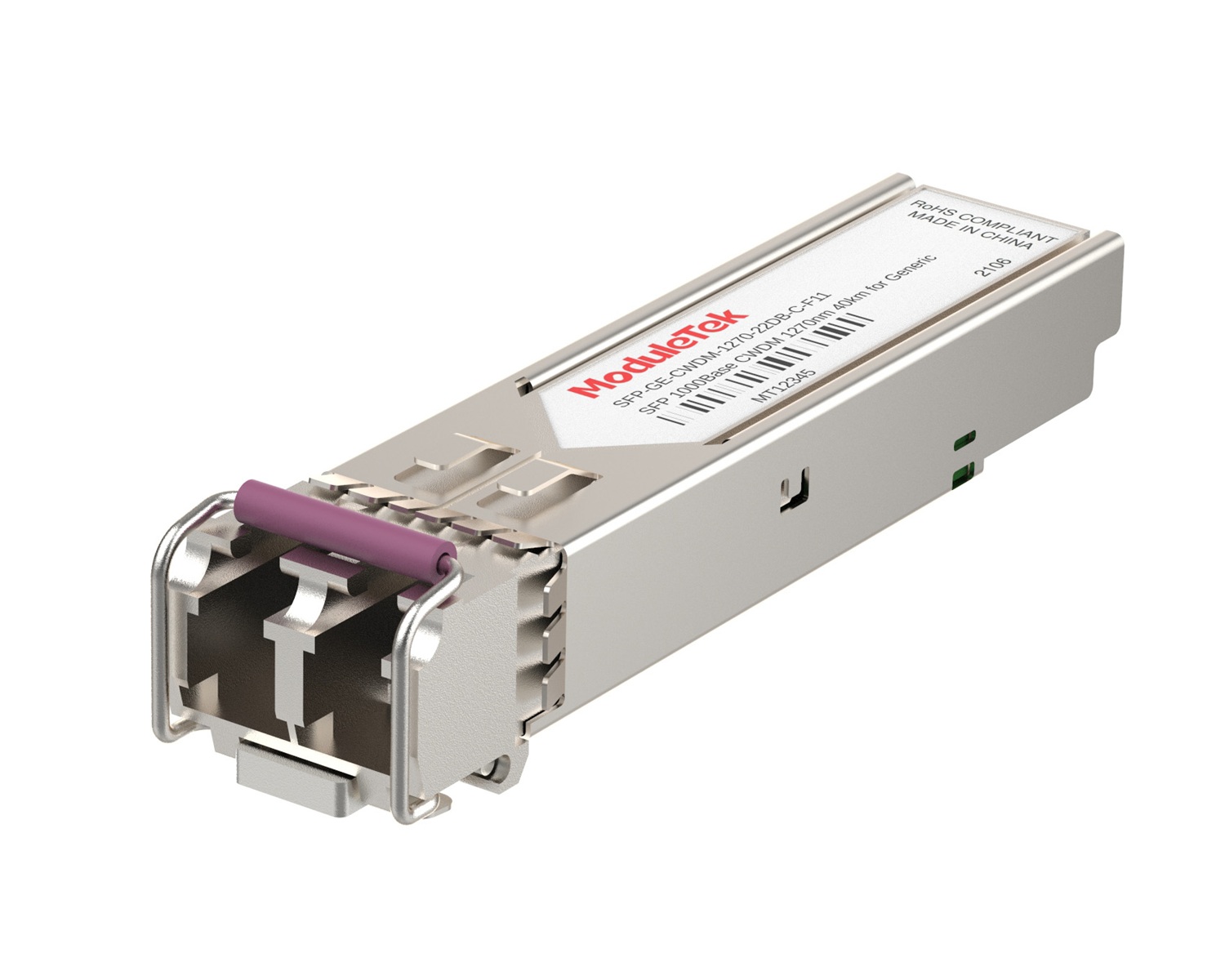 CWDM Optical Transceivers
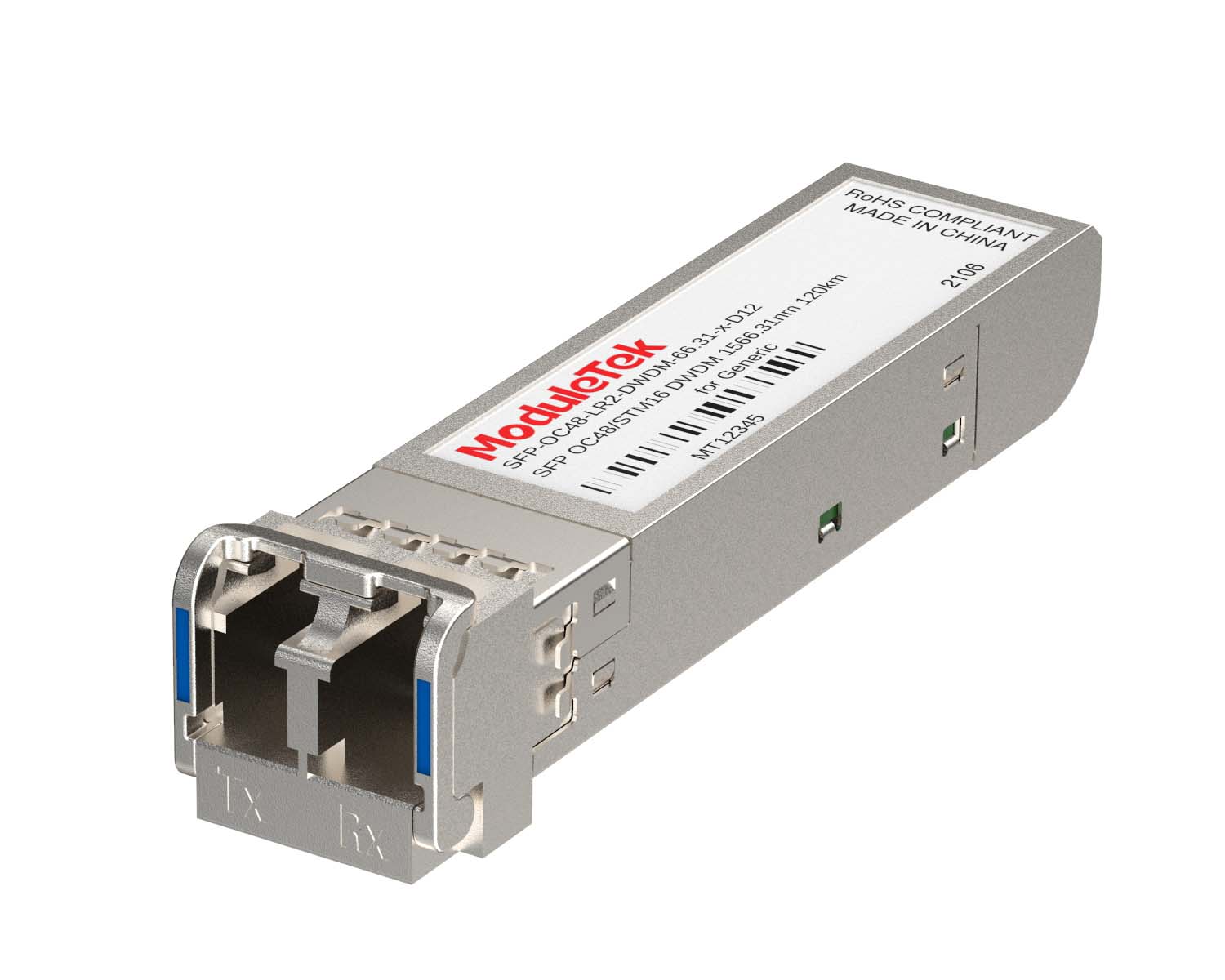 DWDM Optical Transceivers
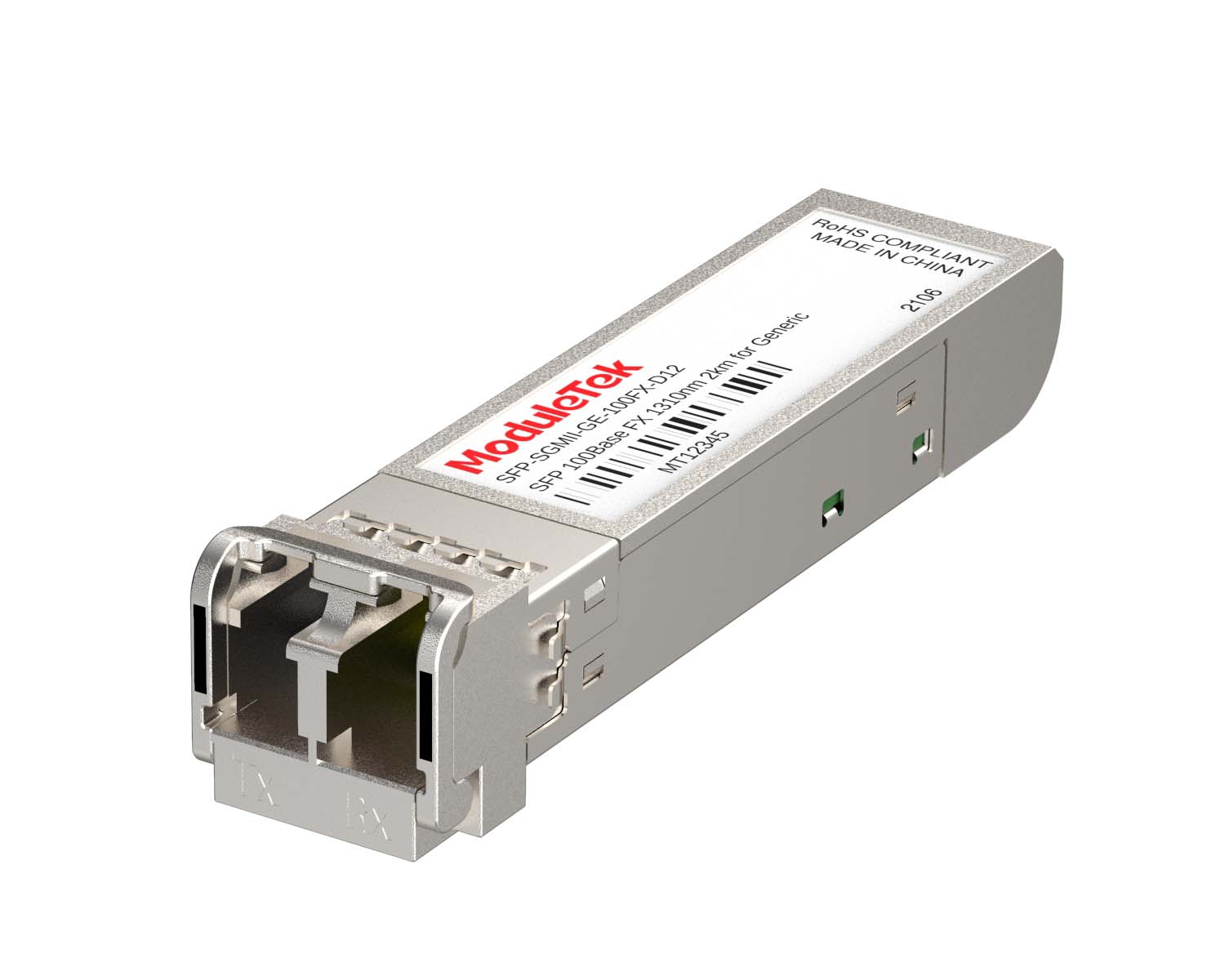 SGMII Port Optical Transceivers
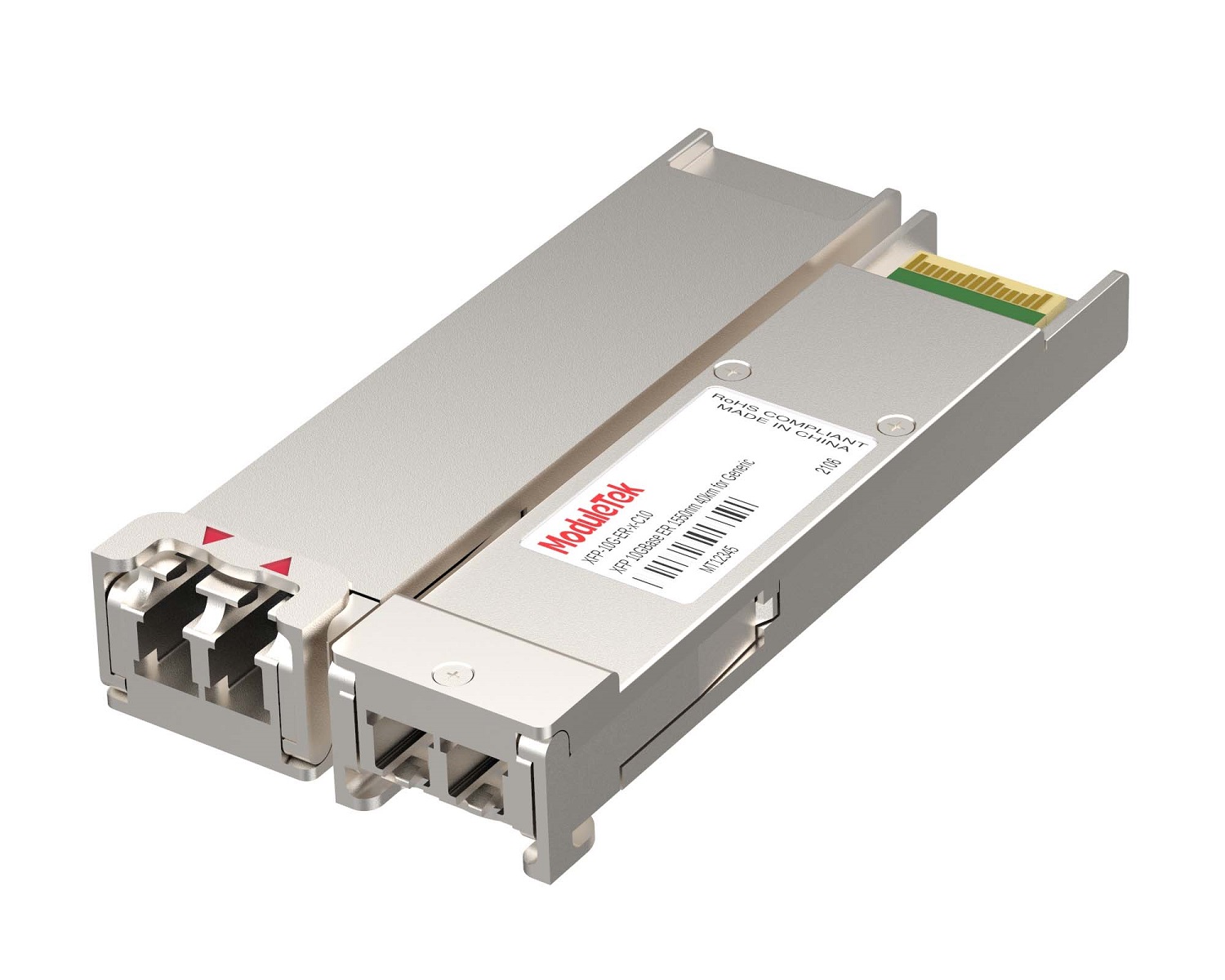 XFP Optical Transceivers
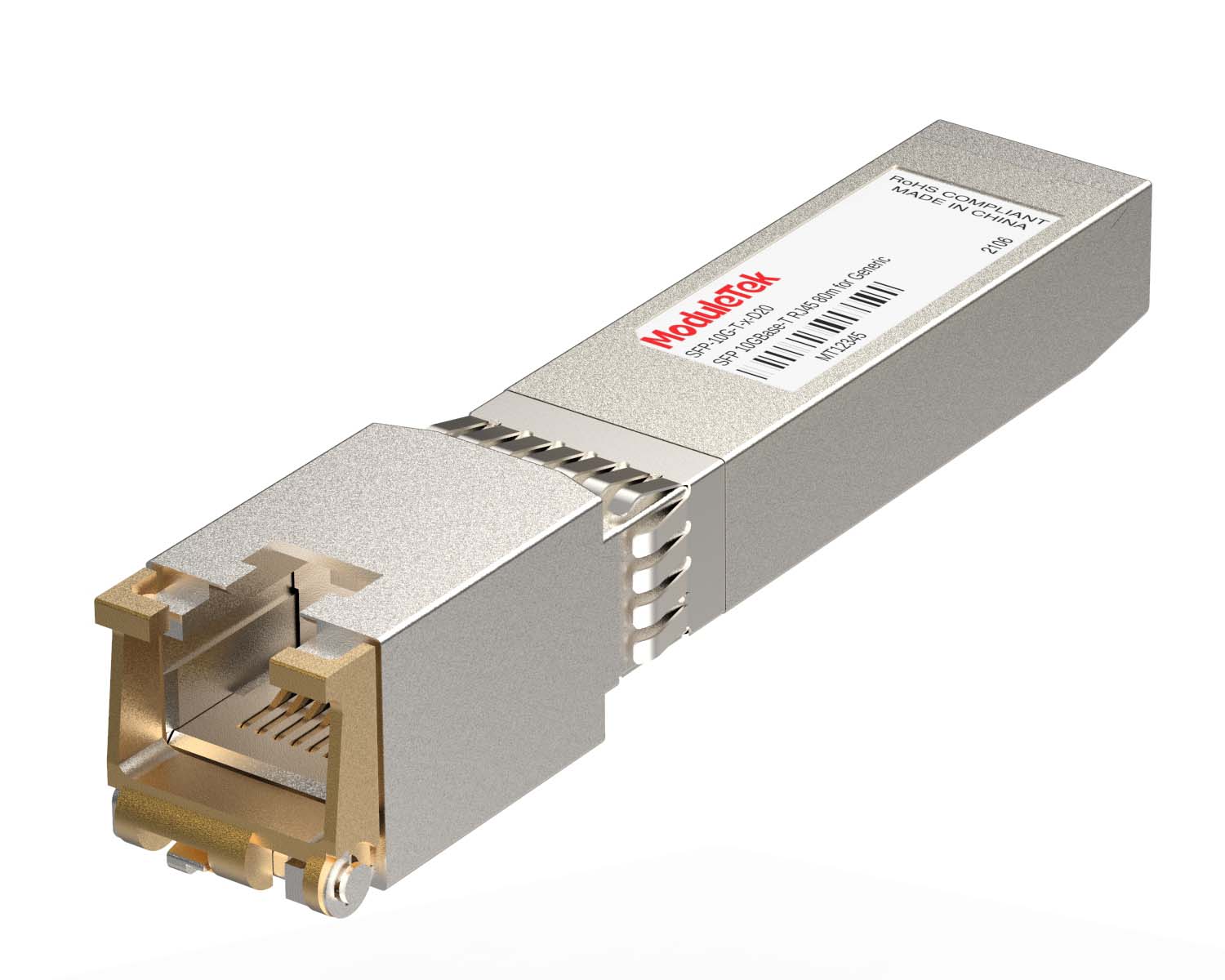 100M/1G/10G Coppers
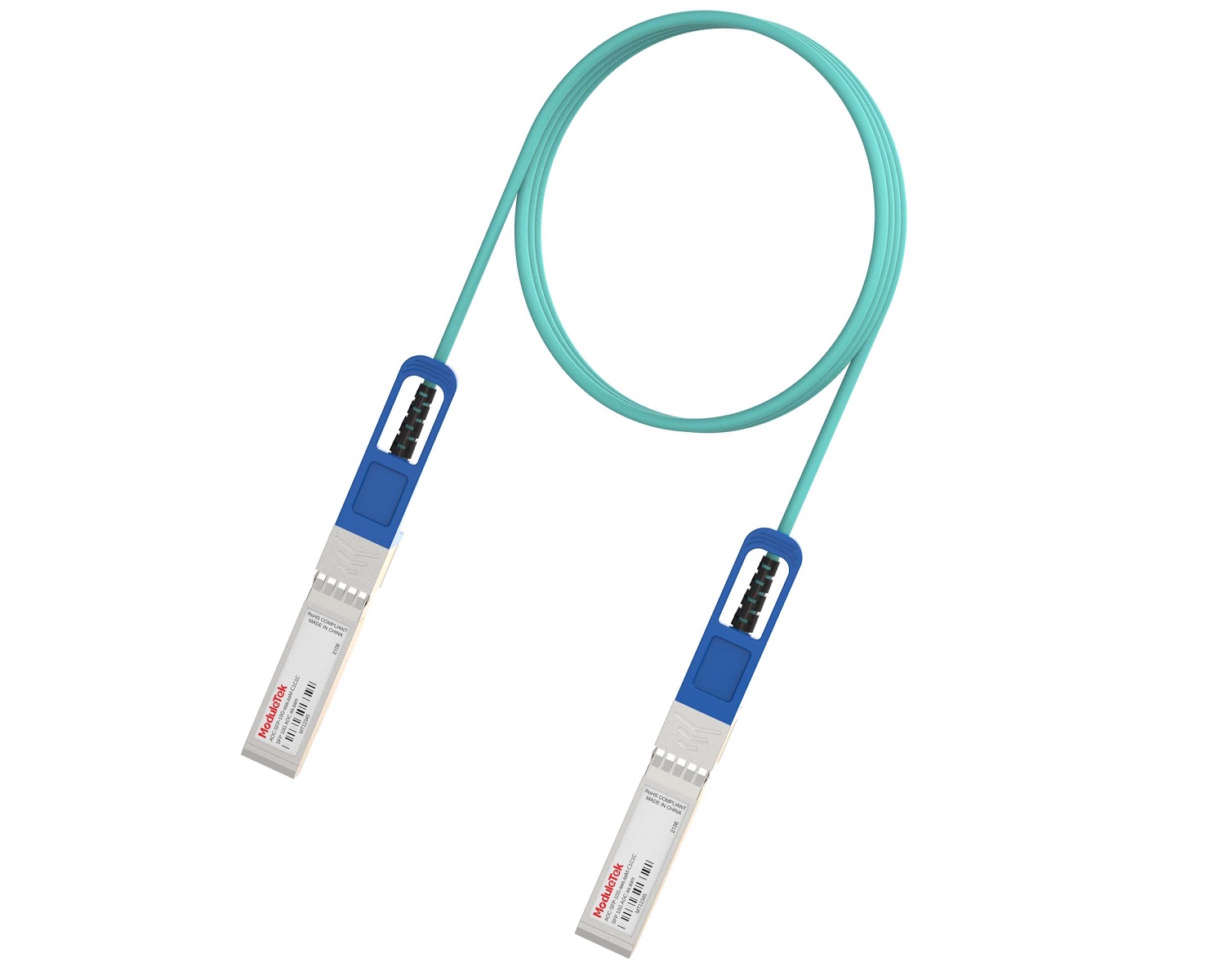 Full-Rate AOC & Breakout Series
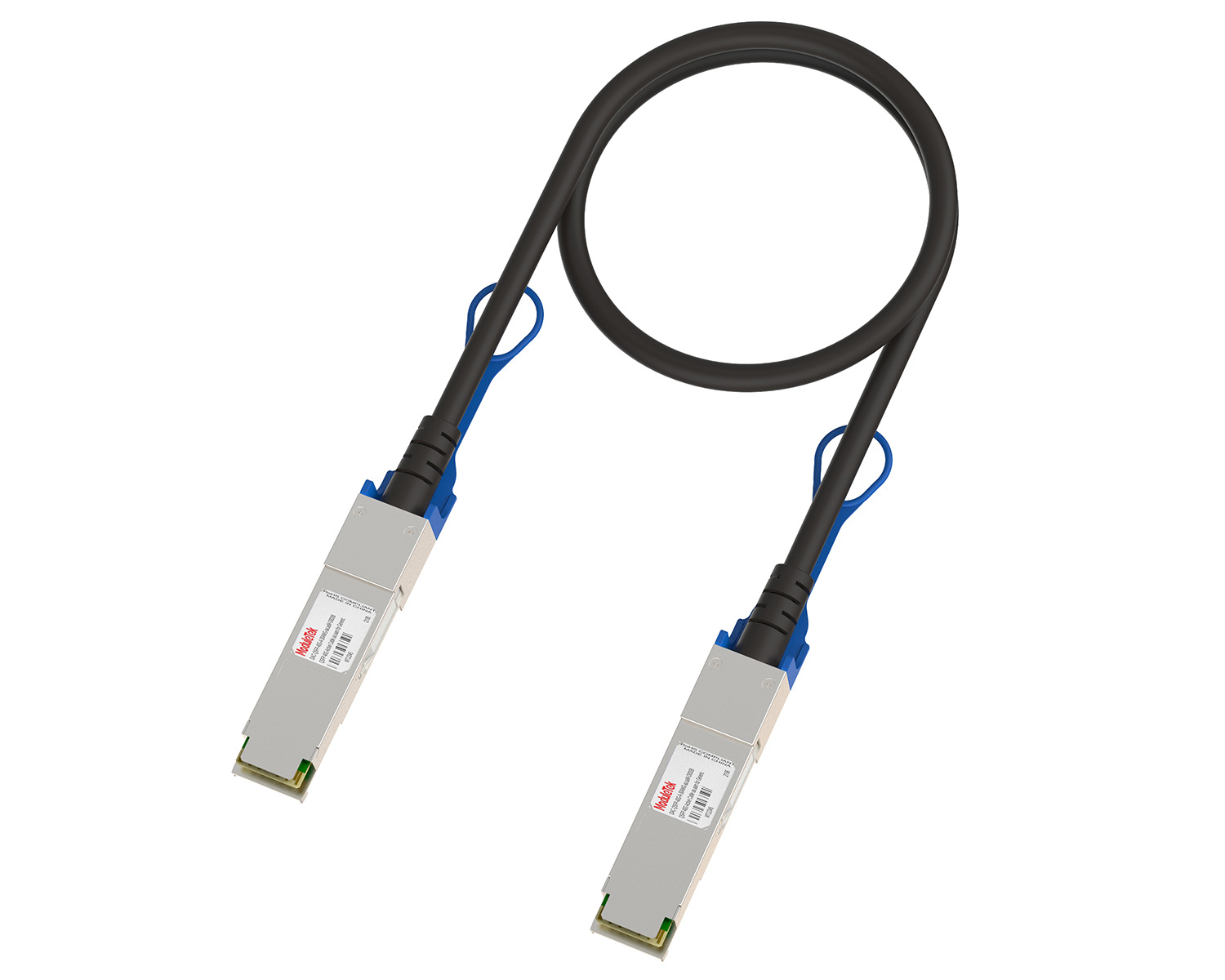 10G/40G Active DAC Series
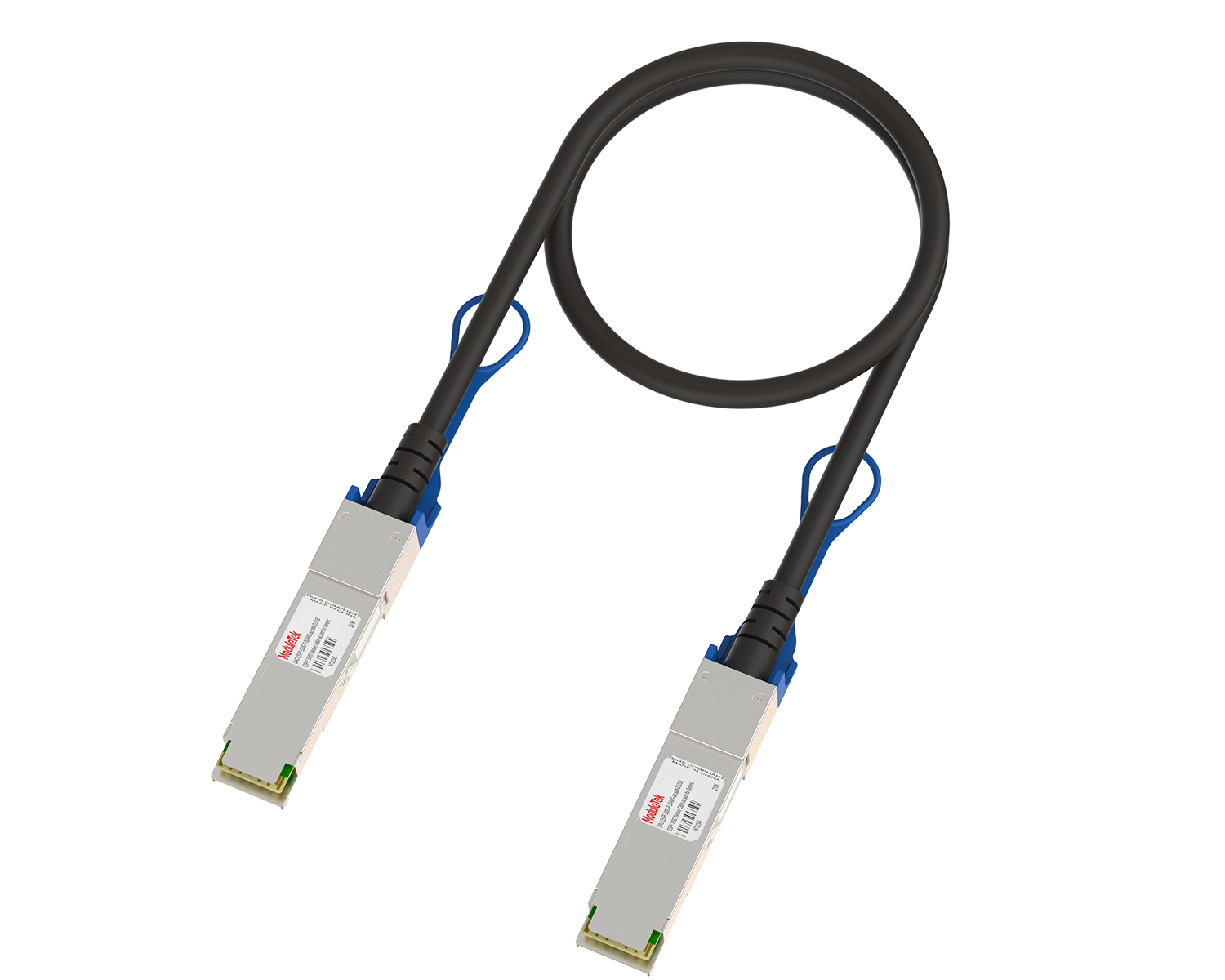 Full-Rate Passive DAC Series
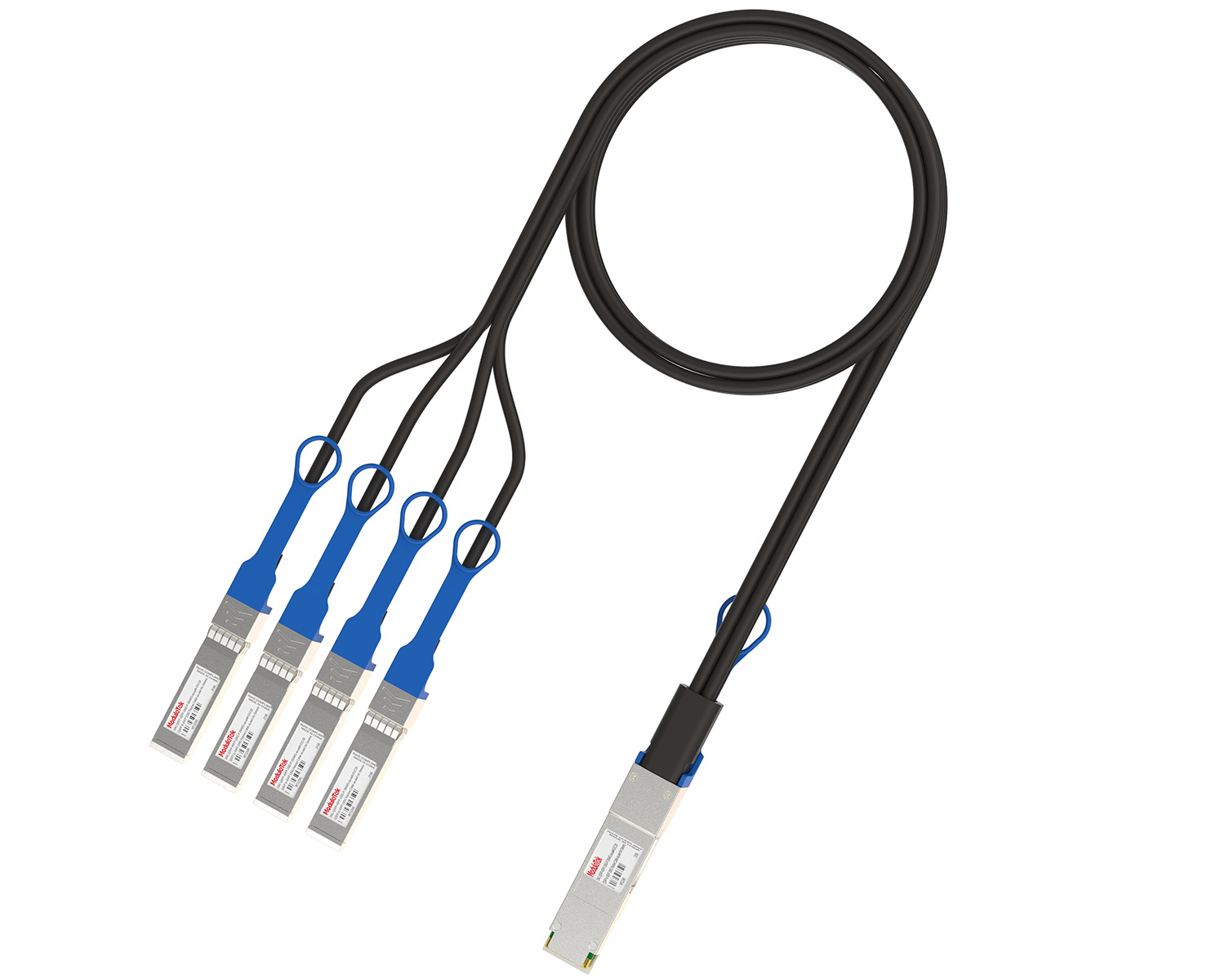 40G/100G Passive Breakout DAC Series
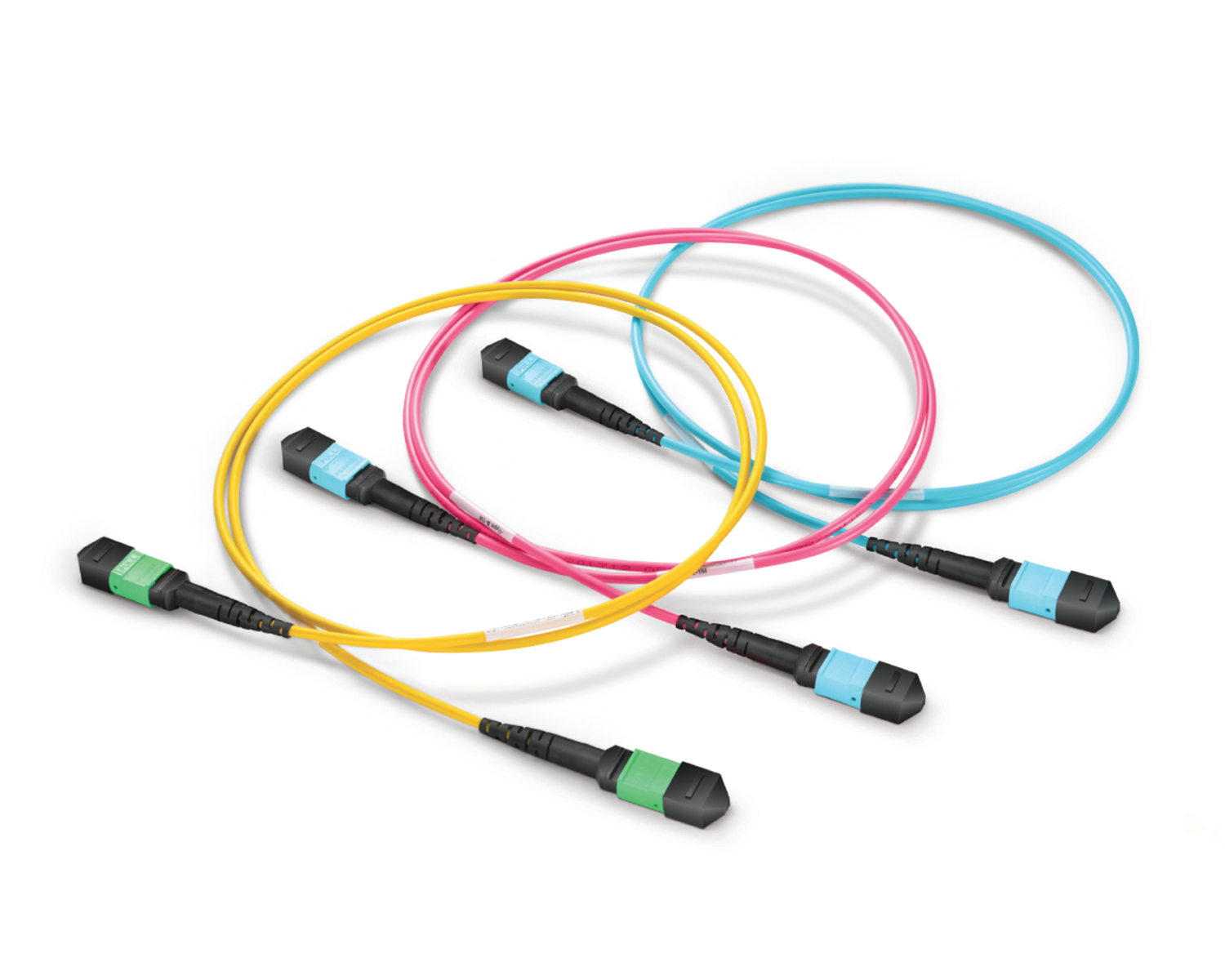 Regular/MTP-MPO Fiber Patch Cords
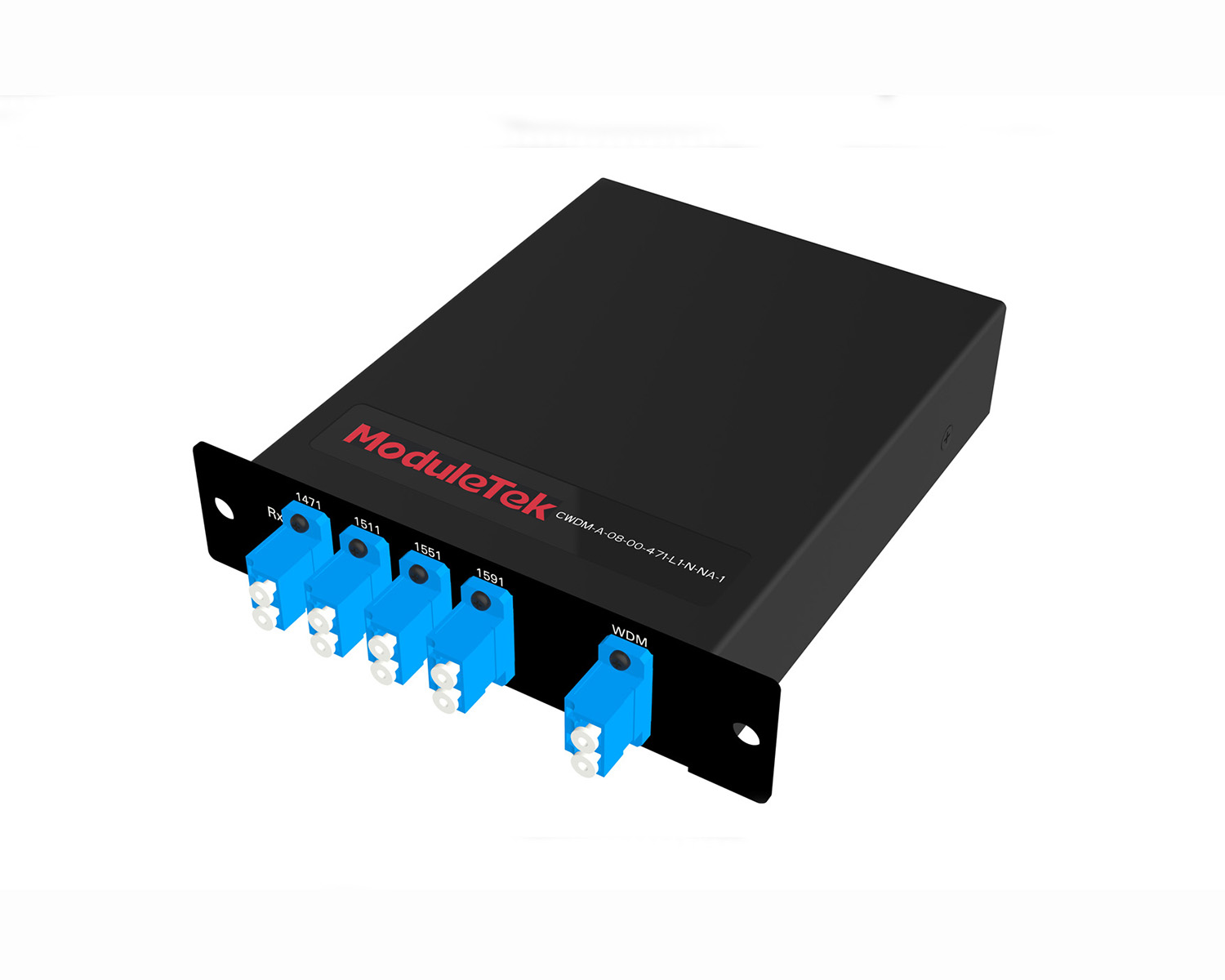 MT2011
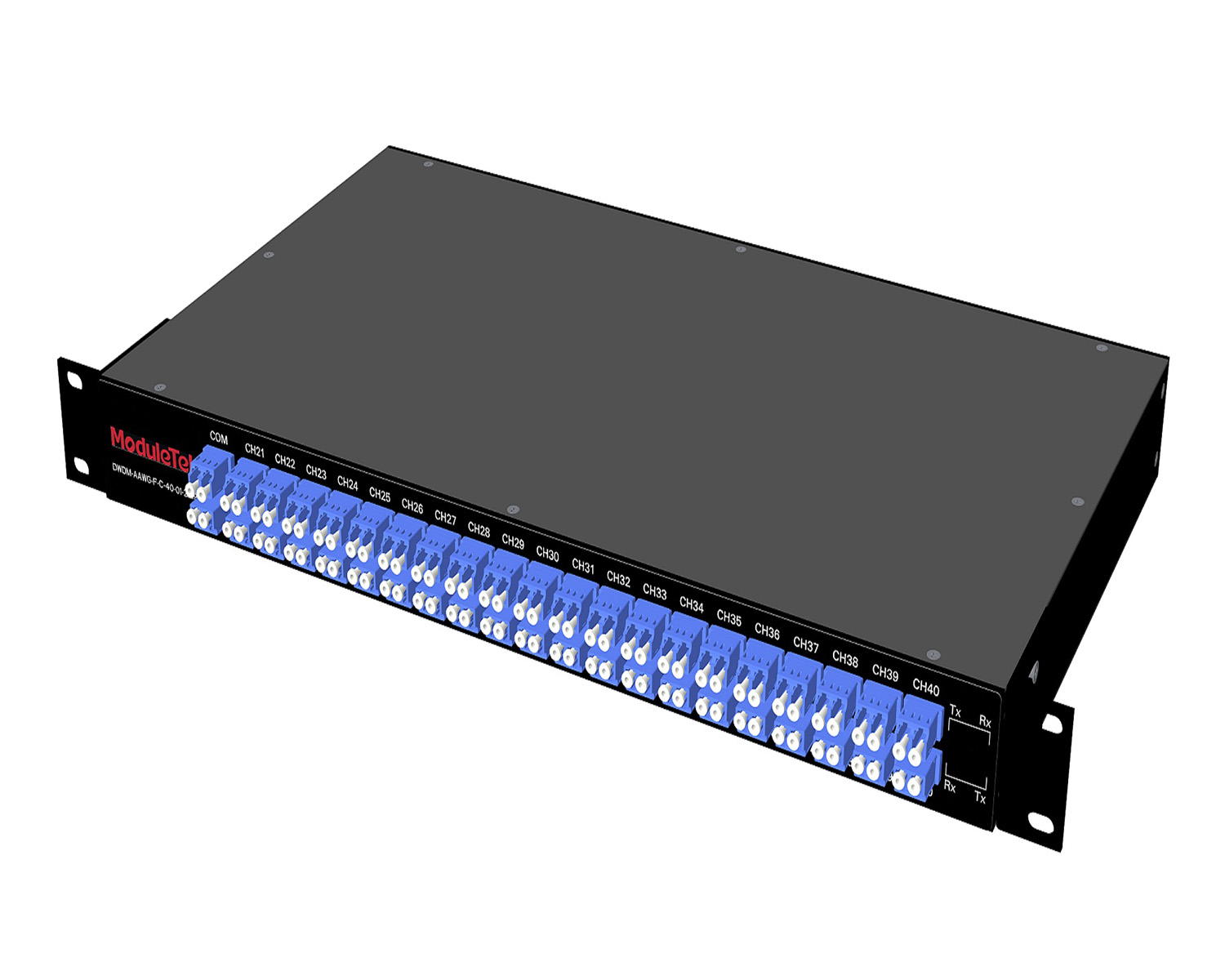 MT2010
 CodingBox
 QSFP to SFP Adapter
SONic System Upgrade Guide For Cisco 8102-64H-O Router
Time: 2026-03-17
Moduletek Lab presents this SONiC system upgrade guide for the Cisco 8102-64H-O router. The system image file is uploaded using the SCP protocol. This article provides a complete step-by-step upgrade procedure based on actual deployment practice.
Table 1 Parameter Description
| Item |
Description
|
|
Router Model
|
CISCO 8102-64H-O
|
|
System Image Filename
|
sonic-cisco-8000.bin
|
|
Original System Version
|
SONiC.202205.3.3-7c68be04e
|
|
New System Version
|
SONiC-OS-202411.1.2.0
|
|
Router Management Port IP
|
192.168.10.29/24
|
|
Local Server IP
|
192.168.10.1/24
|
|
Local Server Username
|
root
|
Note: Router system software download URL: https://software.cisco.com/download;
1. Configure the IP address for the router management interface with the following command:
config interface ip add <interface-name address>
In this deployment, set the router management IP to 192.168.10.29/24, with the local server IP set to 192.168.10.1/24.
After configuration, run the below command to verify the IP settings:
show management_interface address
2. Connect the router’s management port to the local server’s Ethernet port with a network cable.
The system image is stored on the local server at: /opt/sonic-cisco-8000.bin
On the router, execute the SCP command below. Enter the server password when prompted to upload the image to the router’s /tmp directory:
scp <user@ip-address:image-path> /tmp
3. Install the new system image using the following command:
sonic-installer install /tmp/sonic-cisco-8000.bin
Note: This command must be executed with admin or root privileges.
4. After installation completes, verify the uploaded system image with:
sonic-installer list
Confirm that SONiC-OS-202411.1.2.0 is displayed in the Next boot field. Then reboot the router:
reboot
5. After rebooting, the router will revert to the default login password: password.
Run the following command to confirm the upgrade result:
show version
6. To roll back to the previous system version, select the old system image from the boot menu during router startup.
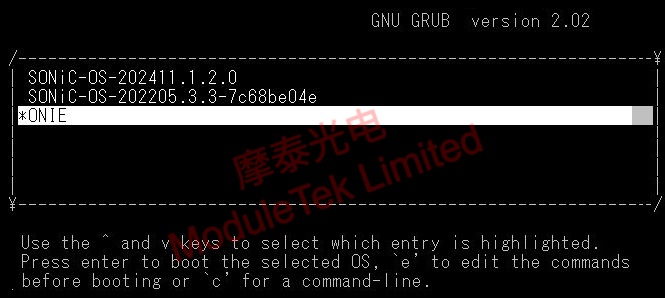
Figure 1 Router Software Version Switching
Moduletek is at your service.
For further inquiries about the above content, please contact us at: sales@moduletek.com