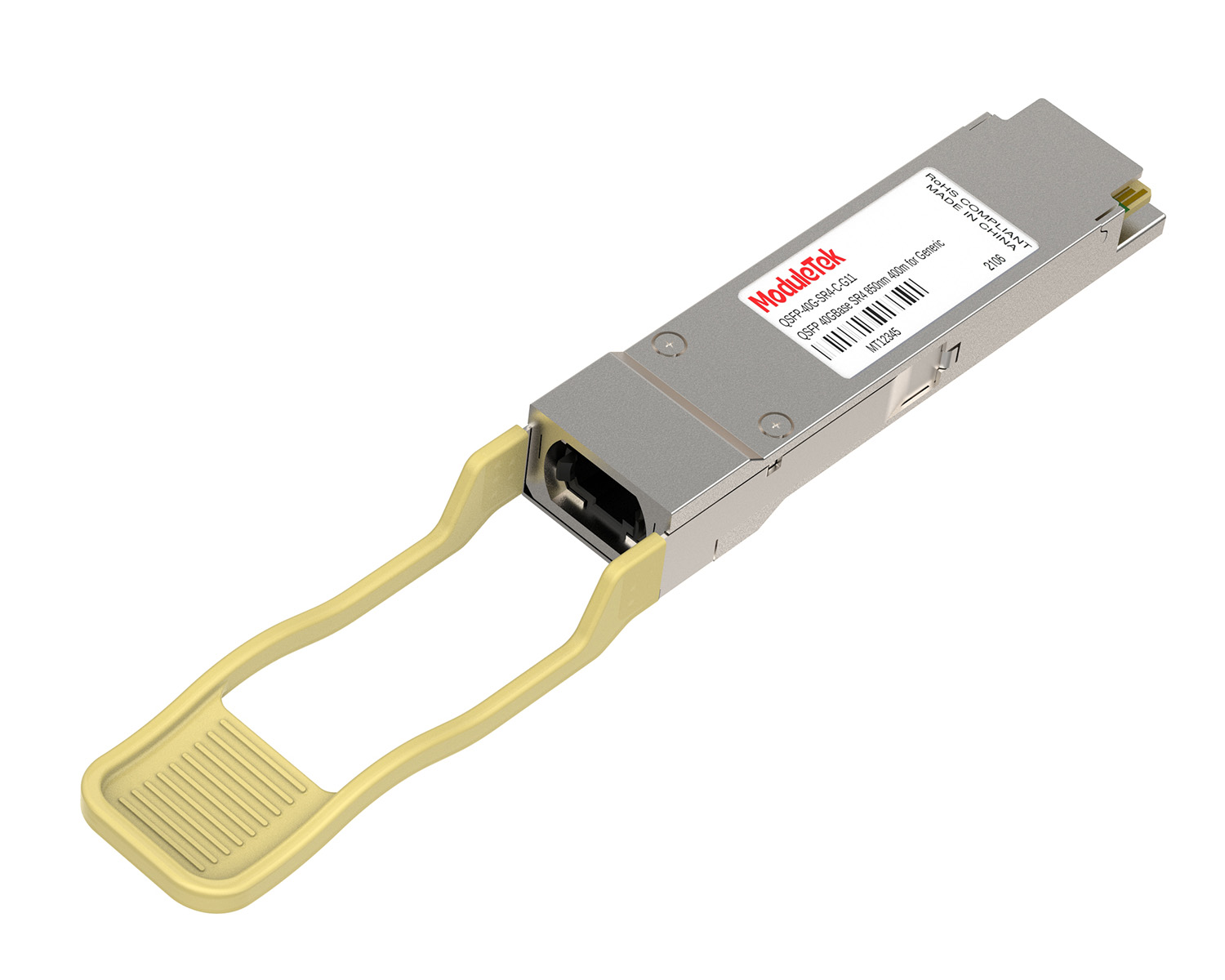
 40G/100G Optical Transceivers
 25G Optical Transceivers
 10G Optical Transceivers
 155M/2.5G Optical Transceivers
 1G Optical Transceivers
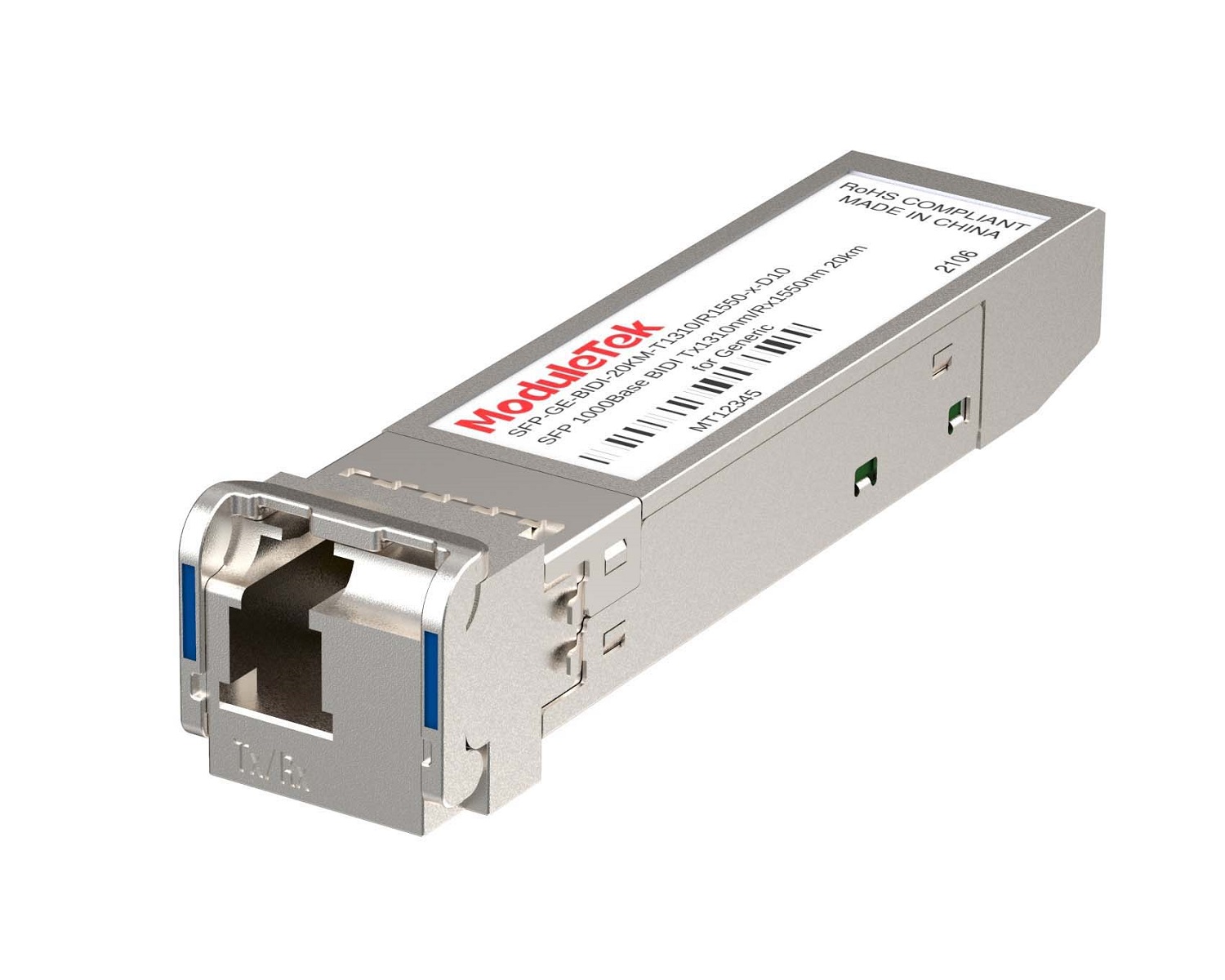 1G BIDI Optical Transceivers
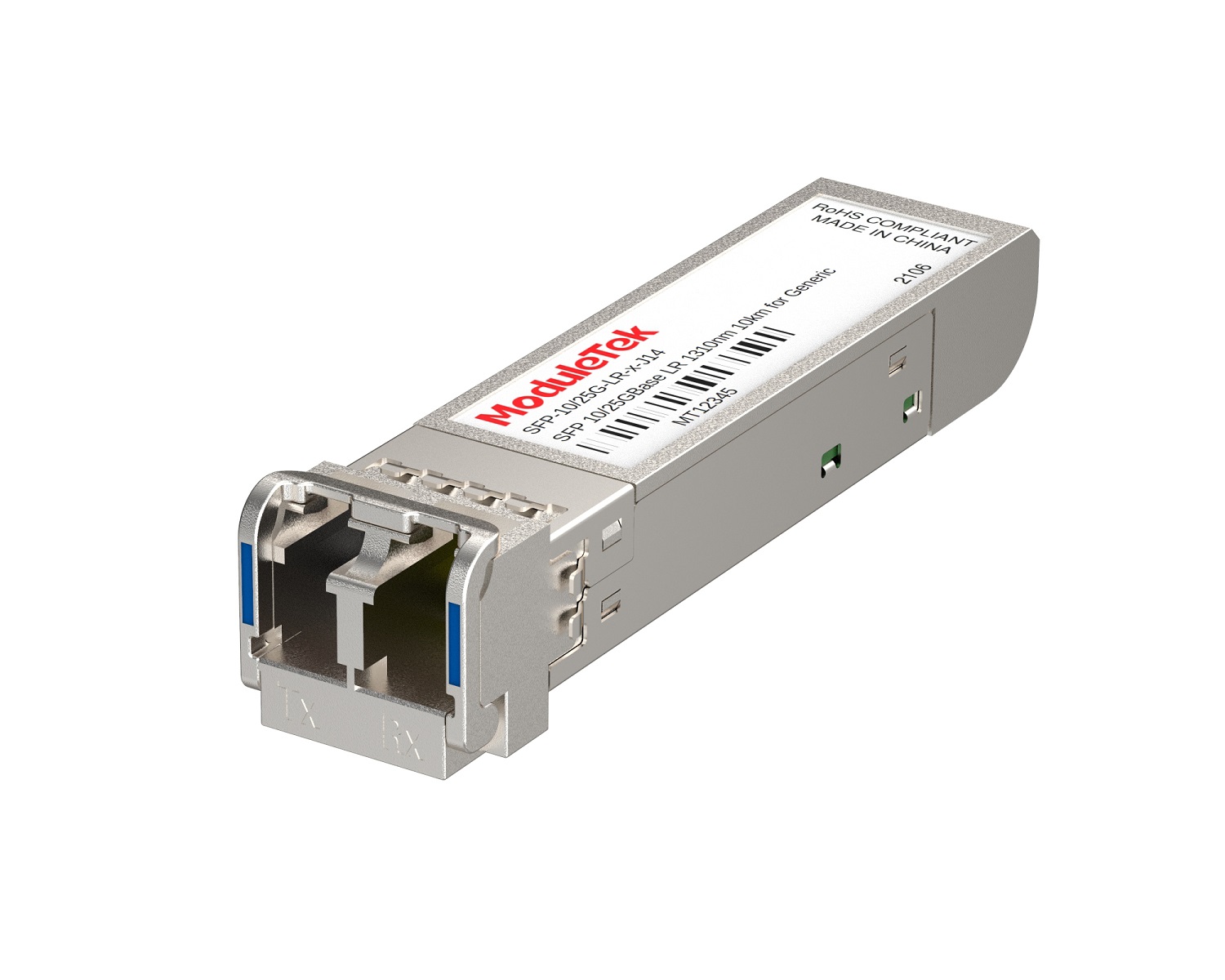 Dual-Rate Optical Transceivers
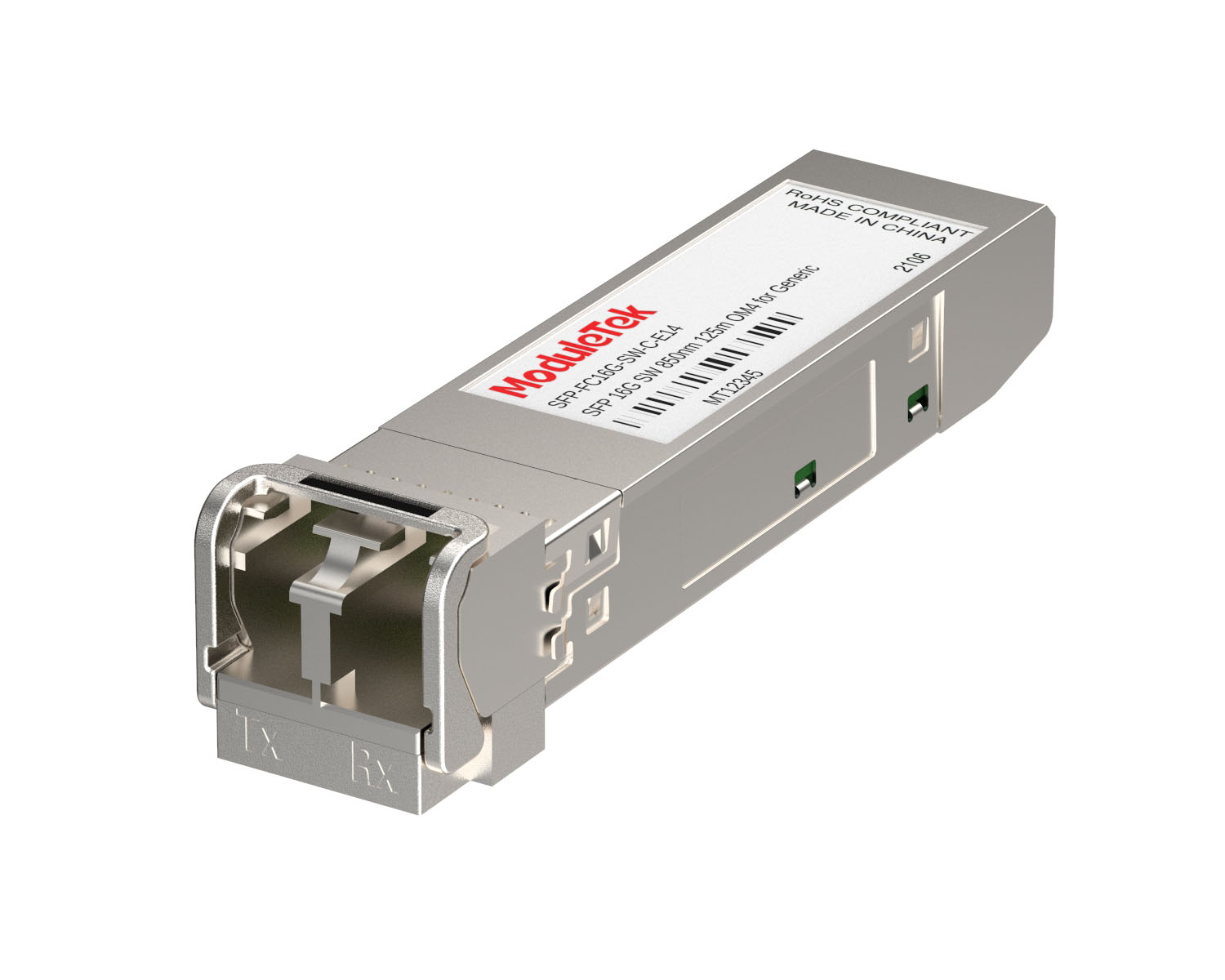 FC 16G/32G Optical Transceivers
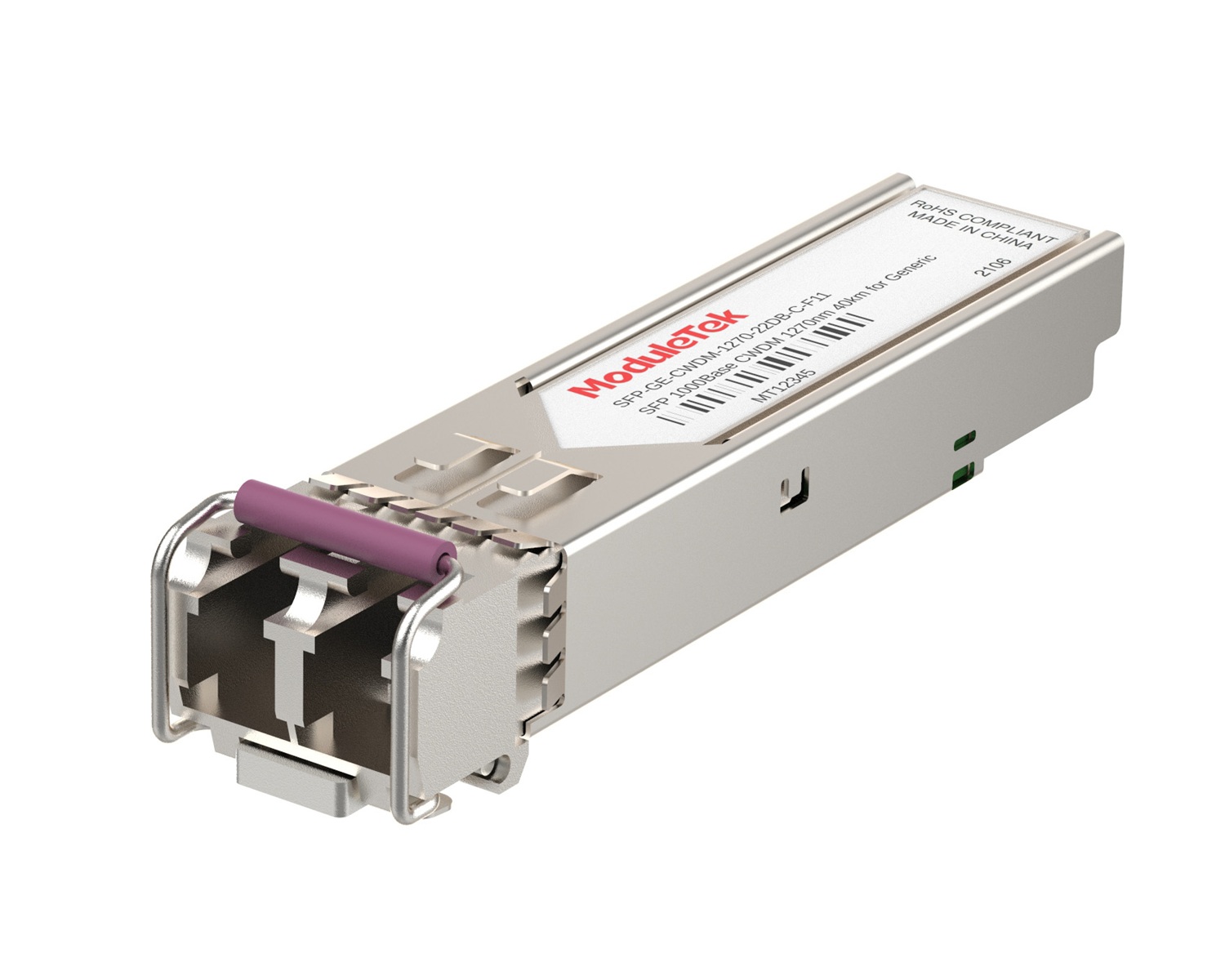 CWDM Optical Transceivers
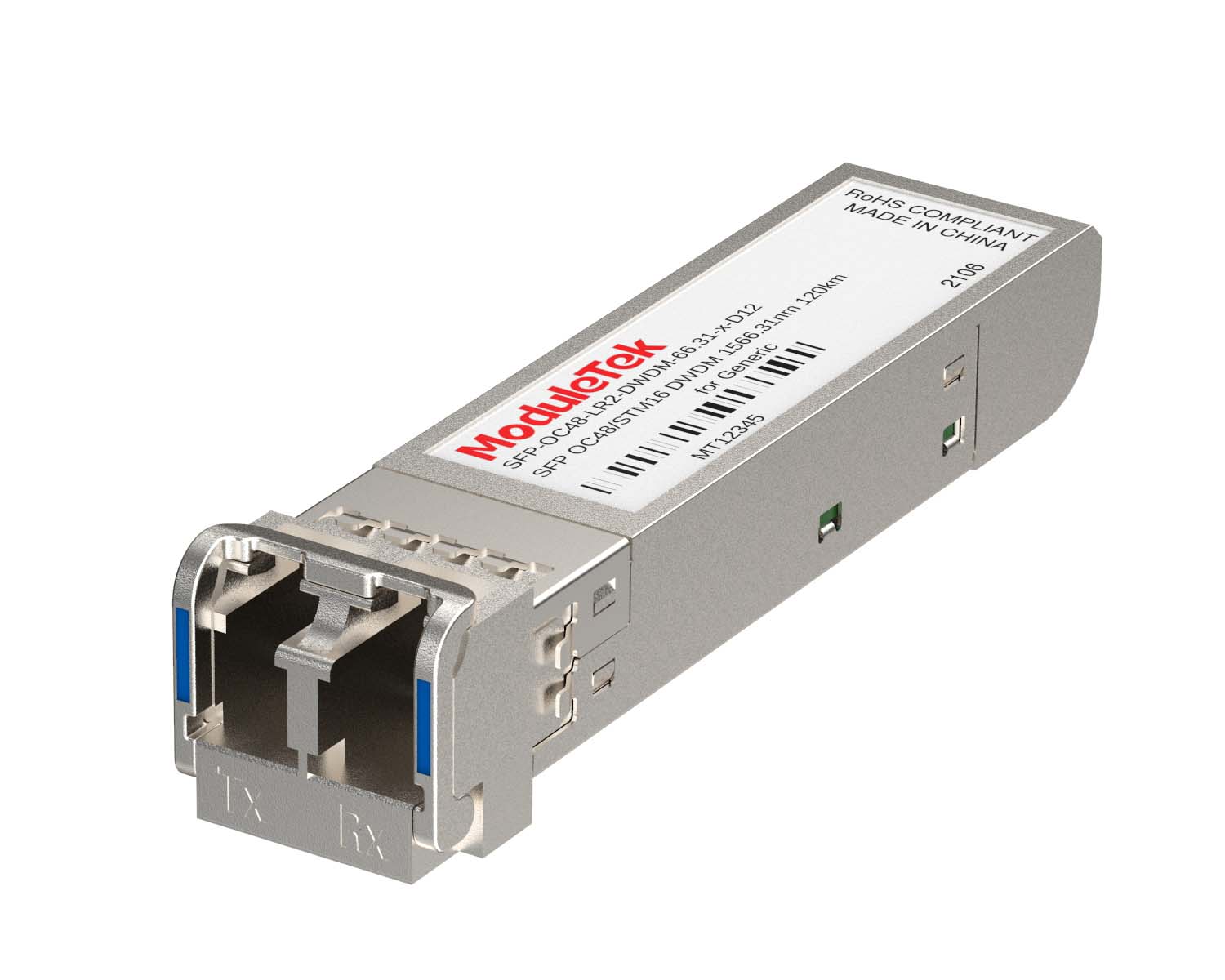 DWDM Optical Transceivers
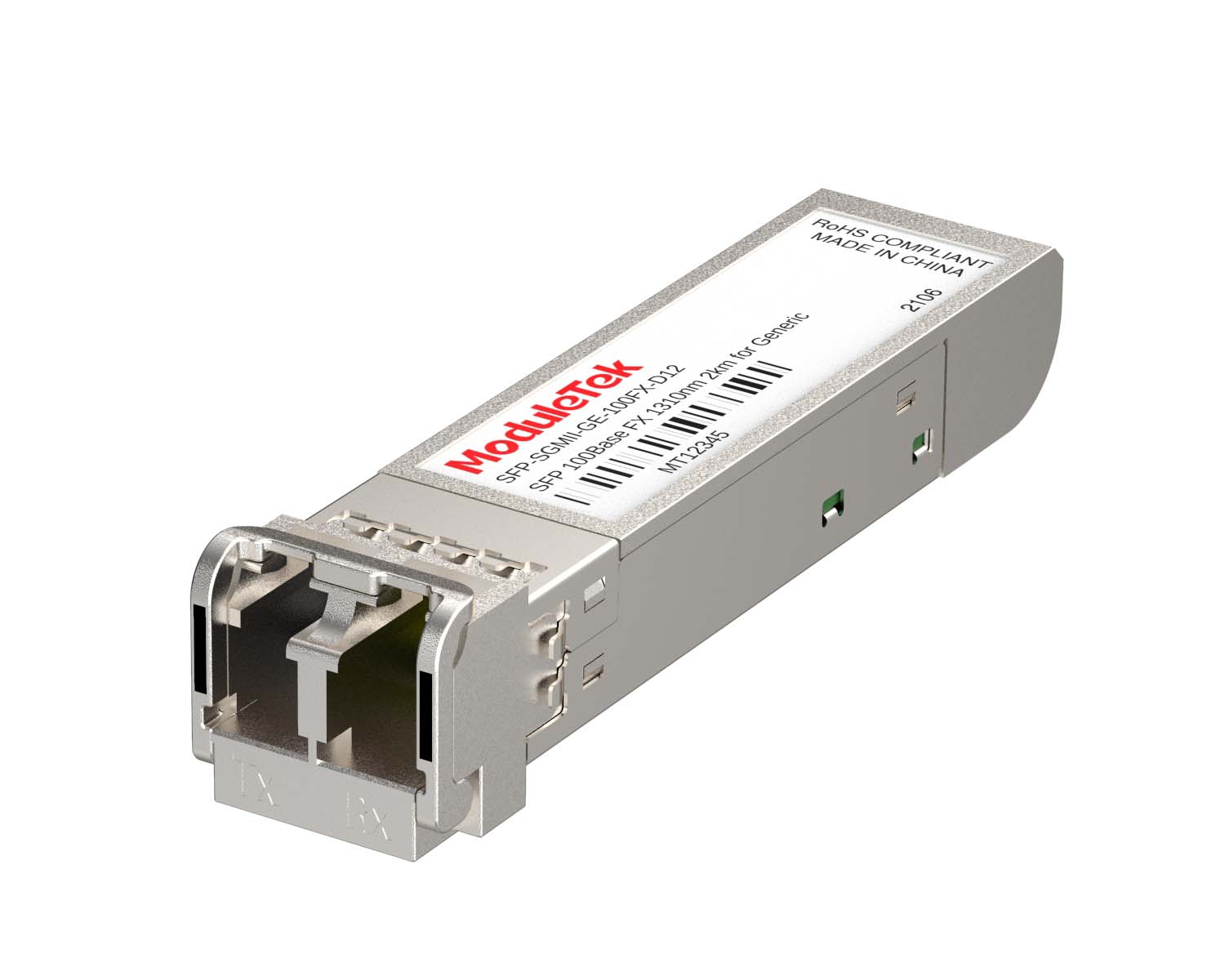 SGMII Port Optical Transceivers
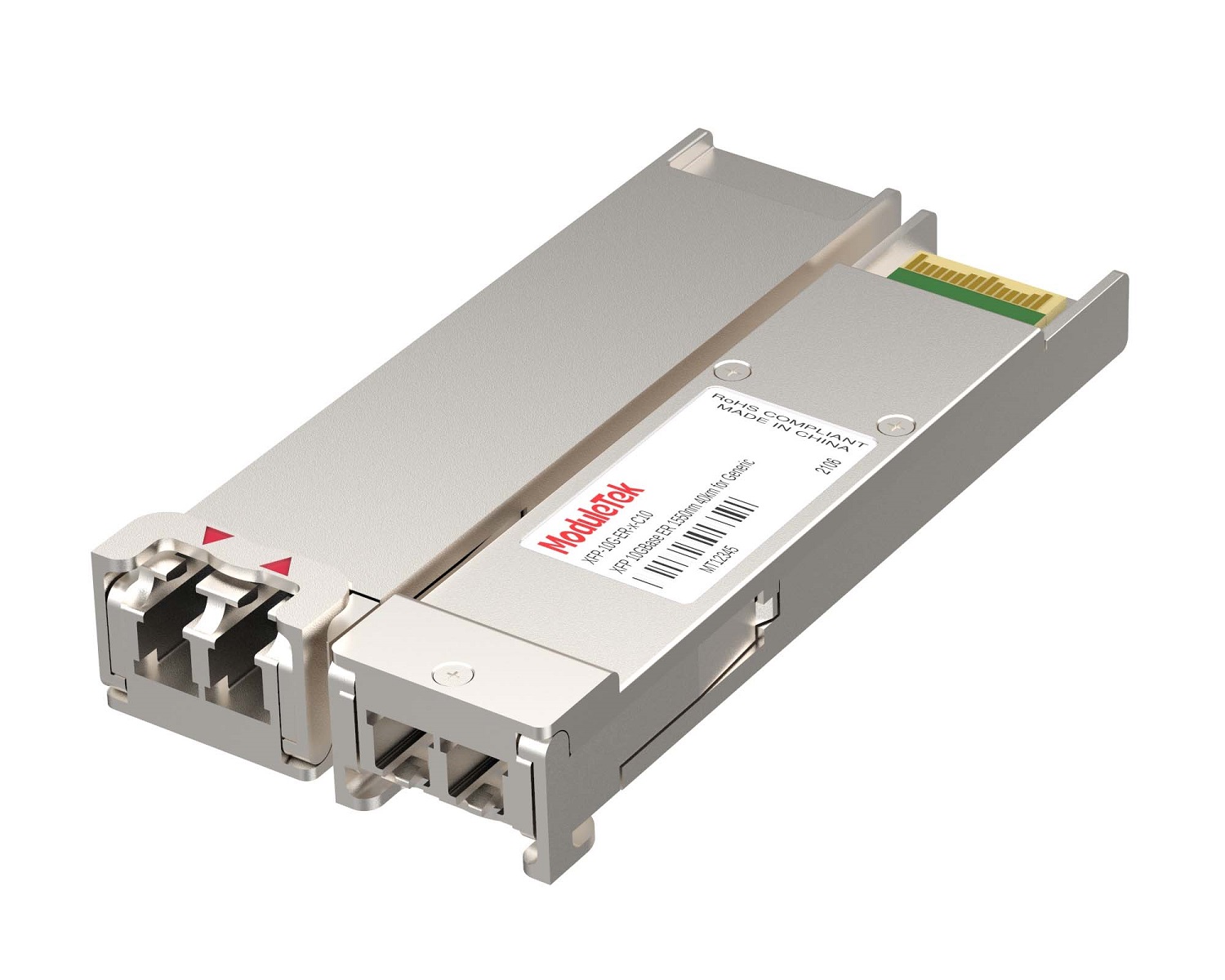 XFP Optical Transceivers
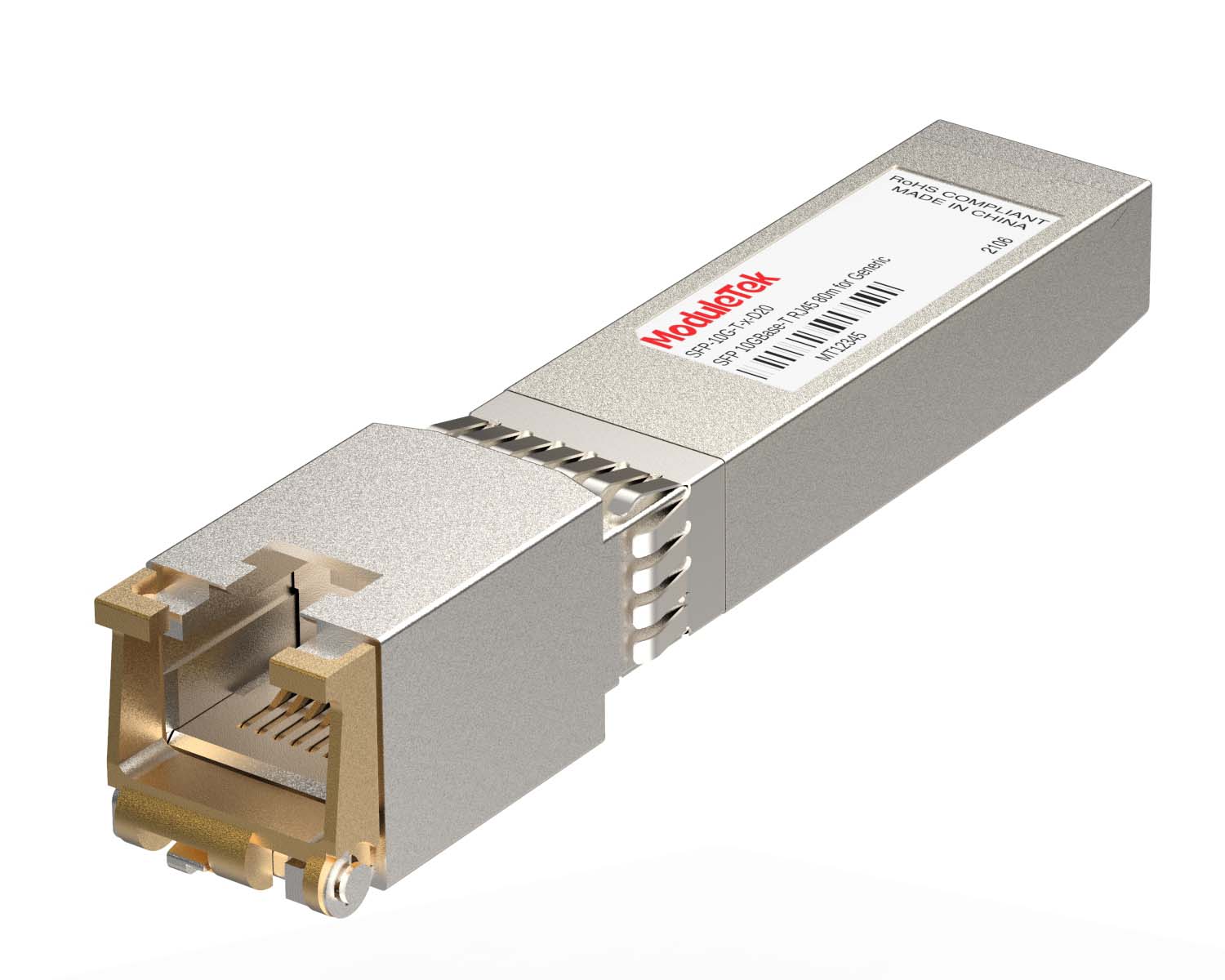 100M/1G/10G Coppers
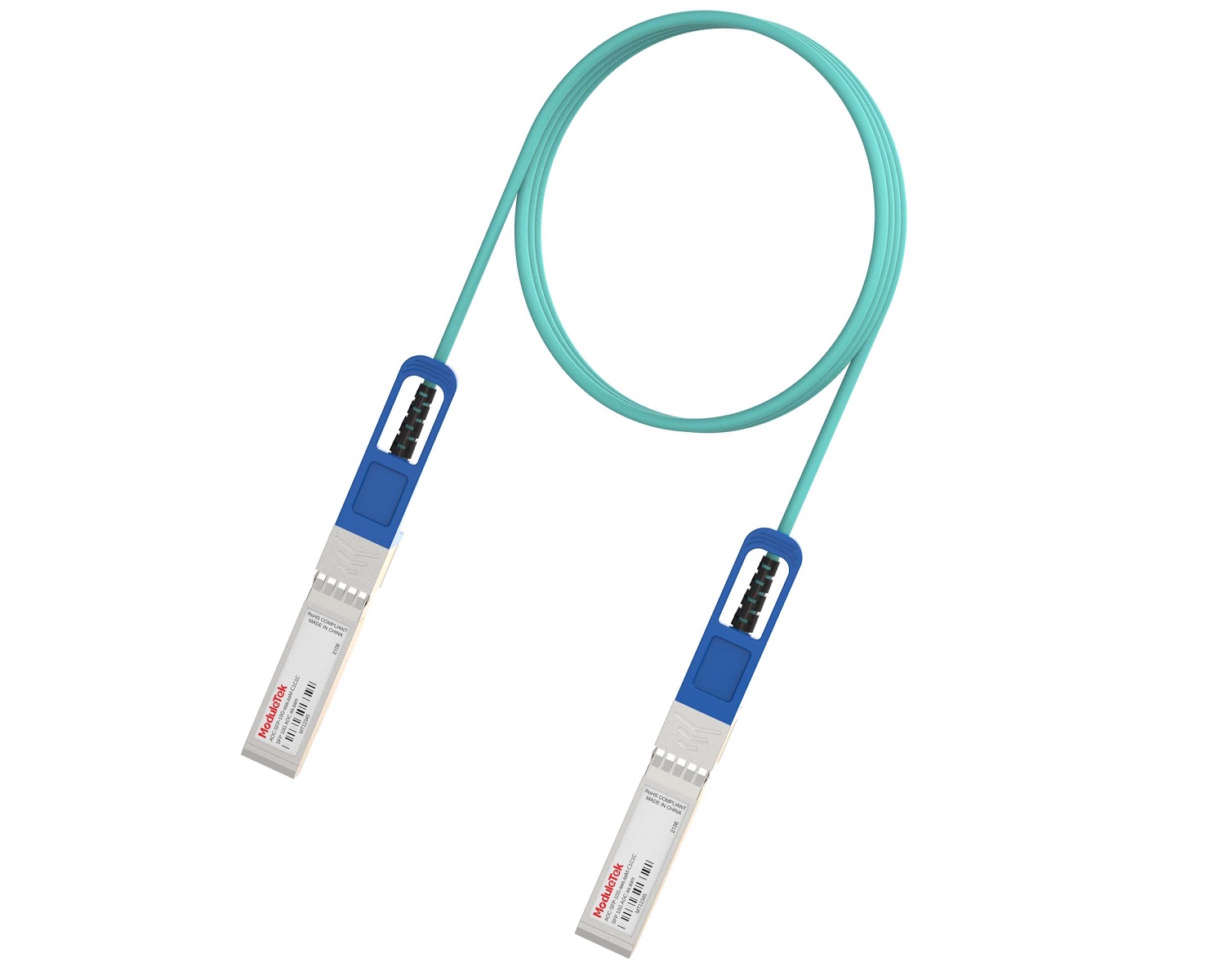 Full-Rate AOC & Breakout Series
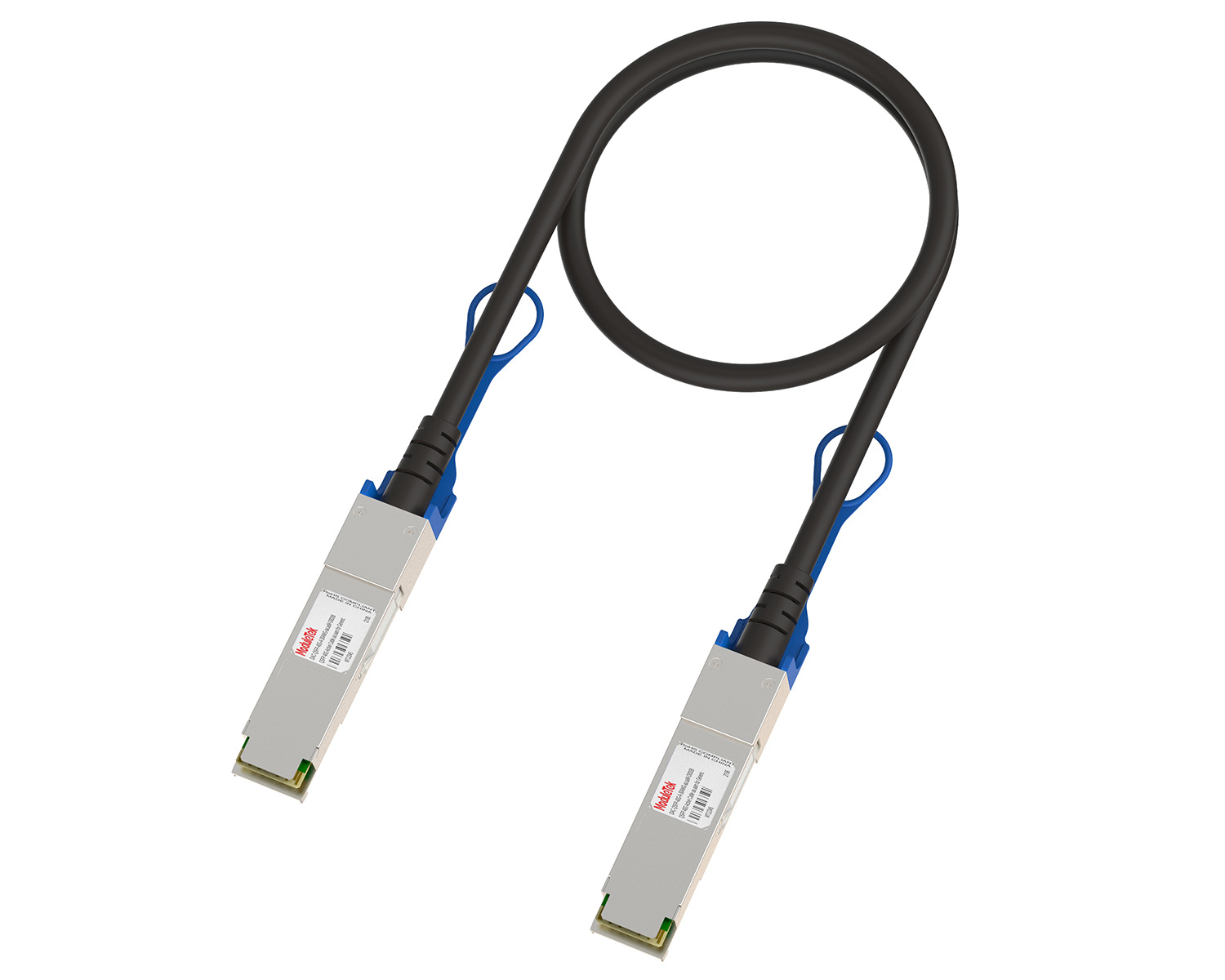 10G/40G Active DAC Series
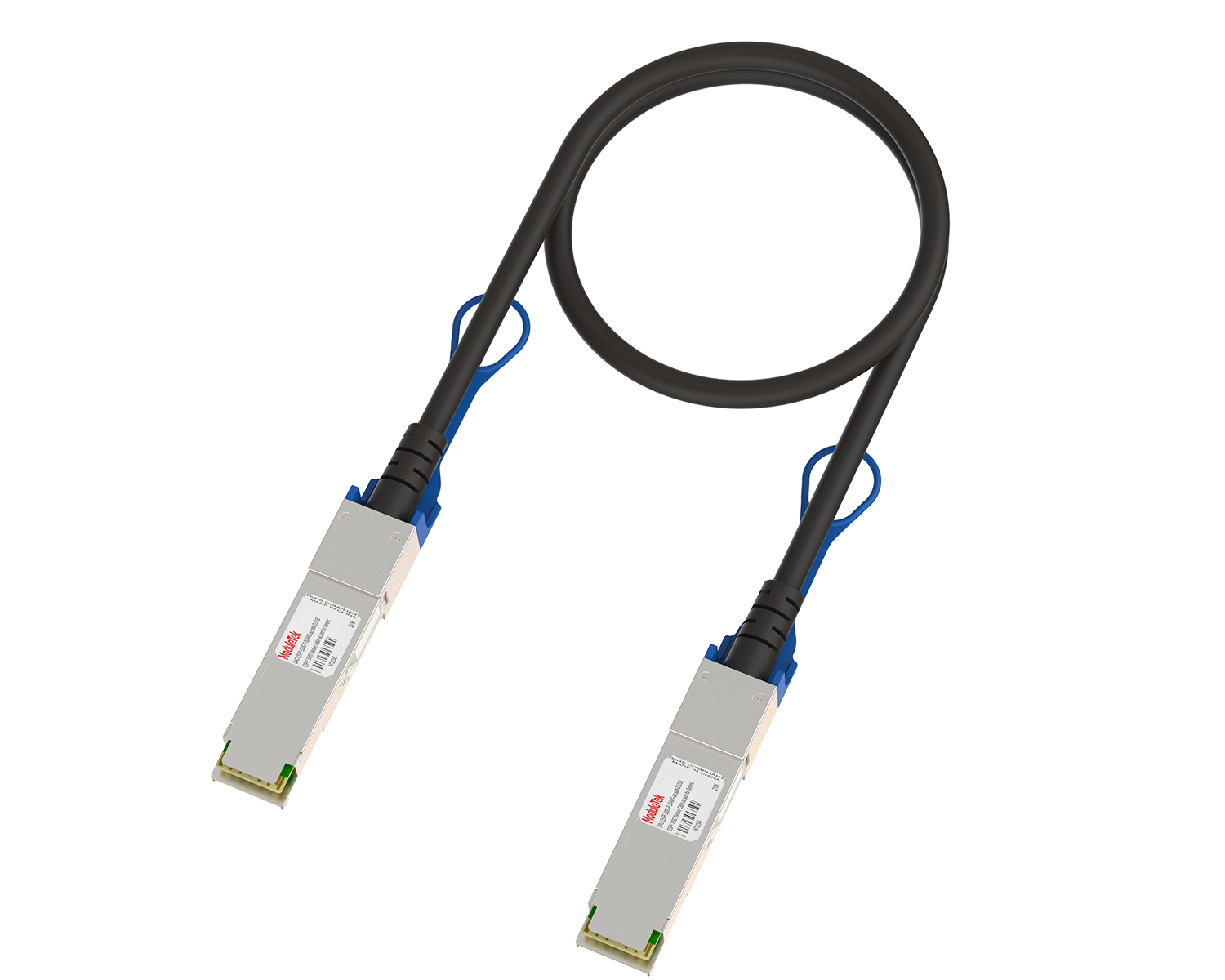 Full-Rate Passive DAC Series
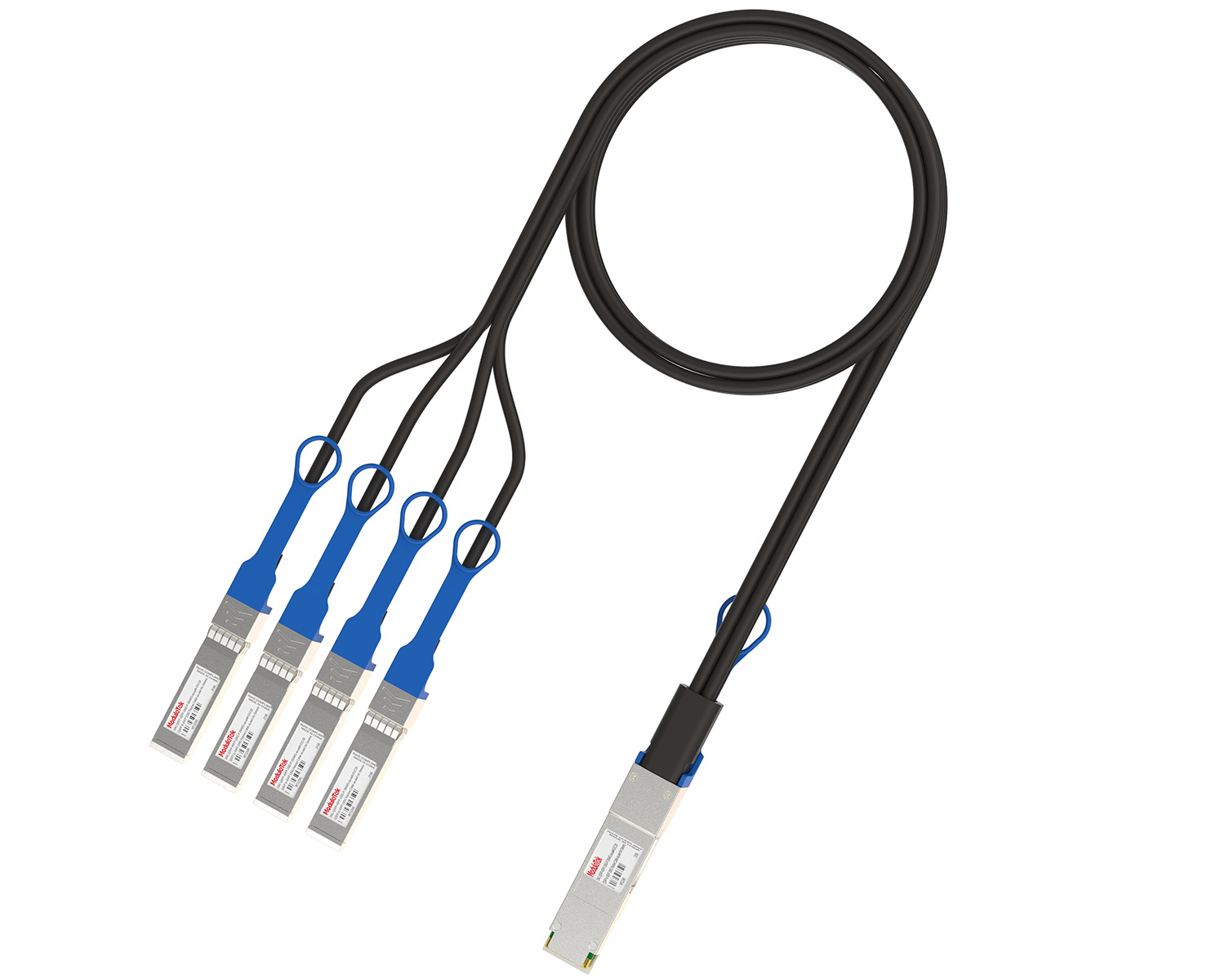 40G/100G Passive Breakout DAC Series
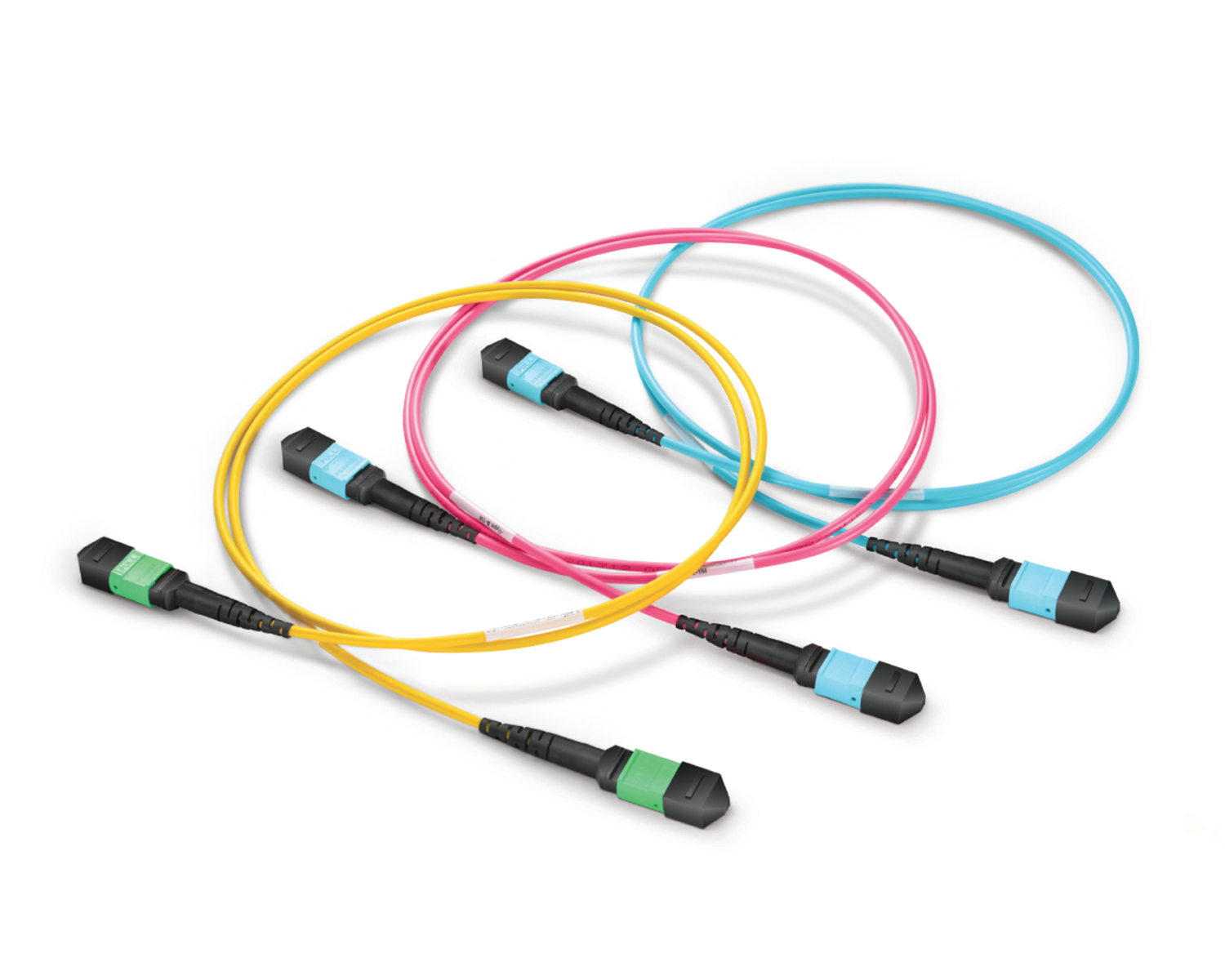 Regular/MTP-MPO Fiber Patch Cords
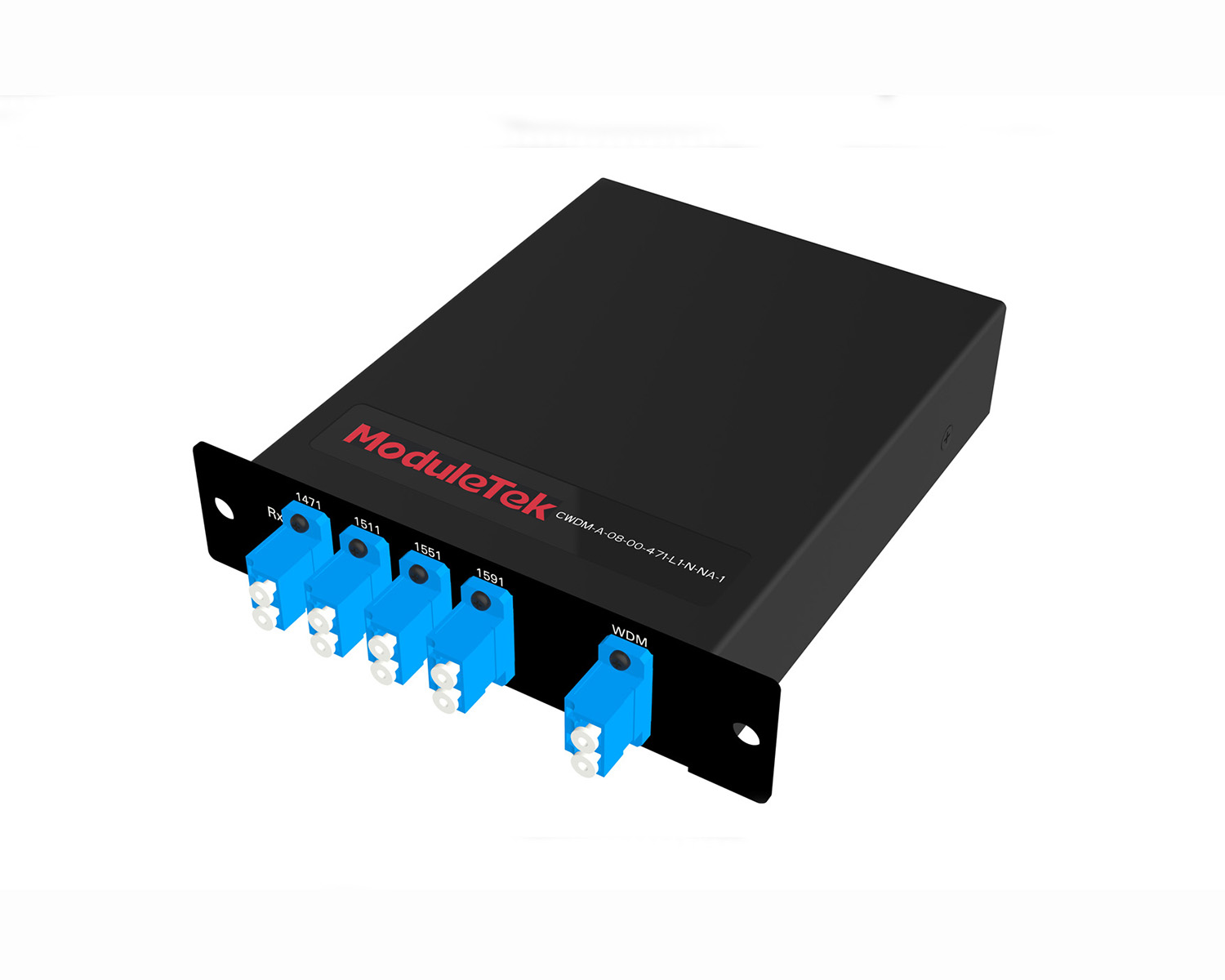 MT2011
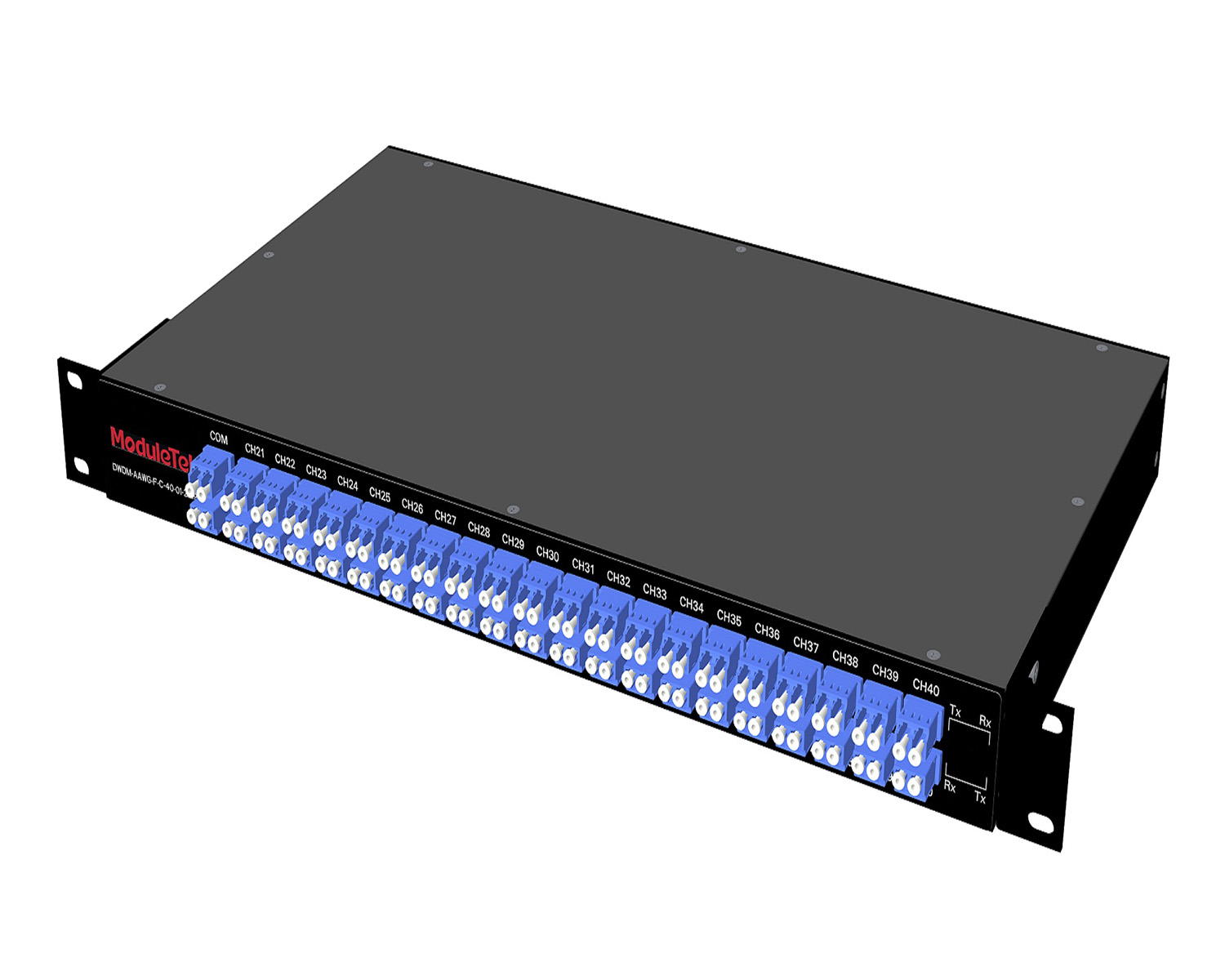 MT2010
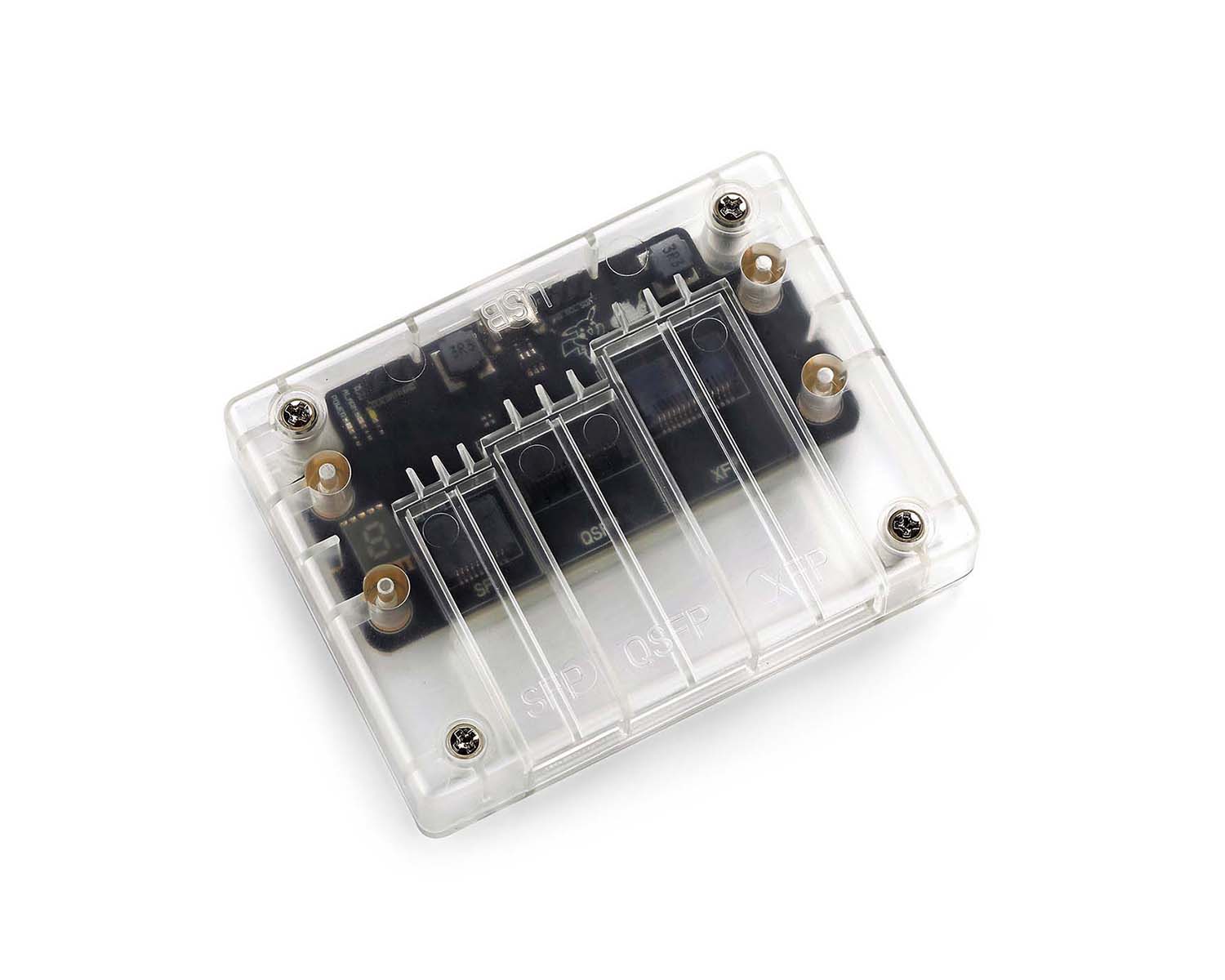 CodingBox
 QSFP to SFP Adapter
How to Use HiView to Access and Manage Hirschmann Switches
Time: 2026-05-29
1. Introduction to HiView
HiView is an installation-free graphical management tool designed for Hirschmann industrial network devices, delivering a streamlined platform for device configuration and maintenance.
This tool is available for download on the Belden official website, with dedicated versions for Windows and Linux operating systems.
Download link: https://my.belden.com/partner/s/downloads
This guide from Motech Optoelectronics uses HiView 4.2 (Windows version) and a Hirschmann GRS105-6F8T switch as the practical example to demonstrate HiView operations.
2. Connect Devices via HiView
2.1 Add Devices on the Devices Tab
a. Connect your PC (IP: 192.168.1.20) directly to the switch’s RJ45 port with an Ethernet cable.
b. Launch HiView. Enter the switch management address http://192.168.1.10 in the bottom-left area of the Devices tab and initiate a network search.
If you do not know the switch IP address, use the Discovery feature to detect the device.
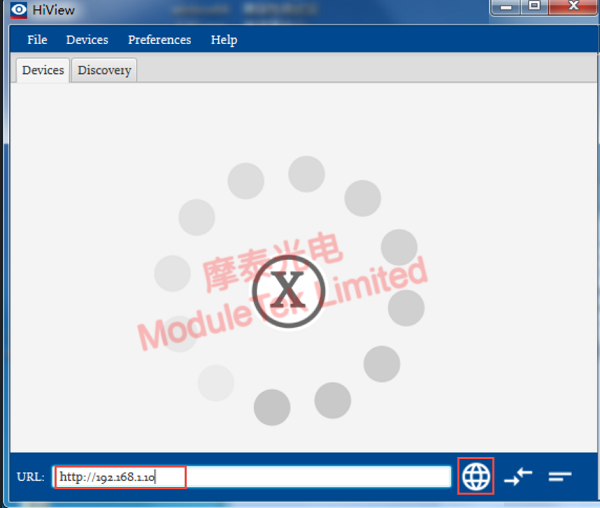
Figure 1 Search and Add Devices
c. Once the connection is established, the device ID will be displayed on the interface. Right-click the device, and three options will appear: GUI, Ping, and CLI.
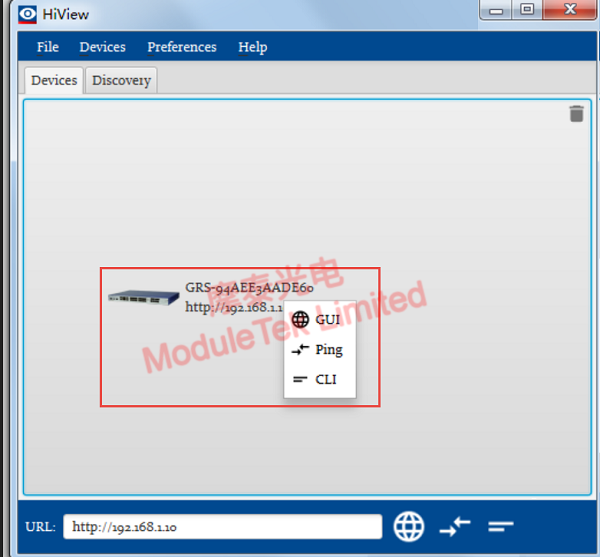
Figure 2 Device Management Options
2.2 Discover Devices via Discovery Feature
a. HiView 4.2 comes with a native device discovery feature. Go to the Discovery tab, select the network IP of your connected PC in the bottom-left corner, then click Search. The software will automatically find the connected switch.
For older HiView versions without the discovery function, please use the standalone HiDiscovery tool.
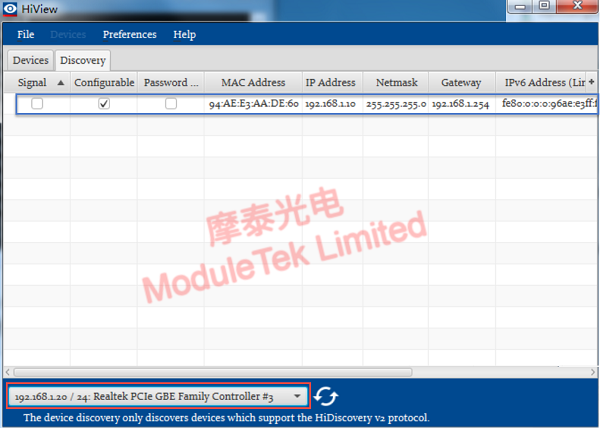
Figure 3 Discover Devices
b. After discovery completes, full device information will be shown on the page. Right-click the device to access more configuration functions.
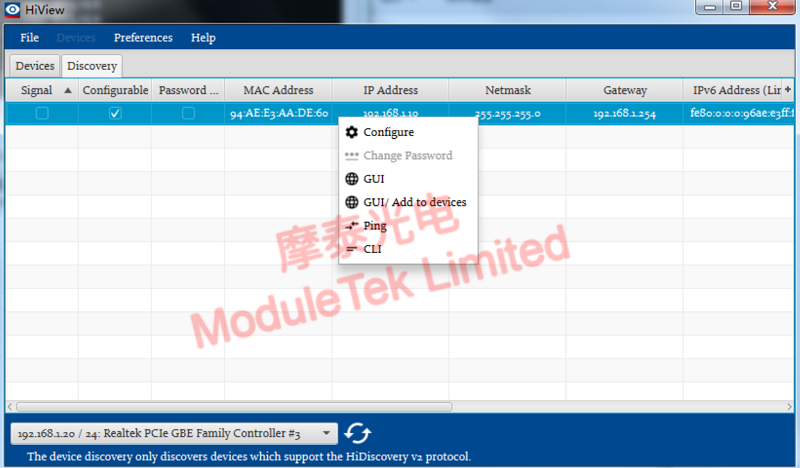
Figure 4 IP Configuration and Device Management
Important Note: Password change is mandatory upon initial login for both GUI and CLI access. Please log in again after updating your credentials.
3. Access and Manage Devices
3.1 GUI Access
a. Select GUI to open the switch web management interface. HiView integrates a lightweight HTTP and Java engine, allowing the web GUI to load directly within the software window or via an external browser.
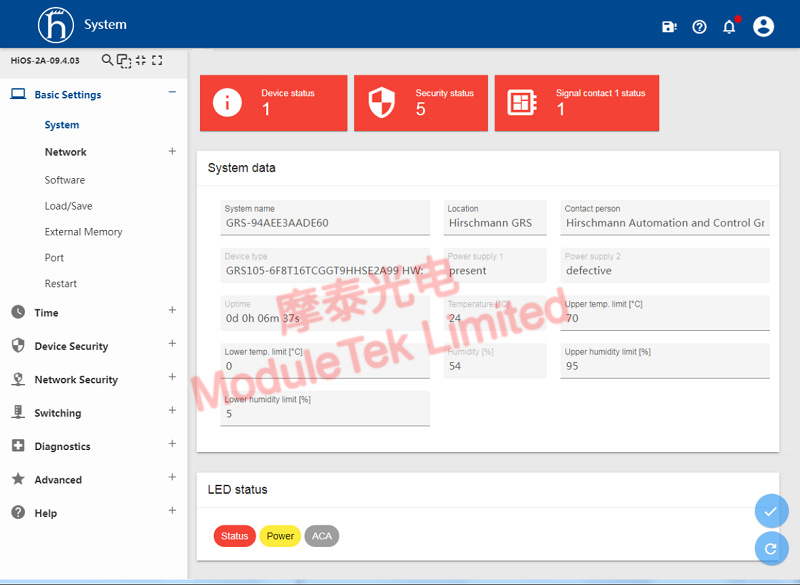
Figure 5 GUI Interface
b. The GUI layout consists of a navigation menu on the left and a content display area on the right.
c. Navigate to Diagnostics > Ports > SFP to view details of the installed optical modules.
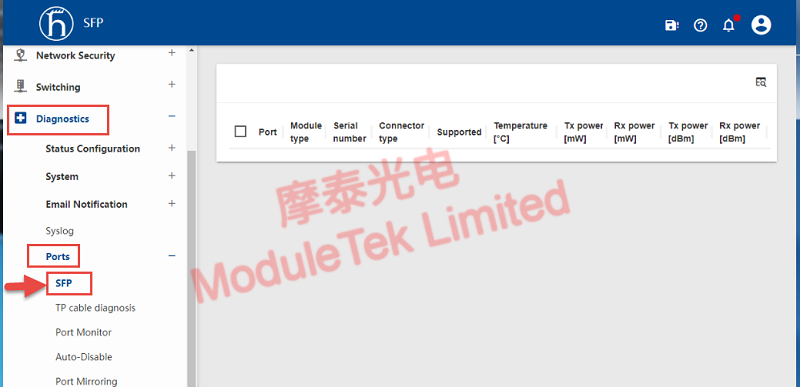
Figure 6 View Optical Module Information via GUI
3.2 CLI Access
a. Select CLI, and an SSH login window will pop up for username and password entry.
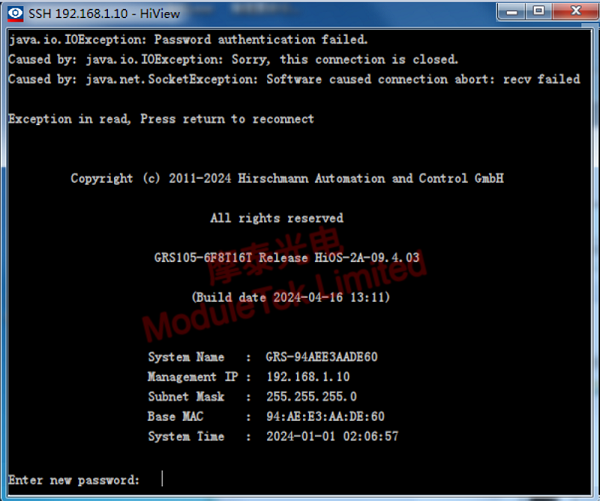
Figure 7 CLI Interface
b. Run the command show sfp to check detailed information of installed optical modules, including module identification and DOM (Digital Optical Monitoring) data.

Figure 8 View Optical Module Information via CLI
Optical modules supplied by Motech Optoelectronics are fully compatible with Hirschmann switches. Please contact us for product inquiries and purchasing arrangements.
For further inquiries about the above content, please contact us at: sales@moduletek.com