
 40G/100G Optical Transceivers
 25G Optical Transceivers
 10G Optical Transceivers
 155M/2.5G Optical Transceivers
 1G Optical Transceivers
 1G BIDI Optical Transceivers
 Dual-Rate Optical Transceivers
 FC 16G/32G Optical Transceivers
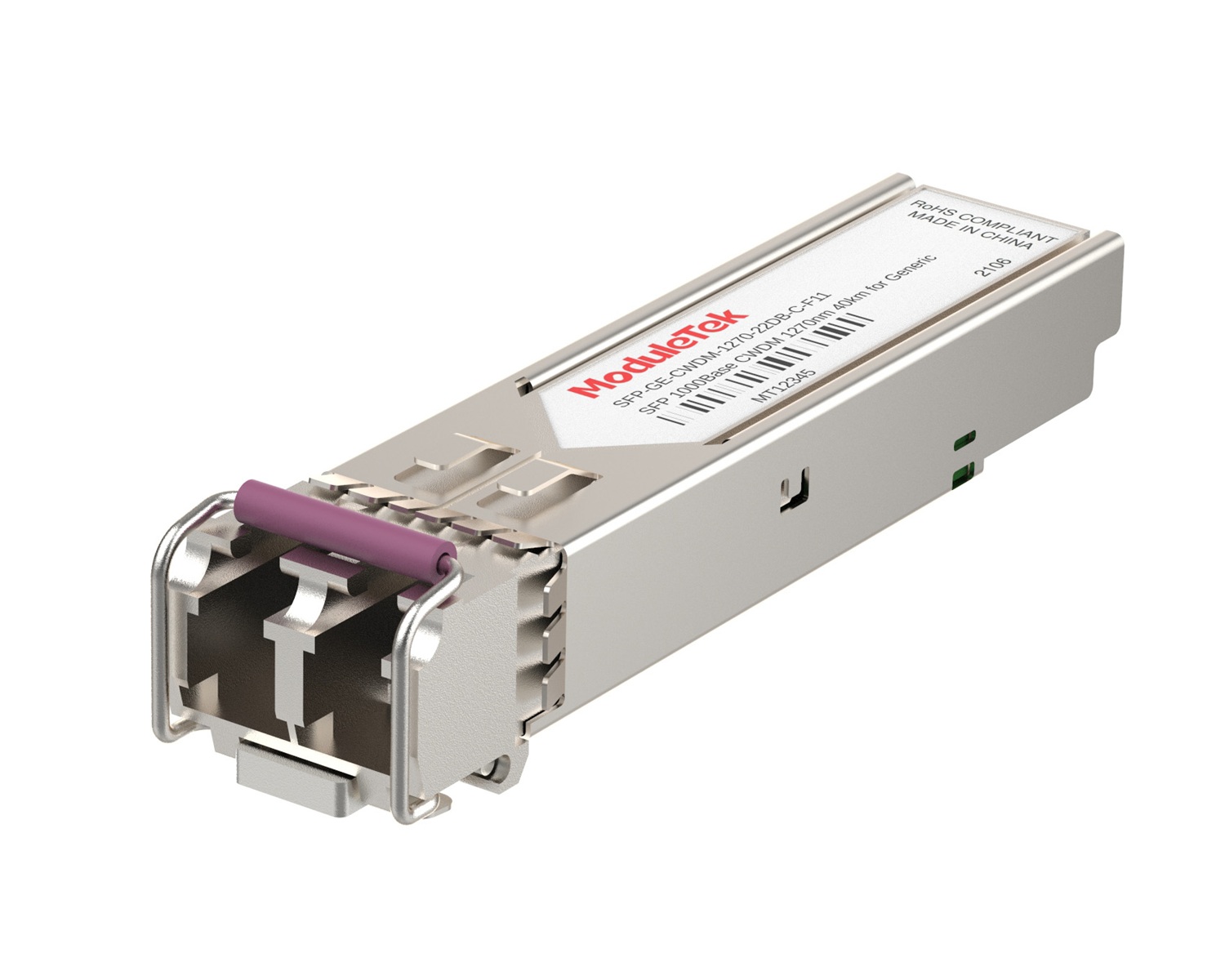 CWDM Optical Transceivers
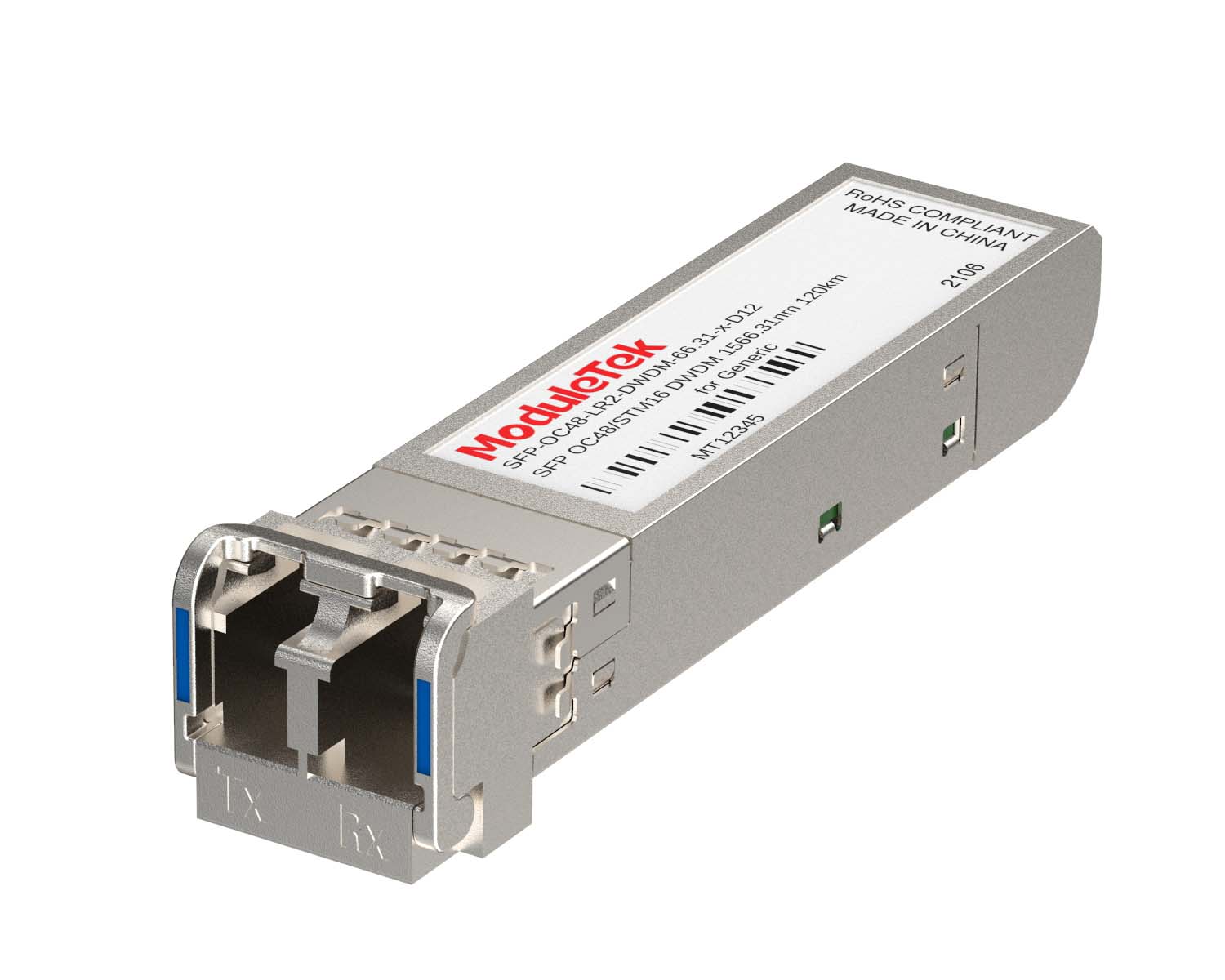 DWDM Optical Transceivers
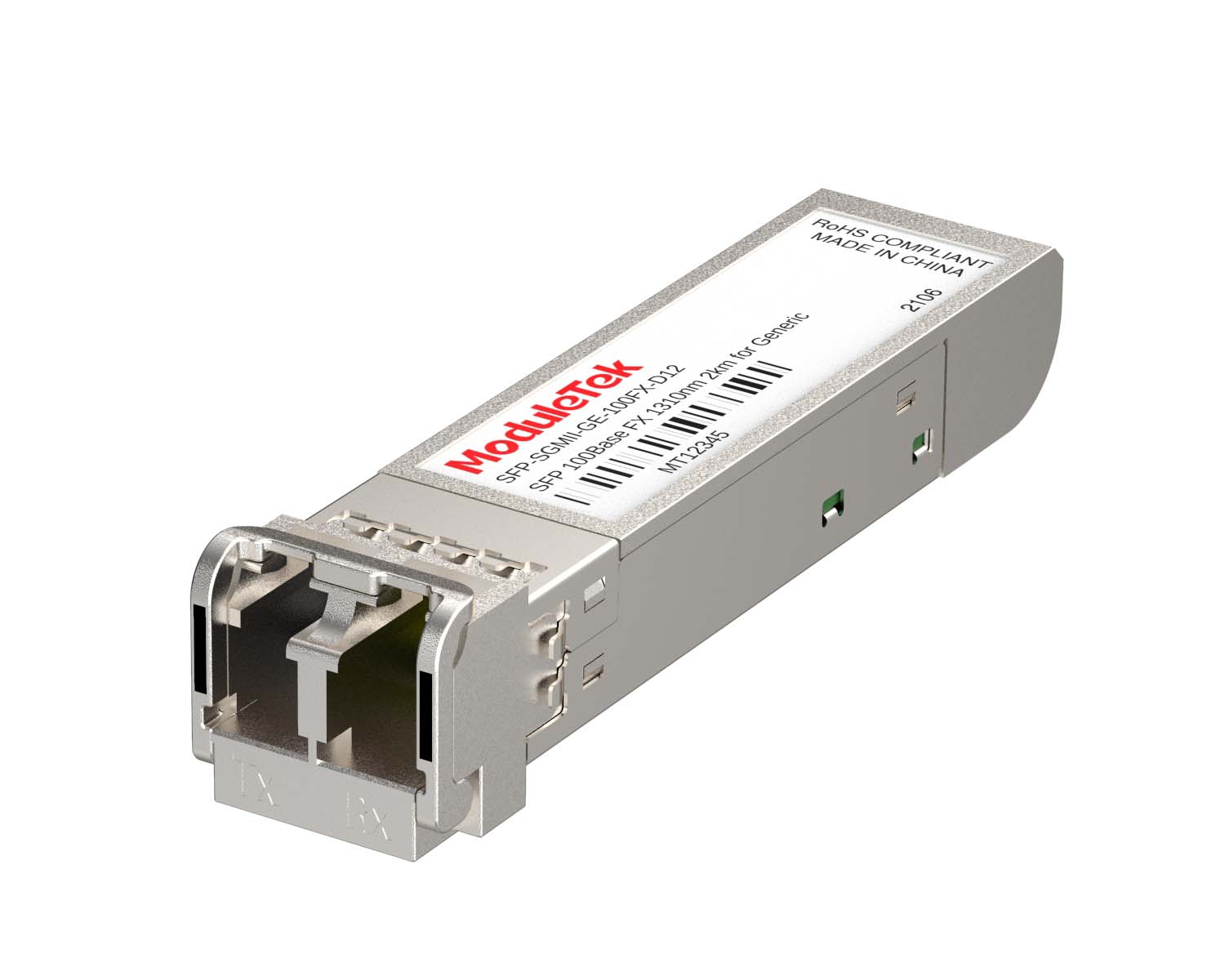 SGMII Port Optical Transceivers
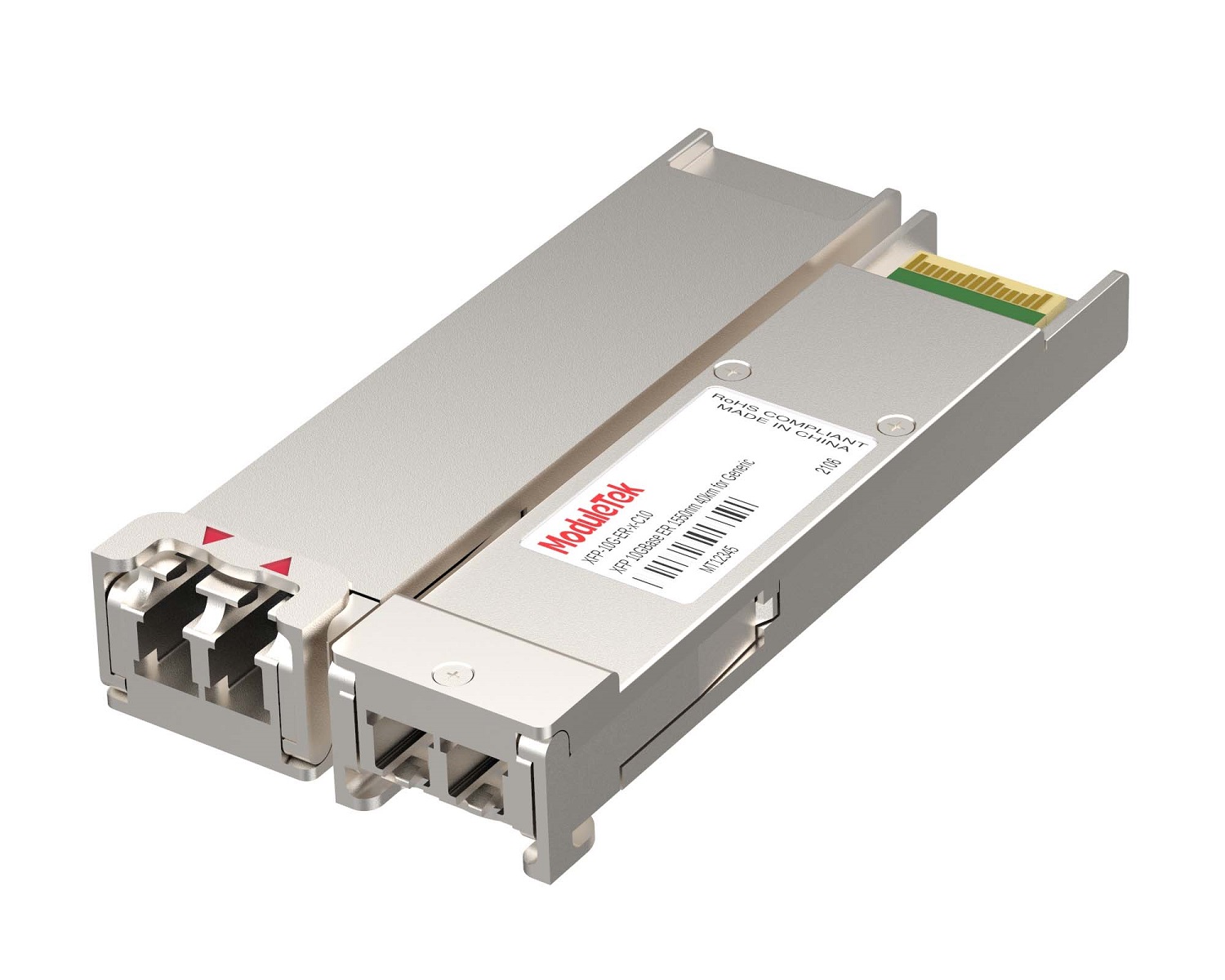 XFP Optical Transceivers
 100M/1G/10G Coppers
 Full-Rate AOC & Breakout Series
 10G/40G Active DAC Series
 Full-Rate Passive DAC Series
 40G/100G Passive Breakout DAC Series
 Regular/MTP-MPO Fiber Patch Cords
 MT2011
 MT2010
 CodingBox
 QSFP to SFP Adapter
Introduction To Minicom: Serial Port Tool For Linux
Time: 2026-06-08
Minicom is a command-line serial communication program for Linux, used for interactive debugging of serial devices. This guide from Motech Laboratory covers its installation and usage.
1. Install Minicom on Linux
First check if Minicom is already installed on your Linux system. Run either of the following commands:
which minicom
rpm -q minicom
If Minicom is not installed, a prompt will appear. If installed, the system will display its installation path and related package information.
Minicom supports two installation modes: online installation and offline installation.
• Online installation for CentOS 8:
sudo dnf install minicom
• Online installation for CentOS 7:
sudo yum install minicom
During online installation, the package manager automatically resolves and installs all required dependencies.
This tutorial uses CentOS 8.5.2111. Since the official software repositories for this version have reached End of Life (EOL), we use the offline installation method.
You can download all required files from open-source mirrors including Alibaba Cloud and Tsinghua University. The files consist of the main Minicom package, as well as lrzsz and ncurses dependencies.
Place the Minicom package and all dependency files in the same folder. Navigate to this directory in the terminal, then run the command below for one-click batch installation:
sudo rpm -Uvh *.rpm
You can also install Minicom and its dependencies individually with the following command:
rpm -ivh <package_name>
Once installation finishes, run the command below to verify the installation and check usage parameters:
minicom -h
2. Use Minicom for Serial Communication
Two methods are provided for serial communication.
Method 1: Configure via Configuration Menu
Launch the Minicom configuration menu with administrator privileges:
sudo minicom -s
Select Serial port setup to configure serial port parameters, including baud rate and flow control. After finishing configurations, choose Save setup as dfl, then exit the menu.
Method 2: Launch Directly with Command-Line Parameters
Start Minicom as administrator, and specify the serial port and baud rate using command-line parameters:
sudo minicom -d /dev/ttyUSB0 -b 115200
Note: Run dmesg | grep tty to identify the serial port. A USB-to-serial adapter is used for the connection in this tutorial.
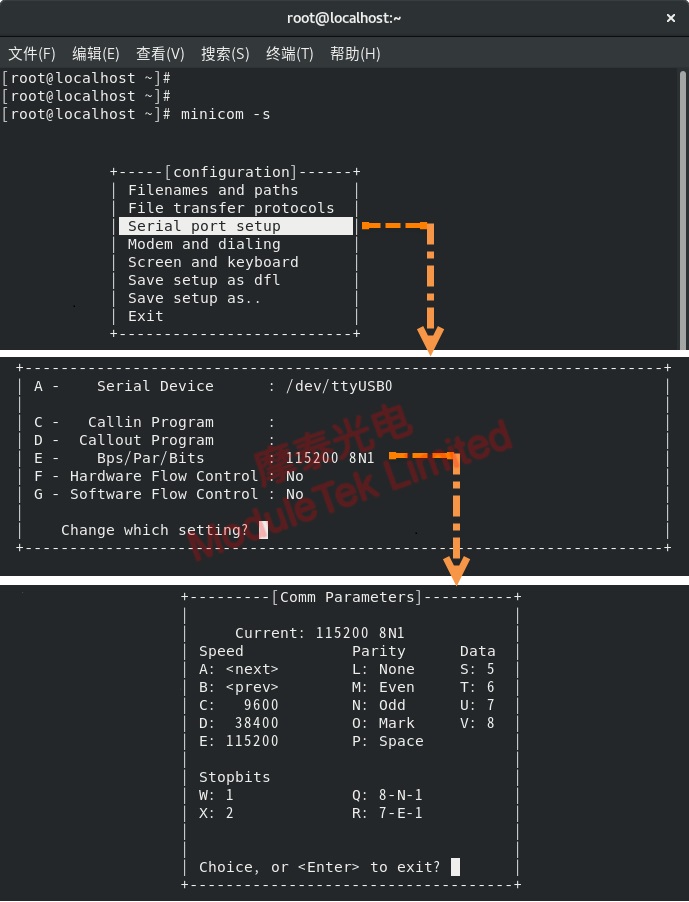
Figure 1 Minicom configuration menu
After setup, Minicom will connect directly to the switch terminal, so you can manage the device via CLI.
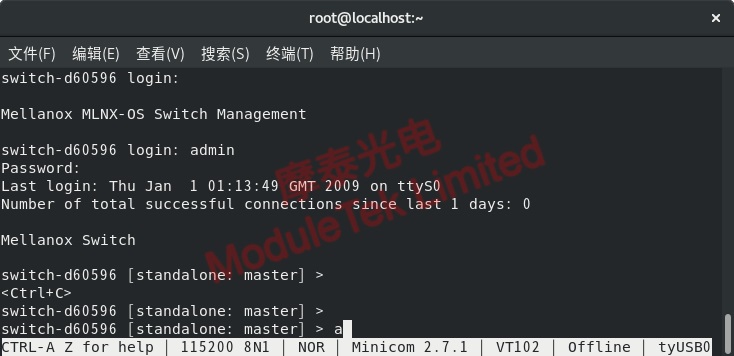
Figure 2 Access the switch via Minicom
Press the shortcut Ctrl+A, then Z to open the Minicom command summary and view all built-in functions.
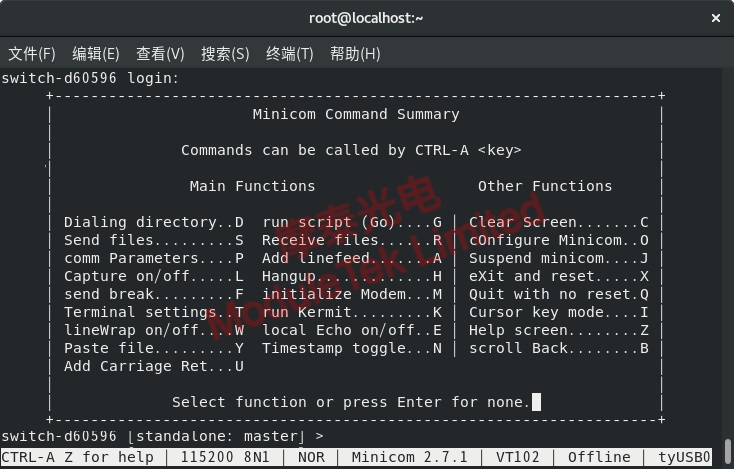
Figure 3 Minicom function menu
Moduletek Limited provides reliable products and professional technical support for global customers.
For further inquiries about the above content, please contact us at: sales@moduletek.com