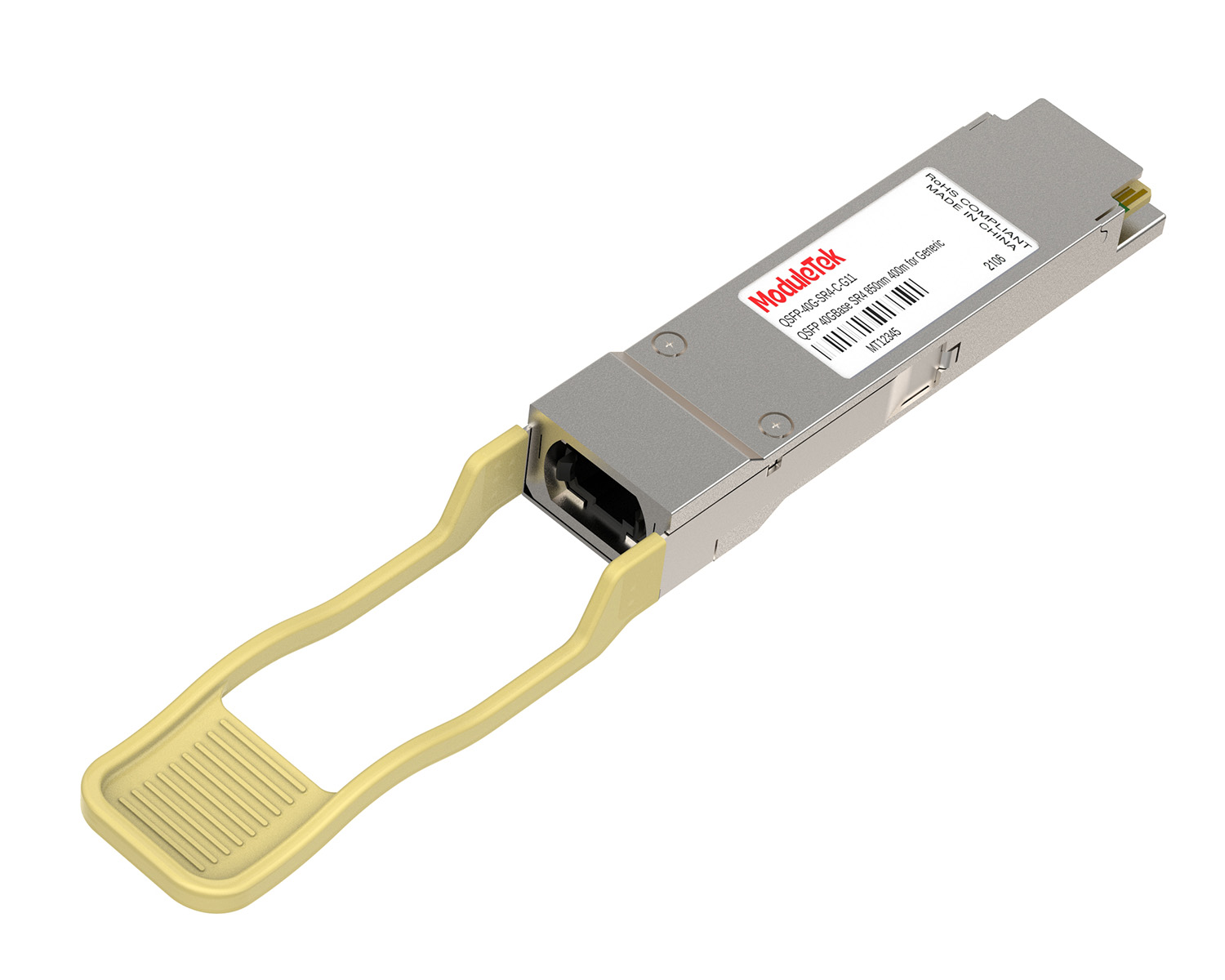
 40G/100G Optical Transceivers
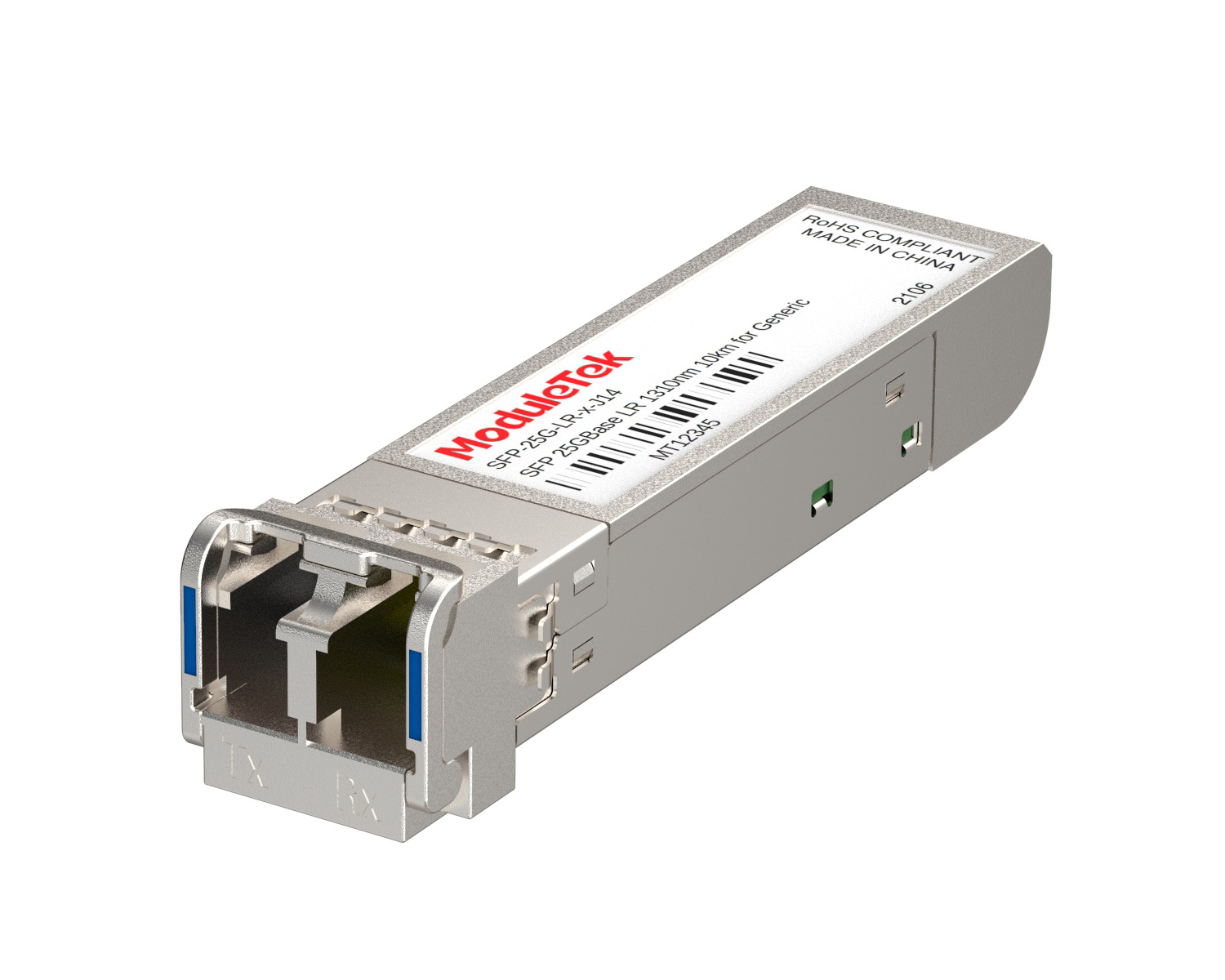 25G Optical Transceivers
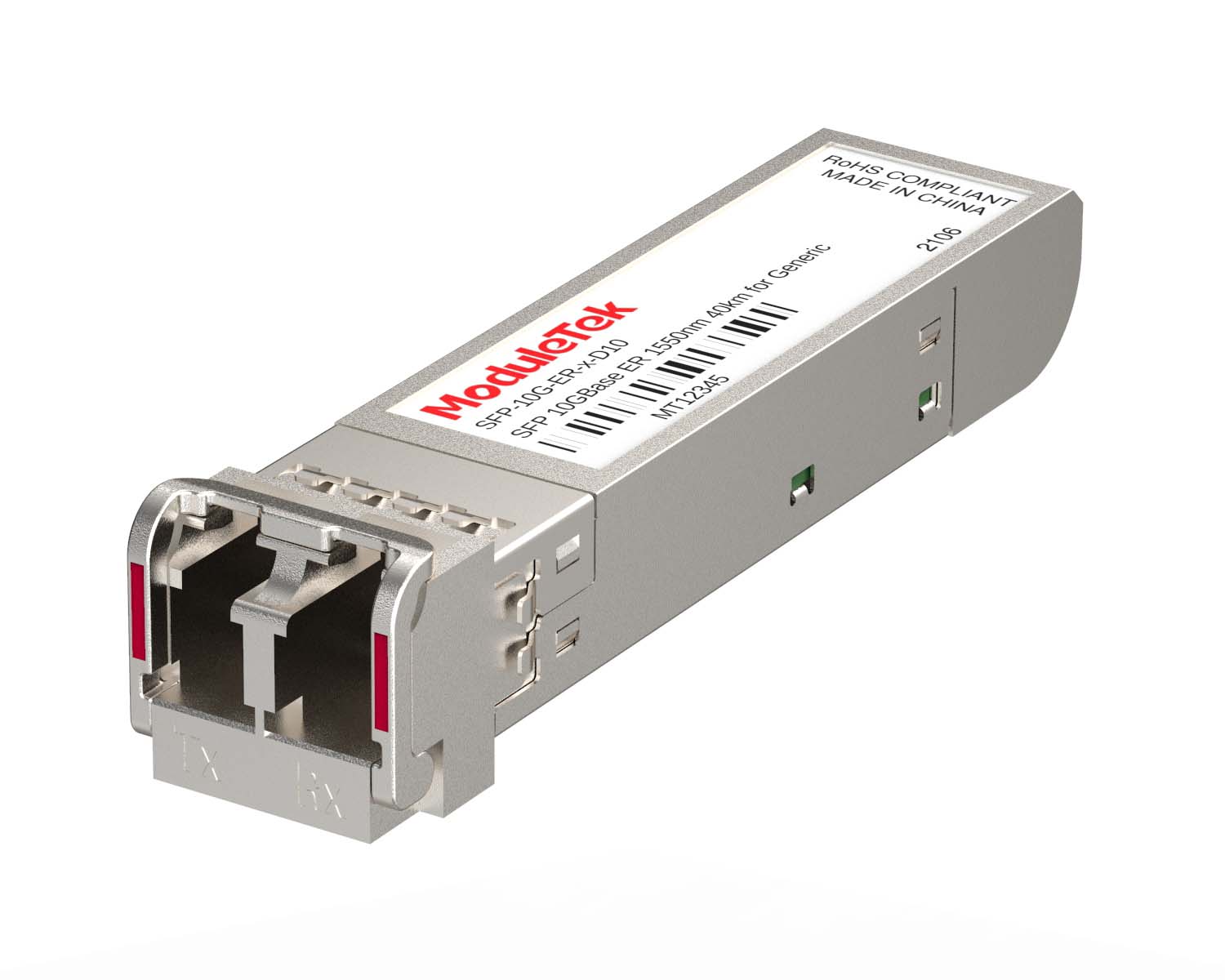 10G Optical Transceivers
 155M/2.5G Optical Transceivers
 1G Optical Transceivers
 1G BIDI Optical Transceivers
 Dual-Rate Optical Transceivers
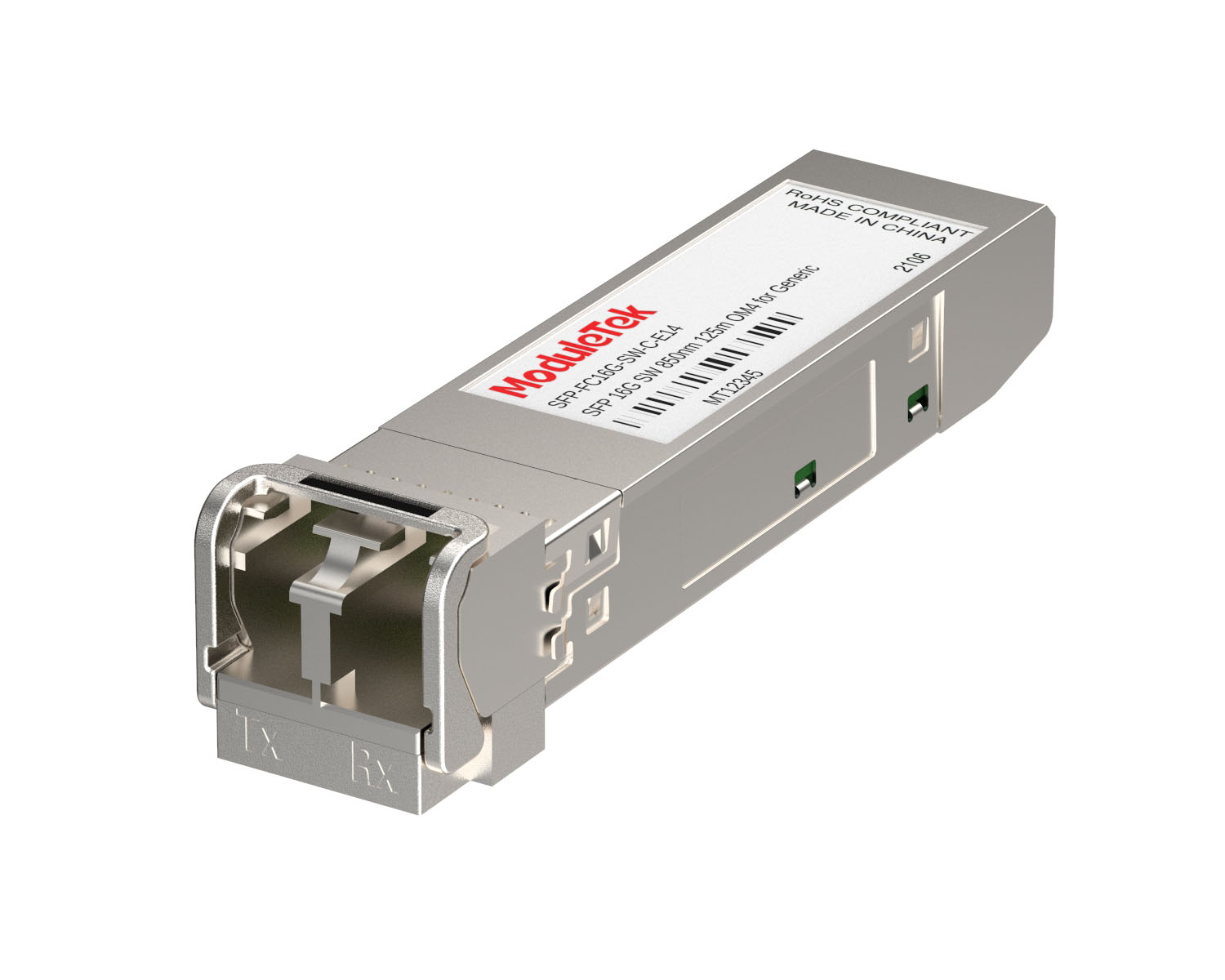 FC 16G/32G Optical Transceivers
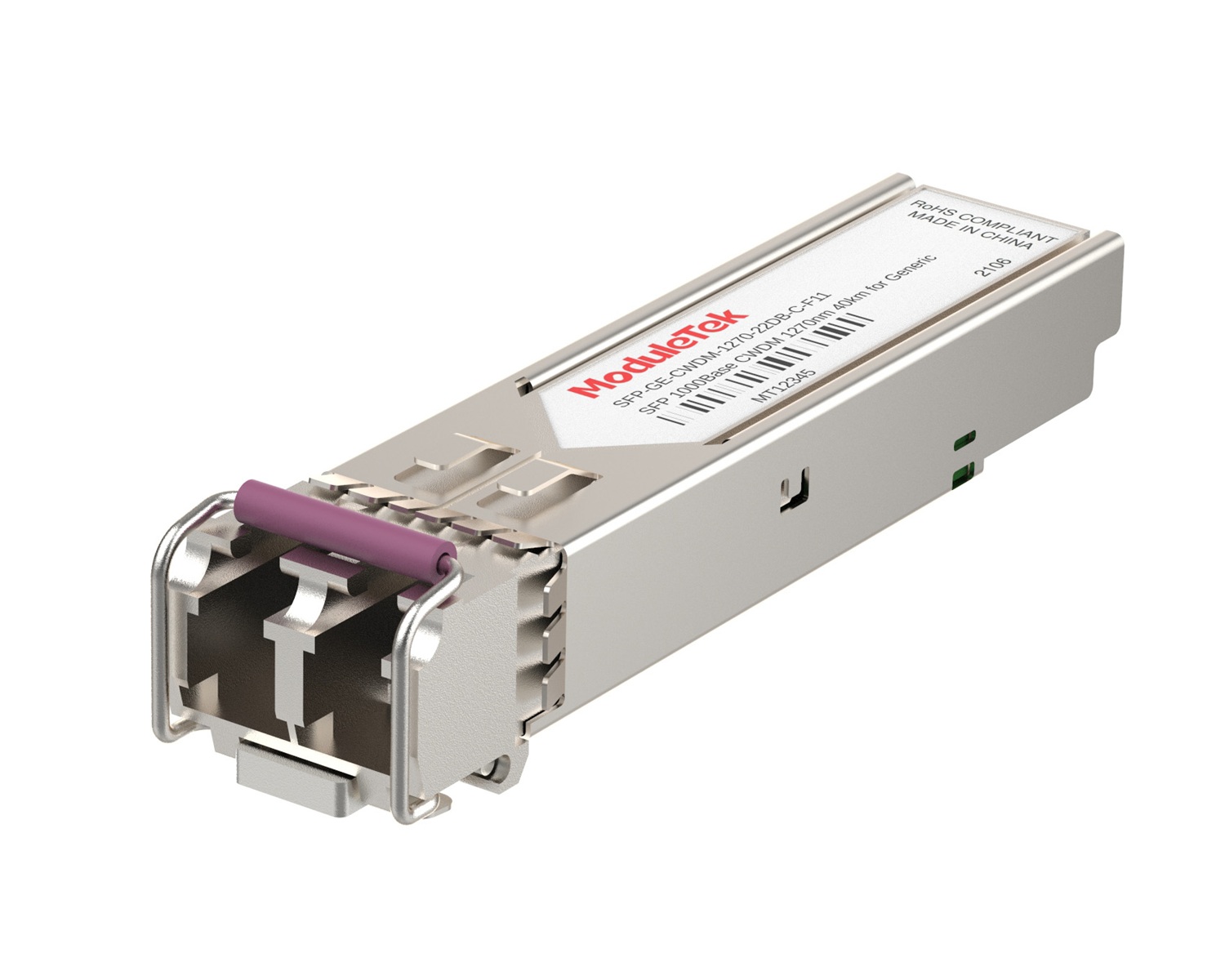 CWDM Optical Transceivers
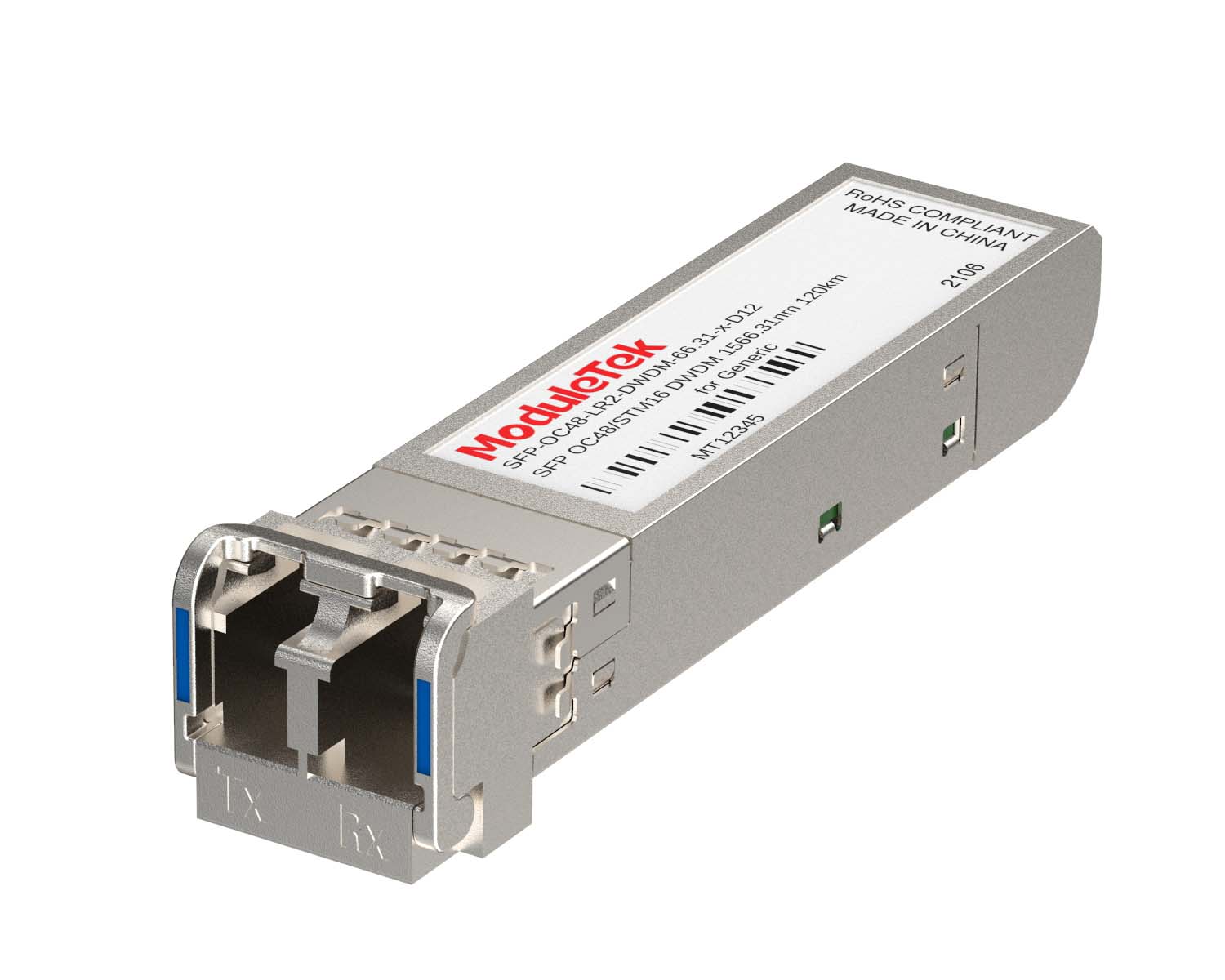 DWDM Optical Transceivers
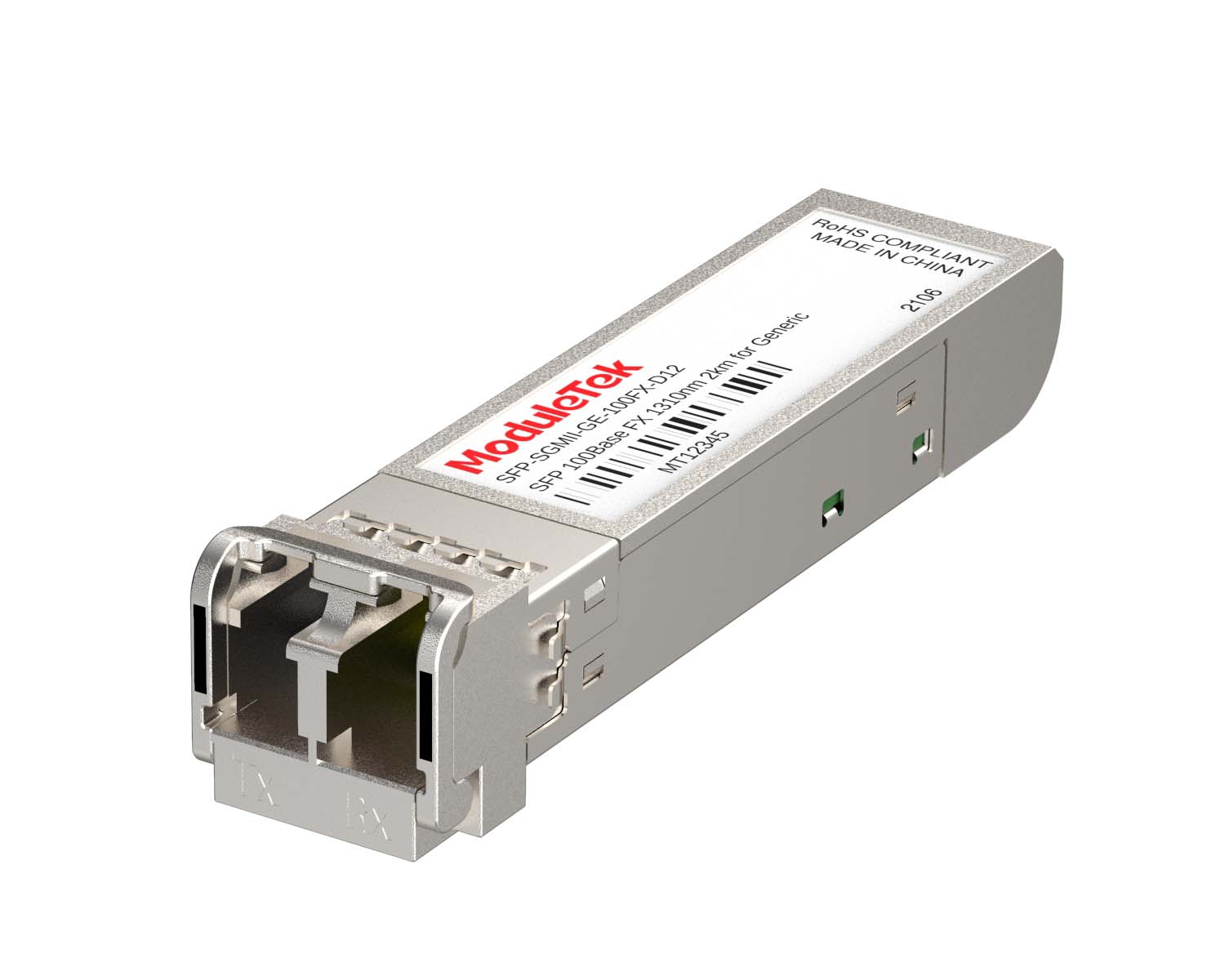 SGMII Port Optical Transceivers
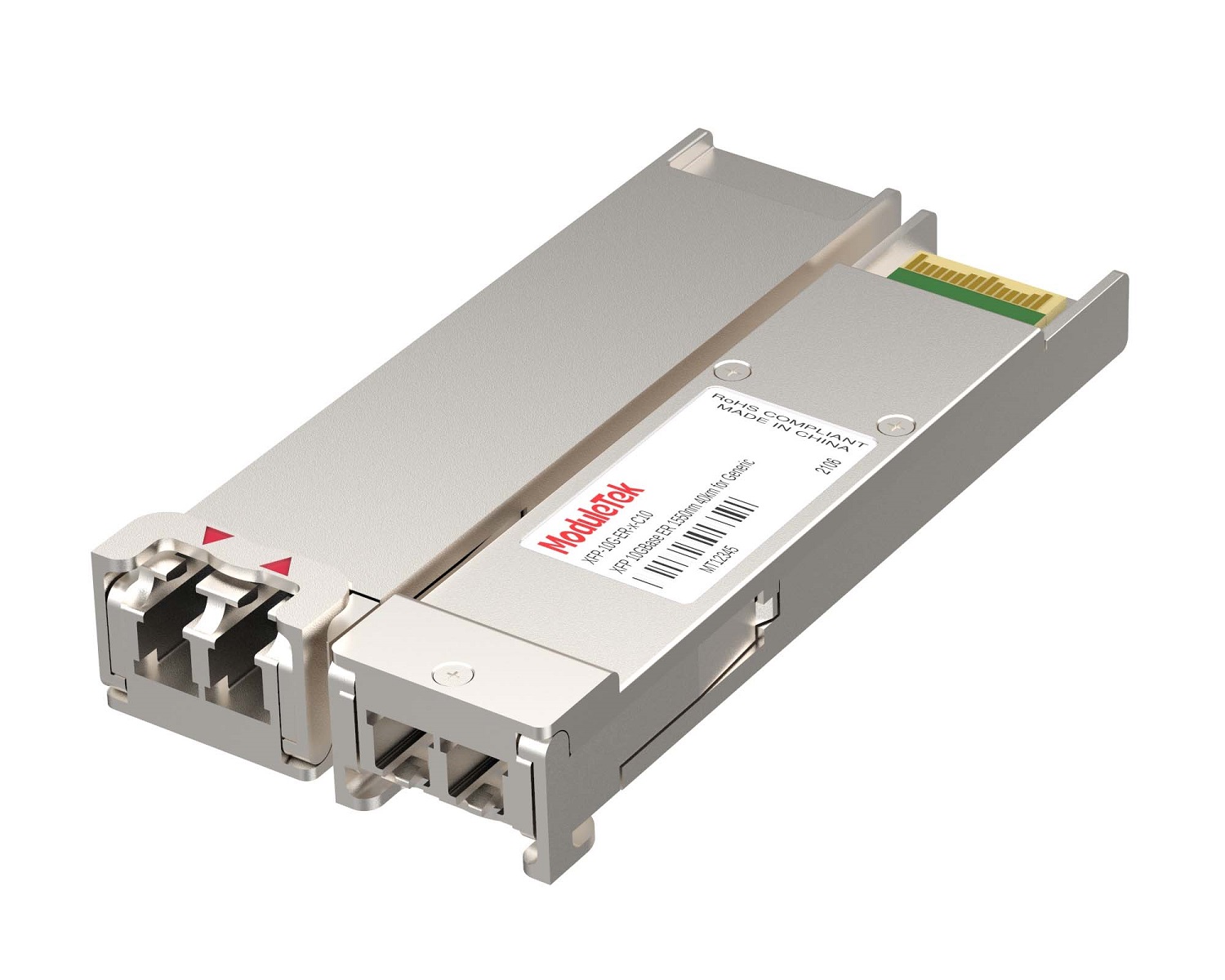 XFP Optical Transceivers
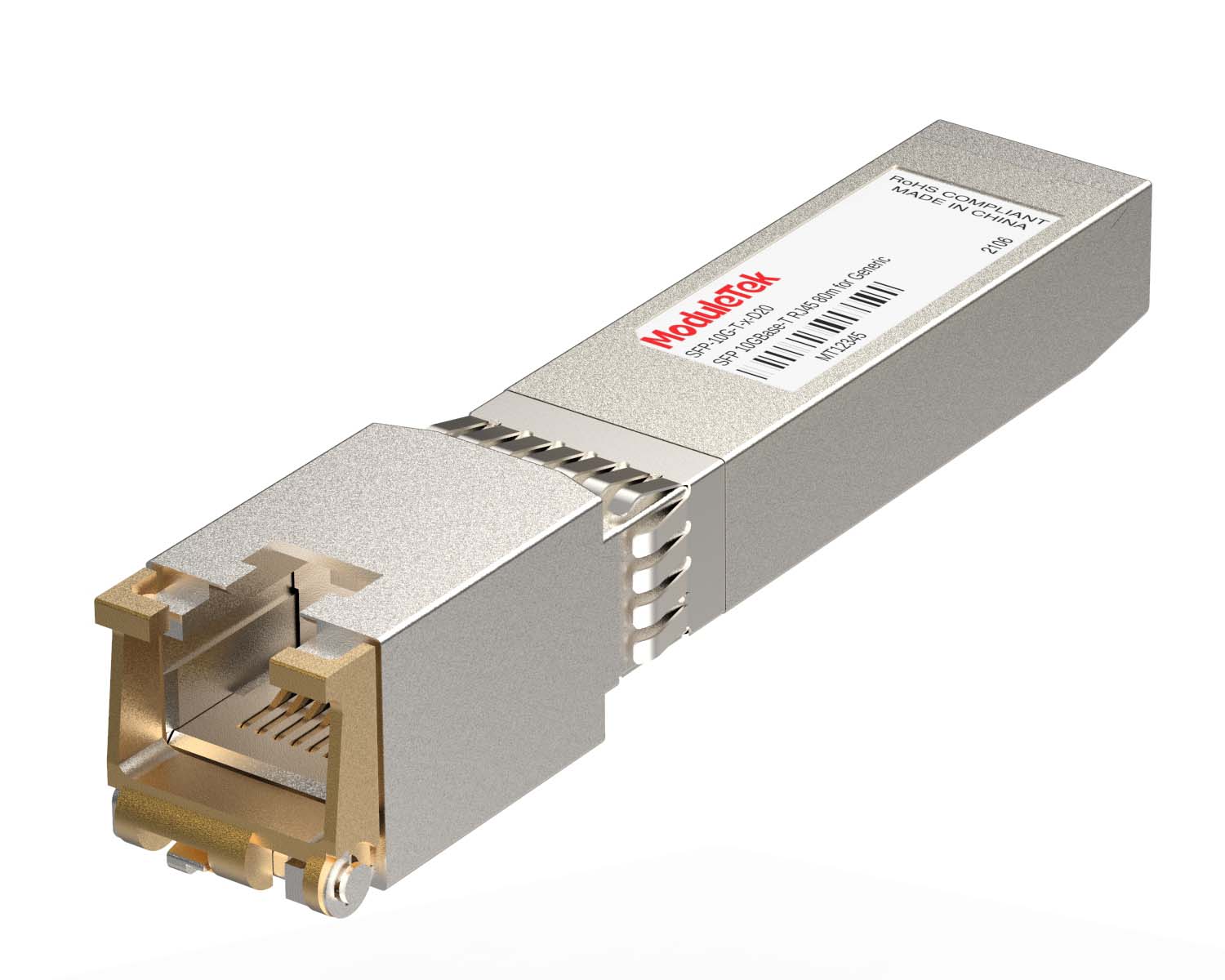 100M/1G/10G Coppers
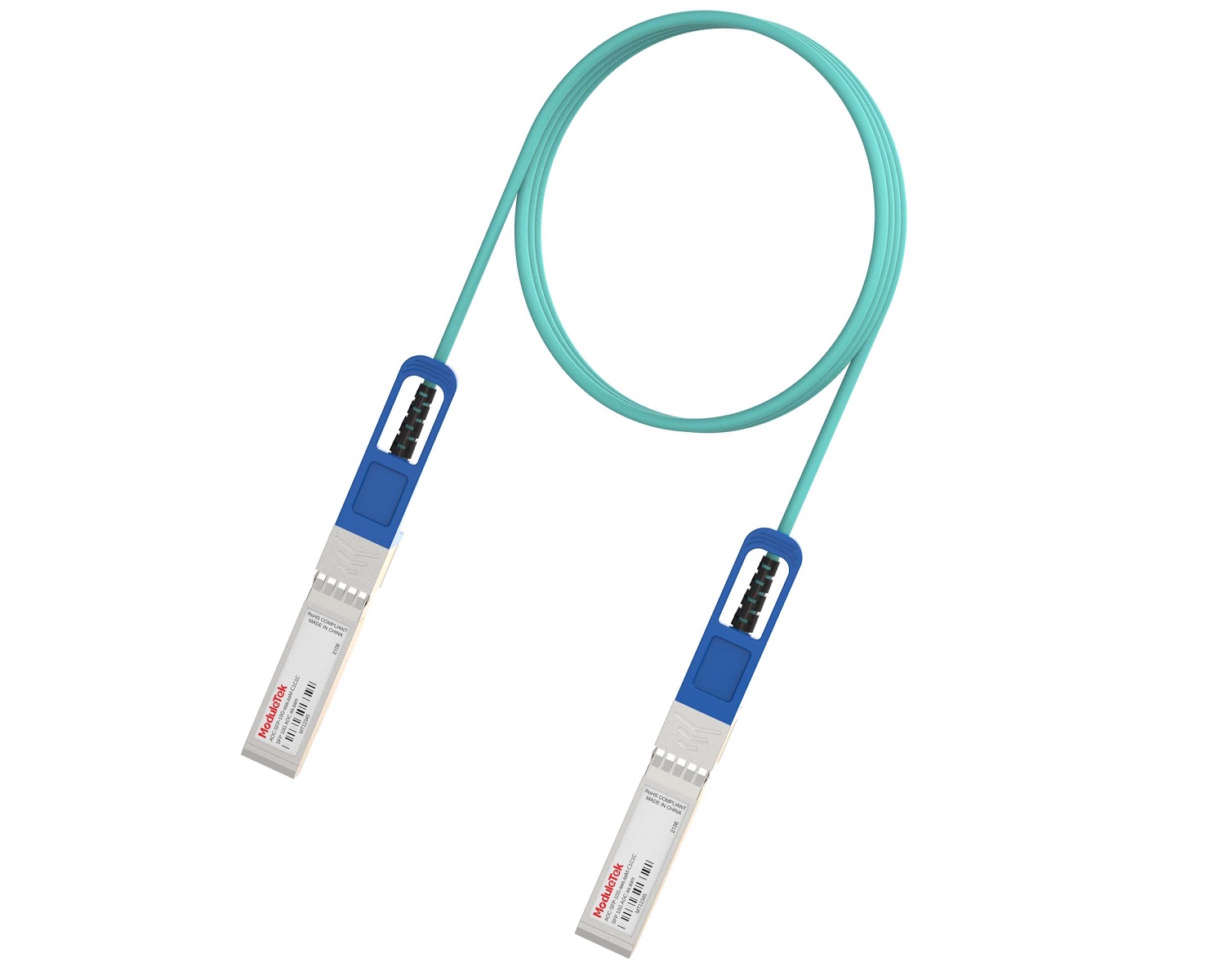 Full-Rate AOC & Breakout Series
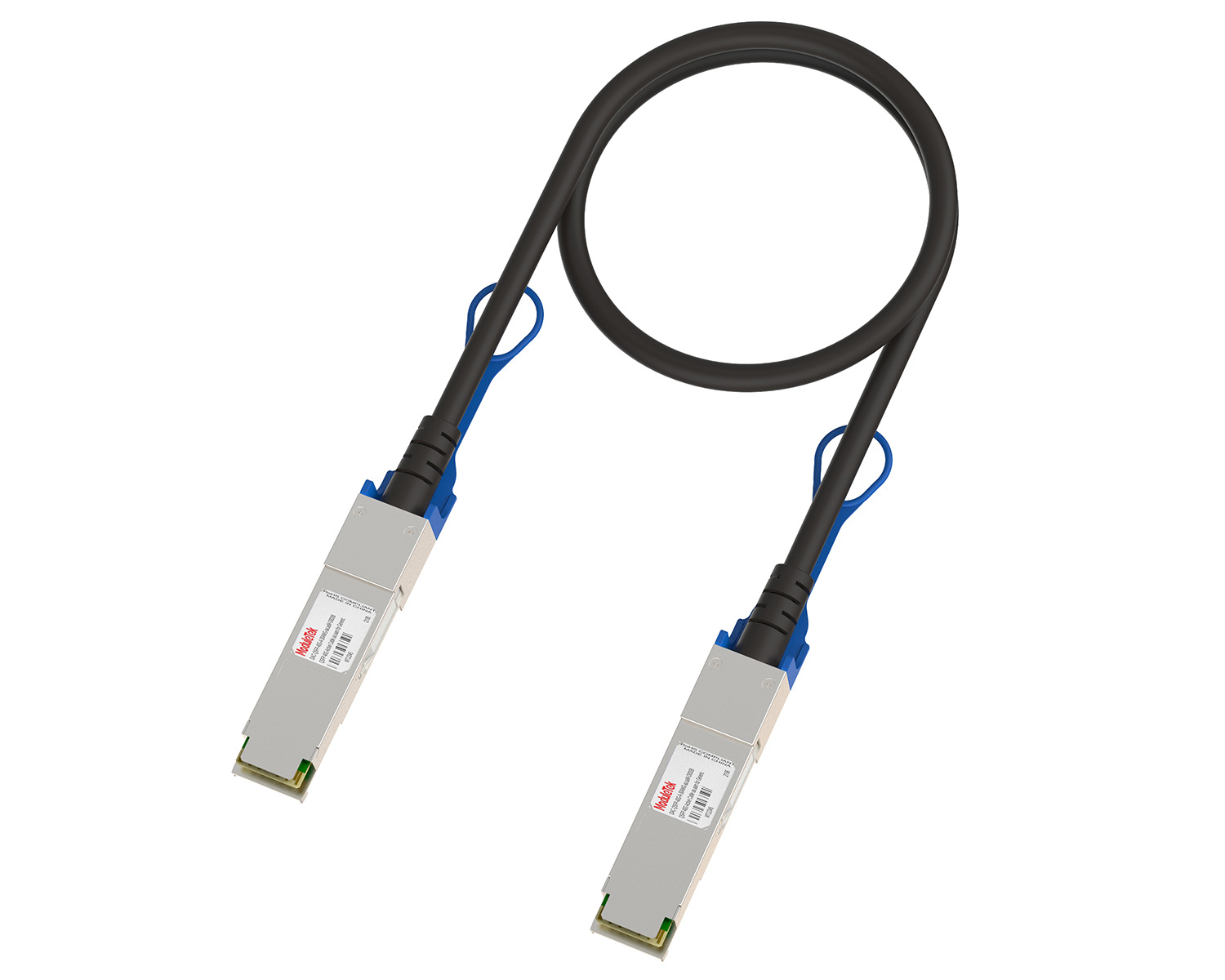 10G/40G Active DAC Series
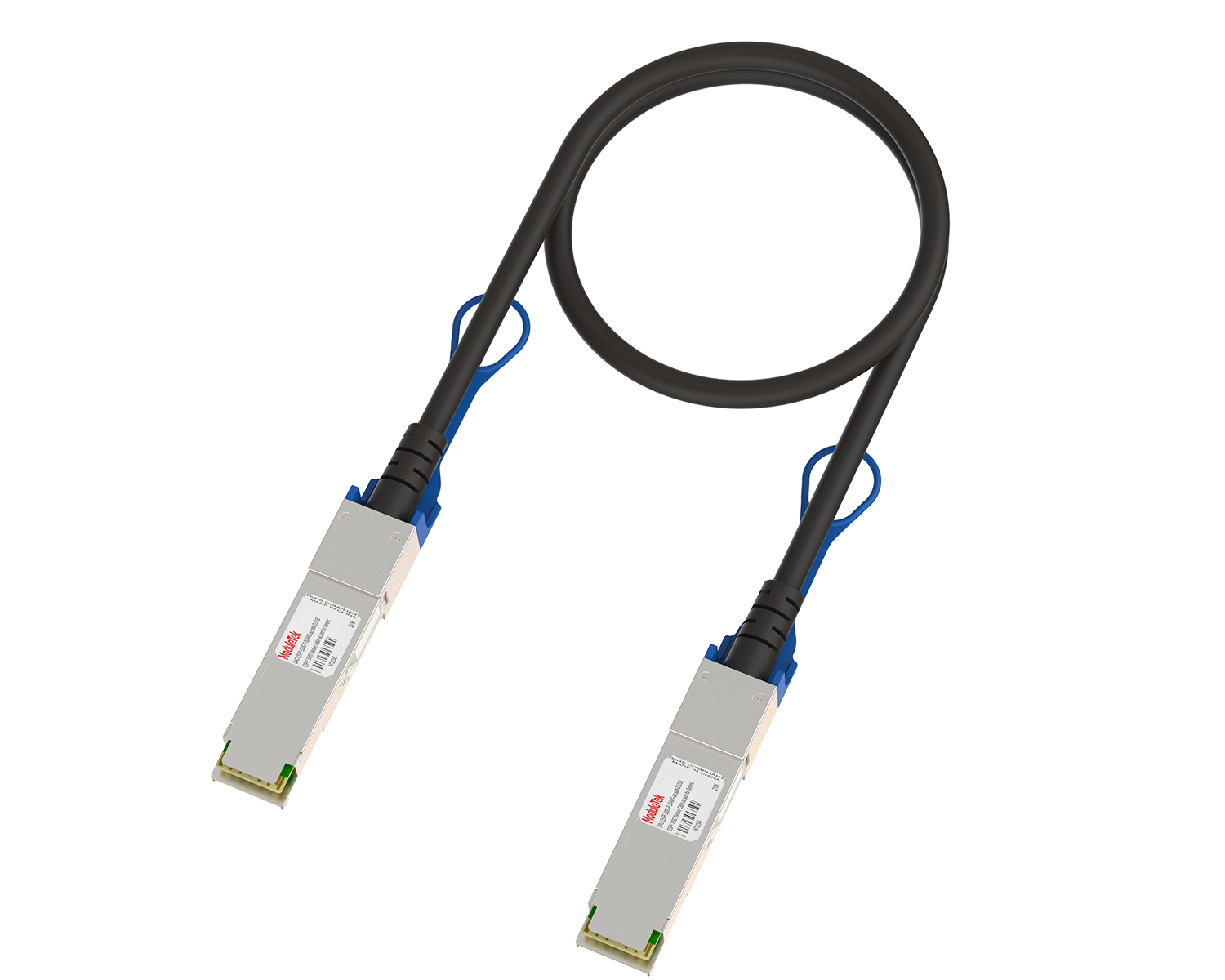 Full-Rate Passive DAC Series
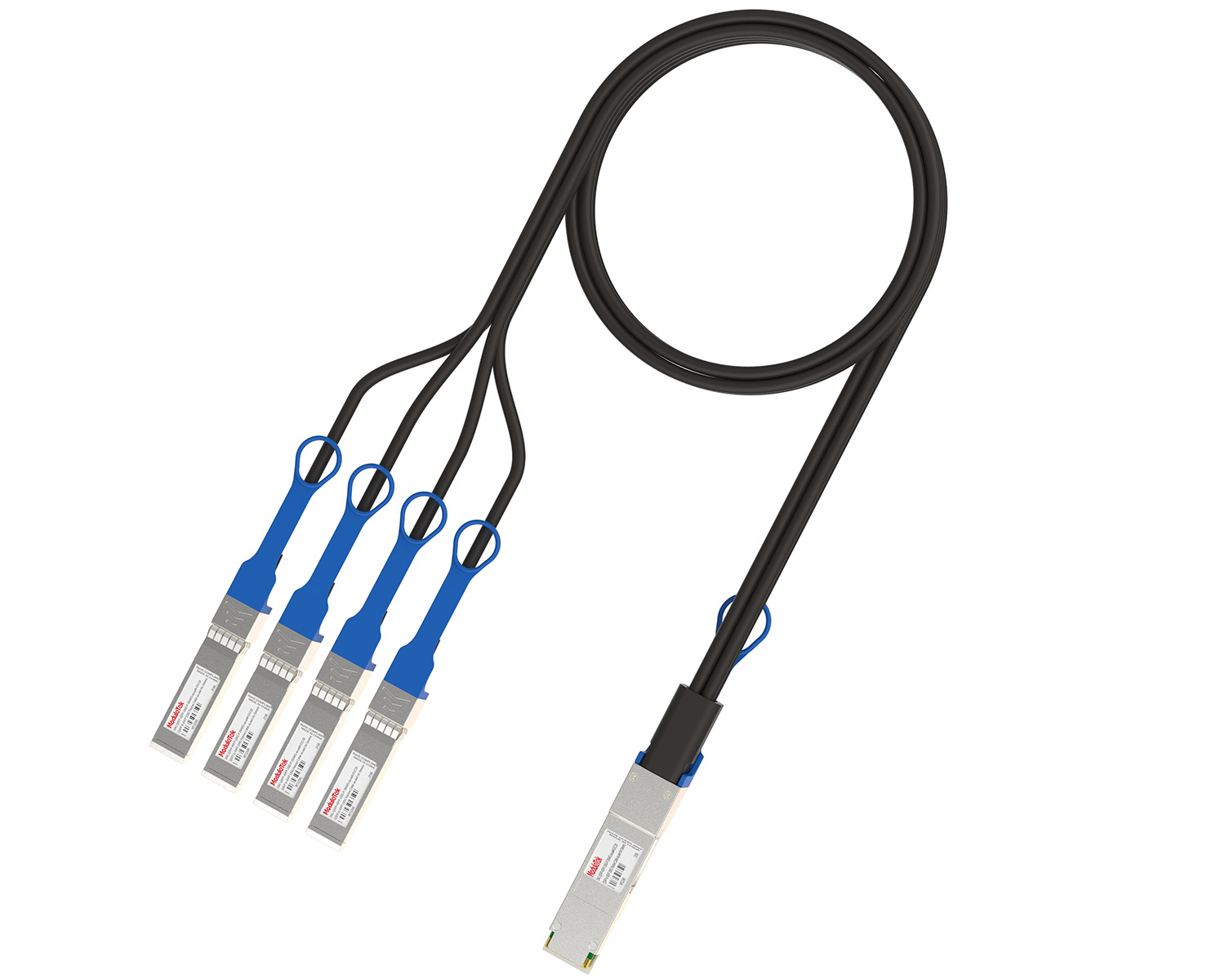 40G/100G Passive Breakout DAC Series
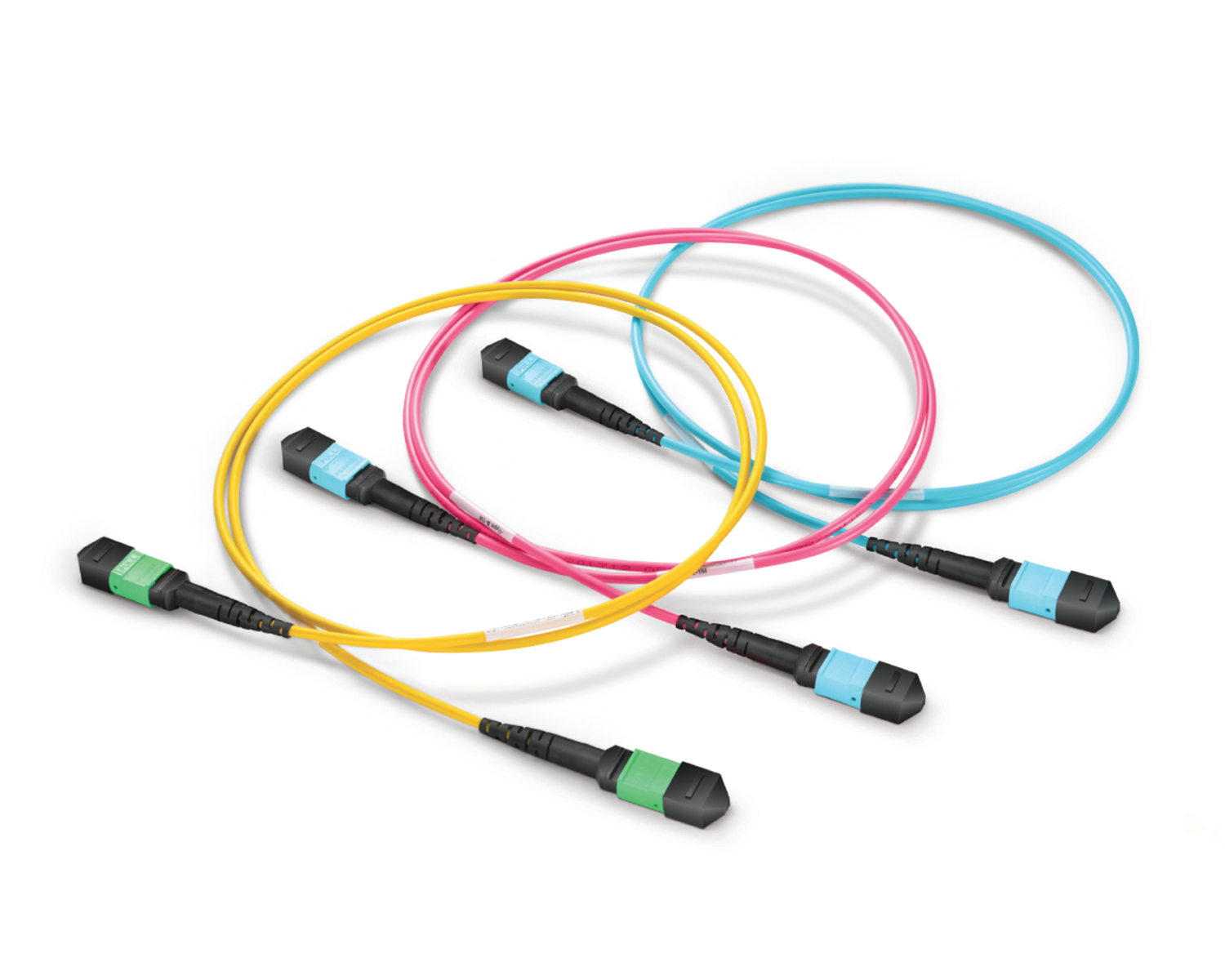 Regular/MTP-MPO Fiber Patch Cords
 MT2011
 MT2010
 CodingBox
 QSFP to SFP Adapter
Guidelines For Upgrading H3C Switch Software Versions Using TFTP
Time: 2023-06-06
When using optical modules on a switch, even the same switch model may yield different optical module test results with different system software versions. This is because different system software versions have varying compatibility requirements for optical modules. To promptly identify or resolve module compatibility issues and improve the adaptability of modules to the device, users can select the appropriate switch system software version provided by the manufacturer based on their needs.
The following describes how to upgrade the system software version of an H3C switch using a TFTP server, based on a specific case:
I. Information/Material Preparation
• TFTP software (Tftpd32/Tftpd64, 32-bit/64-bit matching the computer's operating system; download from the official website: http://tftpd32.jounin.net/ );
• Switch system software (download from H3C official website: https://www.h3c.com/cn/Service/Document_Software/Software_Download ; the software version used in this upgrade: H3C S6820-CMW710-R6301, file format: .ipe);
• Network cable (for connecting the computer to the switch's management port);
• Switch (H3C S6820-56HF) and computer.
II. Upgrade Steps
1. Check Switch Disk Space
Ensure the available memory space of the switch is larger than the size of the .ipe software package to be uploaded, to avoid upgrade failures due to insufficient space.
2. Upload the Software Package via TFTP Server
No need to unpack the .ipe software package in advance (the switch will automatically decompress it later). Configure the TFTP server and upload the file to the switch:
Note: Set the switch's management port IP to 192.168.30.65, and the computer's IP to 192.168.30.111 (ensure they are in the same network segment). TFTP server basic configuration is not repeated here.
Execute the following command on the switch to download the file from the TFTP server:
H3C> tftp 192.168.30.111 get S6820-CMW710-R6301.ipe # Correct command (remove redundant "19")
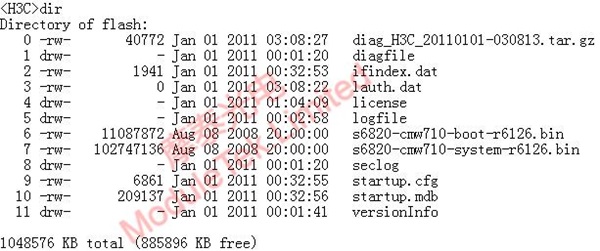
Figure 1 Tftpd64 File Transfer Process
3. Verify File Upload Success
Execute the command to view files in the switch's flash memory and confirm the .ipe file is uploaded successfully:
H3C> dir flash:/
Successful upload will display the file information (example output):
Directory of flash:
0 -rw- 121868288 Jan 01 2011 02:20:46 S6820-CMW710-R6301.ipe
4. Load the Operating System File
Execute the command to load the uploaded .ipe file. The switch will automatically decompress the .ipe file into multiple .bin files and use them for the upgrade. Specify the slot (slot 1 in this case) and set it as the main version:
H3C> boot-loader file flash:/S6820-CMW710-R6301.ipe slot 1 main
5. Configure Boot System and Save Settings
Specify the boot and system .bin files (derived from .ipe decompression) for the target slot, and confirm the boot version. Ensure the file names match the decompressed ones (unified uppercase for consistency):
H3C> boot-loader file boot flash:/S6820-CMW710-BOOT-R6301.bin system flash:/S6820-CMW710-SYSTEM-R6301.bin slot 1 main
6. Reboot the Switch to Apply Upgrade
Execute the reboot command and confirm to restart the switch. Do not interrupt the power supply during the reboot process:
H3C> reboot
This command will reboot the device. continue? [Y/N]:y # Enter "y" to confirm
7. Verify the Upgrade Result
After the switch restarts, execute the following commands to check the current running version and boot version, confirming the upgrade is successful:
H3C> display version # View current system software version
H3C> display boot-loader # View system boot software version
Moduletek provides optical modules compatible with H3C switches. Welcome to place your orders!
For further inquiries about the above content, please contact us at: sales@moduletek.com