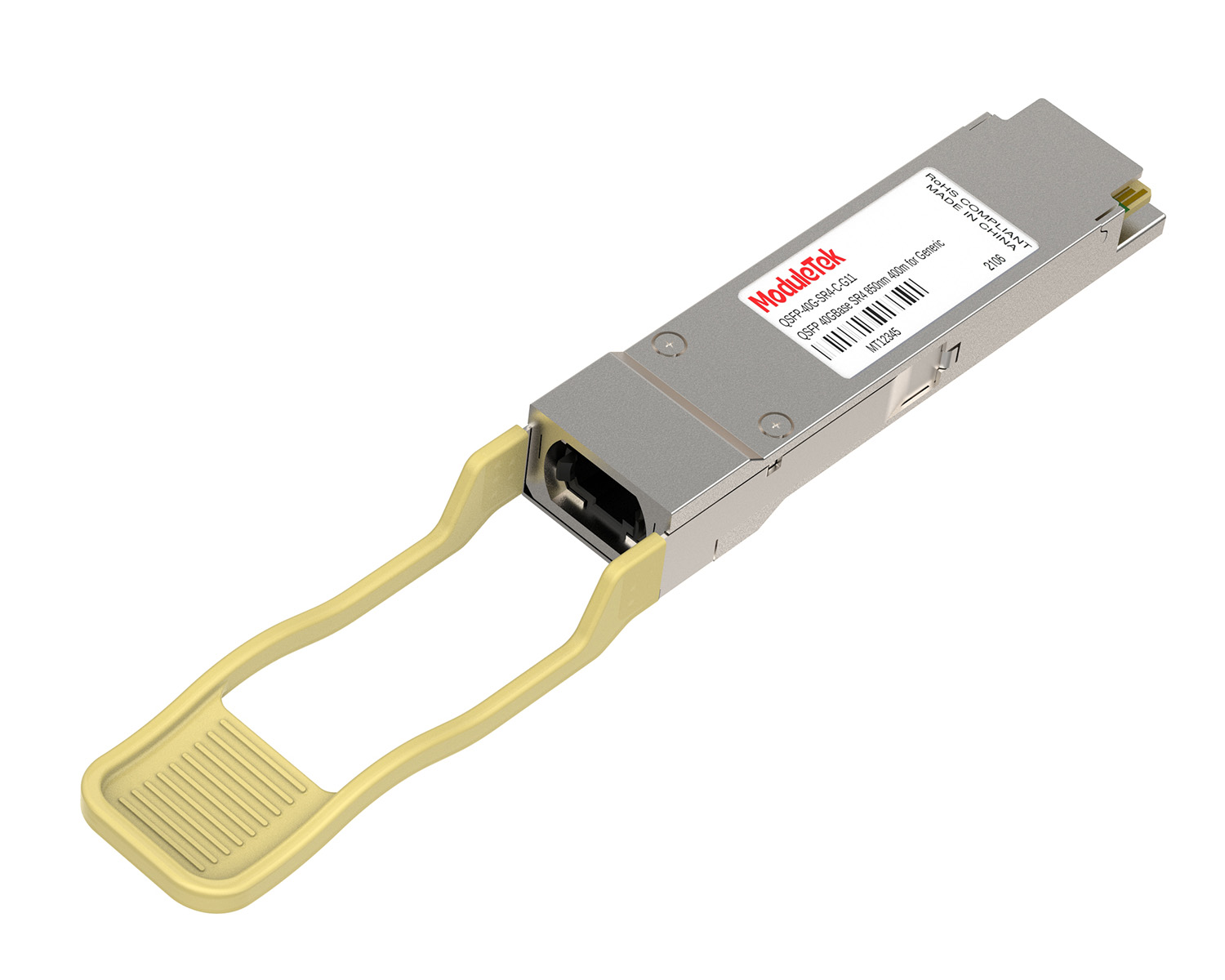
 40G/100G Optical Transceivers
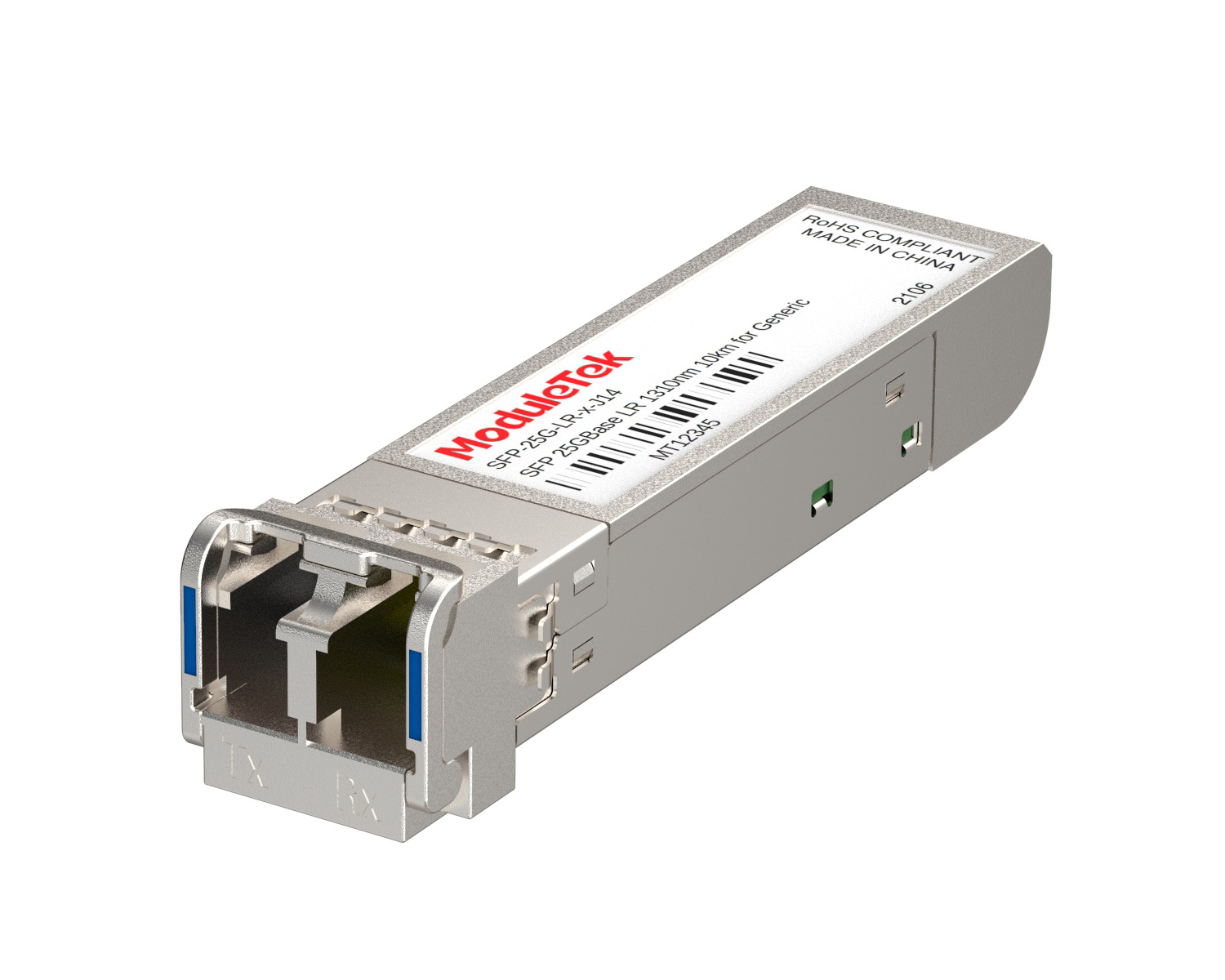 25G Optical Transceivers
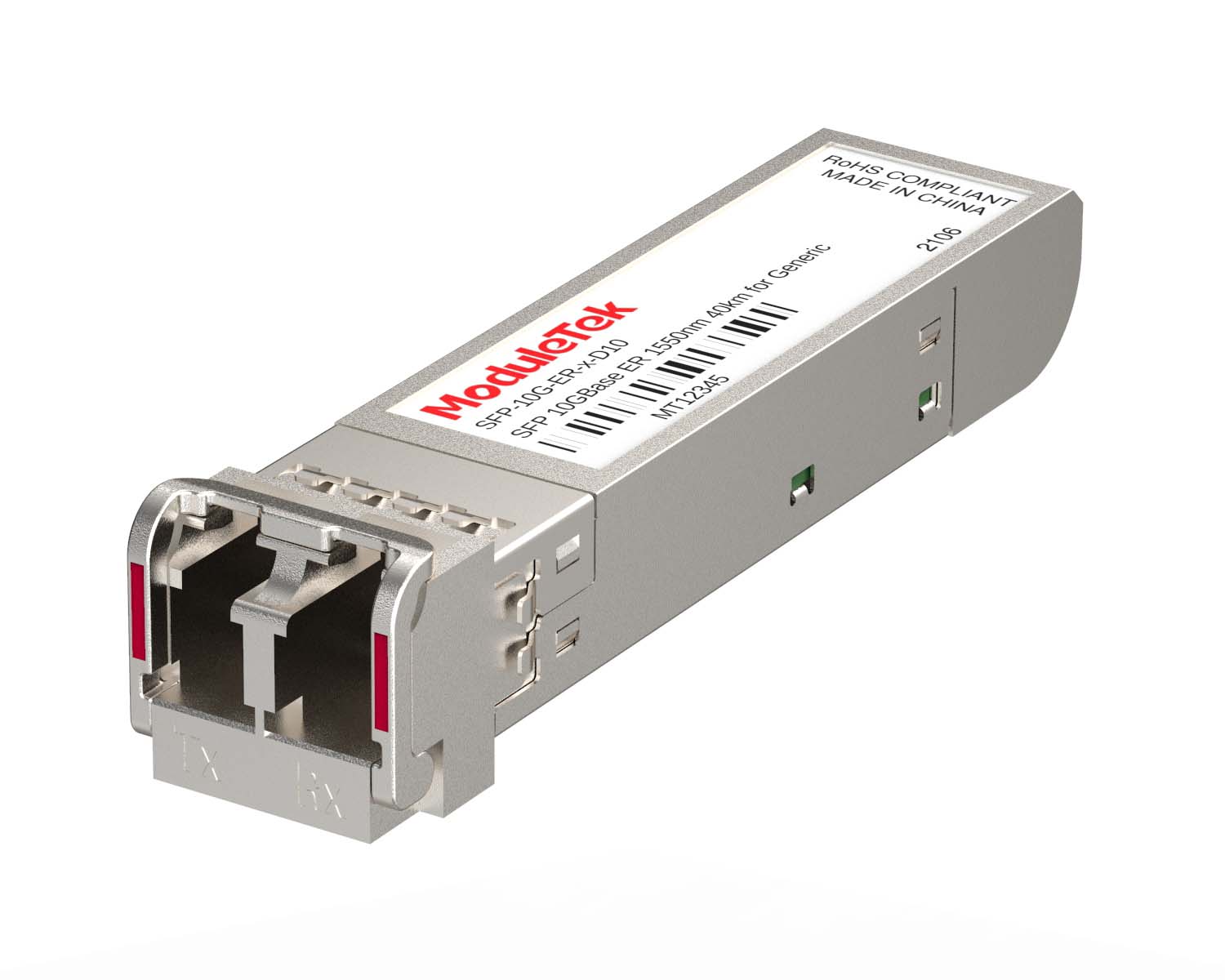 10G Optical Transceivers
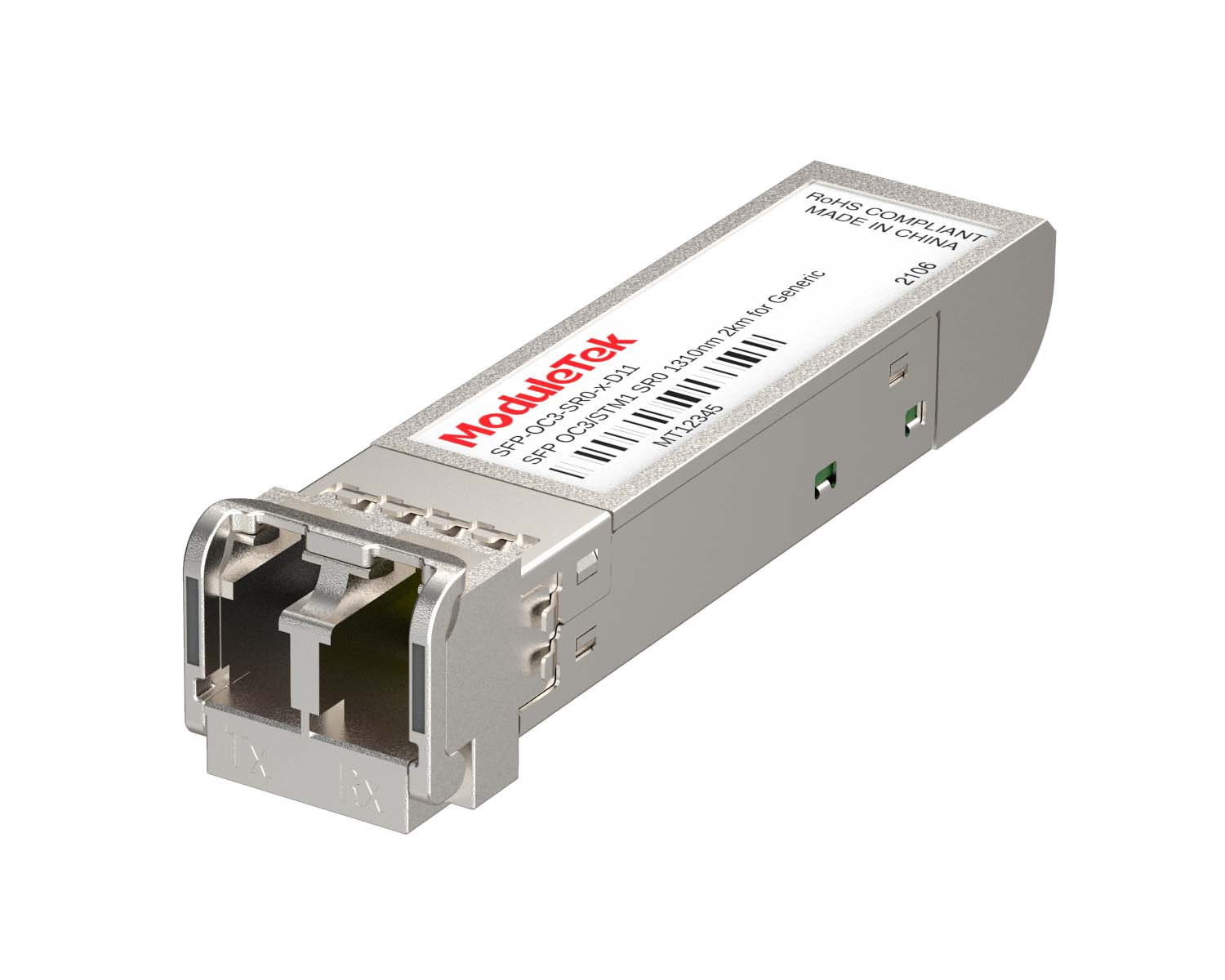 155M/2.5G Optical Transceivers
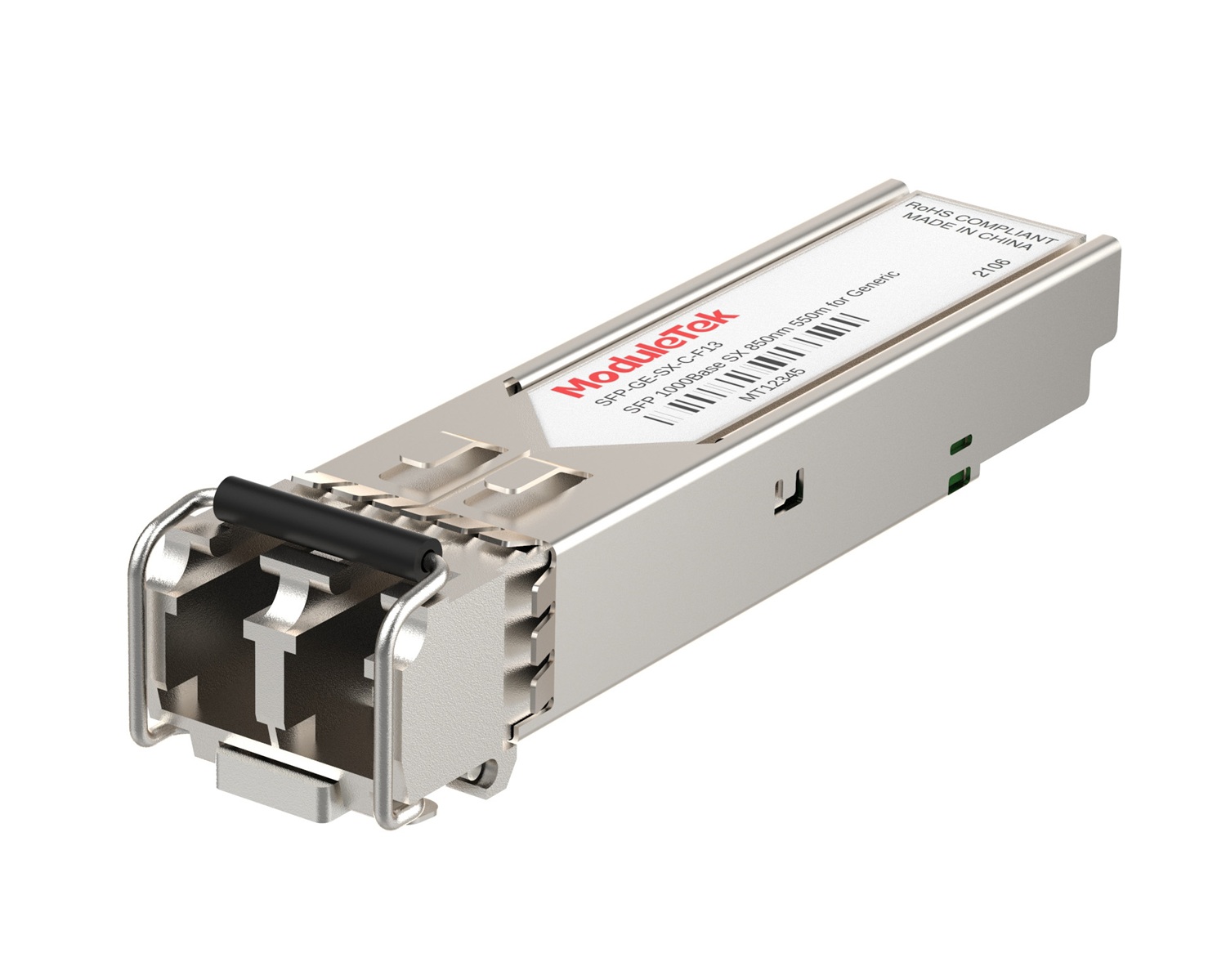 1G Optical Transceivers
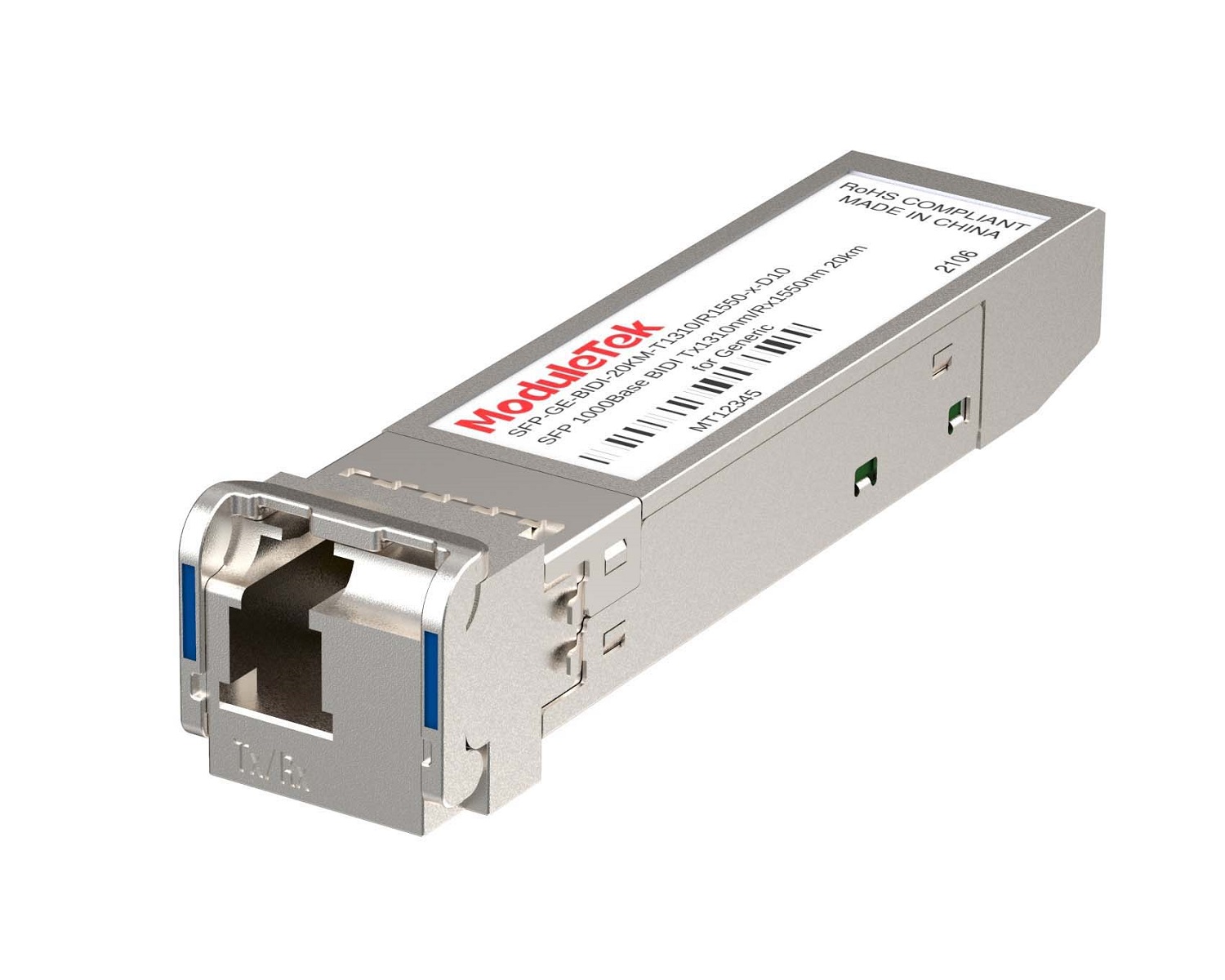 1G BIDI Optical Transceivers
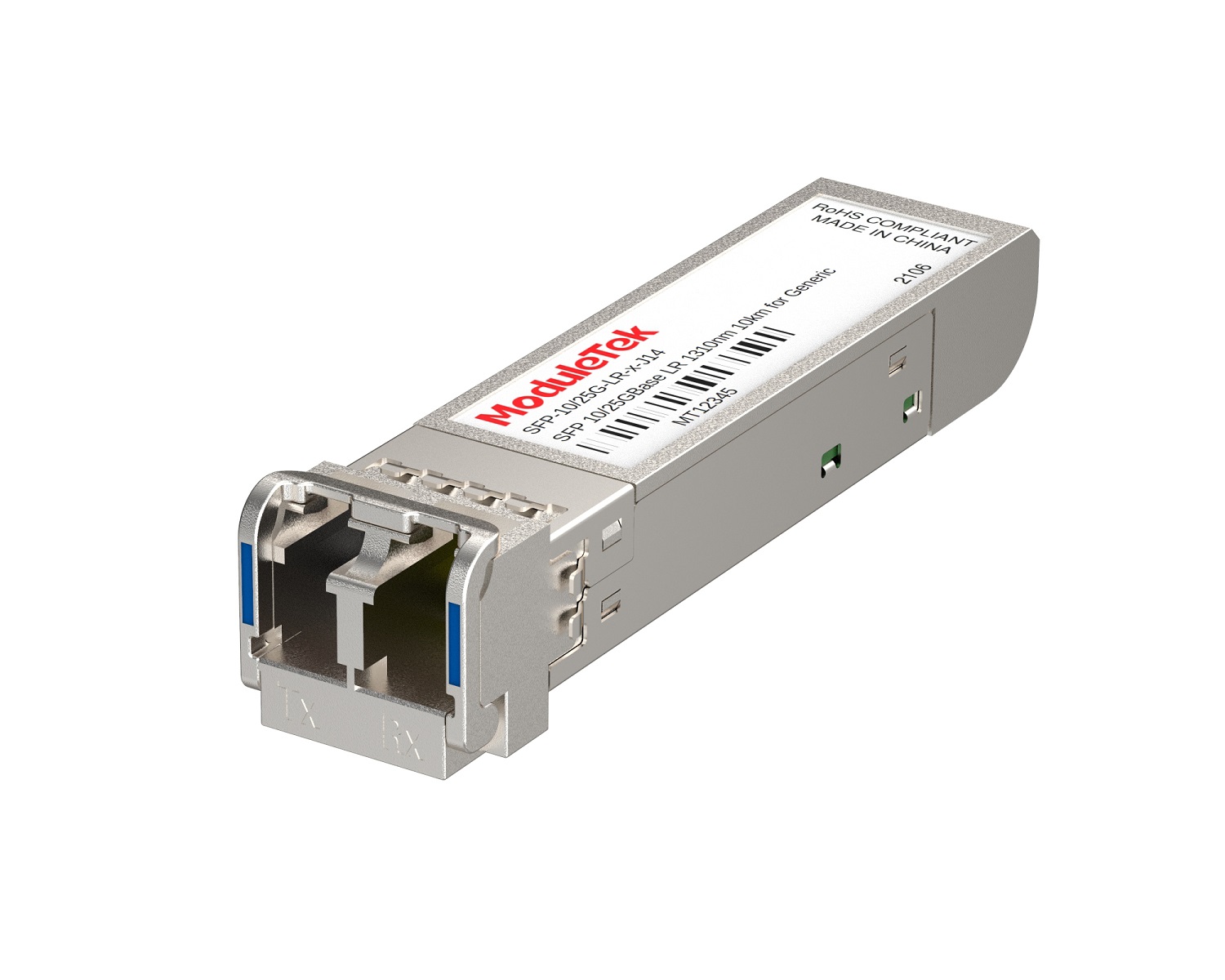 Dual-Rate Optical Transceivers
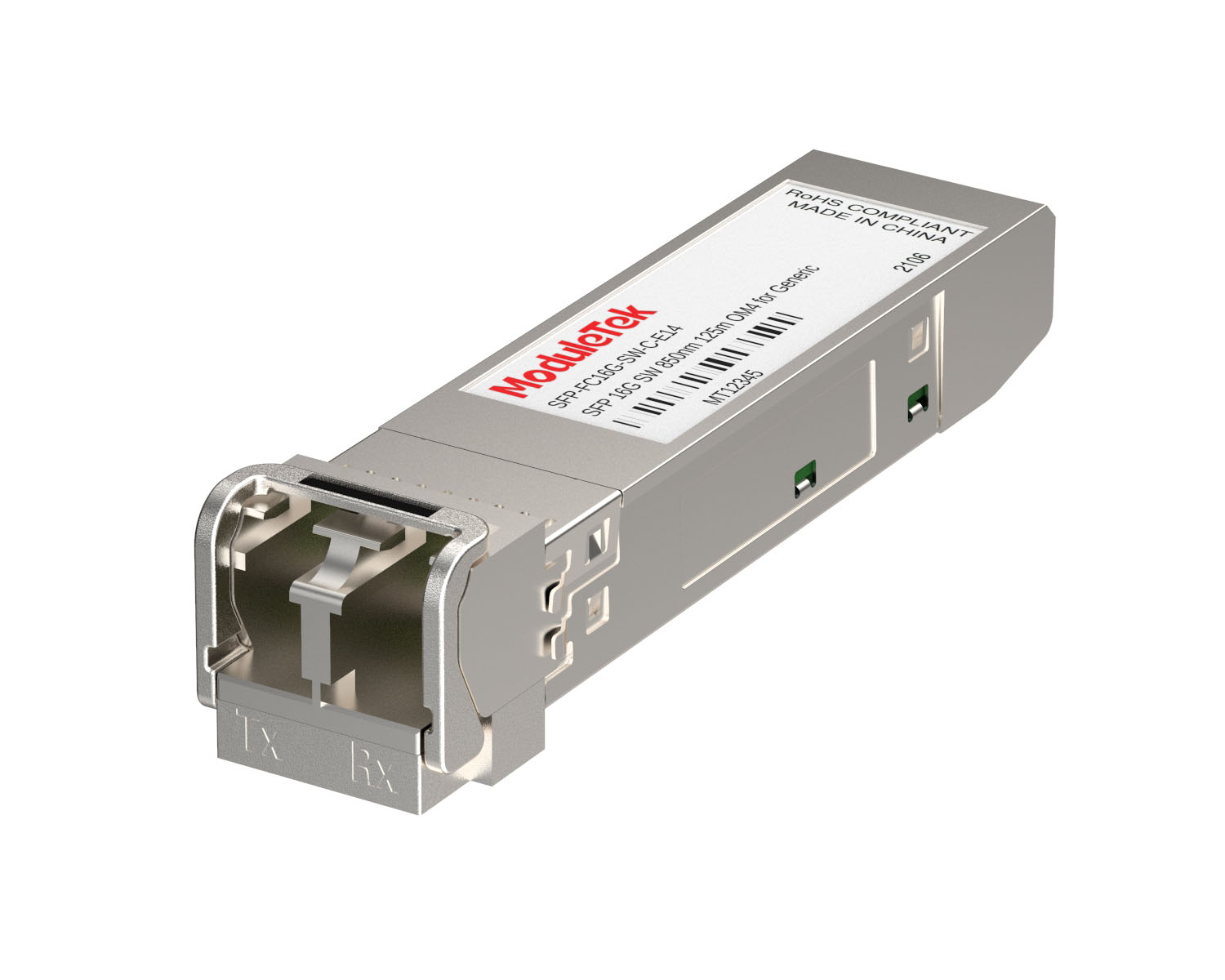 FC 16G/32G Optical Transceivers
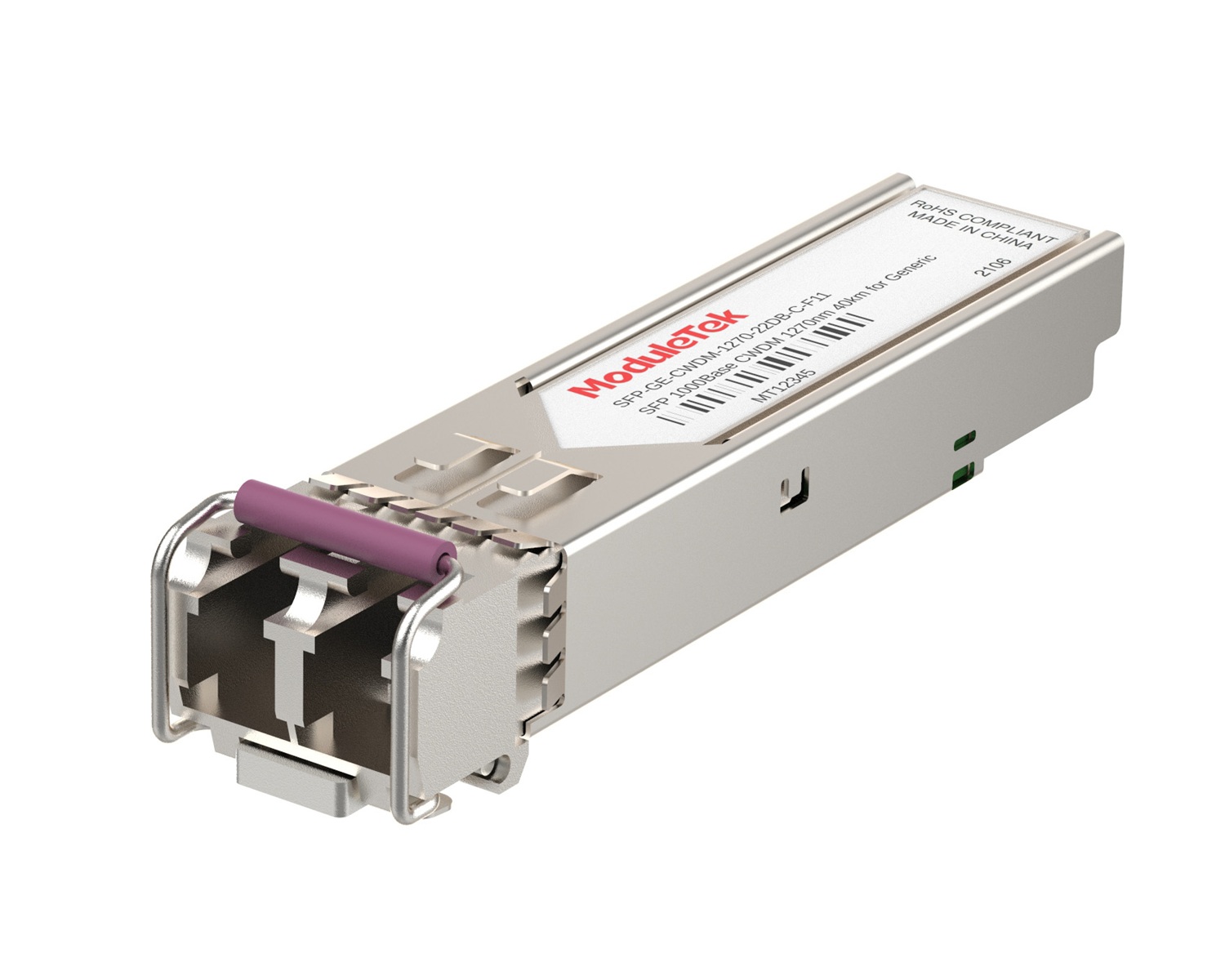 CWDM Optical Transceivers
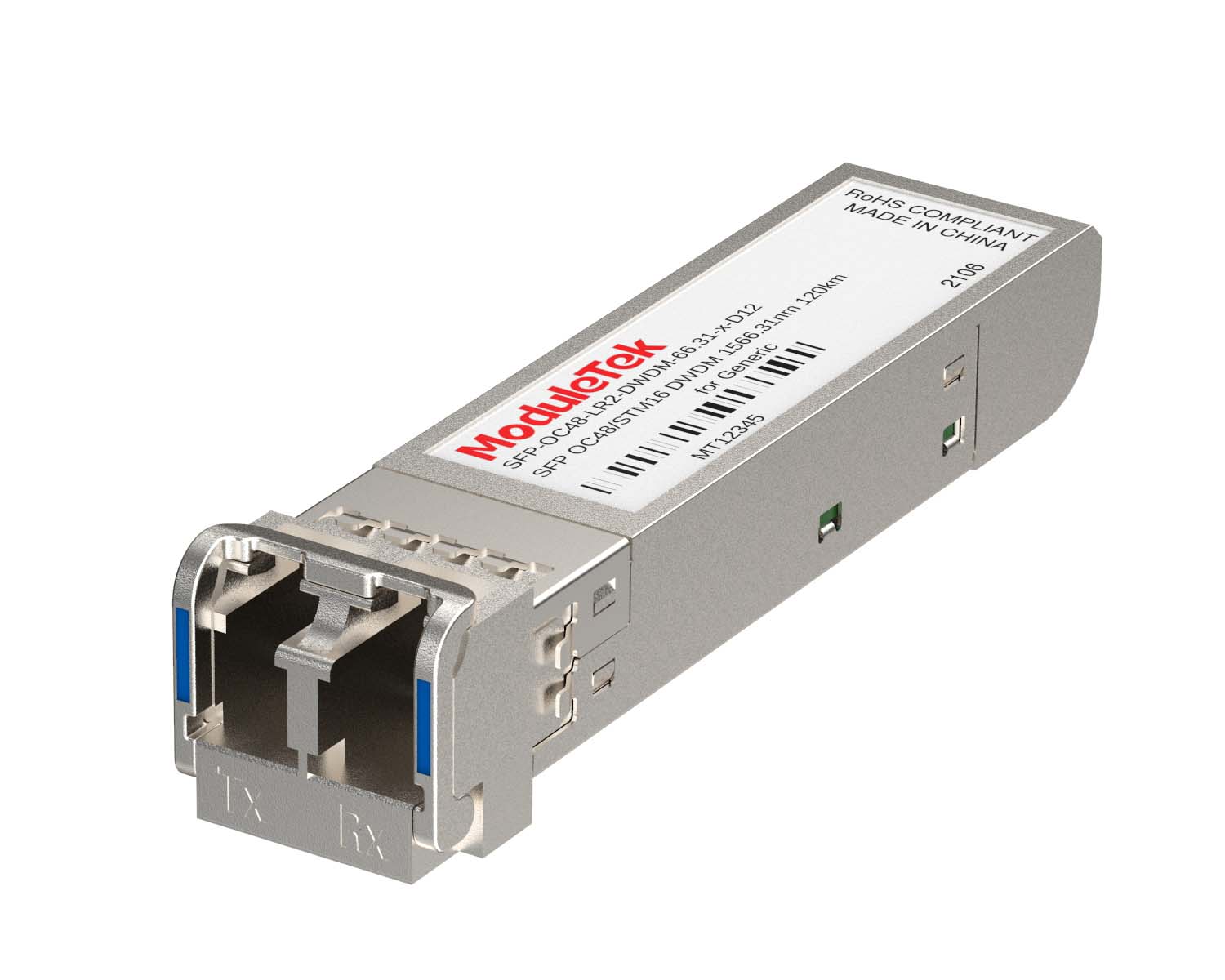 DWDM Optical Transceivers
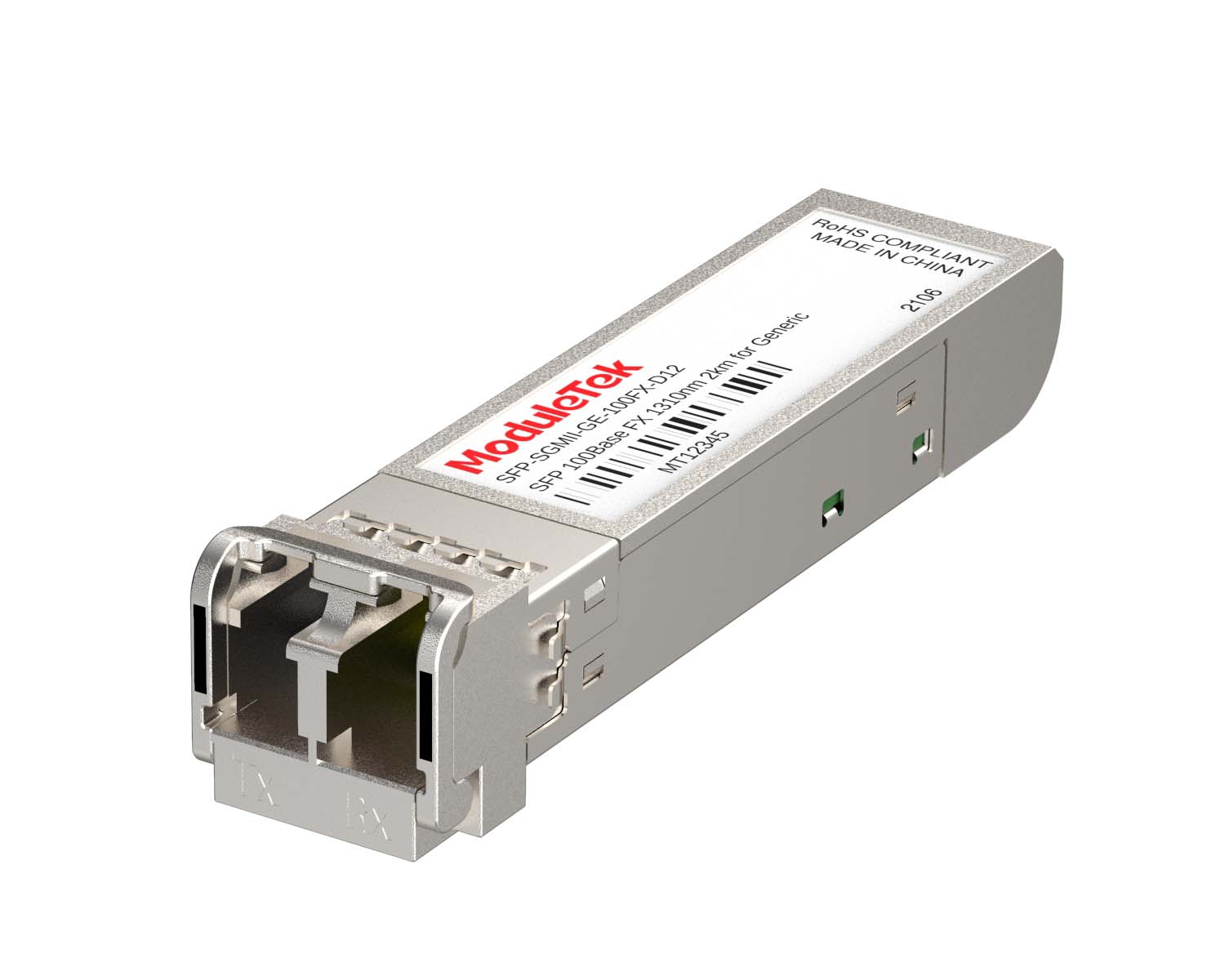 SGMII Port Optical Transceivers
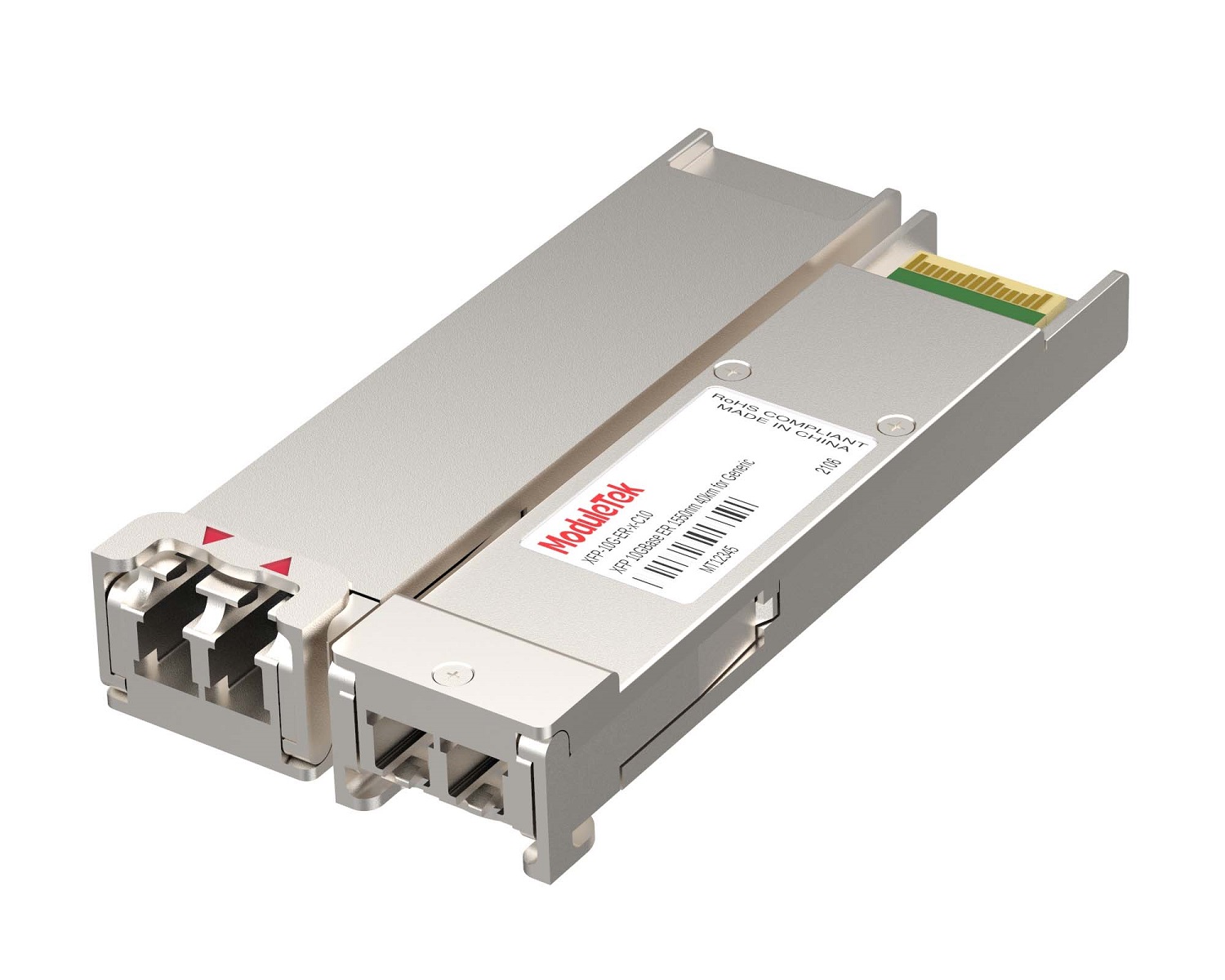 XFP Optical Transceivers
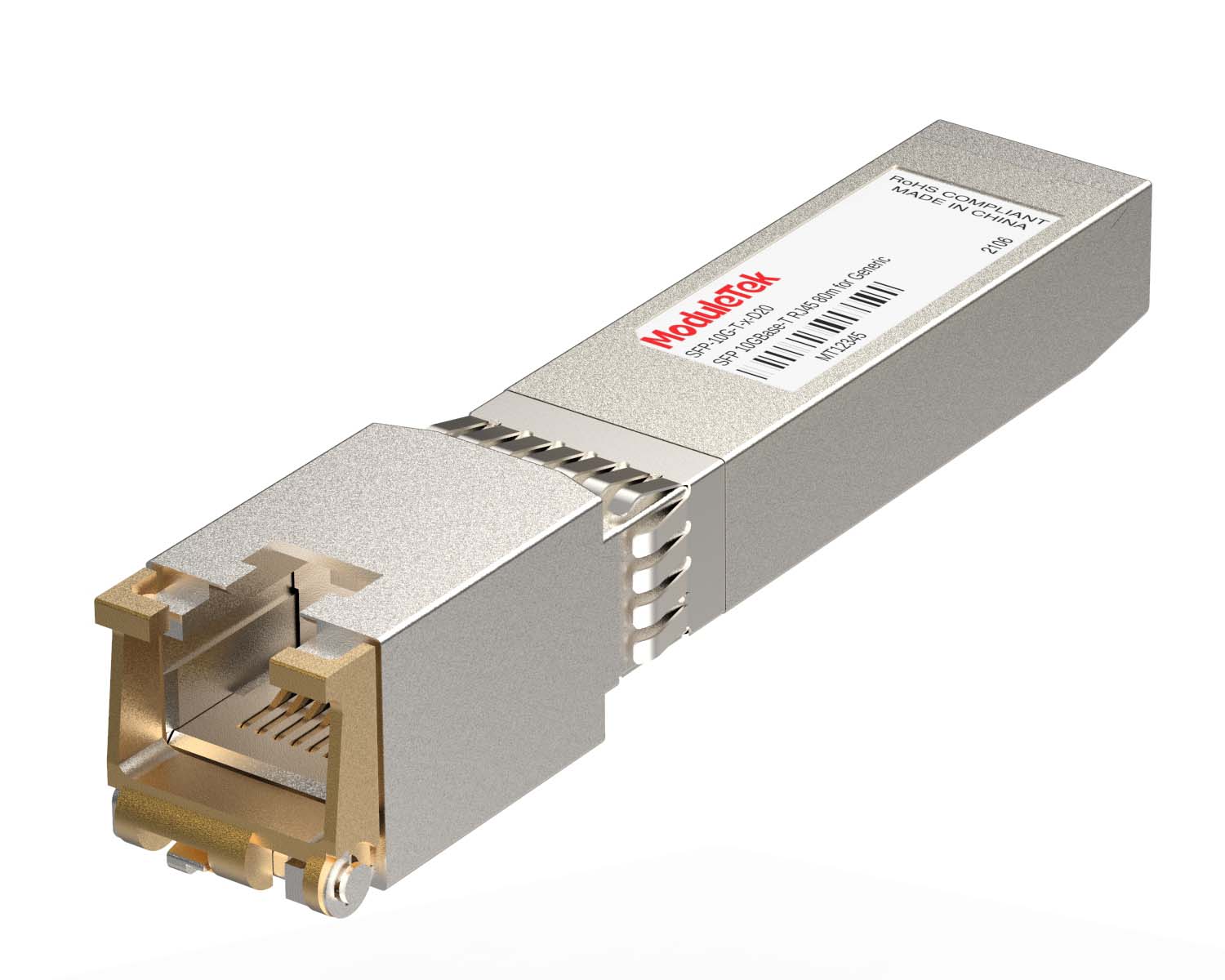 100M/1G/10G Coppers
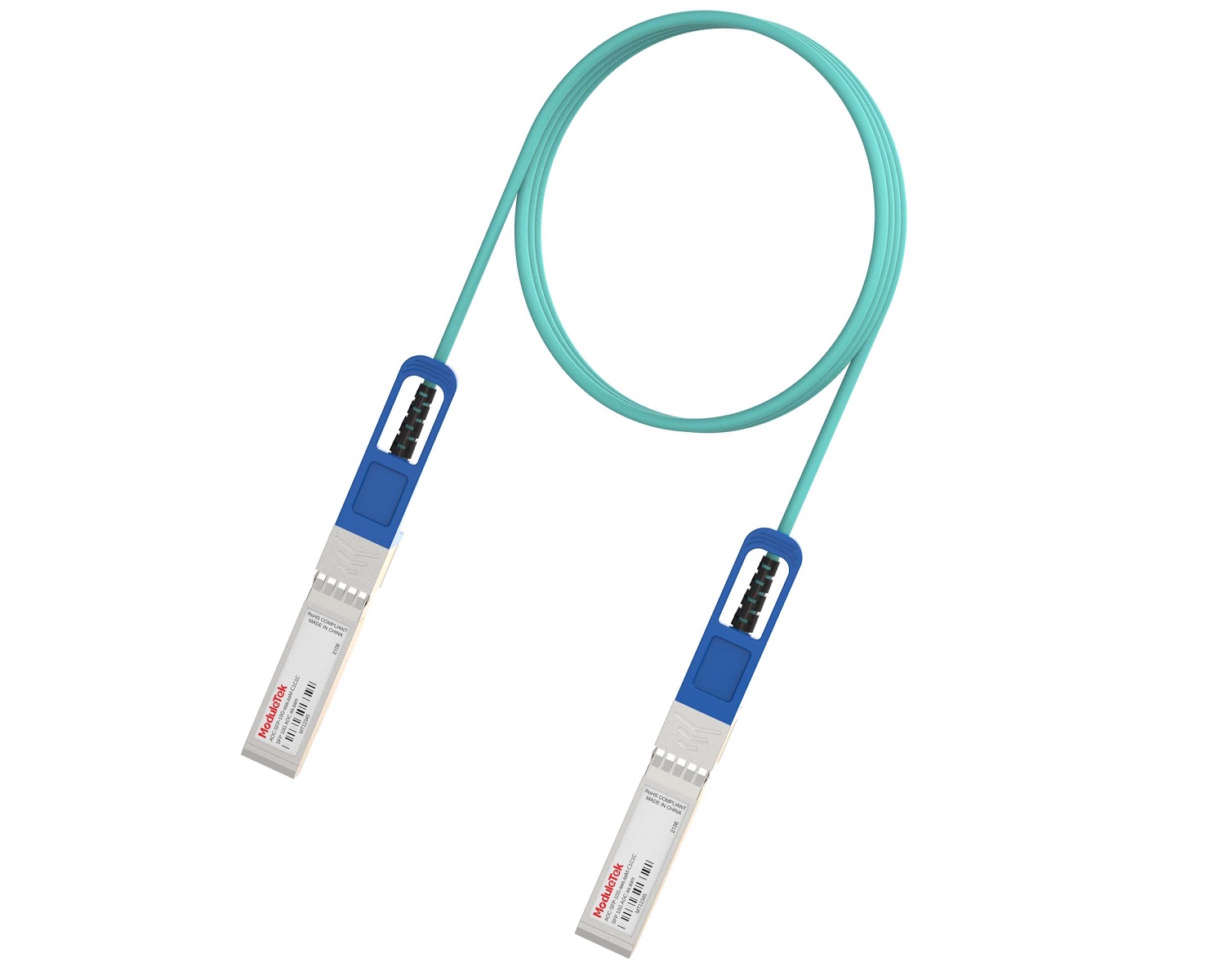 Full-Rate AOC & Breakout Series
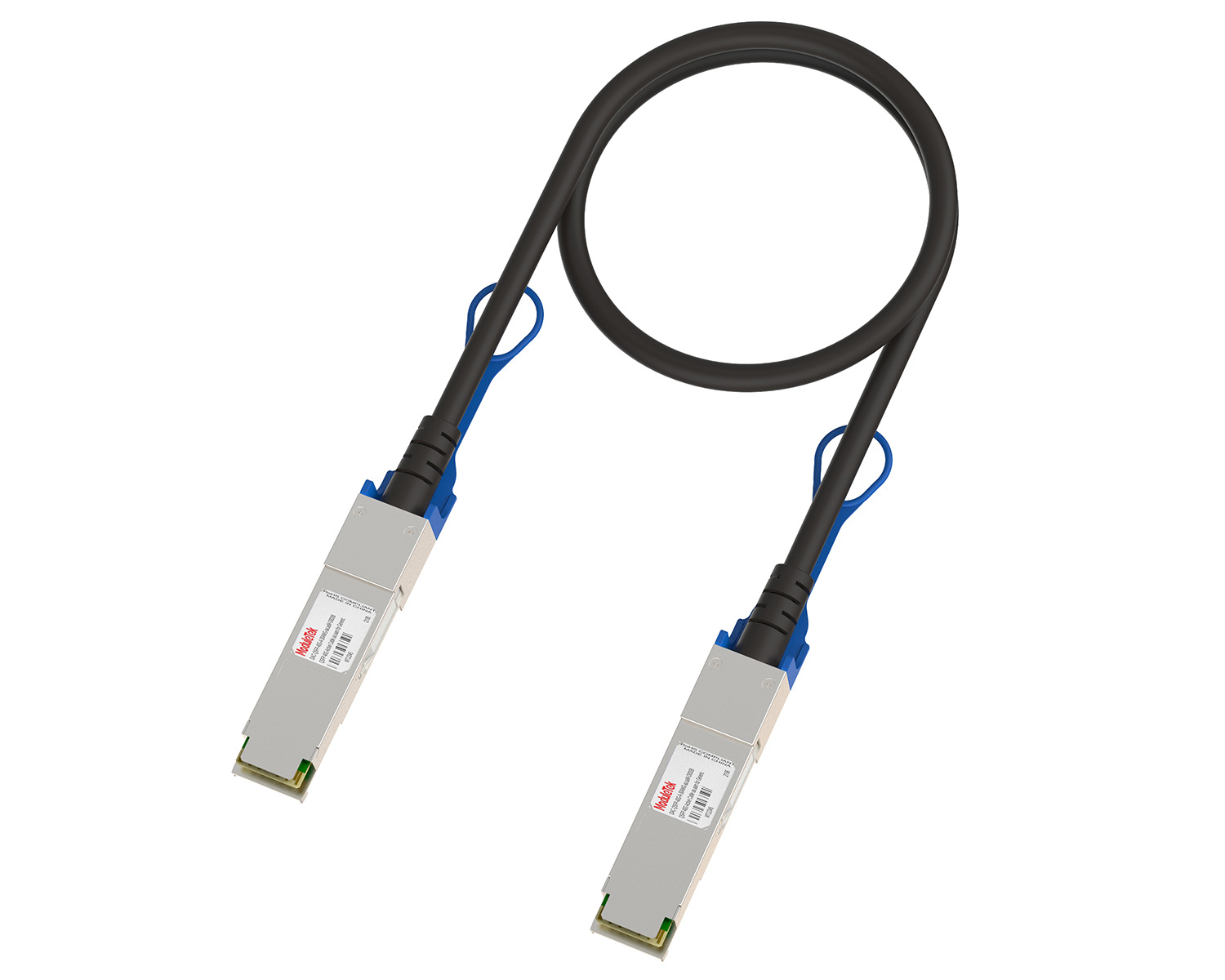 10G/40G Active DAC Series
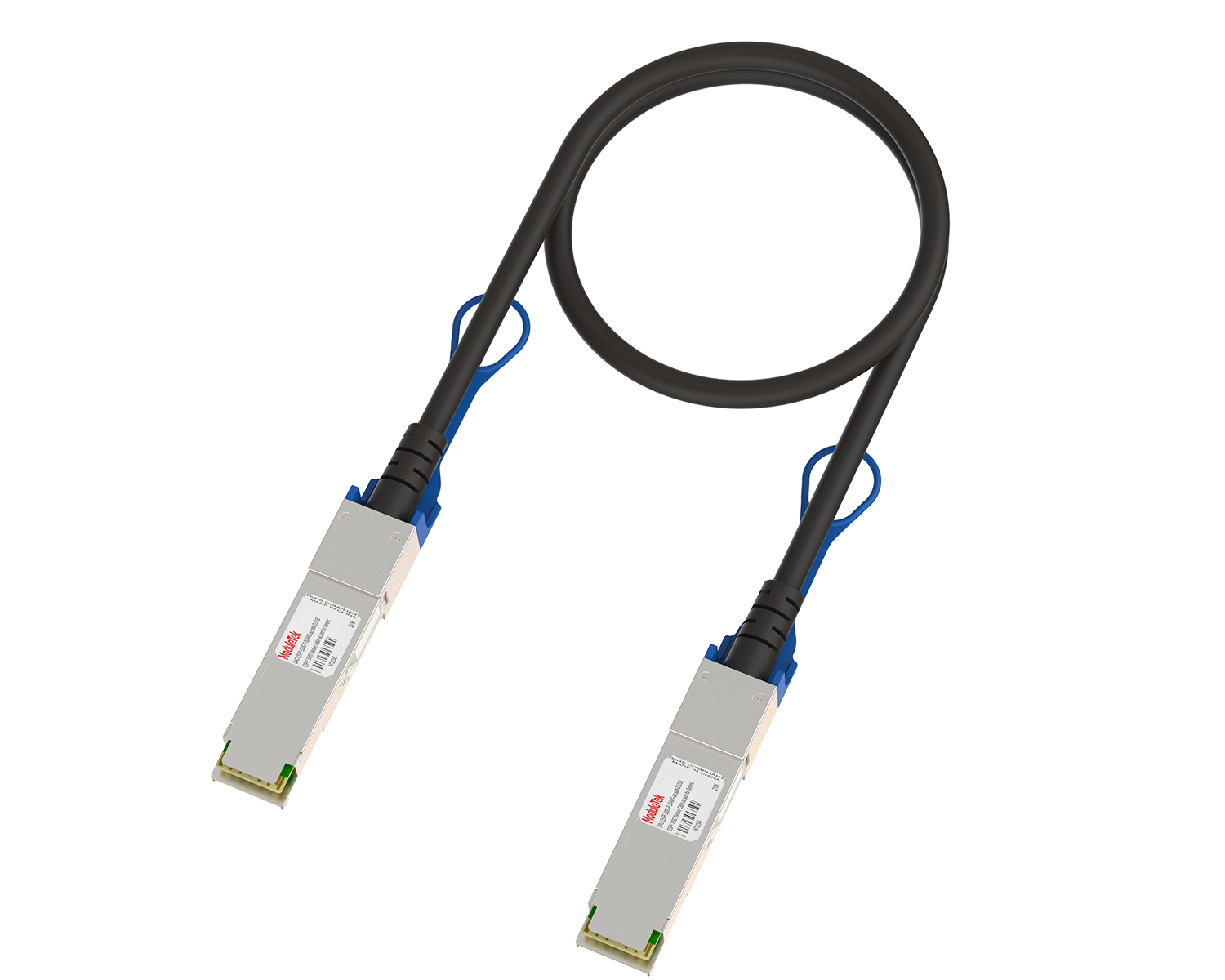 Full-Rate Passive DAC Series
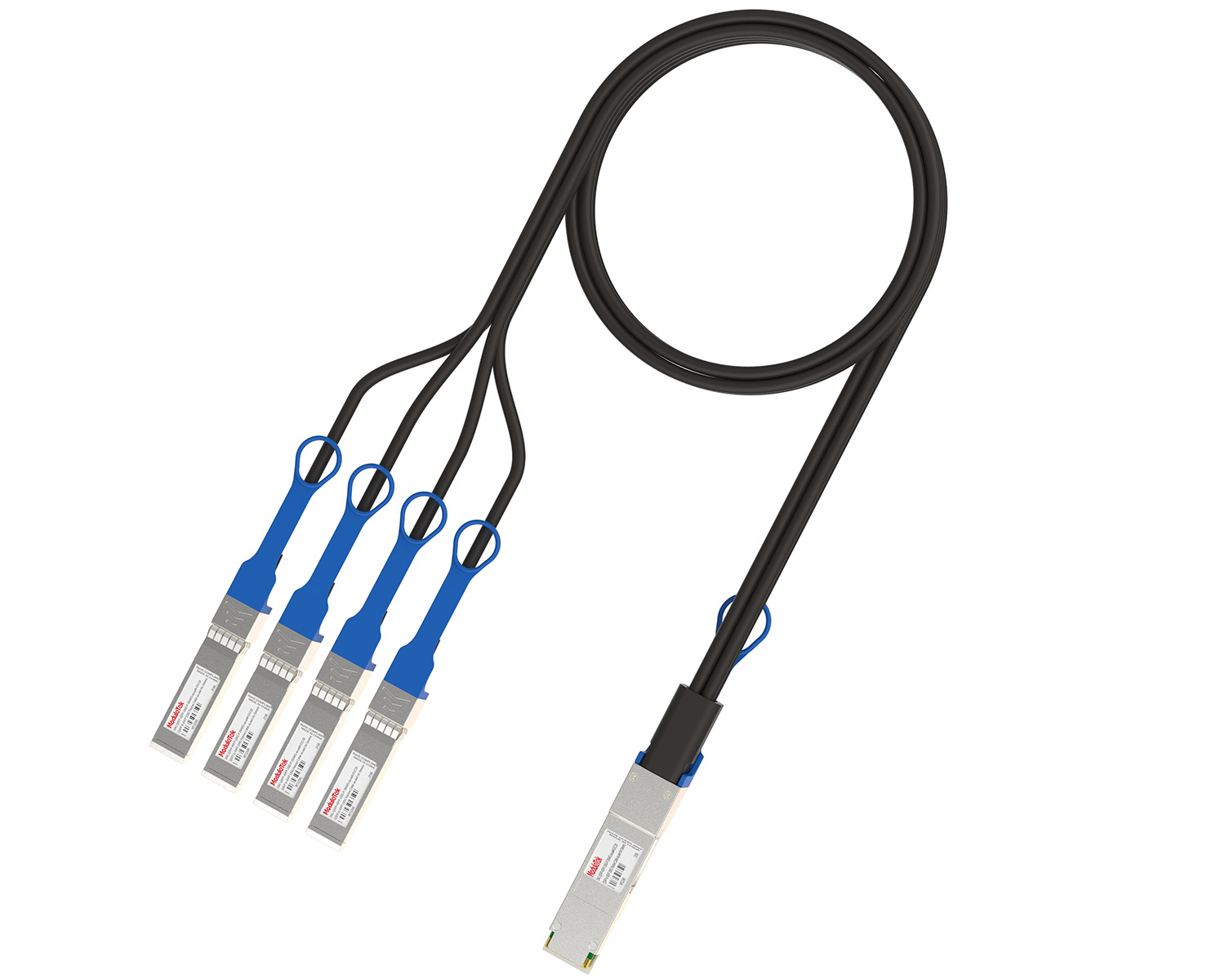 40G/100G Passive Breakout DAC Series
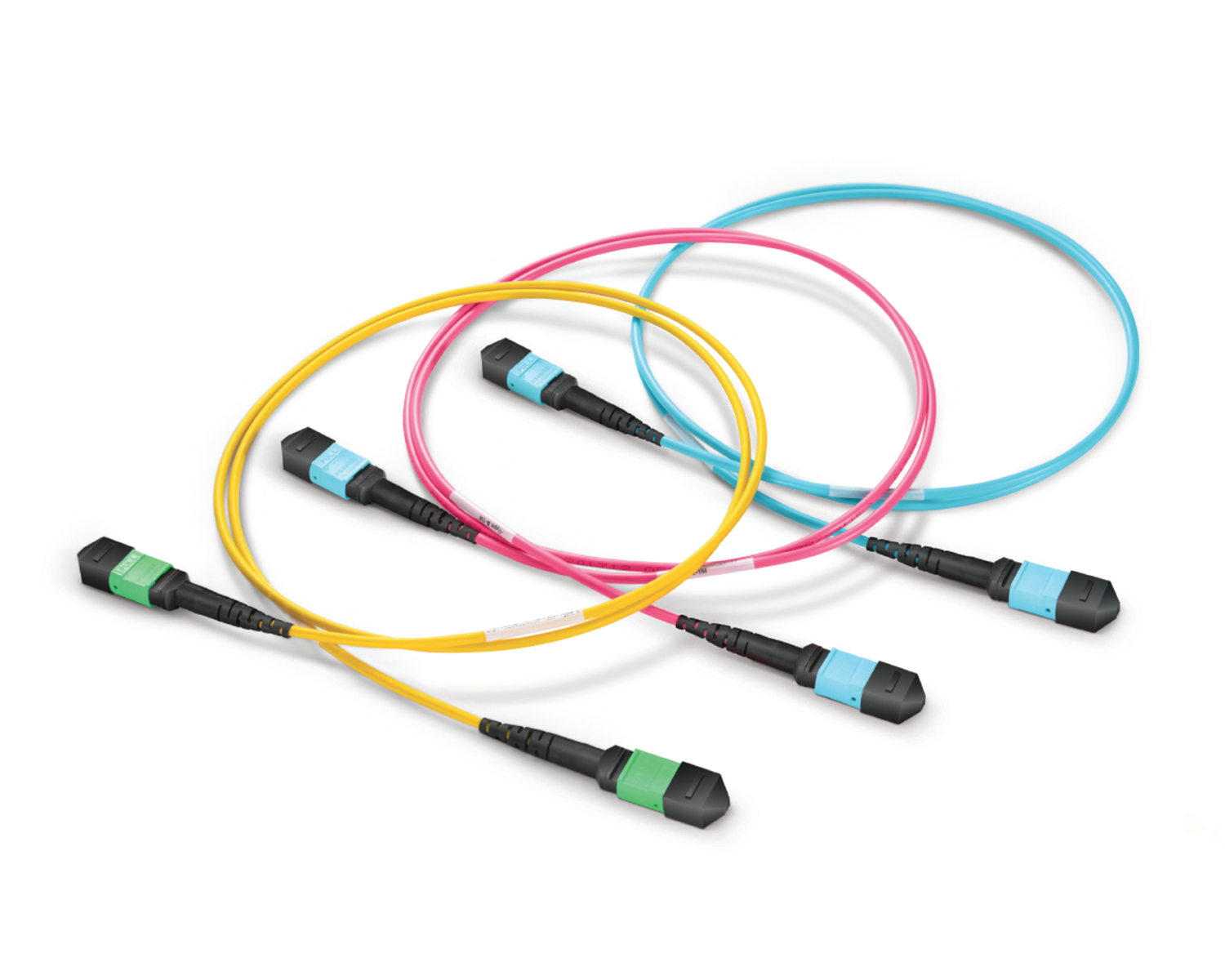 Regular/MTP-MPO Fiber Patch Cords
 MT2011
 MT2010
 CodingBox
 QSFP to SFP Adapter
Netgear Switch Web Interface Firmware Upgrade Guidelines
Time: 2023-12-06
We have previously introduced switch firmware upgrade methods using a TFTP server or USB drive in CLI mode. This article explains how to perform switch firmware upgrades through the Web management interface.
The following example shows the Web-based firmware upgrade procedure for a Netgear switch.
Note:
• Switch model: Netgear M4250-26G4XF-PoE
• Firmware upgrade: from version 13.0.2.32 to 13.0.4.13
• The firmware can be downloaded from the official Netgear website
1. Connect your computer to the switch’s OOB service port or any Ethernet port to access the Web UI.
Ensure the computer’s IP address is in the same subnet as the switch port (default IP of the OOB port: 192.168.0.239).
2. In the Web interface, navigate to Configure > Maintenance.
Click the browse button to select the locally downloaded firmware file, then click Upload.
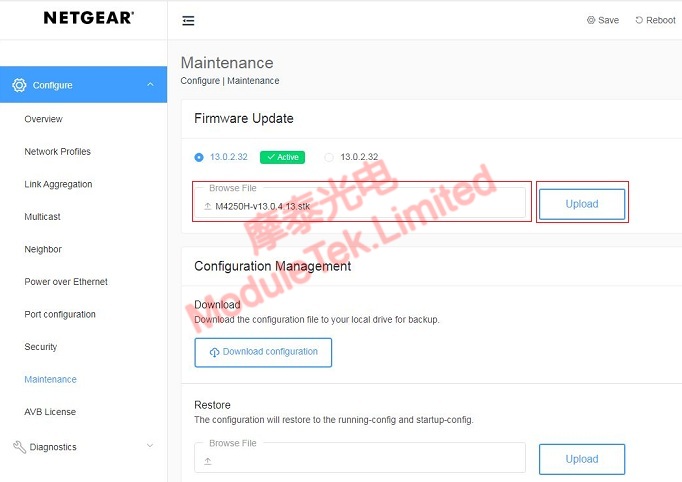
Figure 1 Select System File for Uploading
3. After the firmware file is fully uploaded, the switch will display a reboot prompt.
Click Reboot Now to continue.
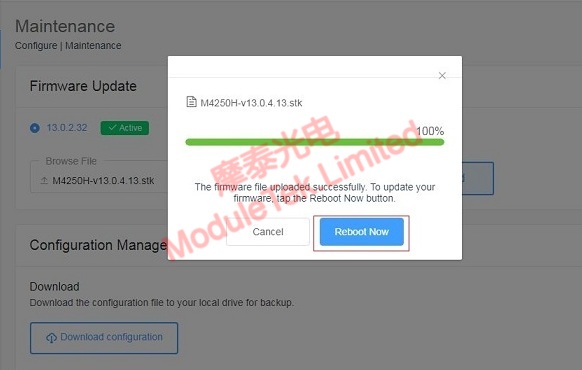
Figure 2 Reboot Switch After System Upload
4. Once the switch has finished rebooting, log in to the Web interface again.
Go back to the upload page or select Overview under Configure to view the switch’s current running firmware version.
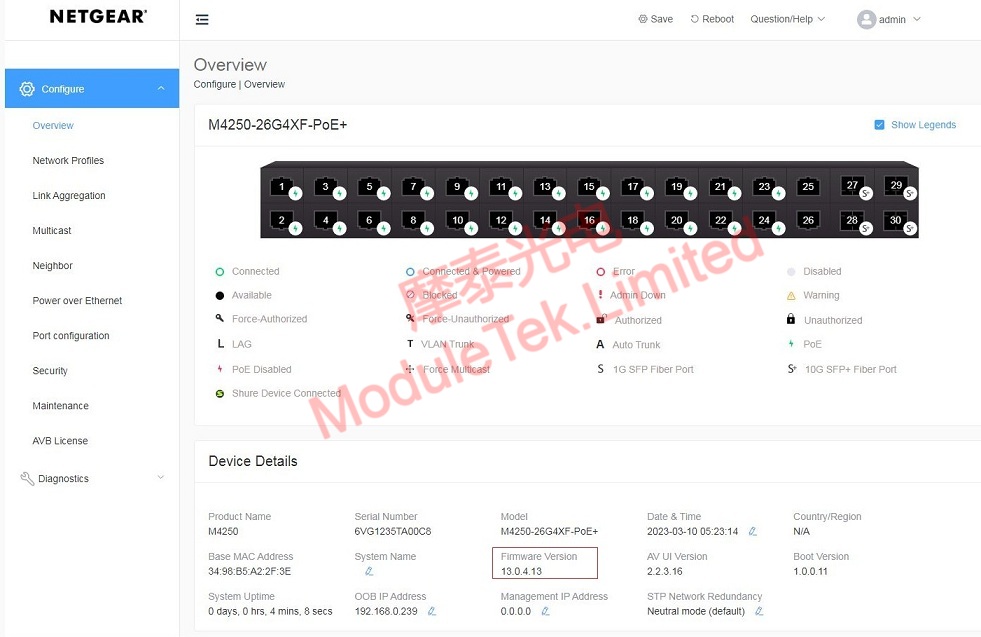
Figure 3 View Current Running Firmware Version
Moduletek provides optical modules compatible with Netgear switches. Welcome to purchase.
Moduletek Limited is at your service.
For further inquiries about the above content, please contact us at: sales@moduletek.com