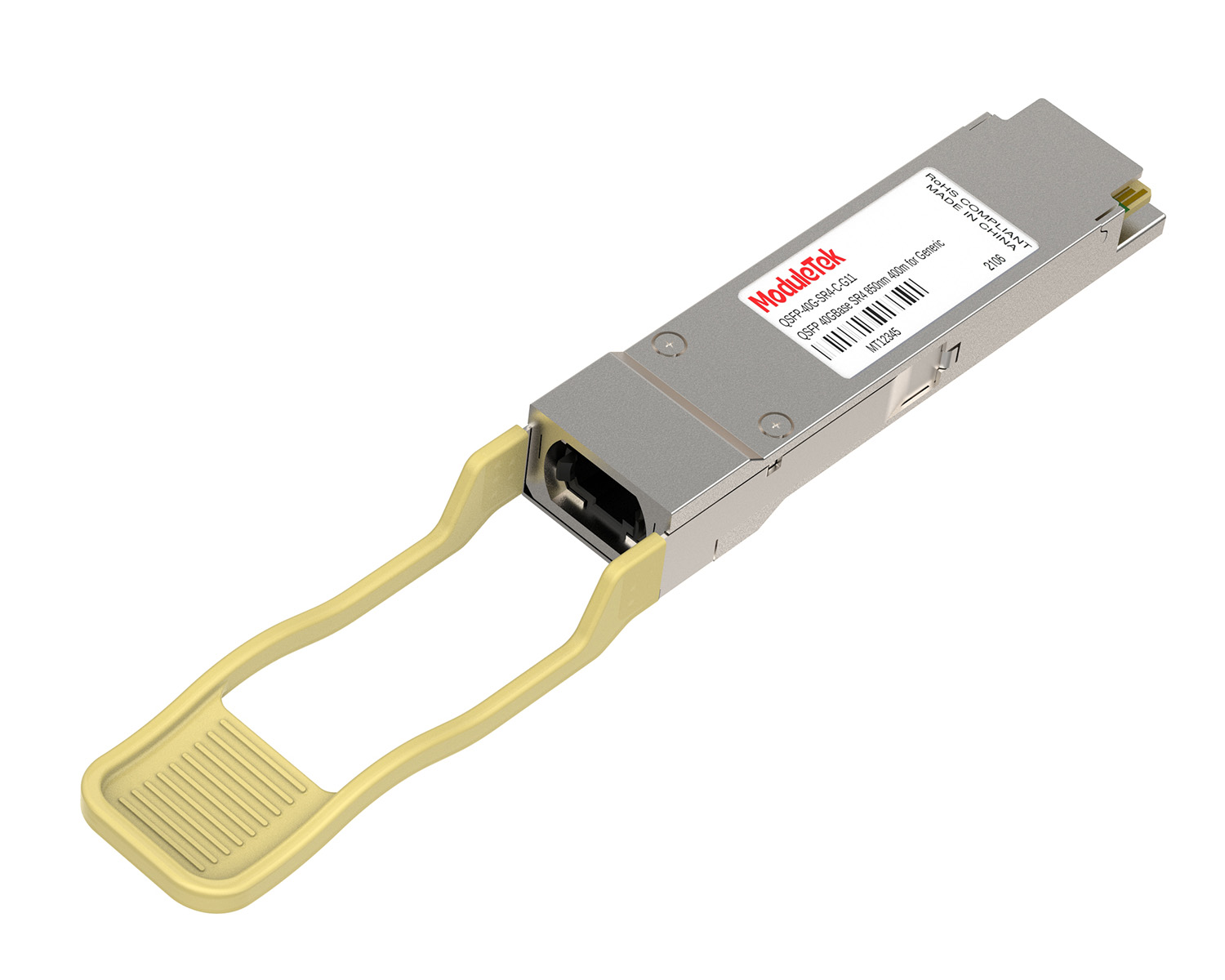
 40G/100G Optical Transceivers
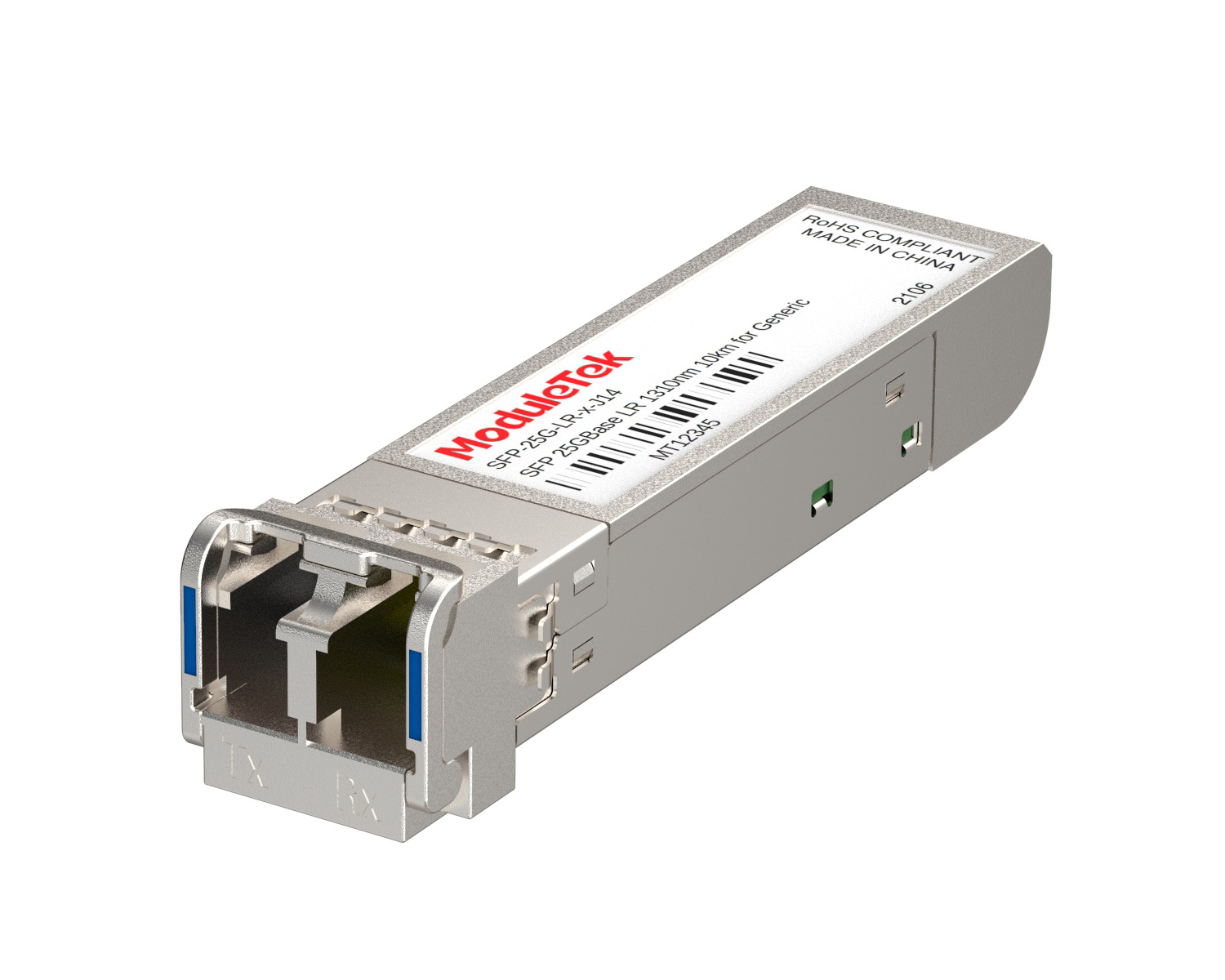 25G Optical Transceivers
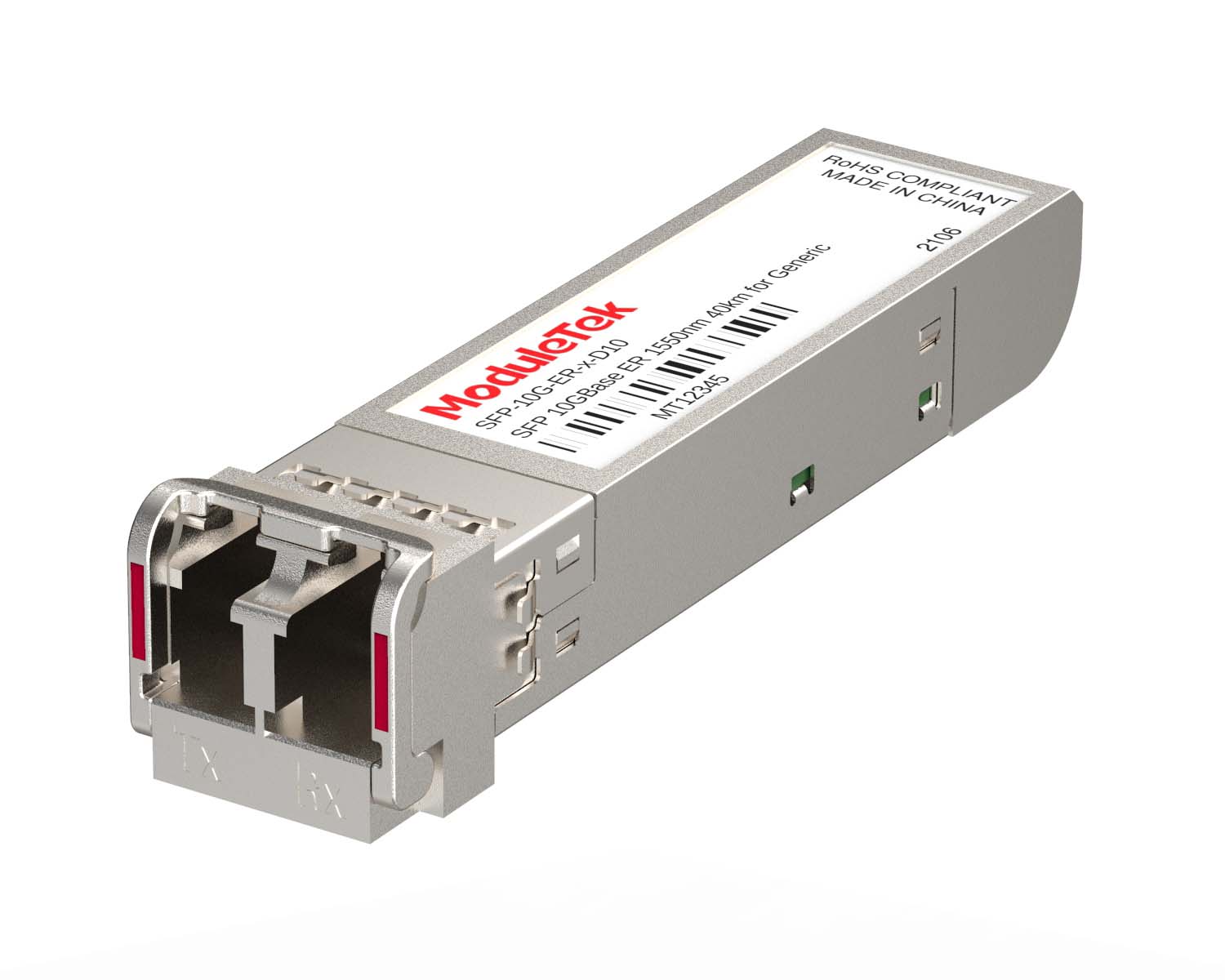 10G Optical Transceivers
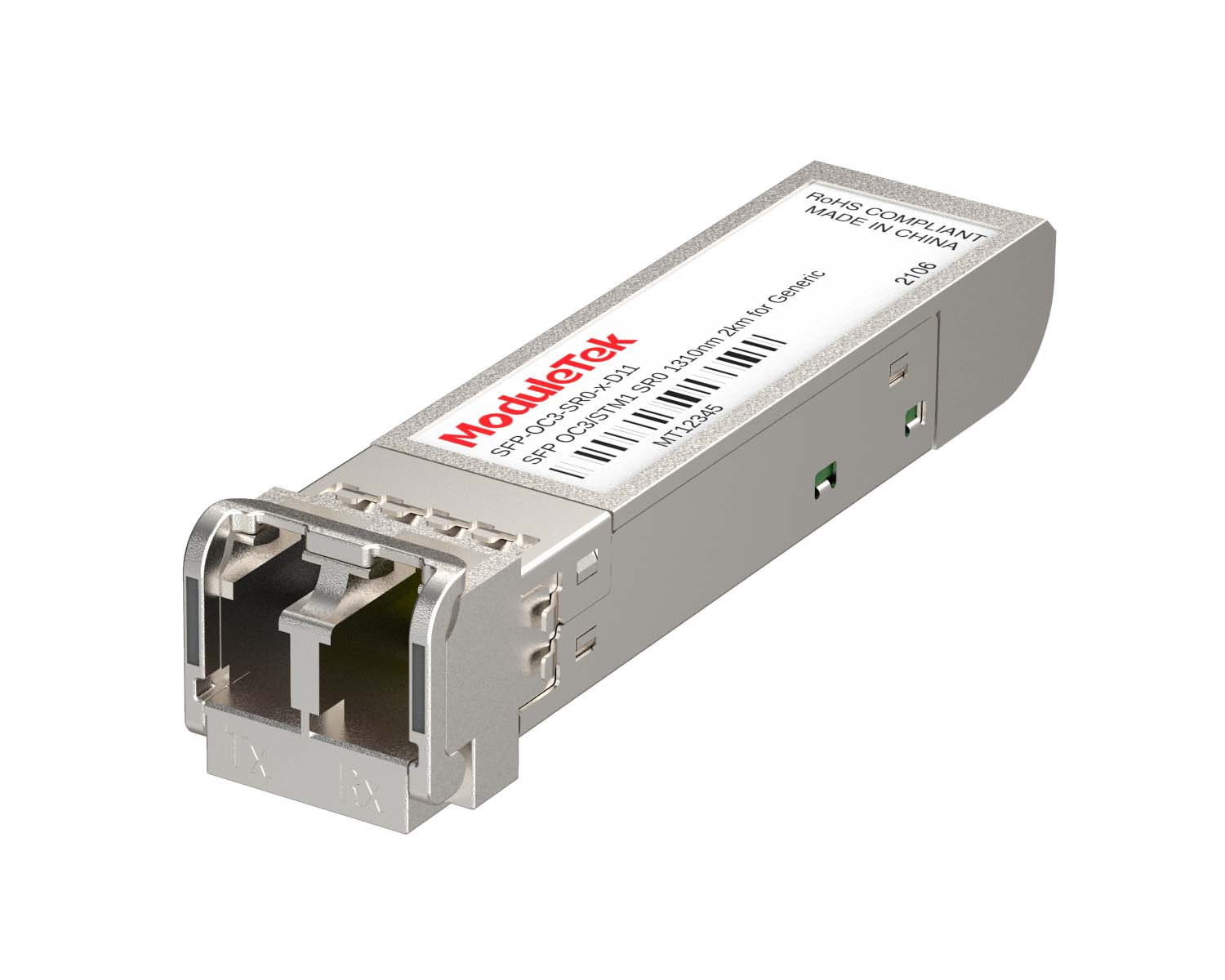 155M/2.5G Optical Transceivers
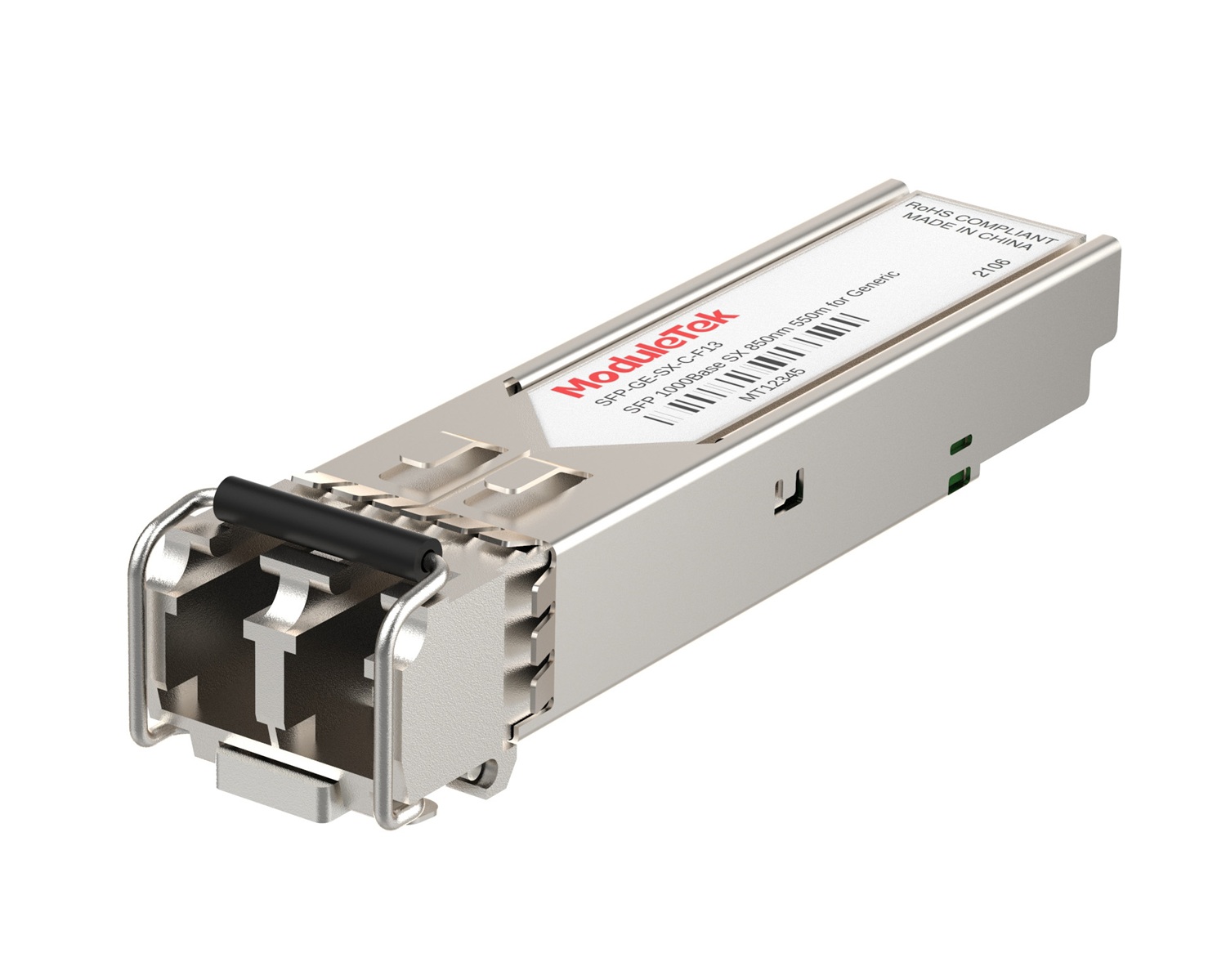 1G Optical Transceivers
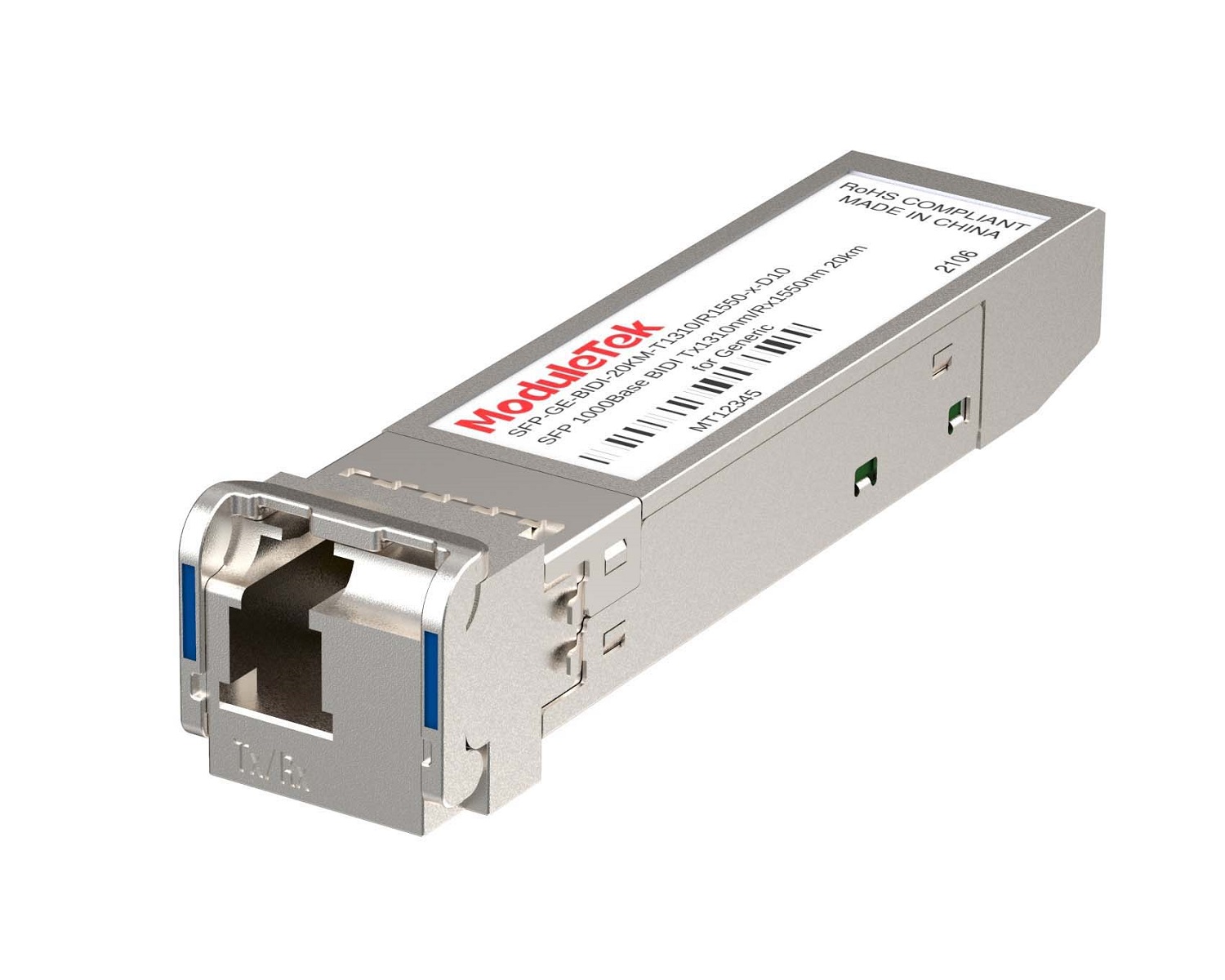 1G BIDI Optical Transceivers
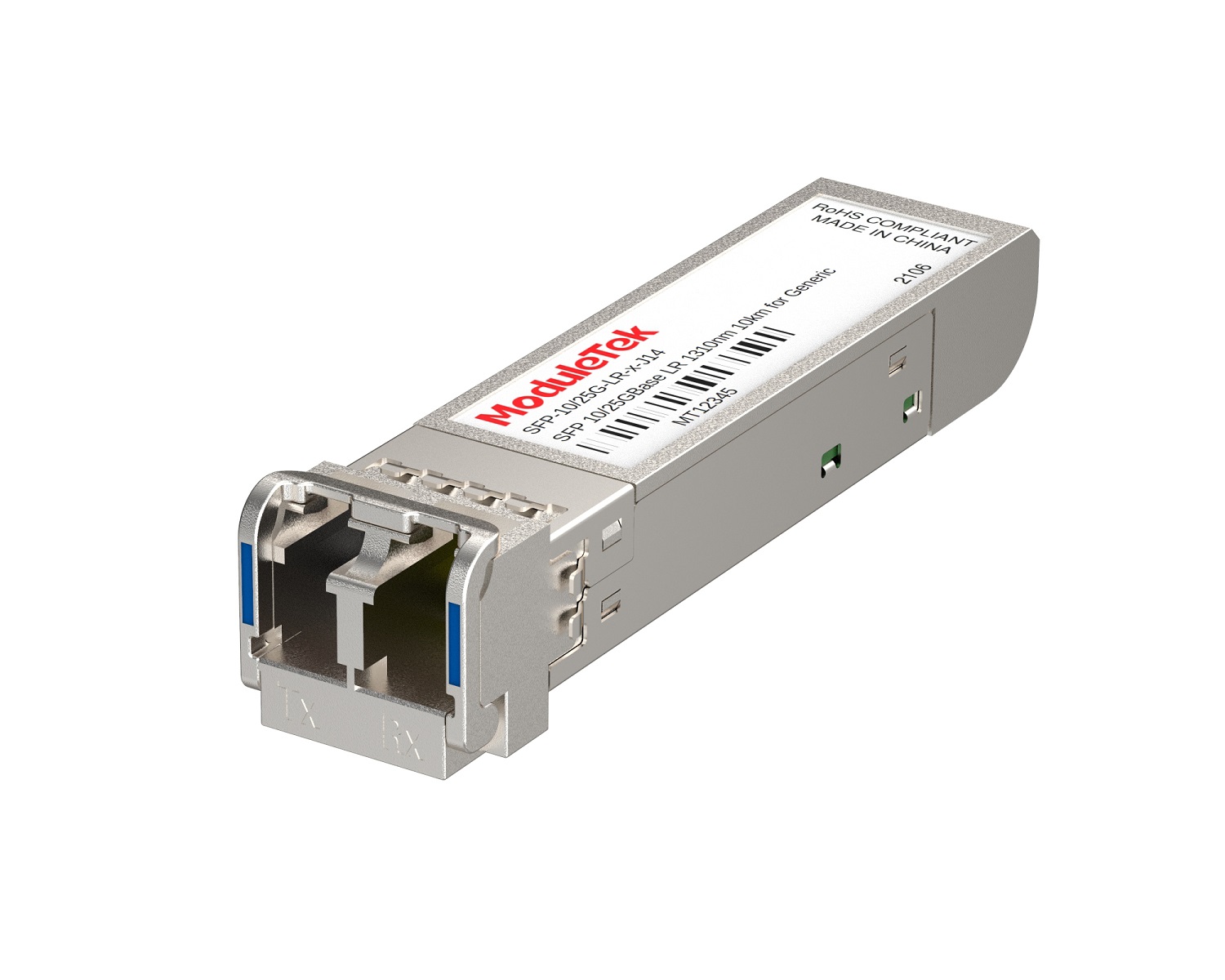 Dual-Rate Optical Transceivers
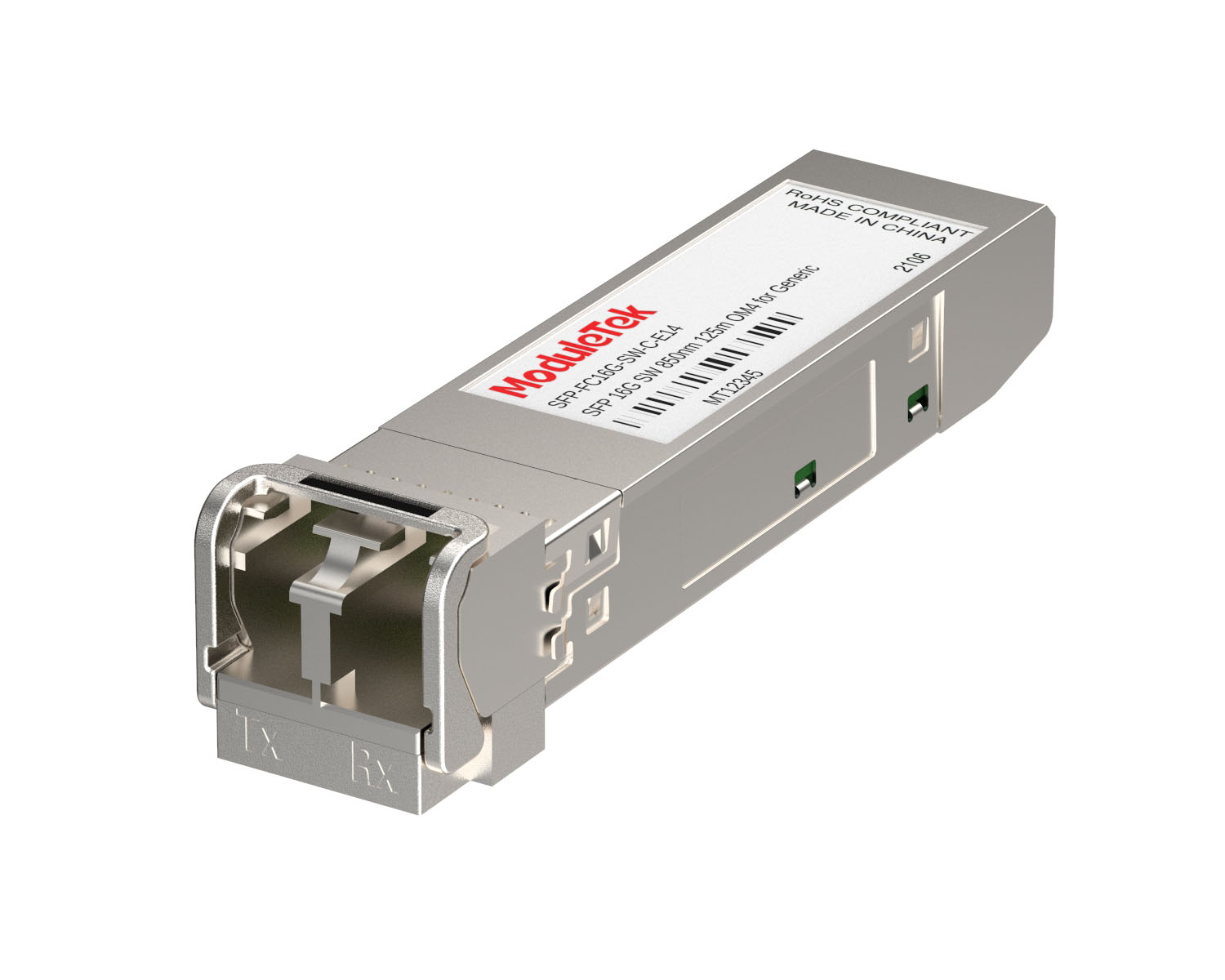 FC 16G/32G Optical Transceivers
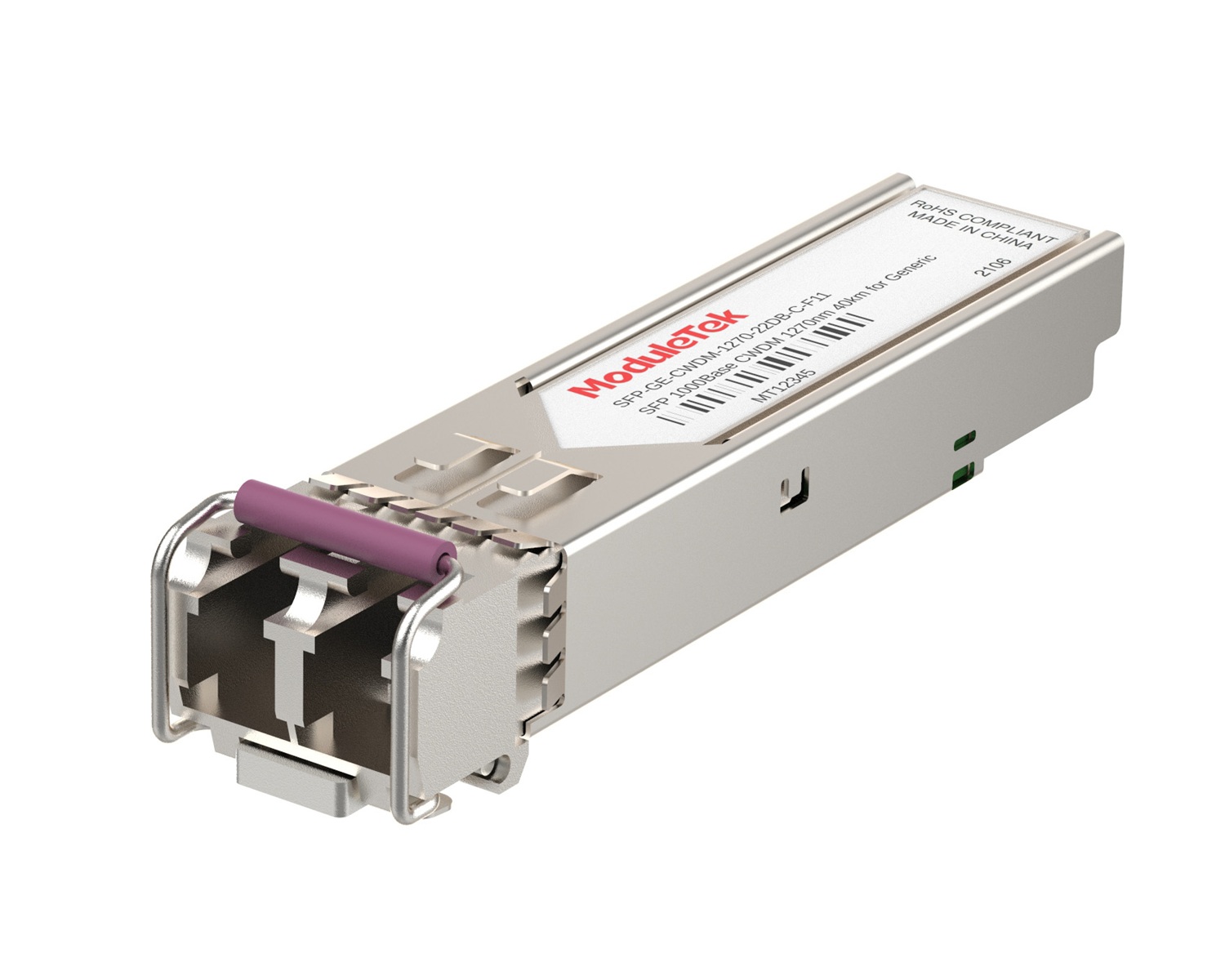 CWDM Optical Transceivers
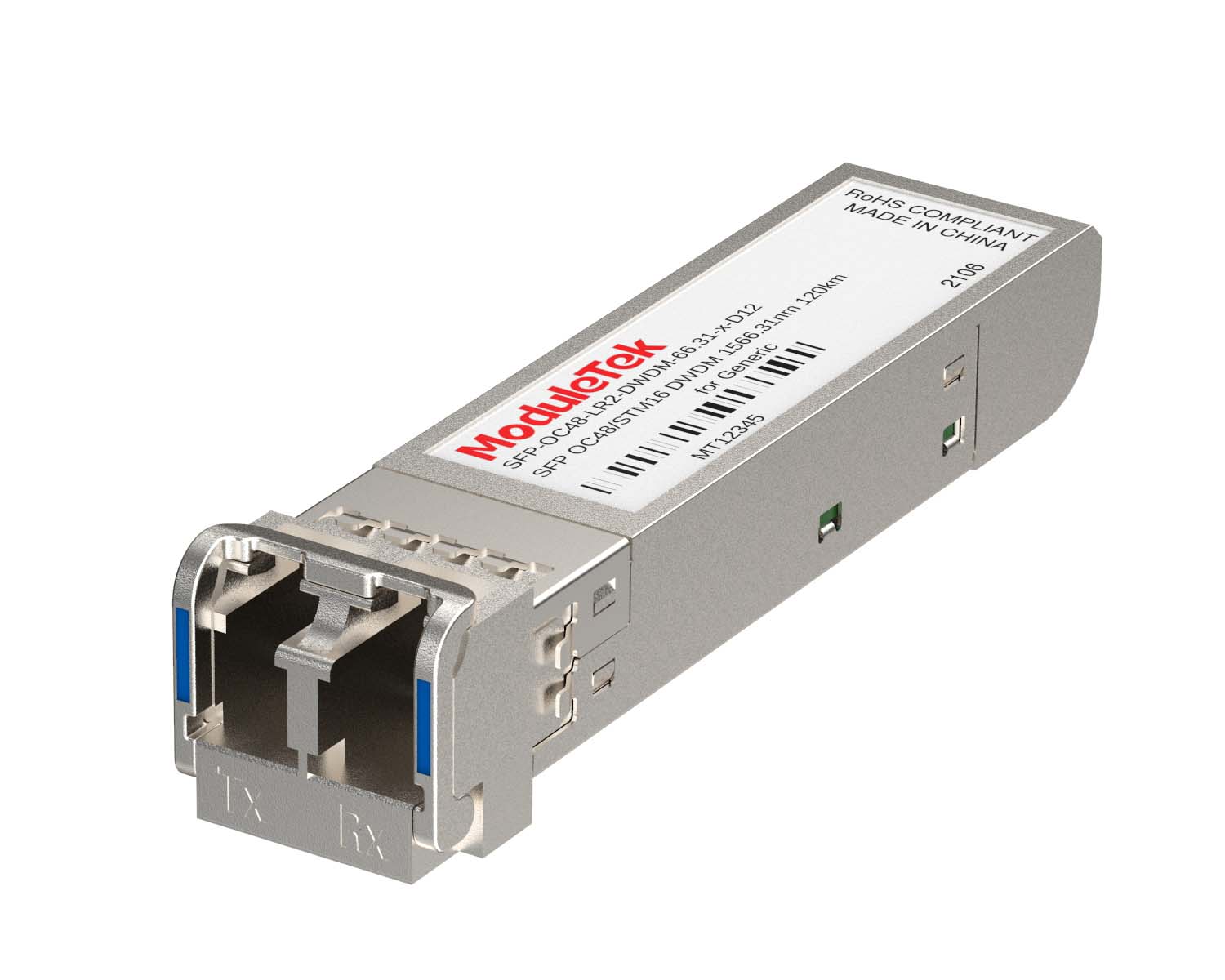 DWDM Optical Transceivers
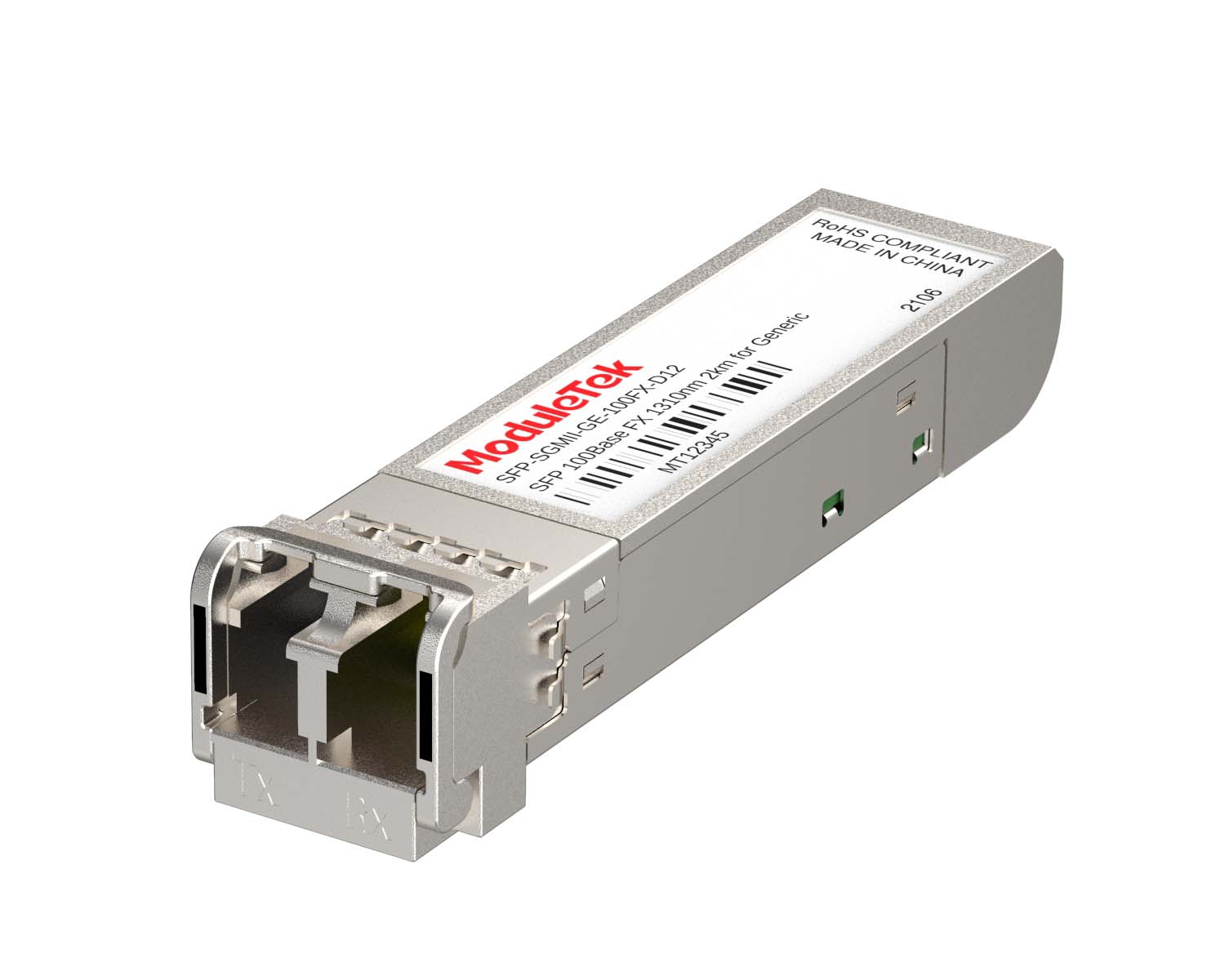 SGMII Port Optical Transceivers
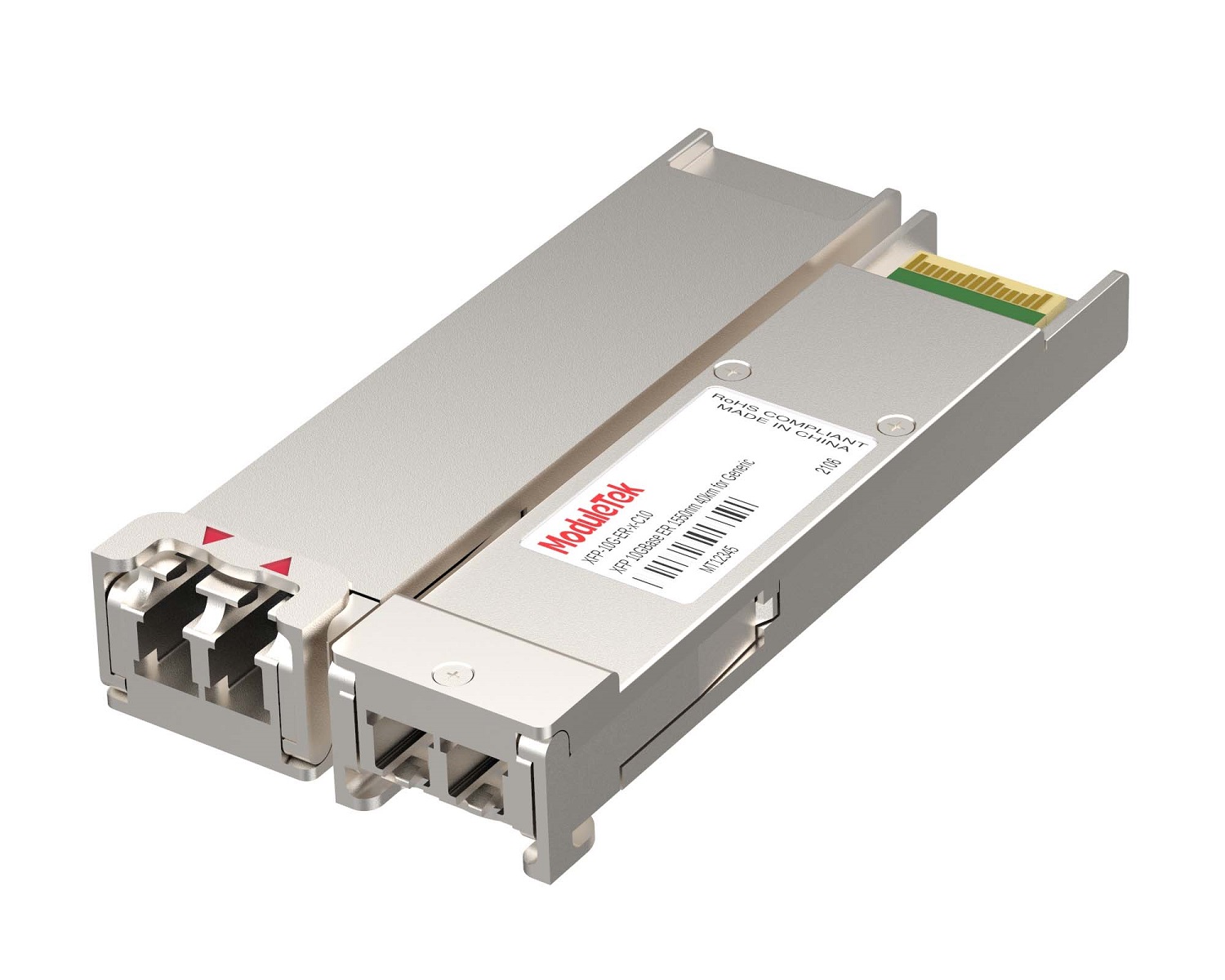 XFP Optical Transceivers
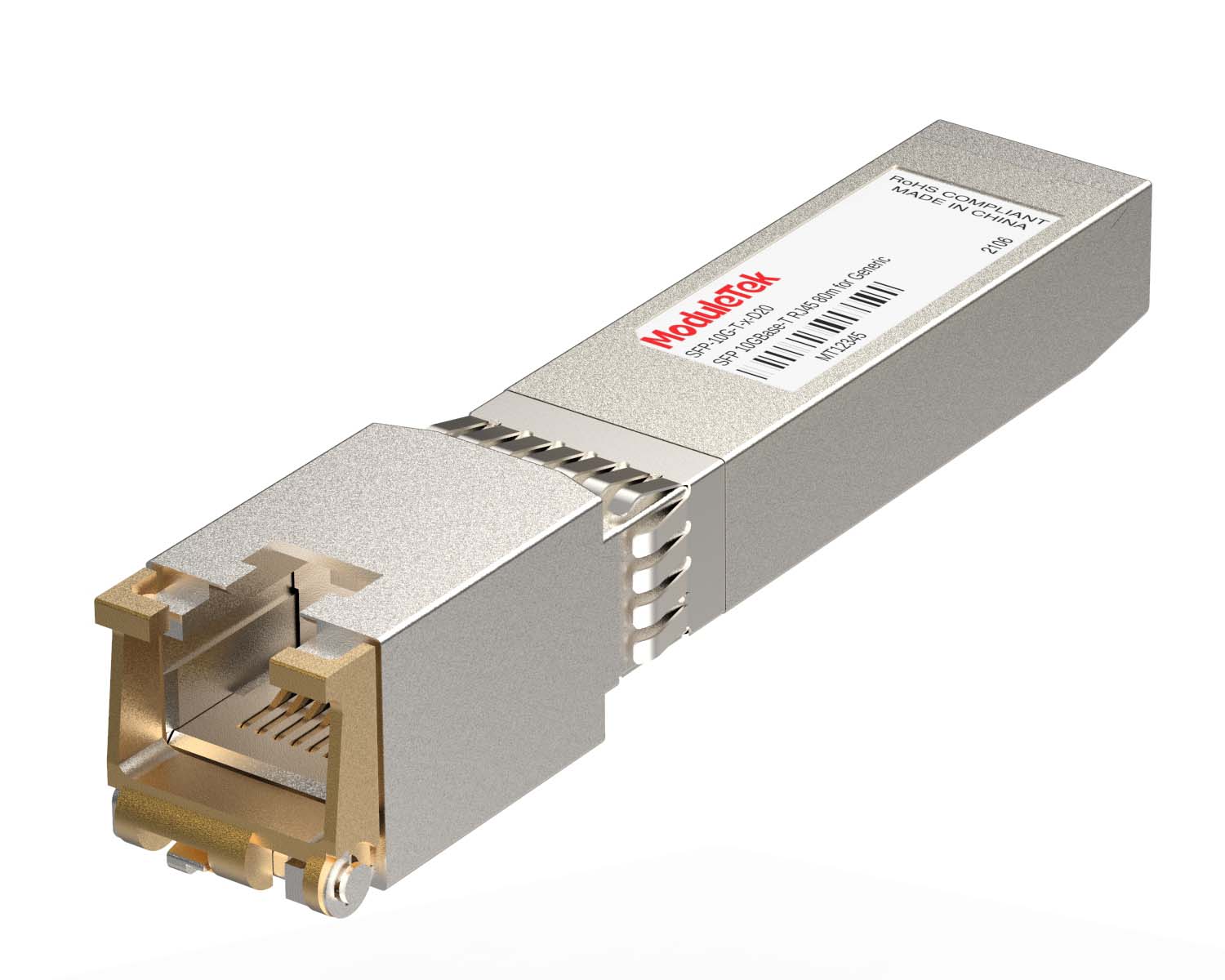 100M/1G/10G Coppers
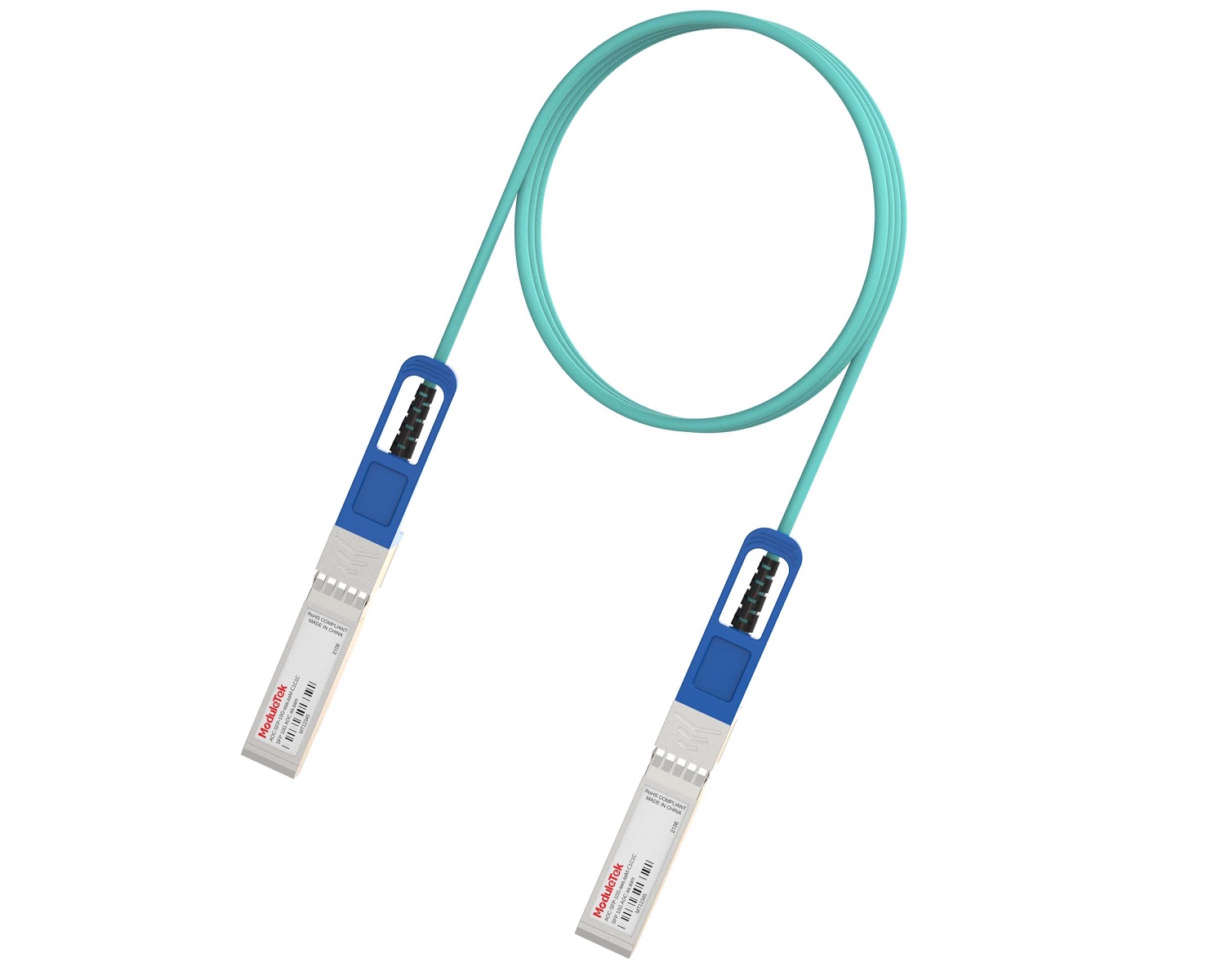 Full-Rate AOC & Breakout Series
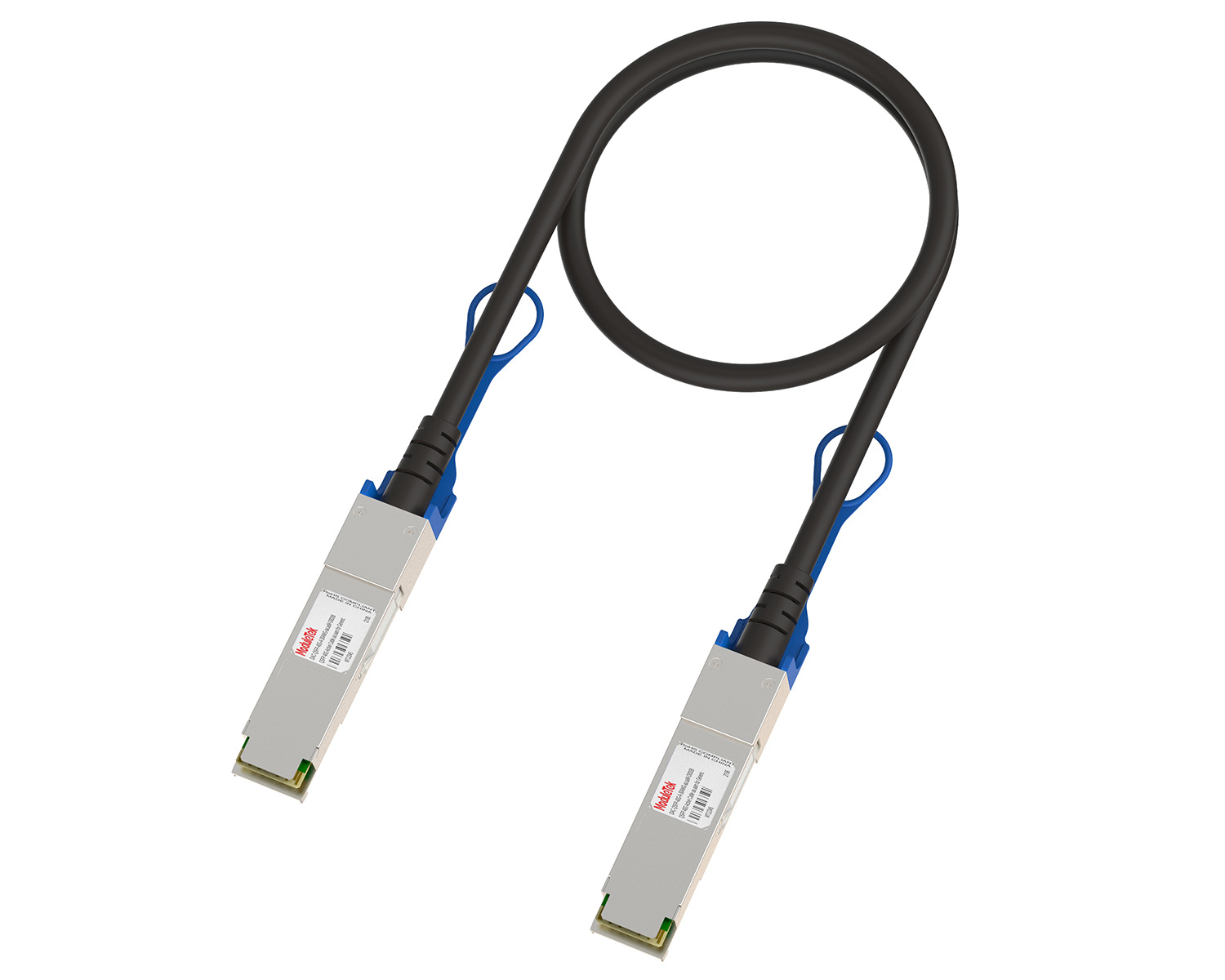 10G/40G Active DAC Series
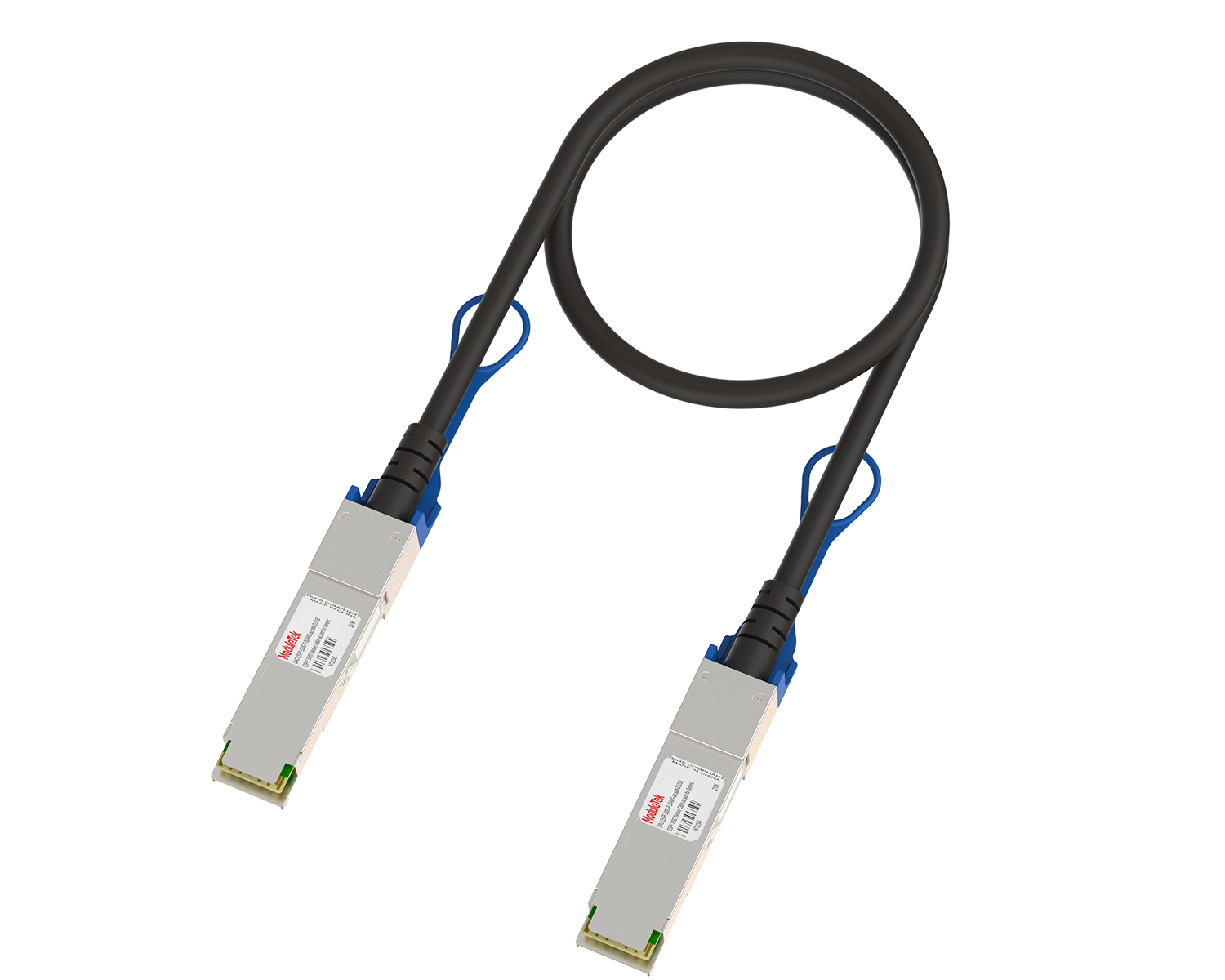 Full-Rate Passive DAC Series
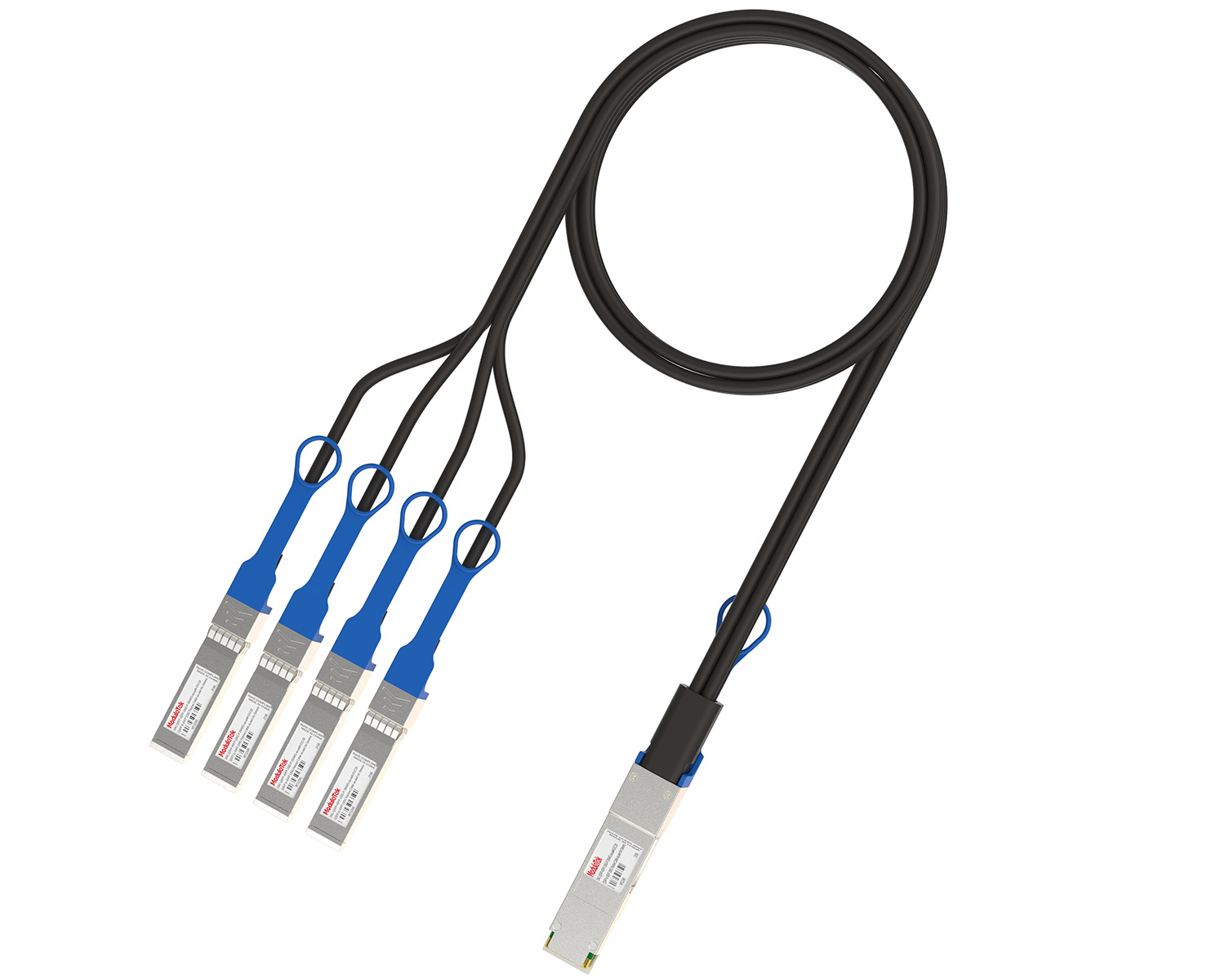 40G/100G Passive Breakout DAC Series
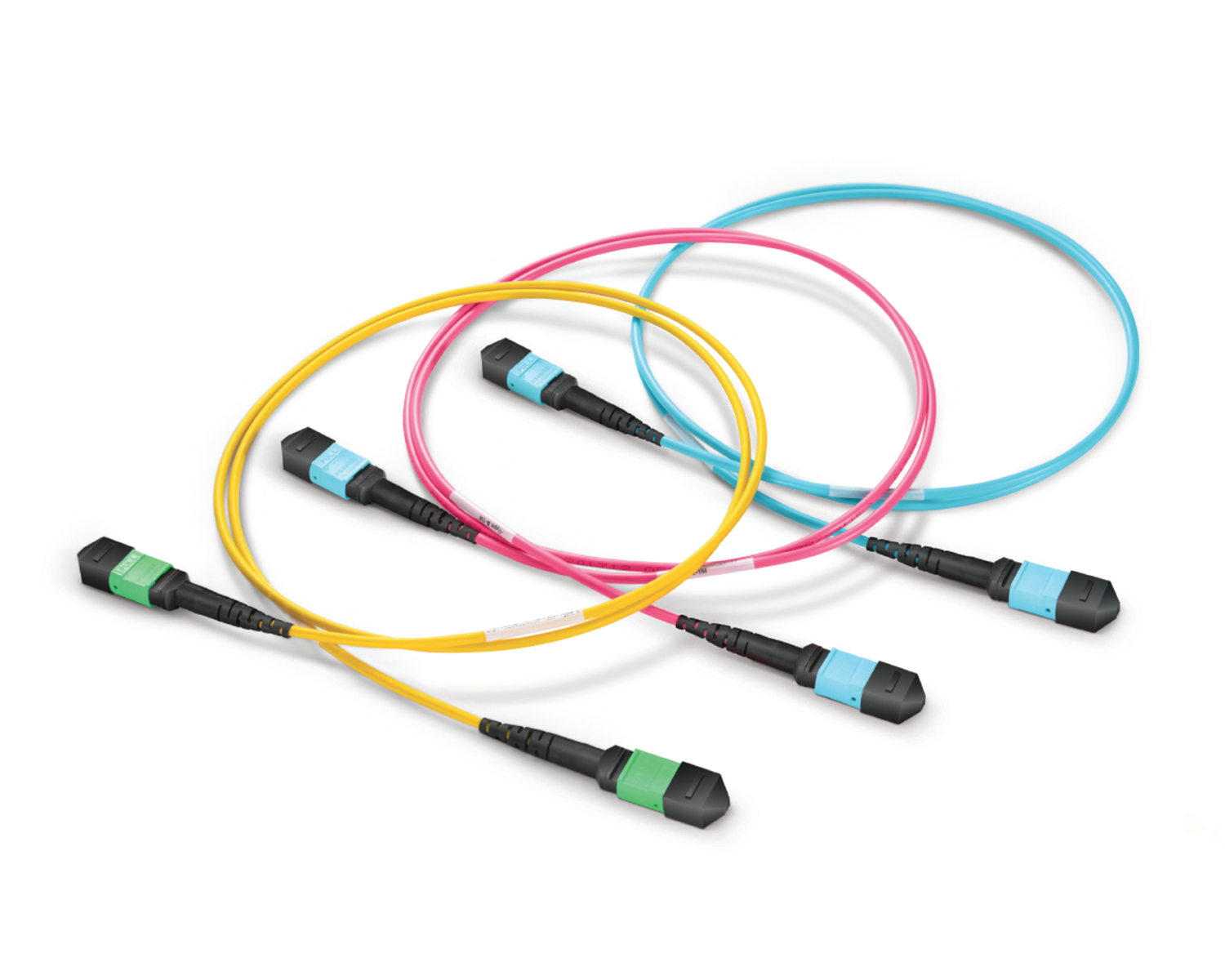 Regular/MTP-MPO Fiber Patch Cords
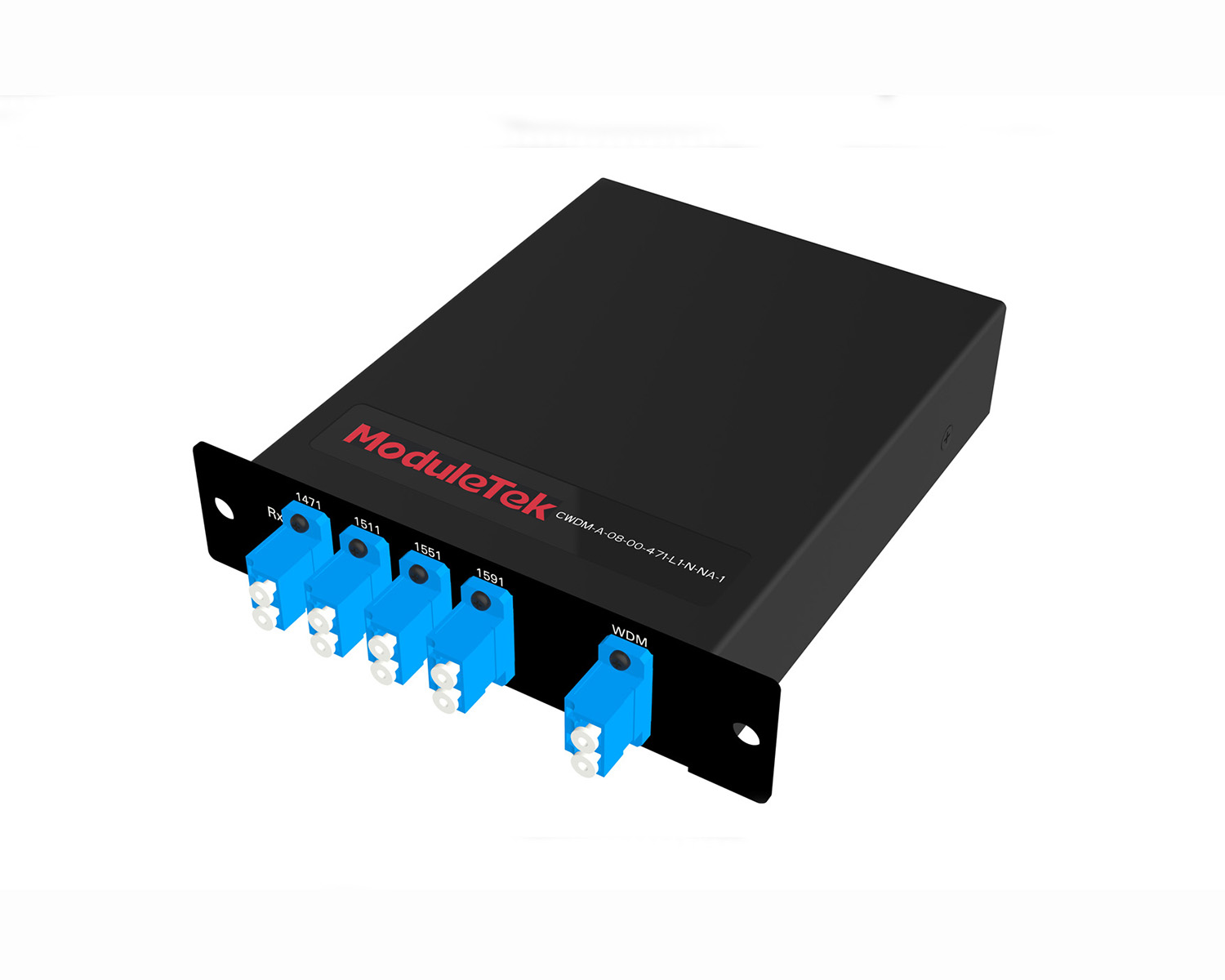 MT2011
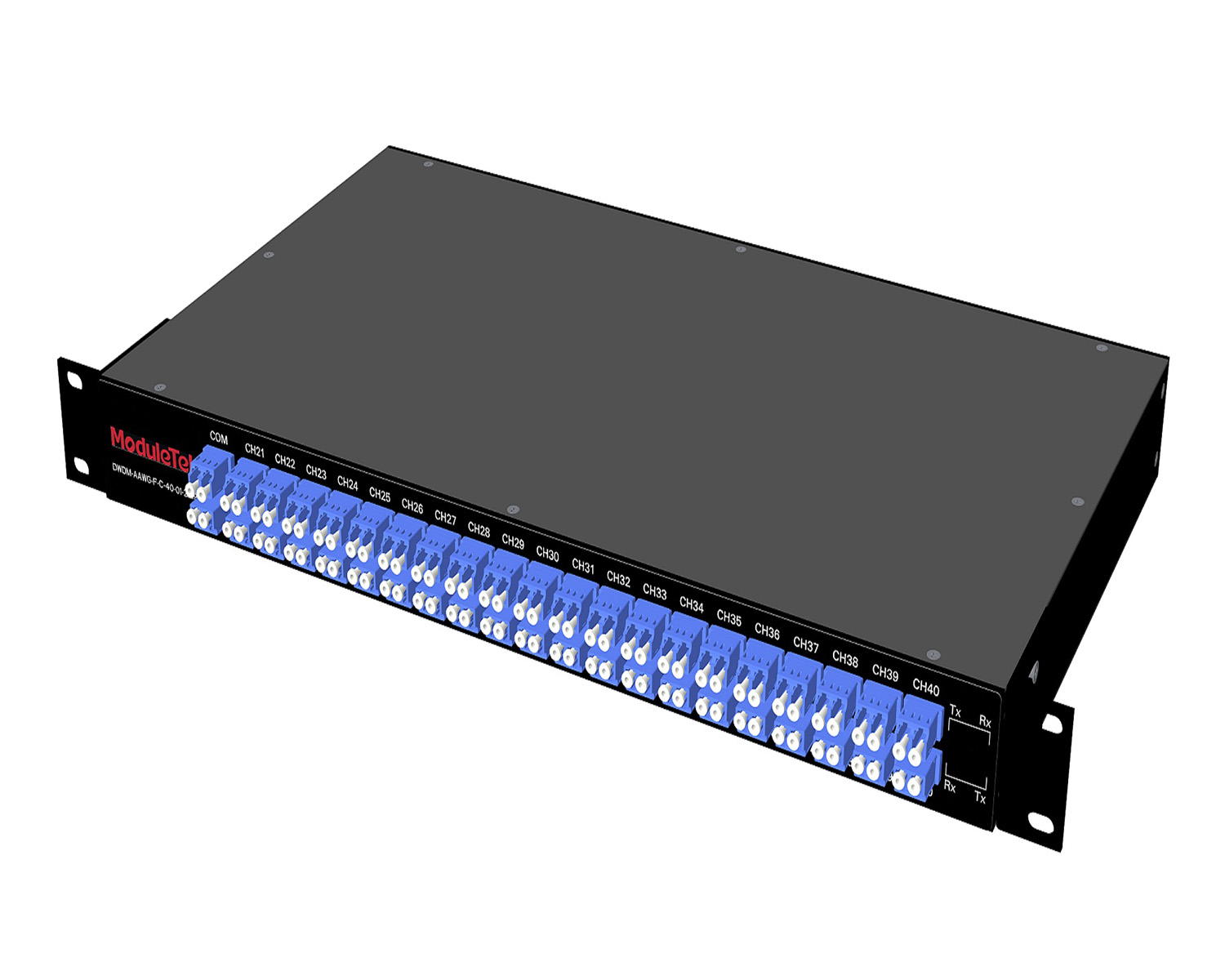 MT2010
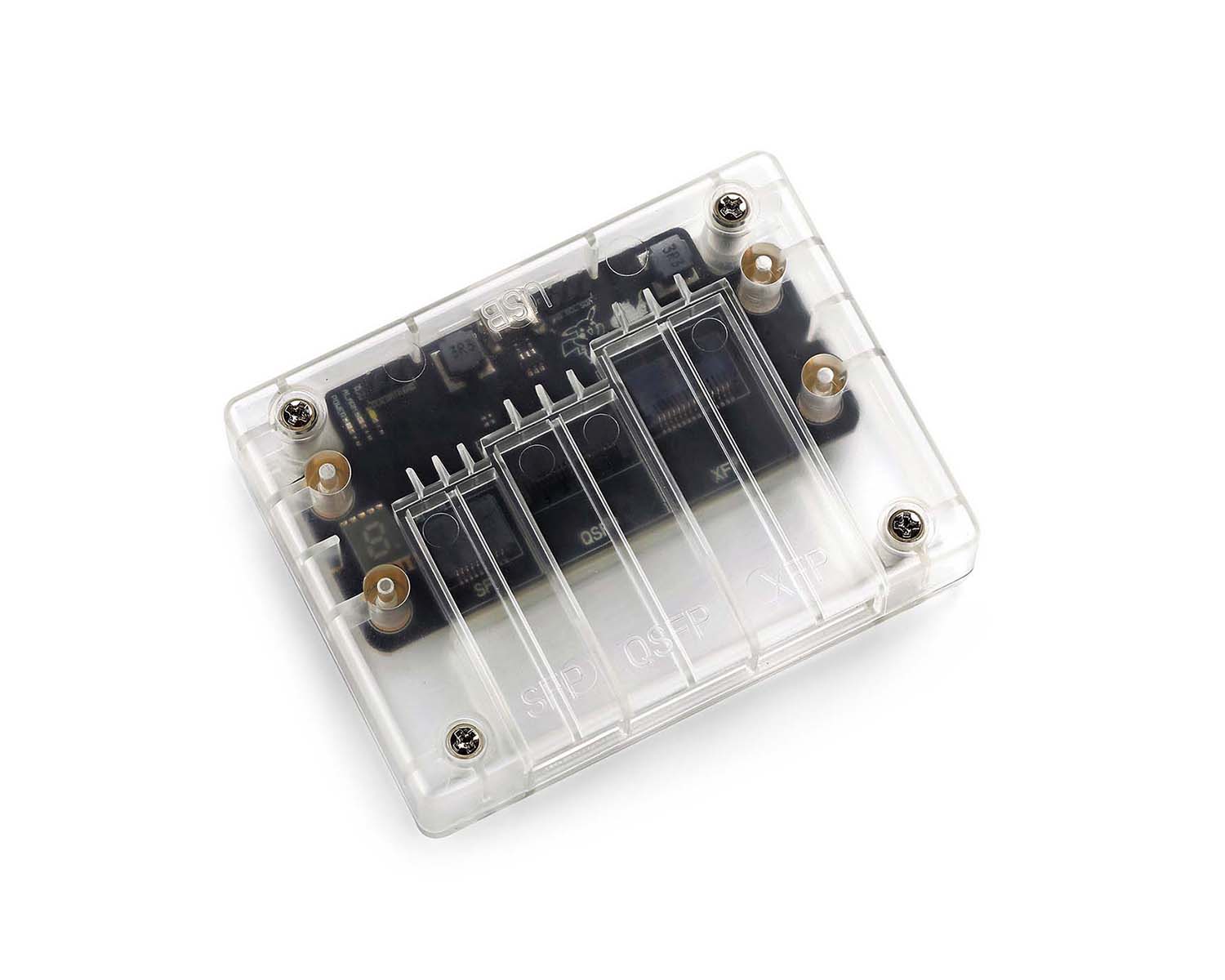 CodingBox
 QSFP to SFP Adapter
Guide To Upgrading Dell S5224F-ON Switch System Software Via USB
Time: 2024-06-19
I. Pre-Upgrade Preparation
1. USB flash drive (USB 2.0, formatted to FAT32 file system)
2. Dell official switch system firmware file (file extension: .bin)
3. Console cable
4. Dell S5224F-ON switch and computer
II. Important Precautions
1. To avoid damaging the device, do not interrupt the power supply of the switch during the software update.
2. Before updating the software, make sure that the downloaded software version supports the switch model to be upgraded, the software download page usually has the system software description information.
III. Upgrade Steps
1. Save the upgrade file to the USB flash drive
• Copy the switch system upgrade file to the USB flash drive.
• Insert the USB flash drive into the USB port of the switch.
• Confirm the firmware file name (with .bin extension) stored on the USB flash drive.
2. Download the firmware from the USB to the switch
Enter privileged mode and execute the command to download the system firmware from the USB drive:
image download usb://[filename]
Example:
OS10# image download usb://PKGS_OS10-Enterprise-10.5.5.9.247buster-installer-x86_64.bin
To verify the download, run: //Download the system software from USB to the switch.
OS10# dir image
3. Install the firmware to the standby partition
Execute the command to install the downloaded firmware into the standby partition:
image install [file-url]
Note: Dell OS10 uses a dual-partition design:
• Active partition: The currently running system version.
• Standby partition: The reserved partition for firmware upgrades (where the new firmware is installed).
4. Set the standby partition as the next boot partition
OS10# boot system standby
5. Restart the switch to apply the upgrade
OS10# reload
6. Verify the upgraded system version
Run the following command to confirm the current running firmware version:
OS10# show version
Moduletek provides optical transceivers fully compatible with Dell switches. For inquiries and purchases, please contact us.
For further inquiries about the above content, please contact us at: sales@moduletek.com