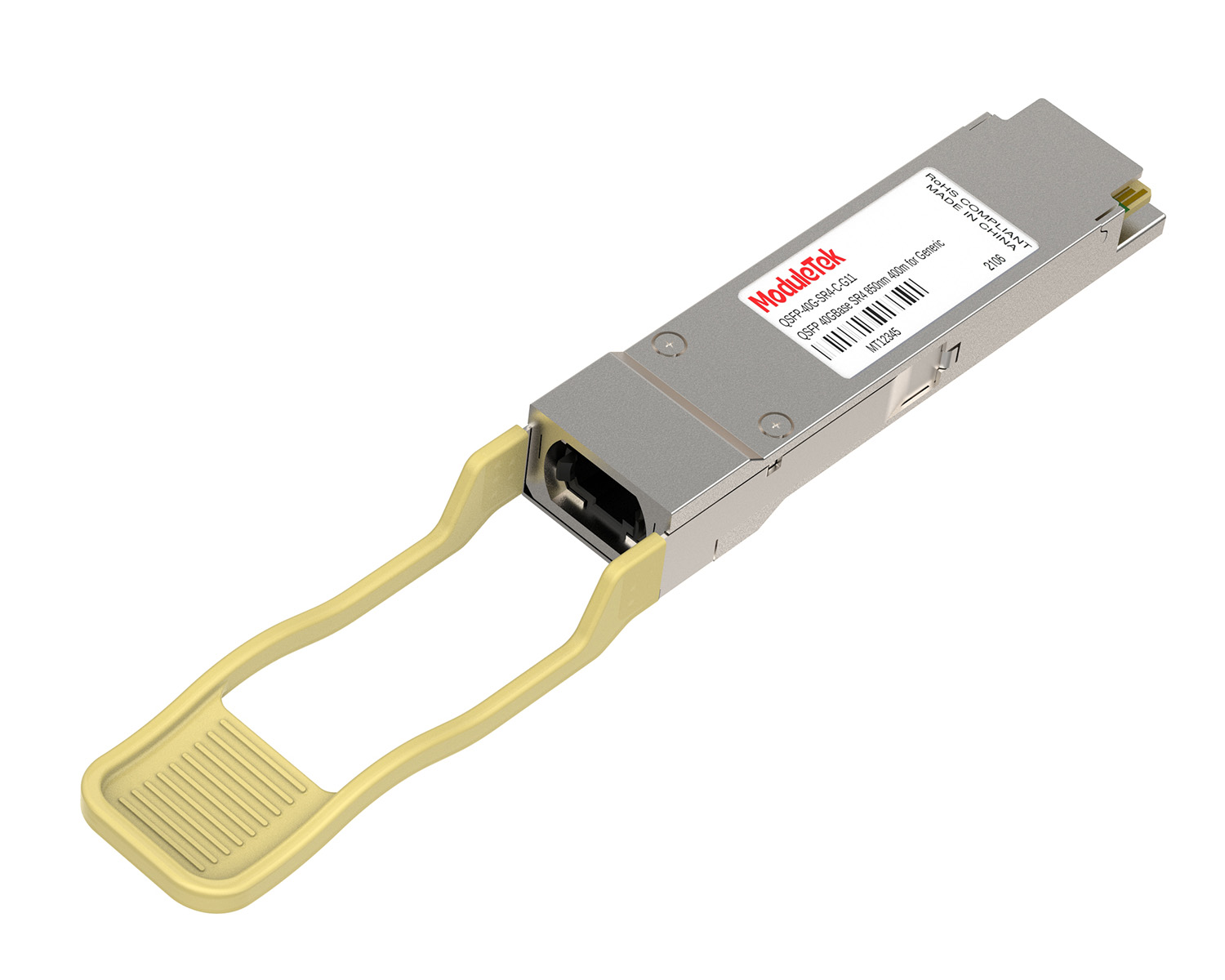
 40G/100G Optical Transceivers
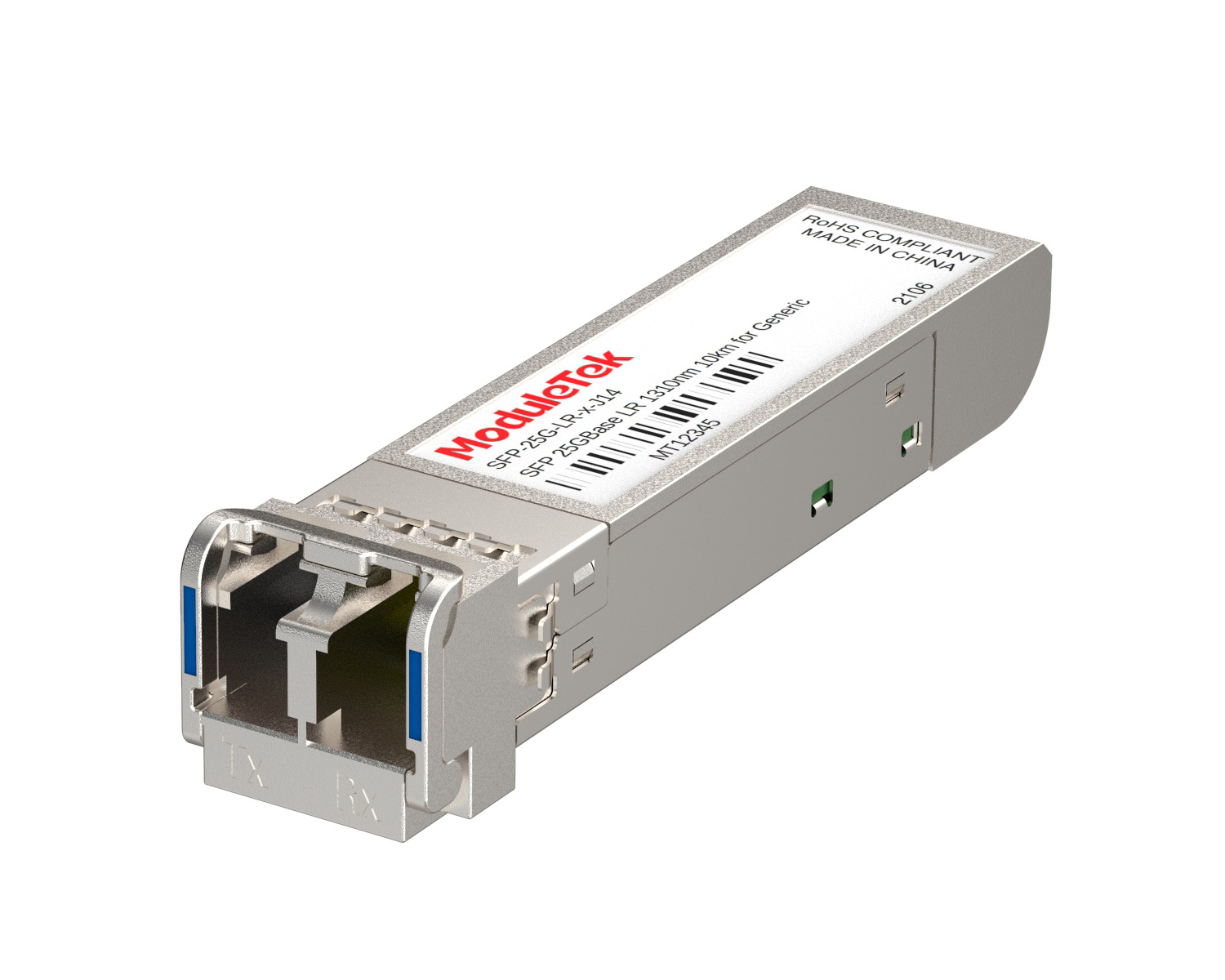 25G Optical Transceivers
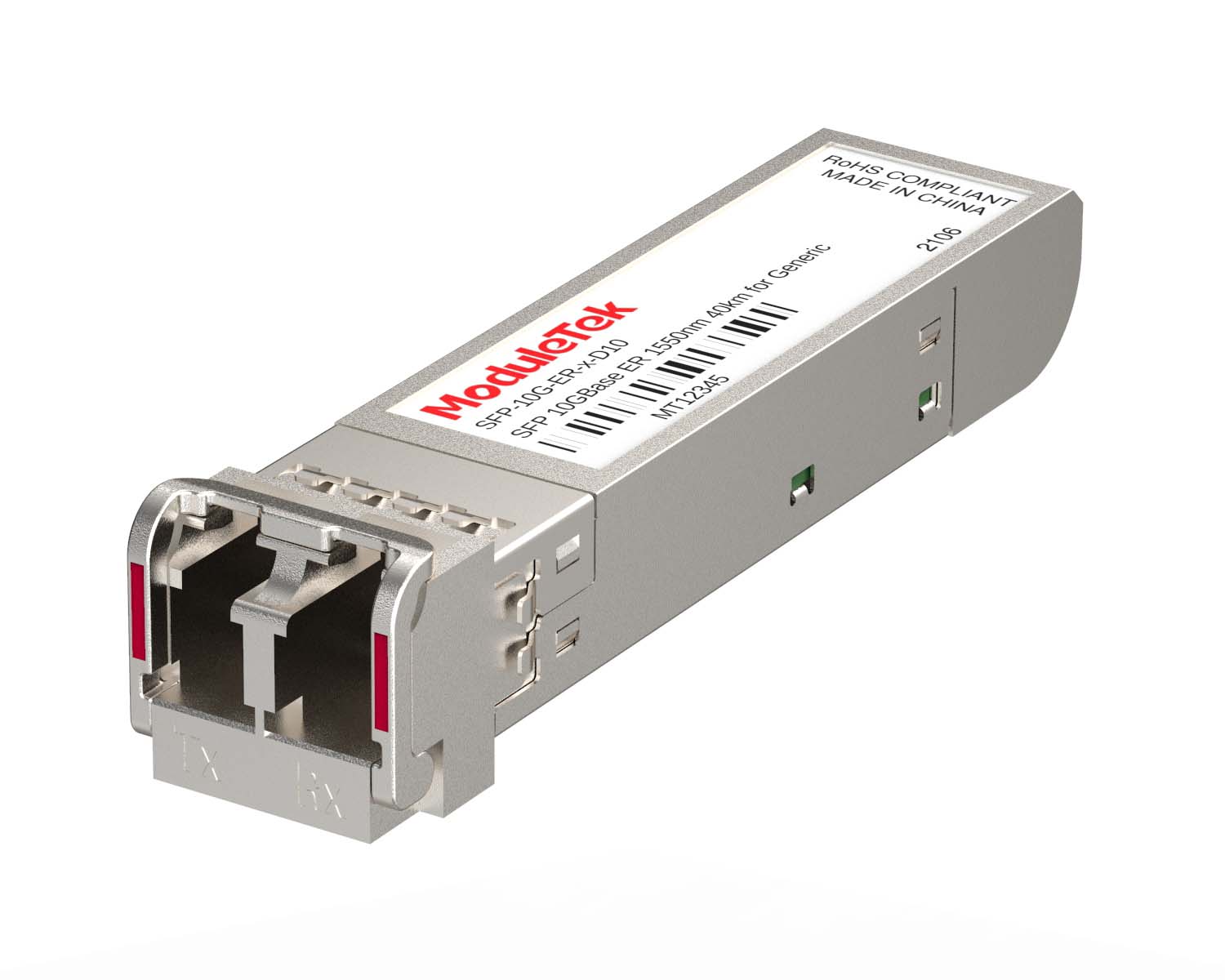 10G Optical Transceivers
 155M/2.5G Optical Transceivers
 1G Optical Transceivers
 1G BIDI Optical Transceivers
 Dual-Rate Optical Transceivers
 FC 16G/32G Optical Transceivers
 CWDM Optical Transceivers
 DWDM Optical Transceivers
 SGMII Port Optical Transceivers
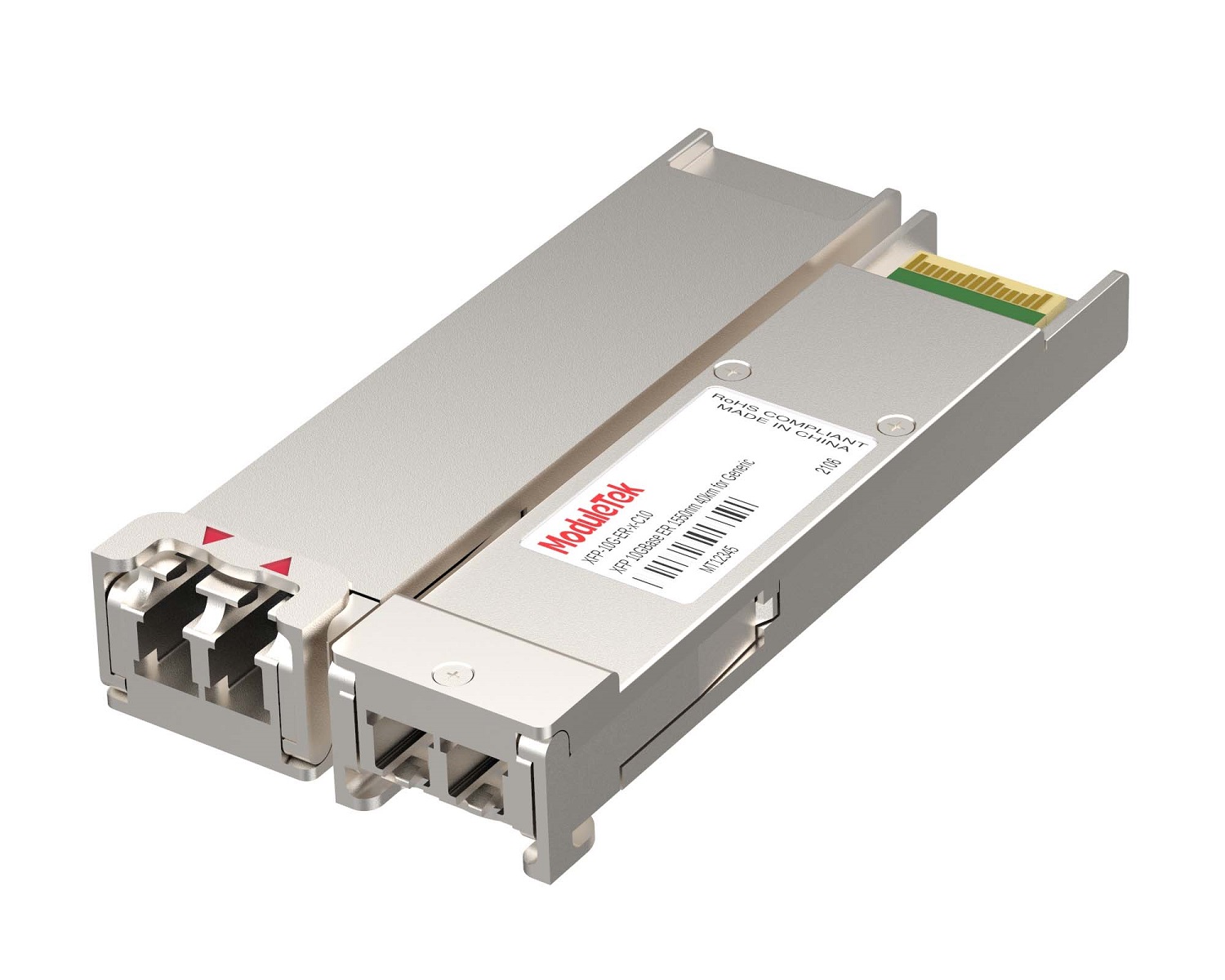 XFP Optical Transceivers
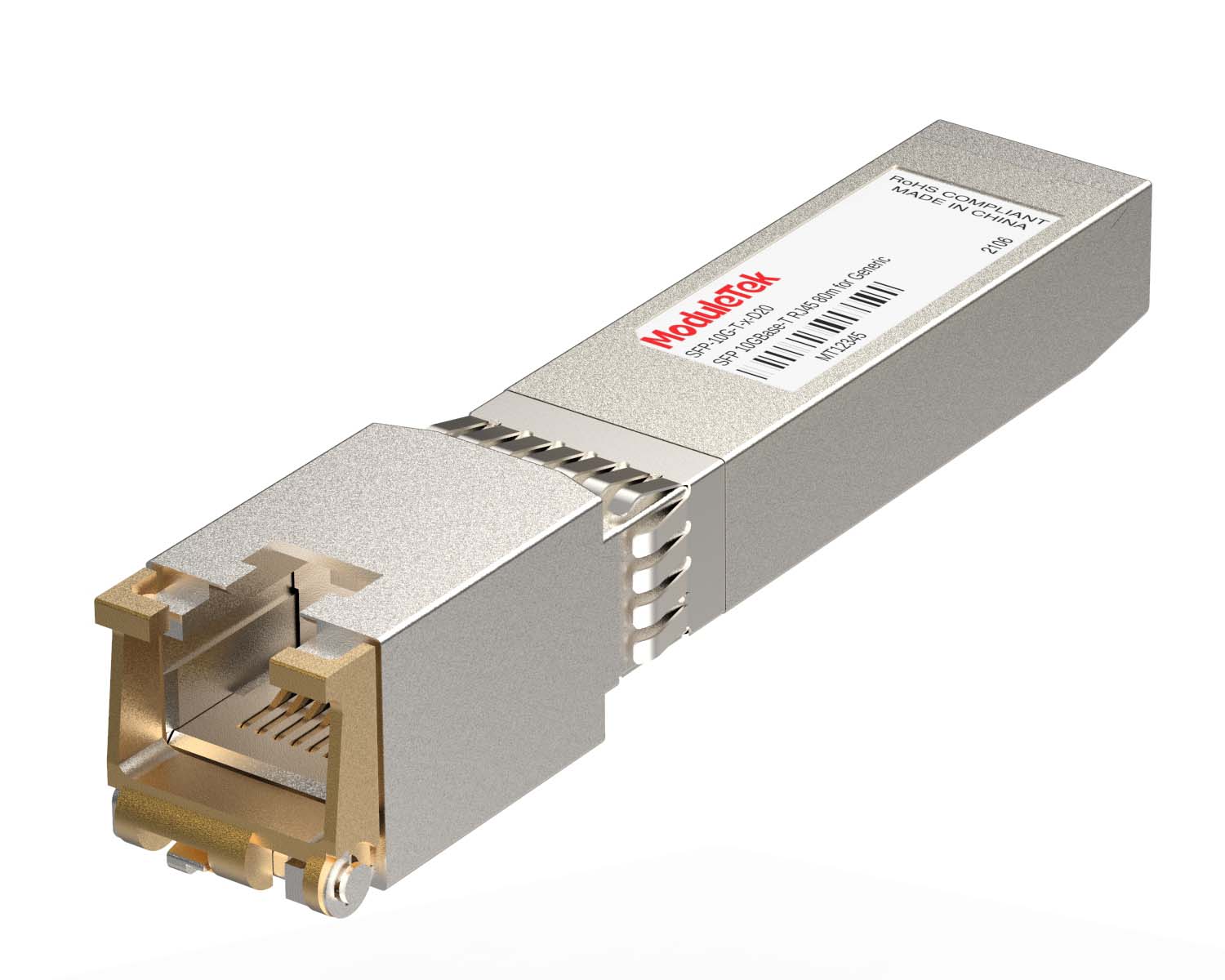 100M/1G/10G Coppers
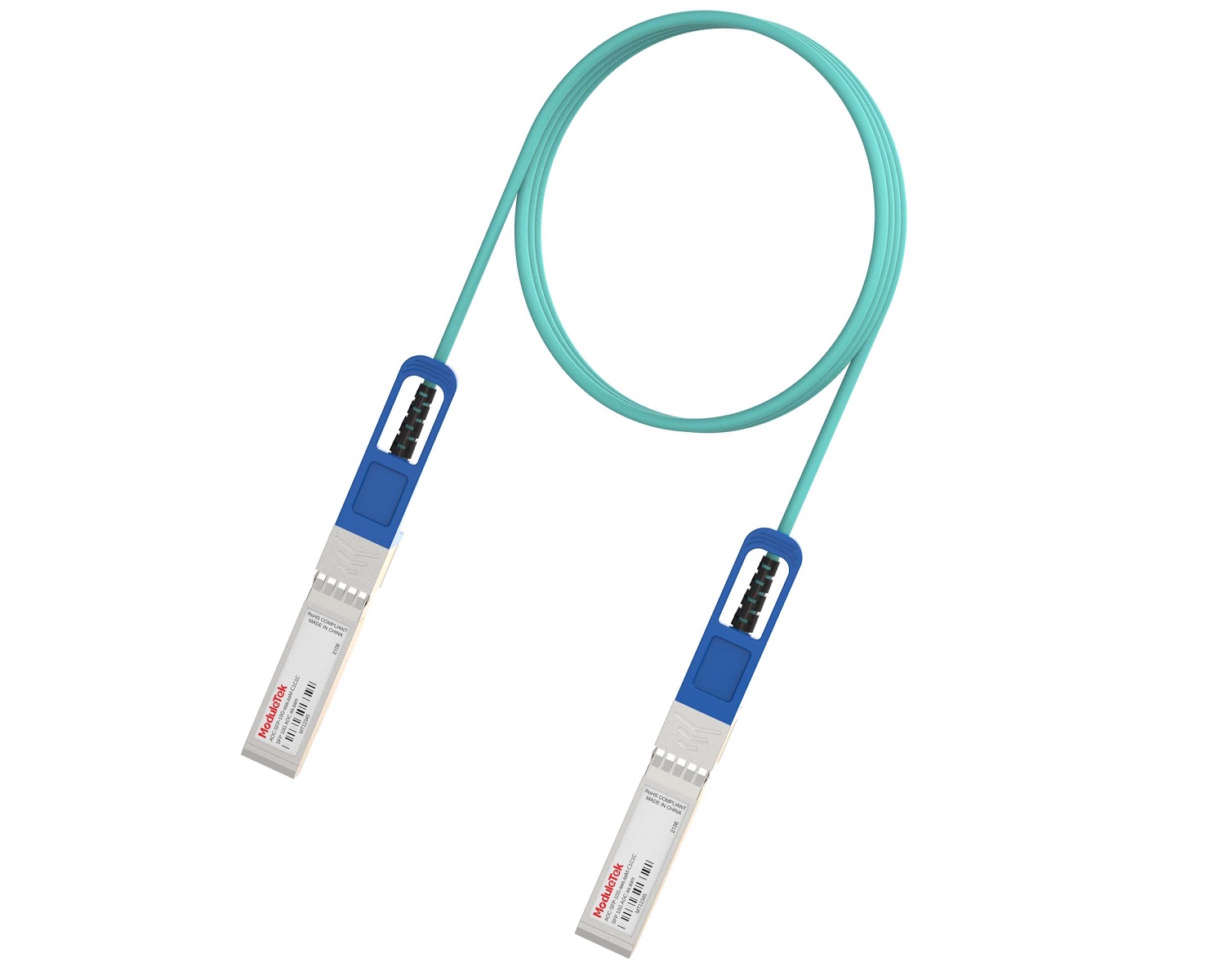 Full-Rate AOC & Breakout Series
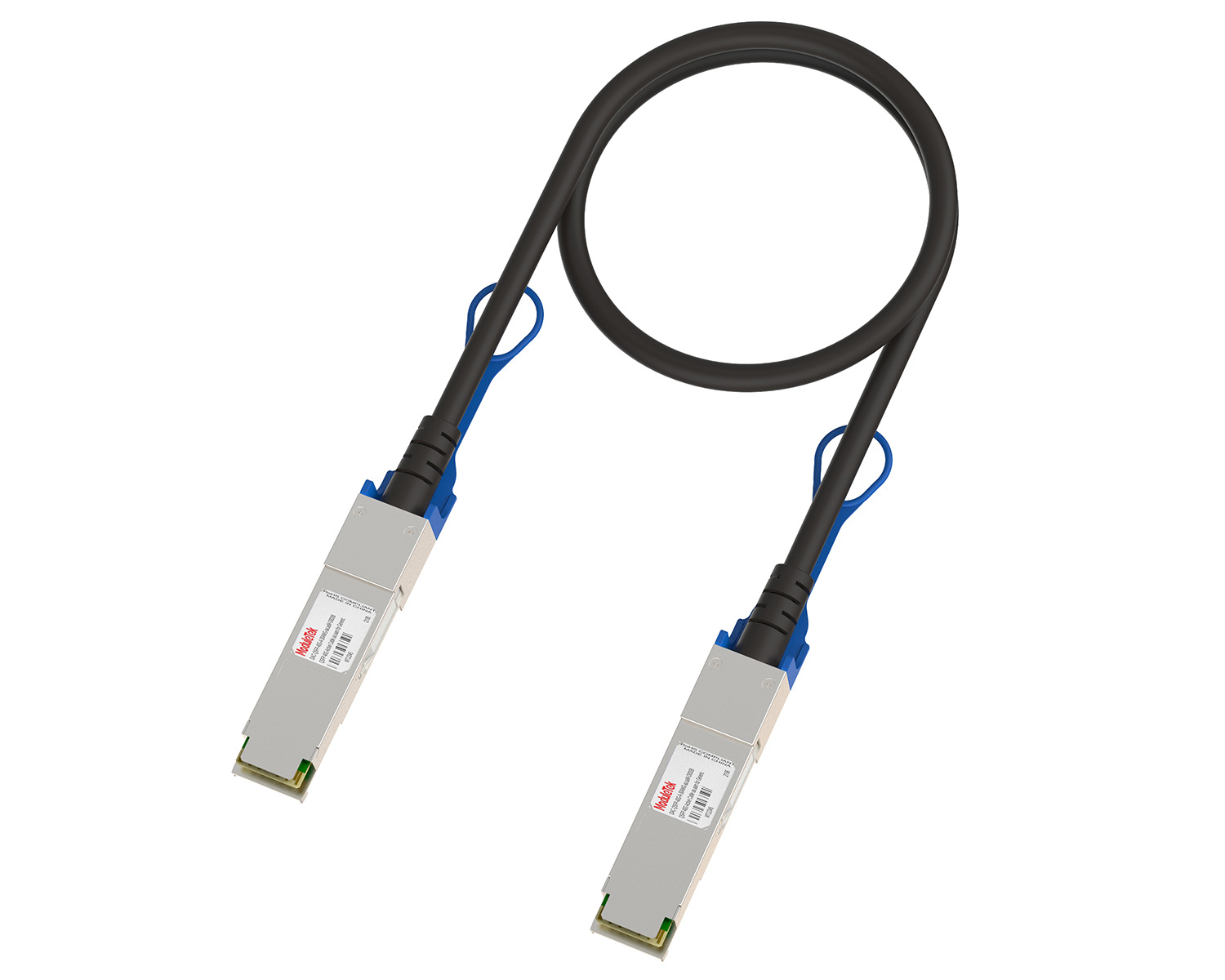 10G/40G Active DAC Series
 Full-Rate Passive DAC Series
 40G/100G Passive Breakout DAC Series
 Regular/MTP-MPO Fiber Patch Cords
 MT2011
 MT2010
 CodingBox
 QSFP to SFP Adapter
 首页 > Home > Application Notes > How To View Port Status And Optical Module Information In IBM Blade Switches
How To View Port Status And Optical Module Information In IBM Blade Switches
Time: 2024-11-06
To grasp the operating state of optical transceivers on a switch, it is necessary to read their internal data, including link connectivity, real-time optical power, temperature, and voltage. By querying transceiver details, you can verify the coding compatibility between the transceiver and the switch. This document introduces how to check the operating status and internal data of transceivers during daily use.
Taking the IBM Blade RackSwitch G8264 and Moduletek SFP-10G-LR optical transceiver as an example, this guide demonstrates the specific steps to query information of the connected transceiver on IBM Blade switches.

Figure 1 Schematic Diagram of Transceiver Connection to the Switch
1. Check Transceiver & Interface Status
Run the command:
show interfaces status <port_number>
This command displays key interface information, including interface speed, duplex mode, and transceiver link state.
Note: <port_number> refers to the target interface number where the transceiver is inserted. If the interface number is unknown, omit this parameter, and the system will output status information for all ports.
2. View Transceiver Identification & DDM Diagnostic Information
Run the command:
show interface port <port_number> transceiver details
The command output includes two core parts:
• Transceiver Basic Identification Information
This includes transceiver type, model, manufacturer, serial number, and certification status. A status of "Approved" indicates the transceiver is officially IBM Blade certified.
• Real-Time DDM Diagnostic Data
This monitors the transceiver’s operating temperature, supply voltage, transmit optical power, and receive optical power. A status of "NoFlt" indicates all DDM parameters are normal; you can focus on this status to confirm the operating condition of transceivers at both ends of the device.
Moduletek supplies a full range of optical transceivers compatible with IBM Blade switches. Welcome to consult and purchase.
For further inquiries about the above content, please contact us at: sales@moduletek.com