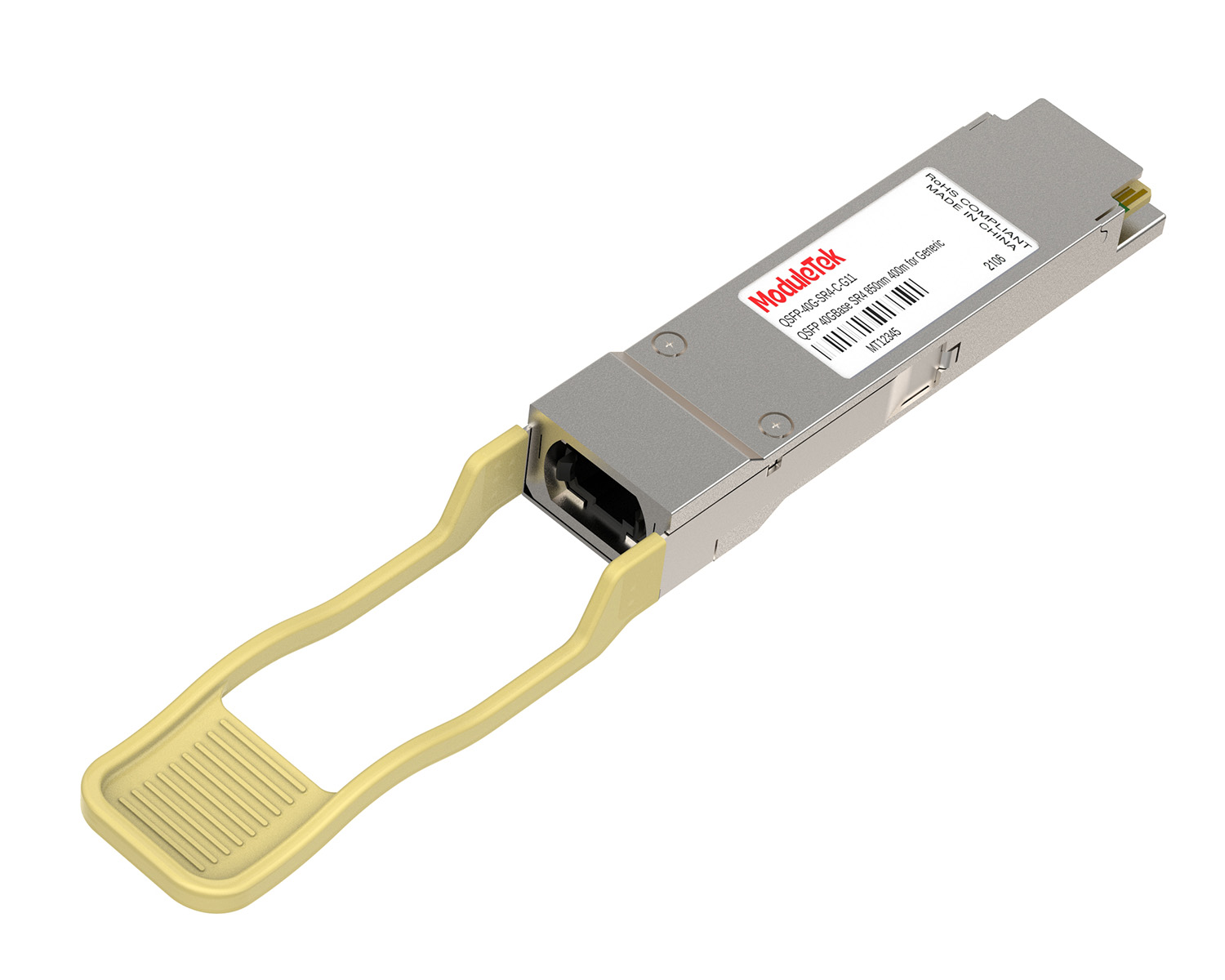
 40G/100G Optical Transceivers
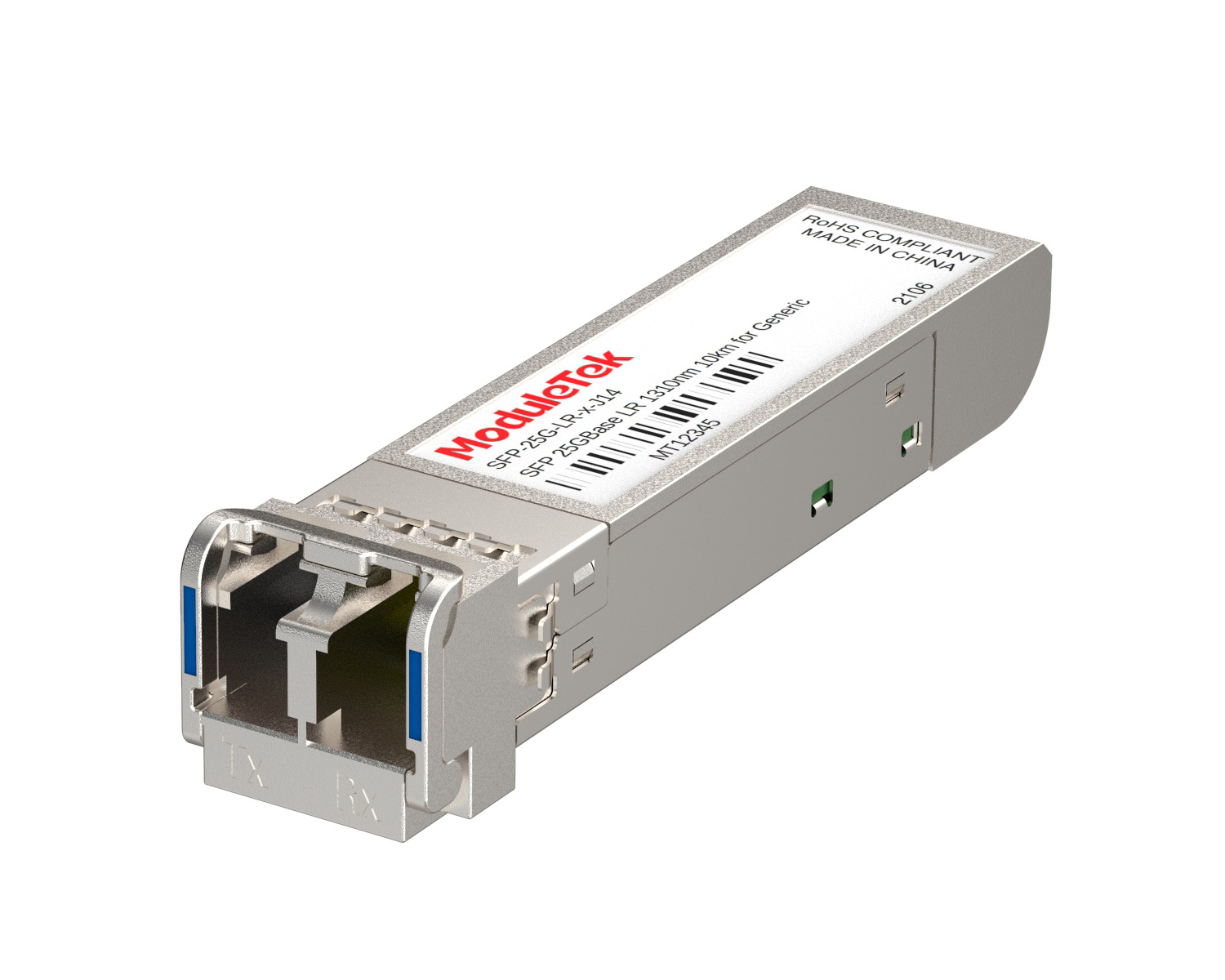 25G Optical Transceivers
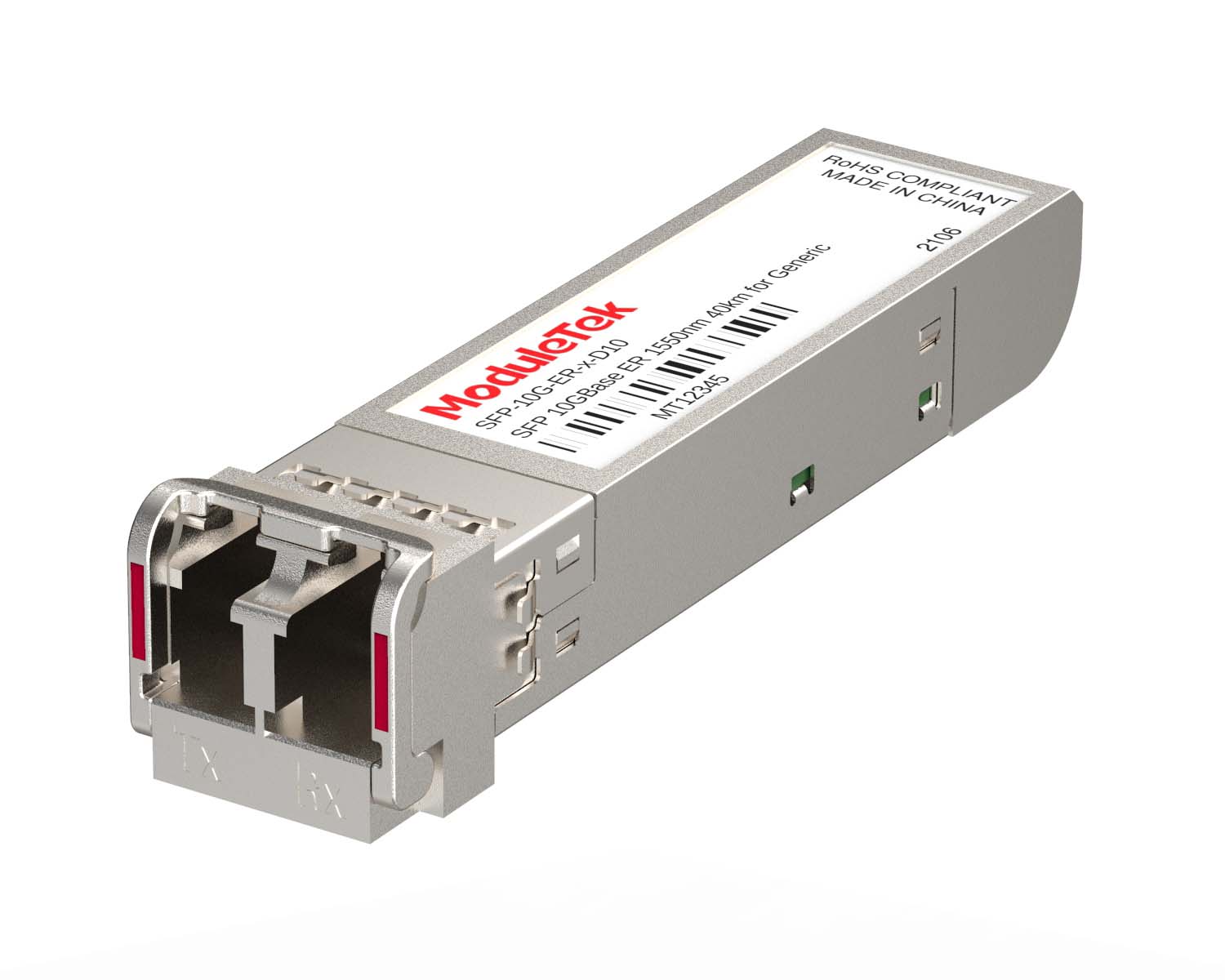 10G Optical Transceivers
 155M/2.5G Optical Transceivers
 1G Optical Transceivers
 1G BIDI Optical Transceivers
 Dual-Rate Optical Transceivers
 FC 16G/32G Optical Transceivers
 CWDM Optical Transceivers
 DWDM Optical Transceivers
 SGMII Port Optical Transceivers
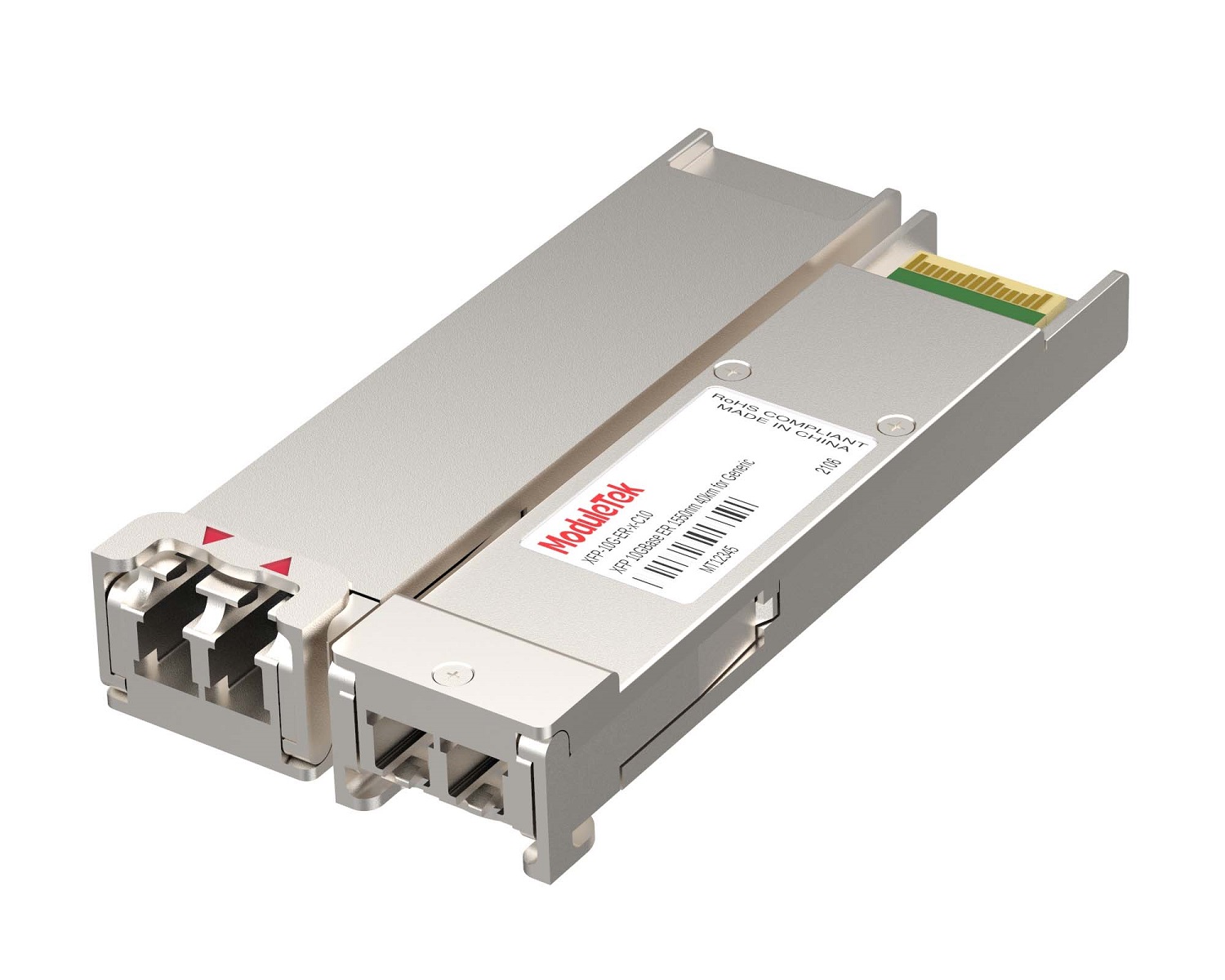 XFP Optical Transceivers
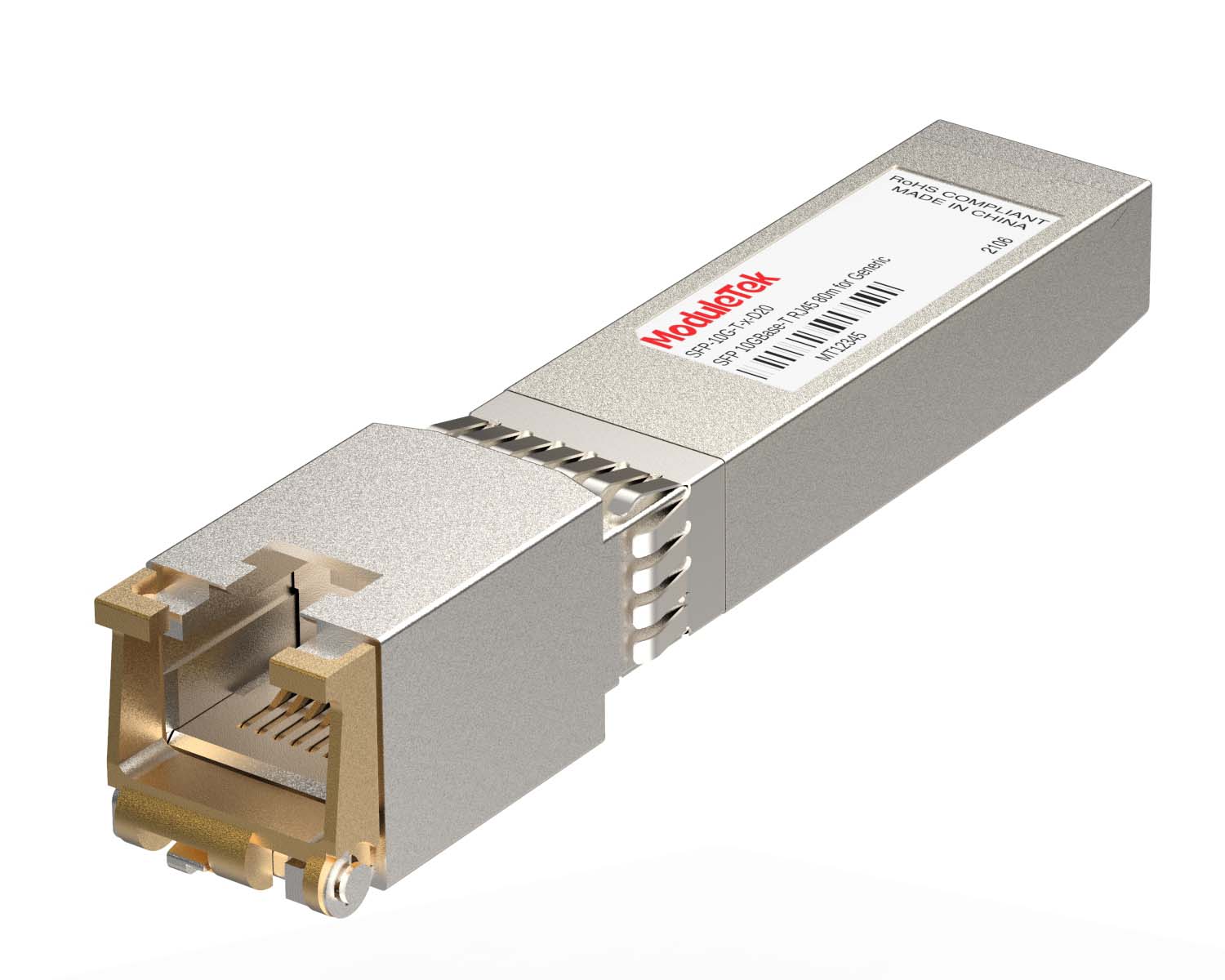 100M/1G/10G Coppers
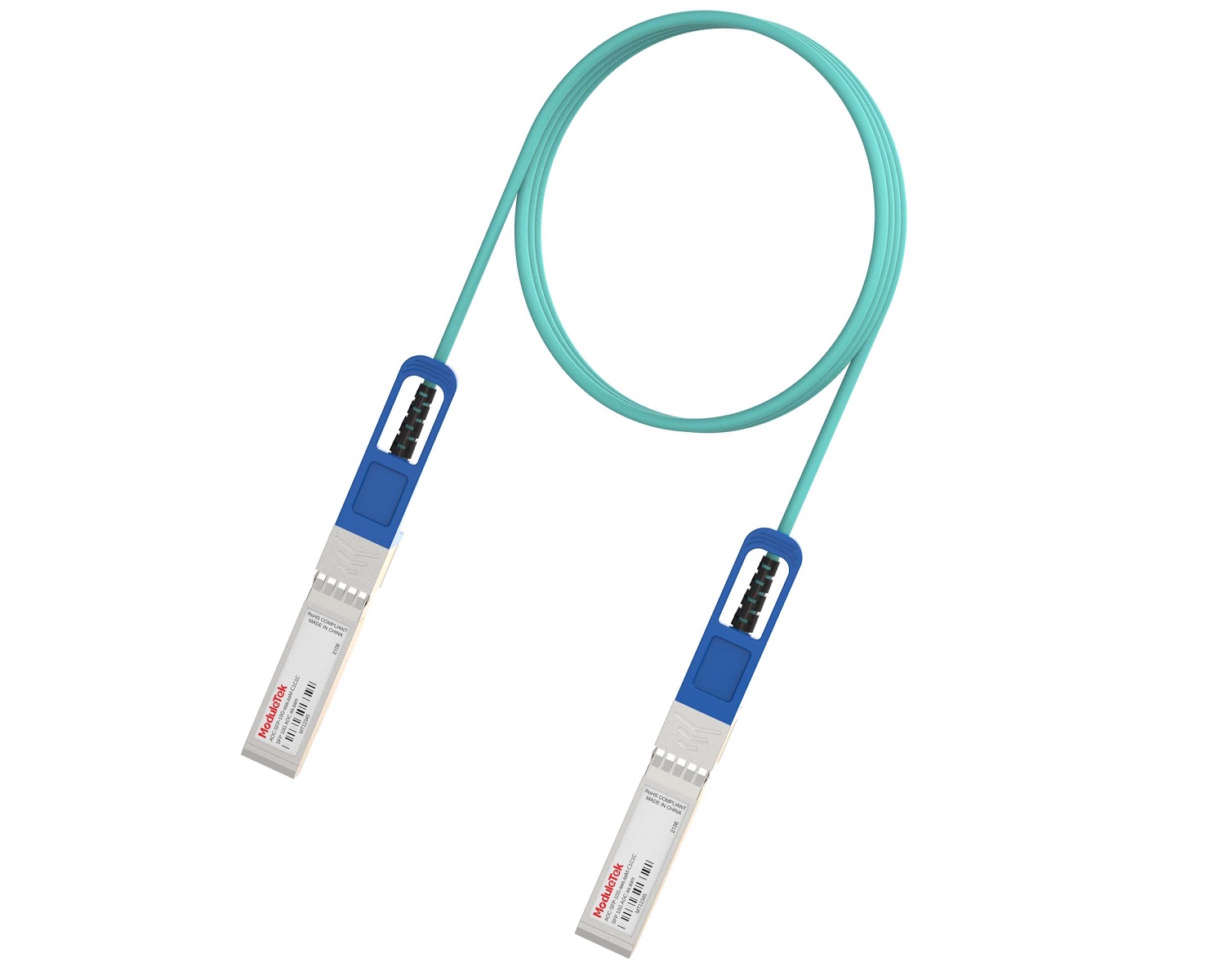 Full-Rate AOC & Breakout Series
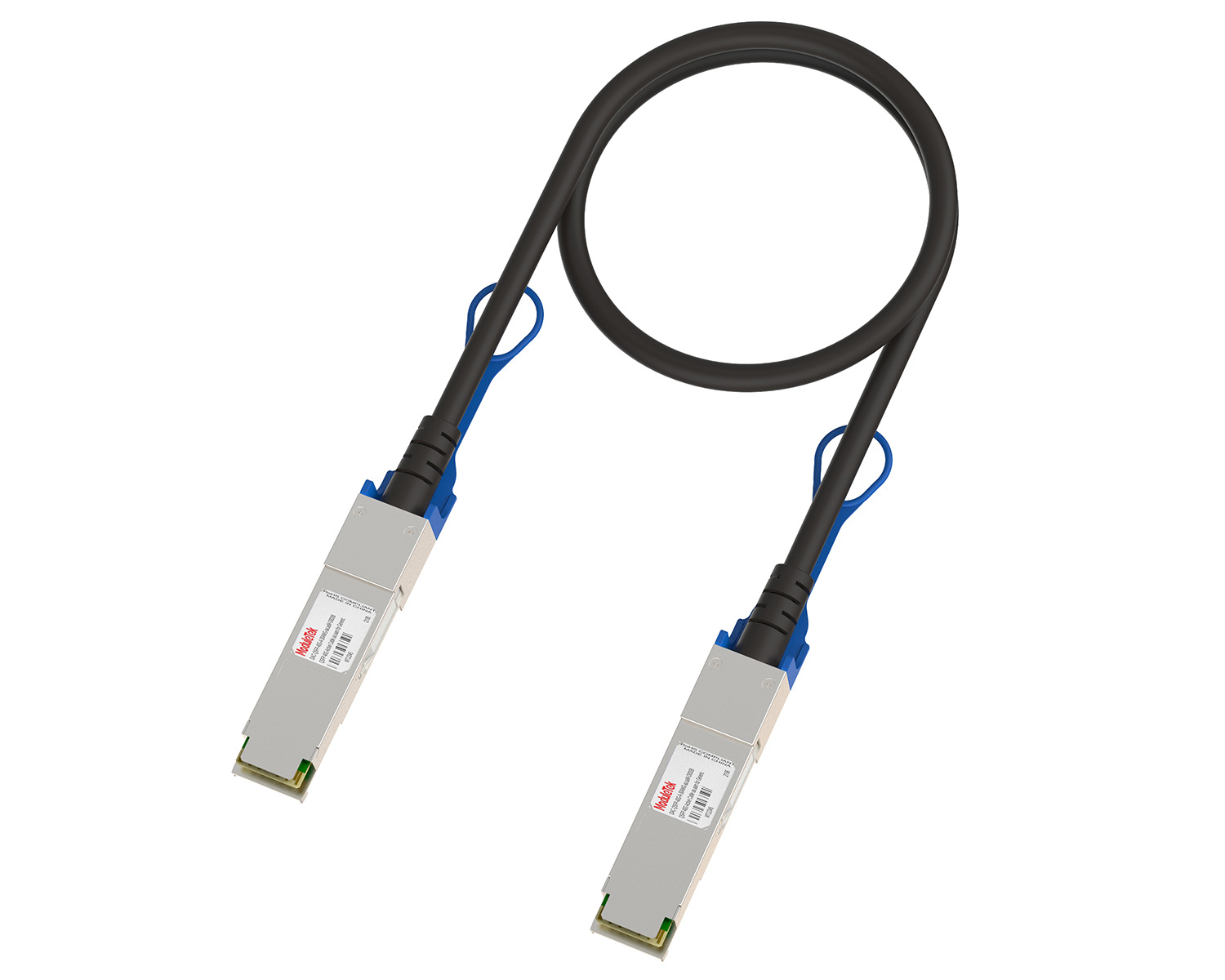 10G/40G Active DAC Series
 Full-Rate Passive DAC Series
 40G/100G Passive Breakout DAC Series
 Regular/MTP-MPO Fiber Patch Cords
 MT2011
 MT2010
 CodingBox
 QSFP to SFP Adapter
Guidelines For Installing Broadcom Network Card Drivers
Time: 2025-01-03
We previously published a test report on Tests For Broadcom BCM957508-P2100G NIC. This article takes the Broadcom BCM957508-P2100G network interface card as an example to introduce the driver installation procedure for Broadcom NICs.
First, confirm the NIC model and download the driver compatible with your operating system from the official website.
This tutorial uses the Linux driver version 218.0.219.21 (driver file: bcm_218.0.219.21.tar.gz).
Official download link: www.broadcom.com/products/ethernet-connectivity/network-adapters/p2100g
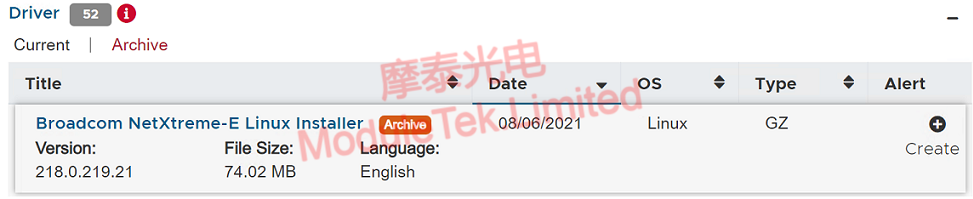
Figure 1 Driver Download Page
Copy the driver file to a target directory on the server via a USB flash drive. In this case, the file is saved to the /opt directory.
Open the server terminal, navigate to the save path of the driver file, and extract the installation package.
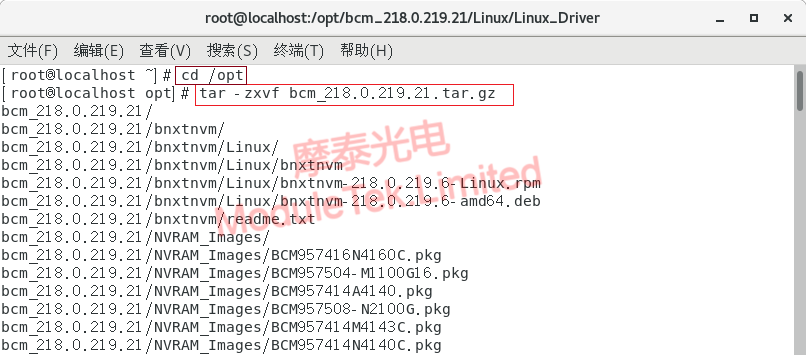
Figure 2 Extract Installation Package
Enter the Linux/Linux_Driver subfolder under the extracted directory, locate the driver file netxtreme-bnxt_en-1.10.2-218.0.219.2.tar.gz, and extract it again.
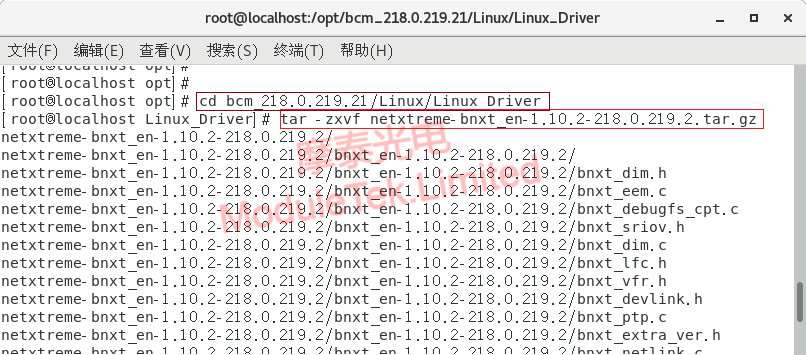
Figure 3 Extract Driver File
After extraction, enter the decompressed driver directory and run the command to compile the driver source code:
make
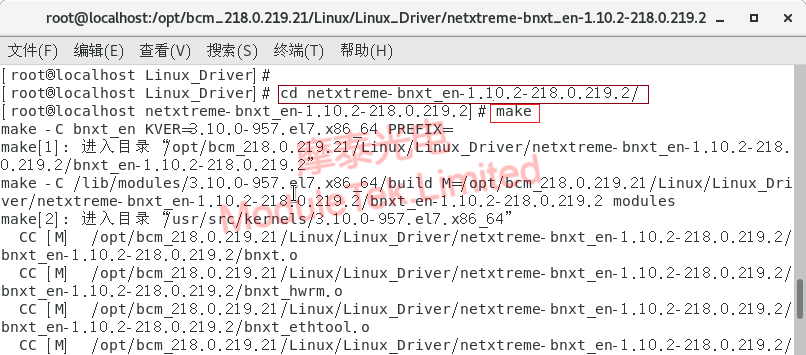
Figure 4 Compile Driver Source Code
Once compilation completes, execute the command to install the driver:
make install
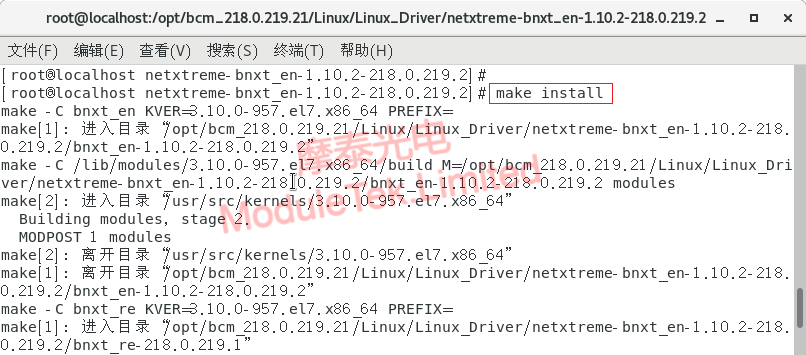
Figure 5 Install the Driver
Copy the bnxt_en.ko driver file from /lib/modules/3.10.0-693.el7.x86_64/updates to the /drivers/net subdirectory.
After copying, enter the bnxt_en folder and run the command to update module dependencies:
depmod -a
Execute the command to load the driver:
modprobe bnxt_en
If no error prompts appear, the loading is successful.
Run the command to check the status of loaded driver modules:
lsmod
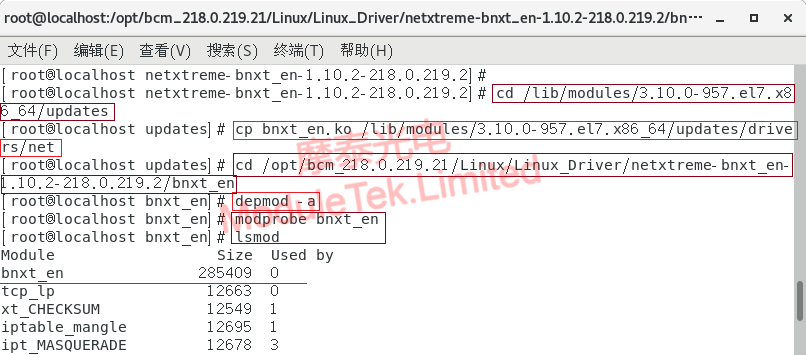
Figure 6 Driver Loading and Verification
After driver installation finishes, connect the NIC to the server, and the system can correctly recognize NIC hardware information.
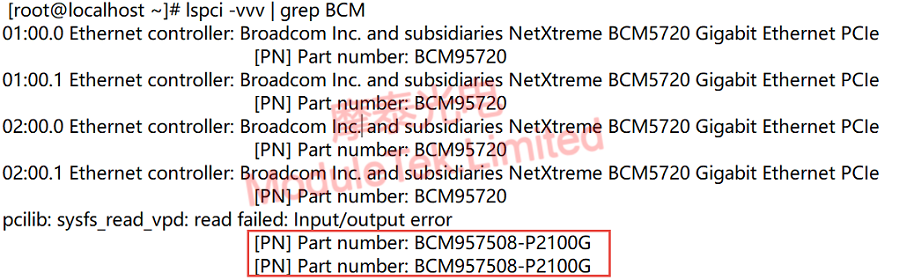
Figure 7 View NIC Hardware Information
Note: File decompression and copying can be operated directly through the server’s graphical folder interface. This document uses Linux command lines uniformly for clearer demonstration.
Moduletek Limited is at your service.
For further inquiries about the above content, please contact us at: sales@moduletek.com